This article shows what your employees see when they use SDS Manager to find Safety Data Sheets (SDSs) at work. For step-by-step instructions to give to employees, see the user manual for end-users.
Access by scanning a QR code poster
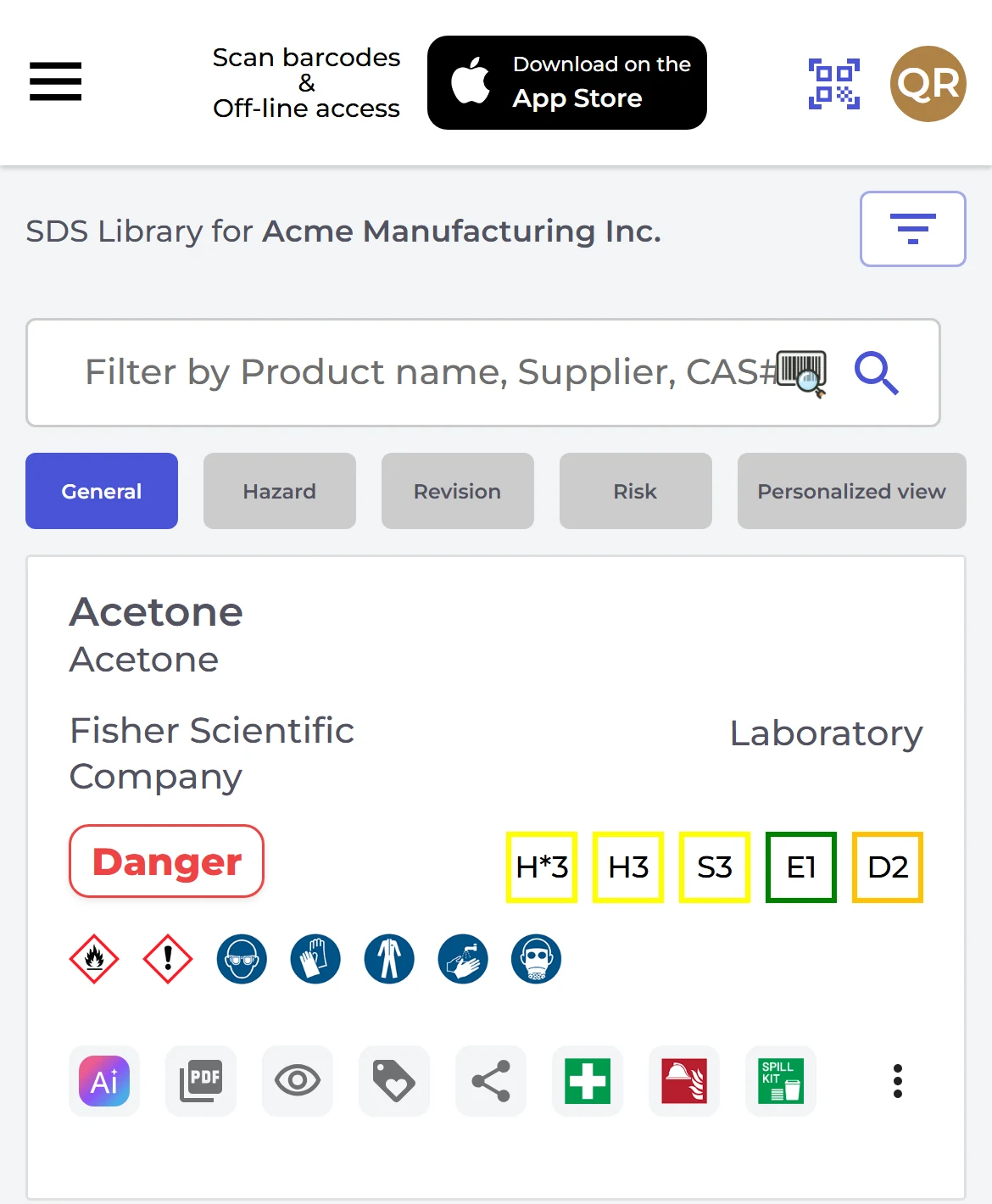
Employees scan a QR code poster at the workplace with their phone. Your SDS library opens in the browser, with no app and no login. A QR code can give access to the whole library or to some locations only. You can also open the library on a shared tablet, or from a link on your intranet.
Read more: How can our employees access our SDS library by scanning QR code poster?
Made for phones
SDS Manager reads the information in each SDS file and shows it in a format that is easy to read on a phone. For each product, employees see the signal word, the hazard pictograms, the protective equipment (PPE) and hazard ratings for health, safety, environment and disposal. The ratings are based on the hazard statements in the SDS and give a quick idea of how hazardous the product is.
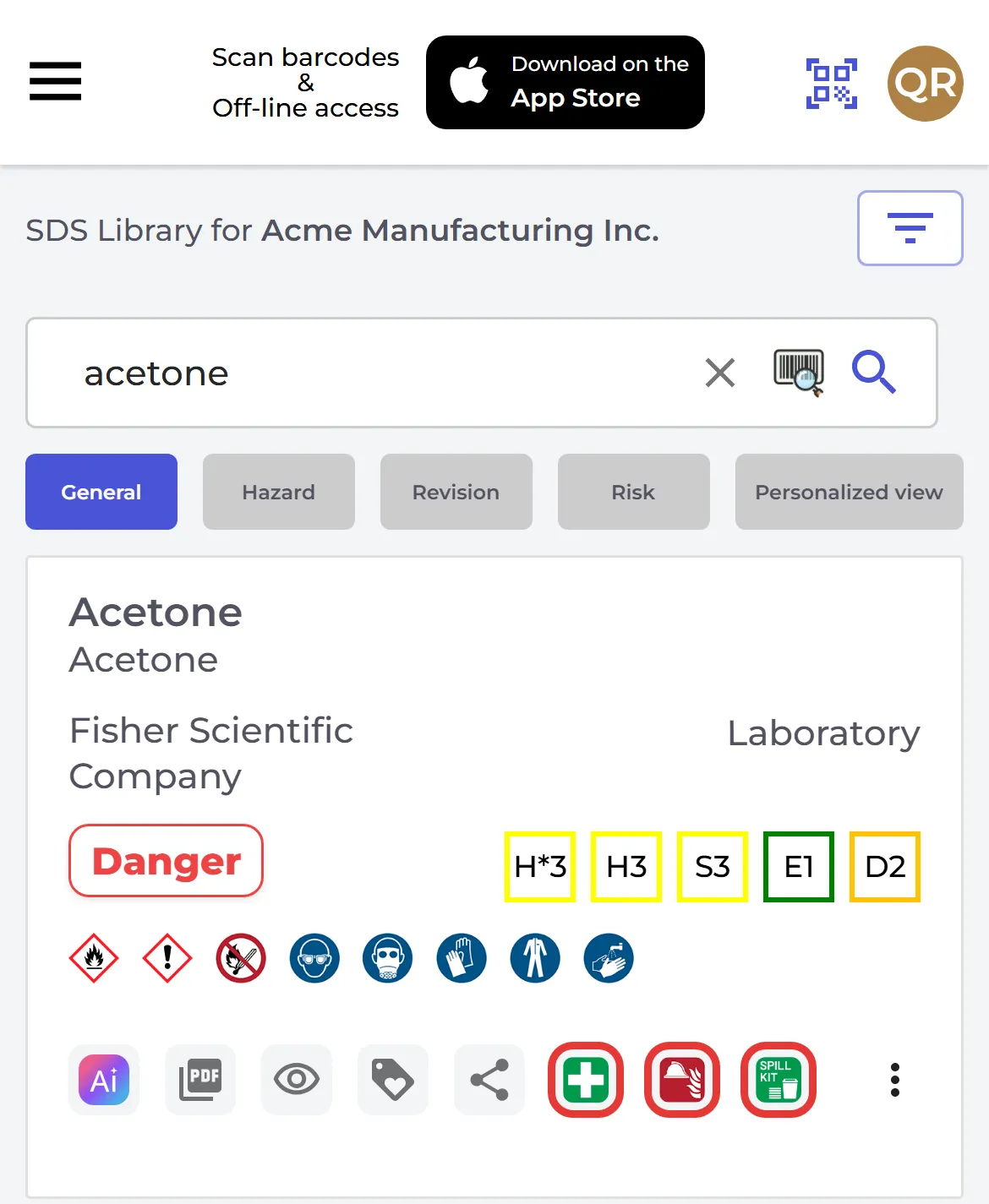
The buttons on each product open the first aid measures, the firefighting measures and the measures for accidental release (spills) with one tap. The eye button shows the whole SDS in a readable layout, and the PDF button opens the original file, which is much harder to read on a phone.
Easy to find the right SDS
Employees type a few letters of the product name, supplier name, CAS# or UFI#, or scan the barcode on the product. Read more: How can our employees find the SDS for a chemical?
When a product is not in your library, SDS Manager can show results from our global database of 30 million+ SDSs instead. That way employees can still find an SDS for a product that has not been added yet. You switch this on or off in Settings with Employee SDS search: Show search result from global database if SDS is not found in Company SDS library. Read more: Employee SDS Search: Display Results from Global Database if Not Found in Company Library
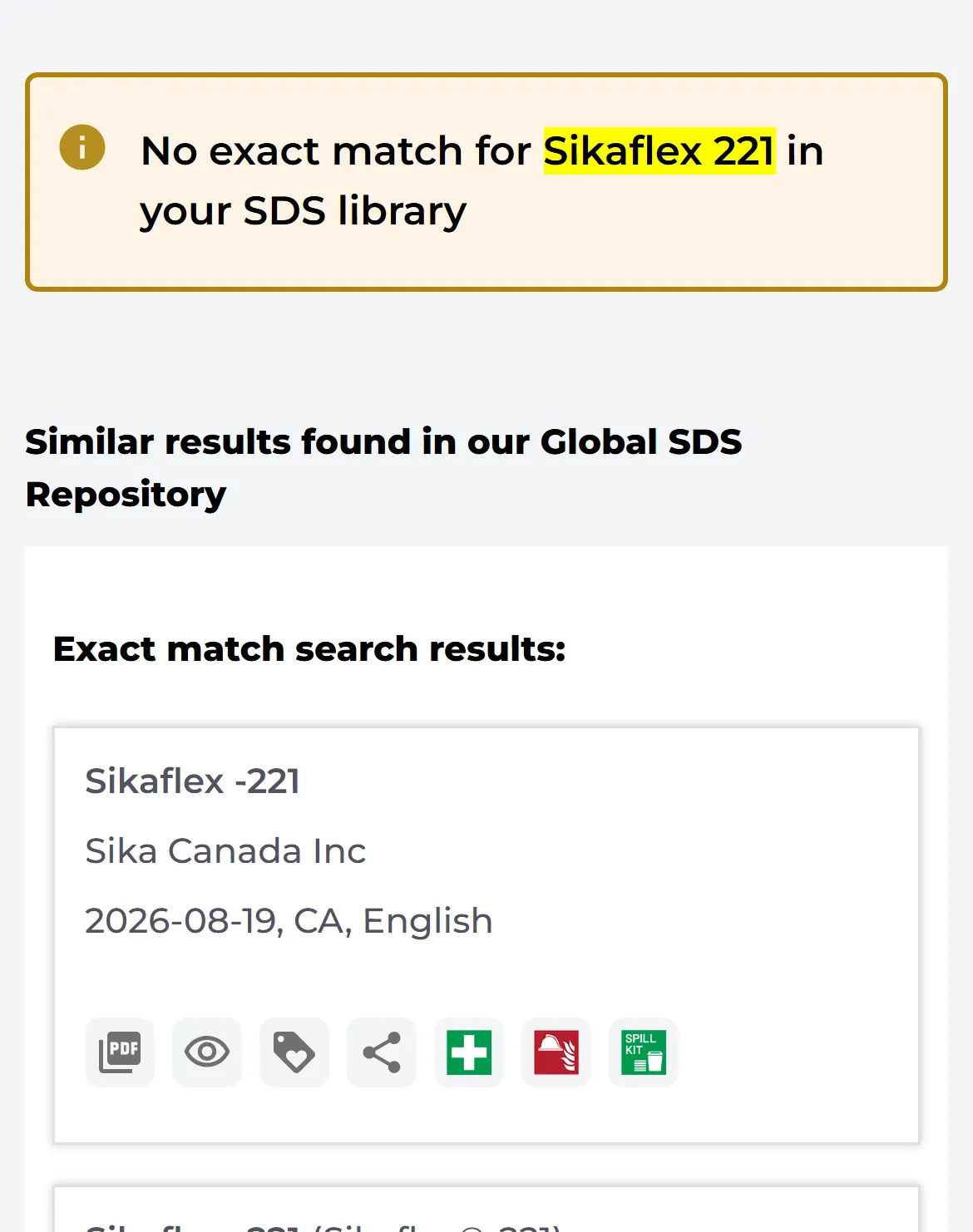
Employees can also ask for a missing SDS to be added to your library. Administrators who have switched on the email for new SDS requests are told about each request. Read more: SDS Requests: Allow your employees to request the addition of SDSs to your SDS library
Hazard and risk information
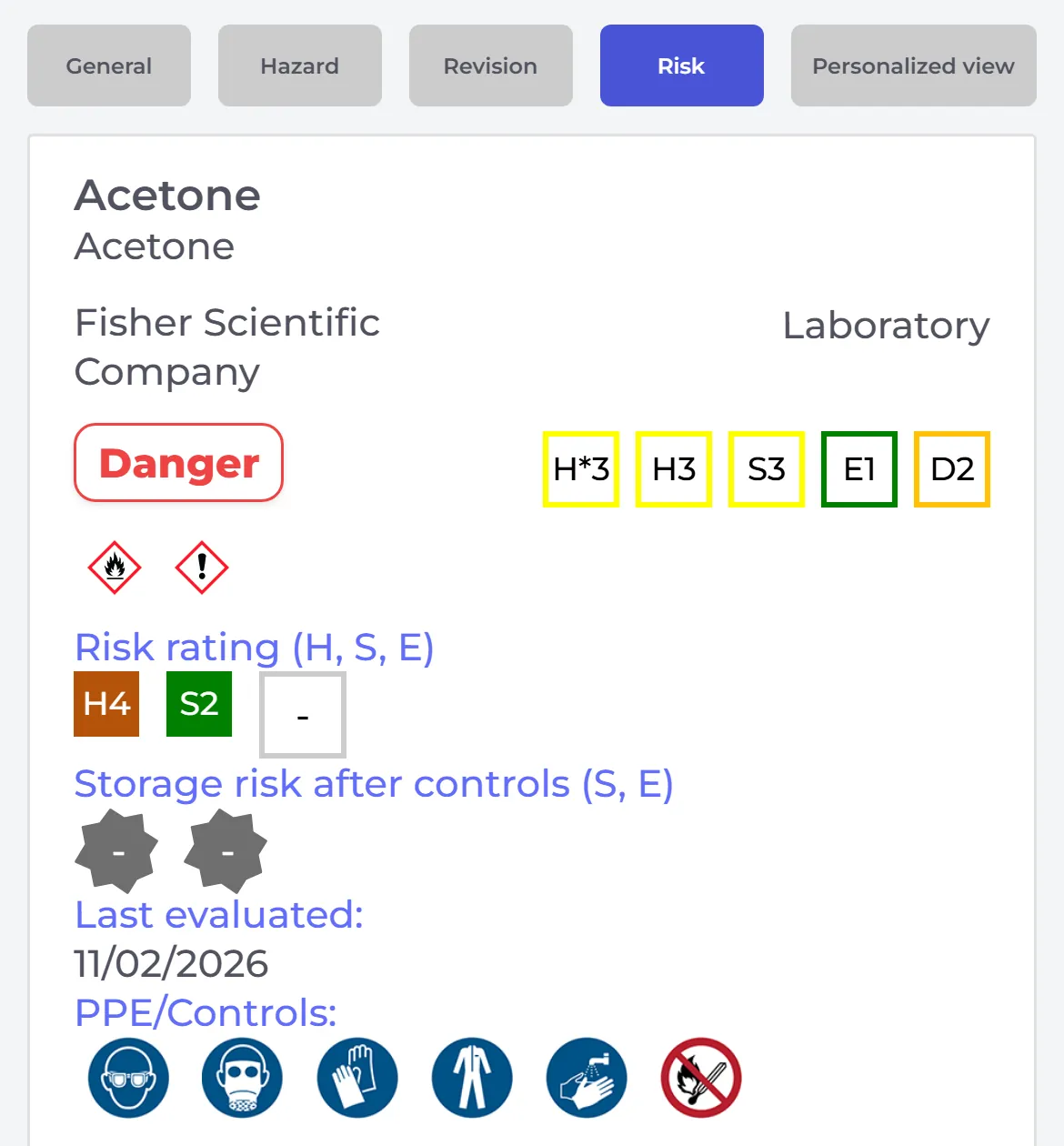
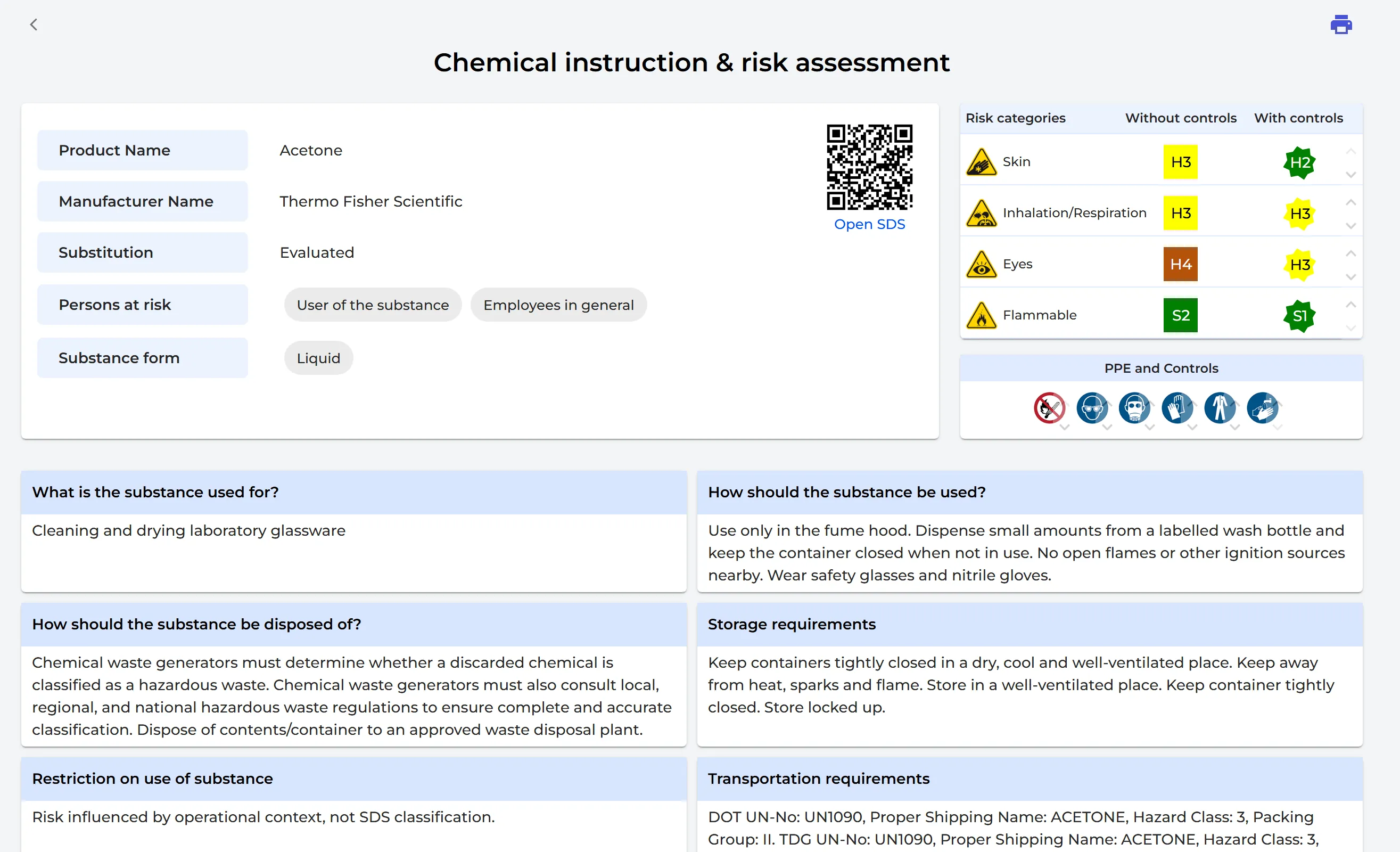
The Hazard view shows the chemical names, the lists the chemical is on, and the hazard statements. If you have made a risk assessment of the product, the Risk view shows the risk rating and the PPE and controls from your assessment.
Employees can also open the chemical instruction for a product from its ⋮ menu (Open chemical instruction), or by scanning the QR code for it. Read more: Access Chemical instructions by scanning QR codes
Secondary container labels
For hazardous products, or when you pour a product into another container, you can print labels in many sizes, including Avery and Brady label sheets. Each label shows the hazard pictograms, the H and P statements and the PPE, and has a QR code that opens the SDS of the product.
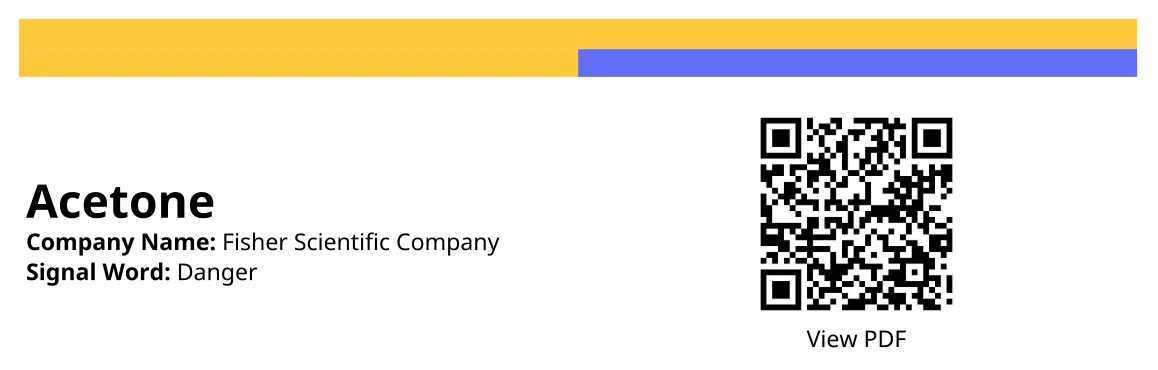
Read more: How to create Secondary container labels for hazardous chemicals · What secondary container label formats are supported?
Risk assessments and job procedures
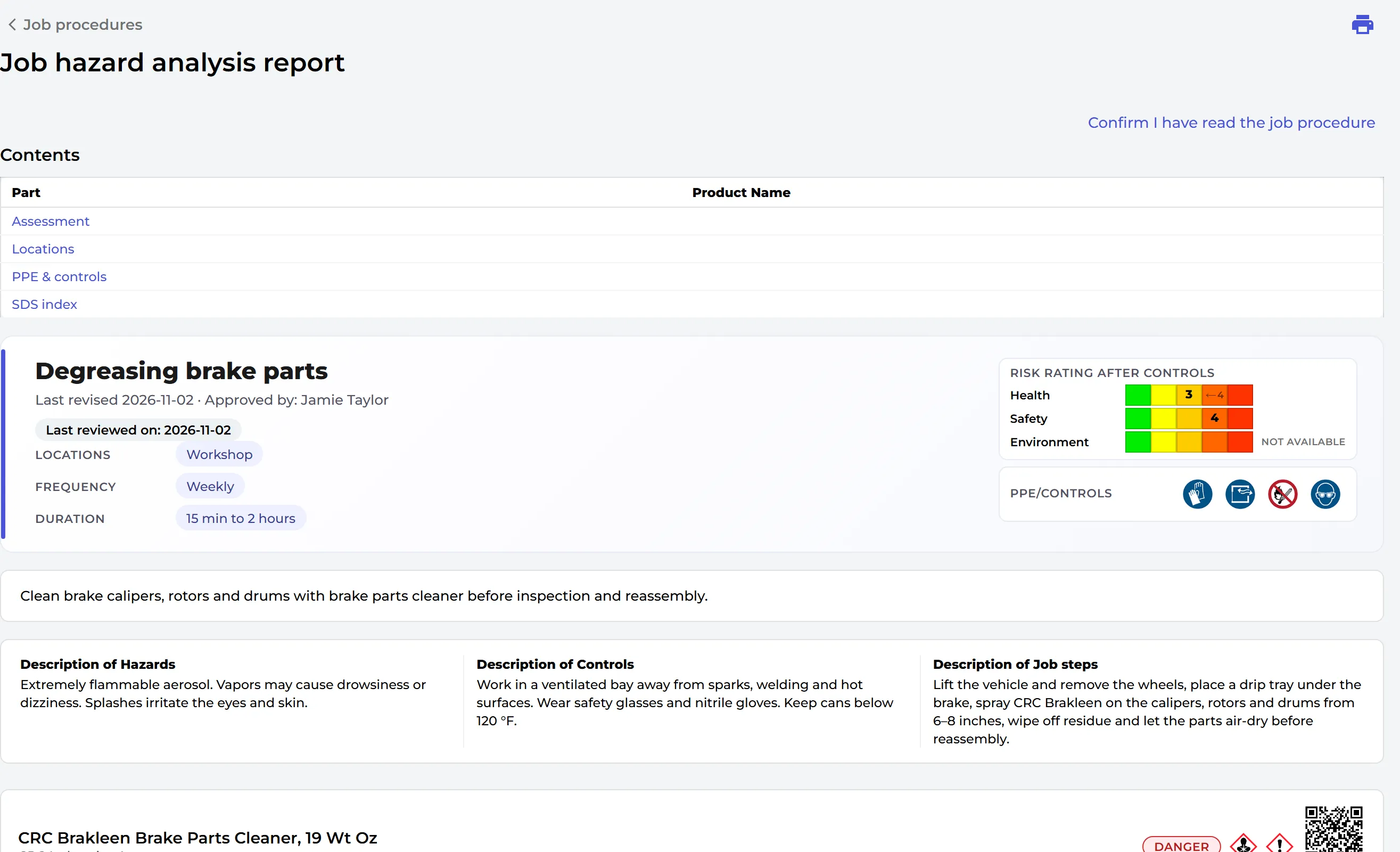
If you use SDS Manager for risk assessments and job procedures, employees see the PPE and controls they need. Employees assigned to a job procedure find it under My Proc. and confirm that they have read it. These read receipts document that employees know about the PPE and controls.
This is what they look like in our demo company: the chemical instruction & risk assessment for acetone, and the job hazard analysis report for a job procedure.
Read more: How to create a risk assessment of a chemical? · How can I use SDS Manager to document job/work procedures for hazardous chemicals?
The SDS Manager app for offline access
We recommend QR code posters as the main way for employees to open SDSs. For employees who need SDSs without an internet connection, or who look up SDSs by scanning barcodes, there is the SDS Manager app for iPhone and Android. At the top of the SDS list, employees tap Download on the App Store or Get it on Google Play. The app gives them the same SDS library as the QR code. You can switch this on or off in Settings with App access for QR users.
Read more: How do you install the SDS Manager iPhone-iOS and Android app? · How to lookup an SDS by scanning Barcode (EAN-/UPC-code)
Try it yourself
Click the picture, or scan the QR code with your phone, to open our demo SDS library and see what your employees will see.

Attached files: