Employees can find a Safety Data Sheet (SDS) in your SDS library in four ways. No training is needed for any of them.
1. Scan a QR code poster (recommended, no login)
Put QR code posters on the wall where chemicals are used. When an employee scans the large QR code with any phone, your SDS library opens read-only in the browser. They type part of the product name or supplier name and open the SDS. First aid, firefighting and accidental release information are one tap away.
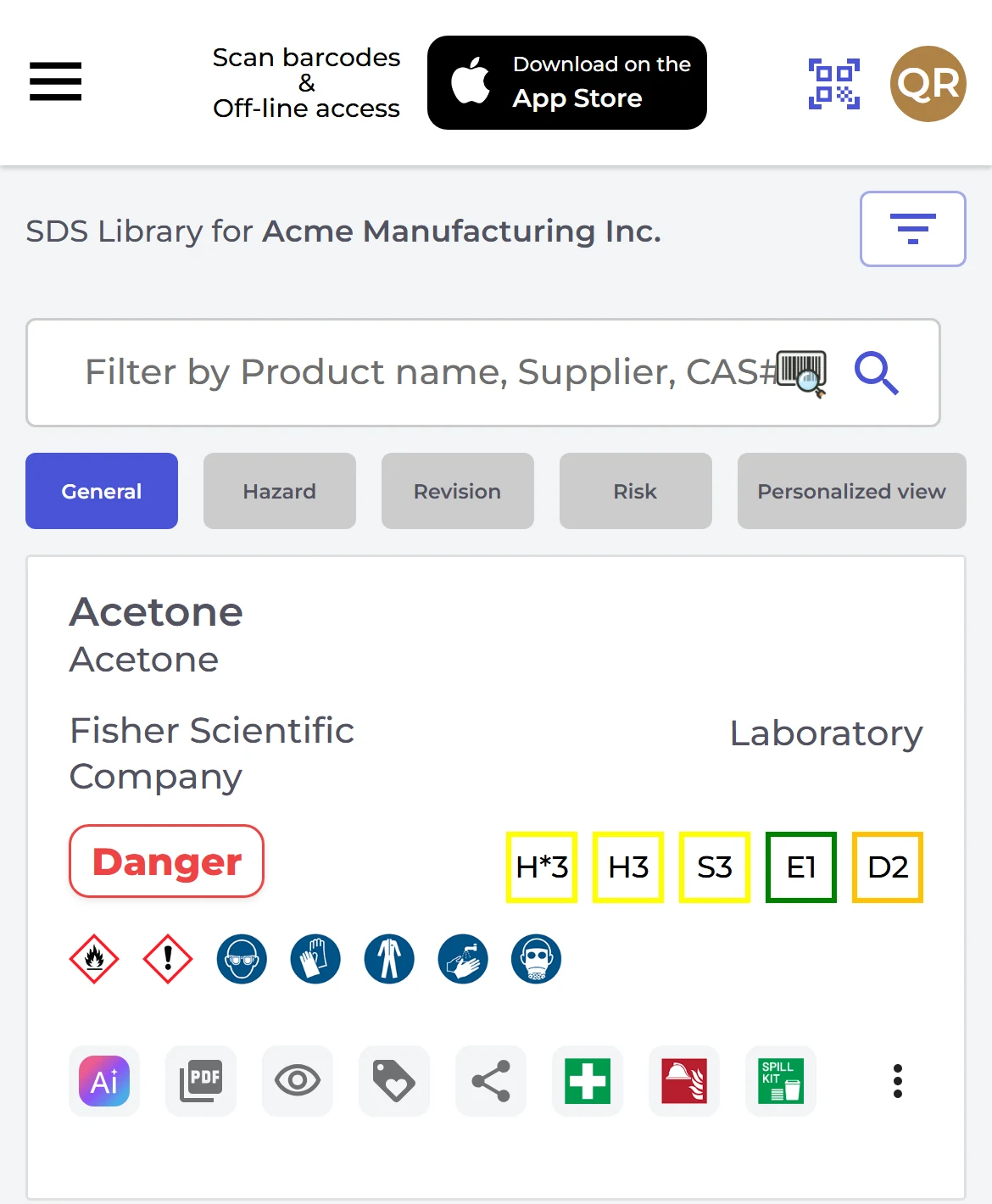
Each QR code has its own language. It can give access to the whole library or to selected locations only. You manage posters under QR Access in the left menu: click a poster in the list, then Print QR poster. Preview SDS library for this code shows exactly what your employees will see.
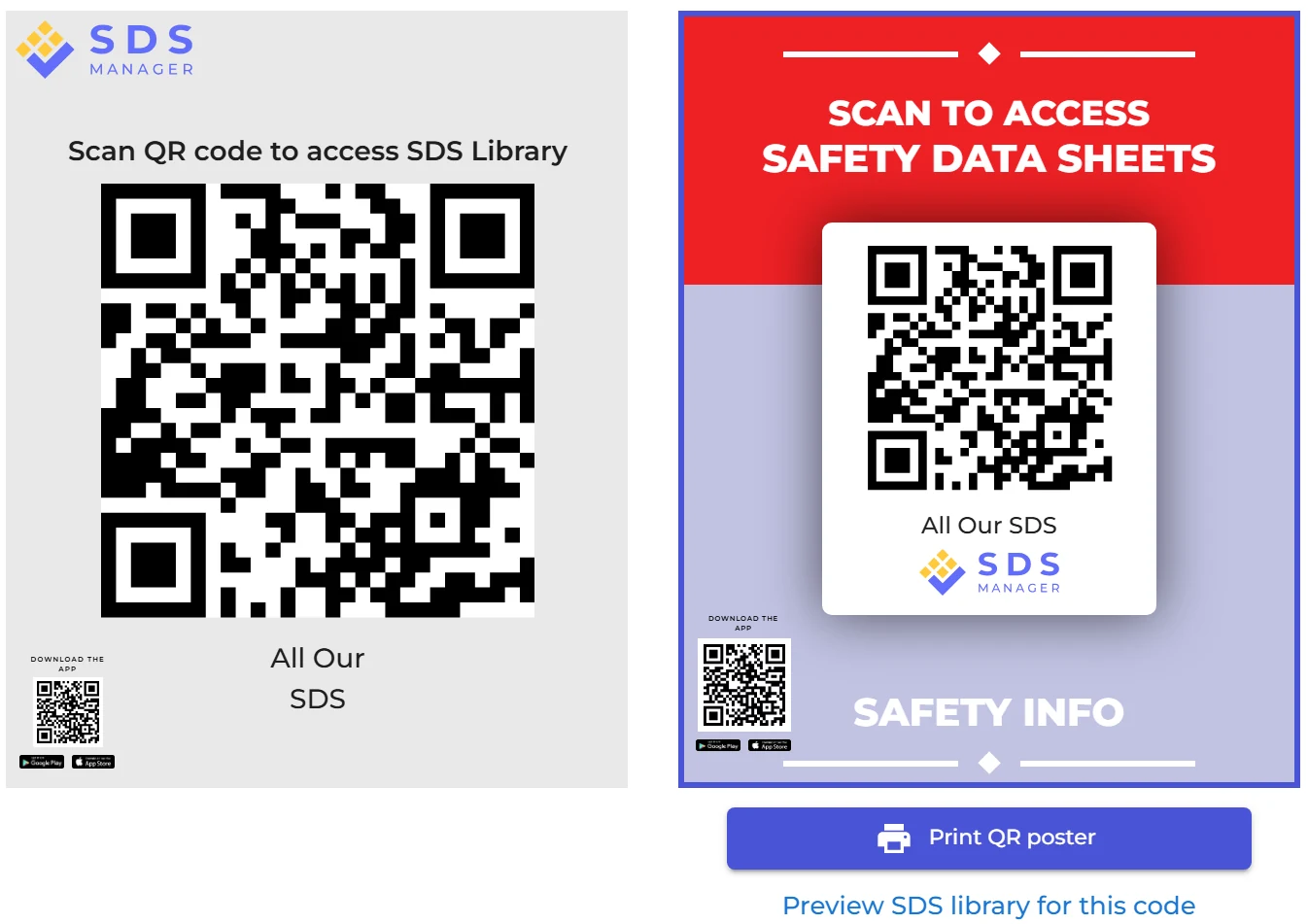
The small QR code in the lower-left corner of the poster installs the optional SDS Manager app (App Store or Google Play). With the app, employees can also open the SDSs offline.
Read more: How can our employees access our SDS library by scanning a QR code poster?
2. Search in My SDS (employees with a user account)
Employees who log in click My SDS in the left menu and type part of the product name, supplier name, CAS# or UFI# in the search field.

Note: the search box on the Dashboard ("Search SDS Database") searches our global database of 30 million+ SDSs and adds SDSs to your library. Employees with the Staff role do not see it.
3. Scan the product barcode
Click the barcode icon in the search field, or the Scan barcode icon at the top right, and scan the EAN/UPC barcode on the product.

Read more: How to look up an SDS by scanning a barcode (EAN/UPC code)
4. Scan the QR code on a secondary container label
Labels printed from SDS Manager (the Print Label icon on each SDS) have a QR code that opens the SDS for that product.
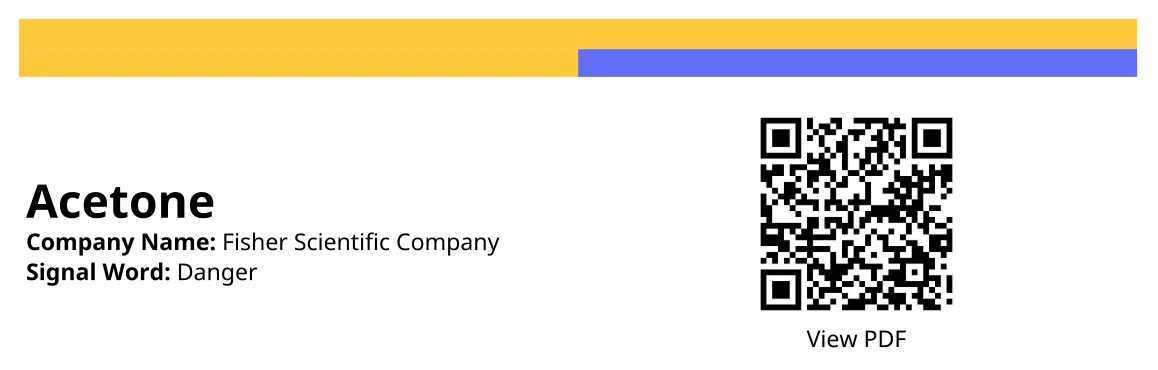
Read more: How to create secondary container labels for hazardous chemicals
Link from your intranet
The QR code poster also gives you a link that you can put on your intranet. Employees click it and the SDS library opens, the same way as when they scan the QR code. Read more: How can I create a link on our intranet to access our SDS library?
If the SDS is not in your library
You can let employees see results from our global SDS database when their search finds nothing in your library, and let them ask for a missing SDS to be added: