This manual is for employees in companies that use SDS Manager to manage their Safety Data Sheets (SDSs). It shows how to find the SDS for a chemical and read the safety information on your phone or computer.
Open your SDS library
- Scan the QR code poster at your workplace with your phone camera. Your SDS library opens in the browser. You do not need to log in.
- Or click the link to the SDS library on your intranet.
- Or log in to SDS Manager with your user account and click My SDS in the left menu.
Read more: How can our employees find the SDS for a chemical?
Find the SDS
Type part of the product name, supplier name, CAS# or UFI# in the search field and tap the magnifying glass. To scan the barcode on the product, tap the barcode icon in the search field.
Each product shows its name, the supplier, the location, the signal word (Danger or Warning), the hazard pictograms and the protective equipment (PPE) you need.
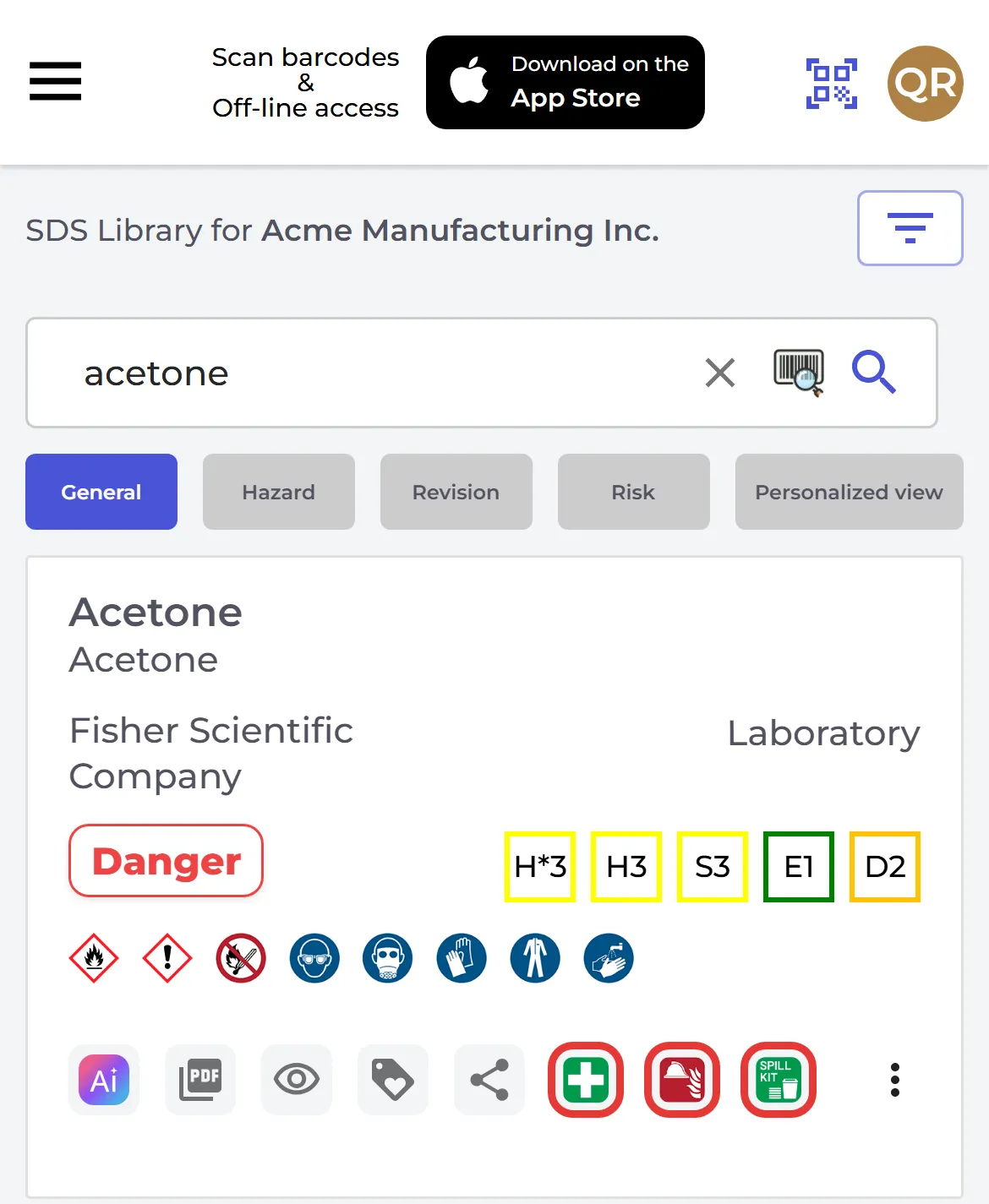
The boxes on the right are ratings from the SDS: H for health, S for safety, E for environment and D for disposal. H* is the health rating without the hazards of swallowing the product. The higher the number, the higher the hazard. The ratings are only an indication, based on the hazard statements in the SDS.
In an emergency: first aid, fire and spills
Each product has three buttons that open the right part of the SDS straight away:
- The green cross (First aid) opens the first aid measures.
- The red fire icon (Firefighting) opens the firefighting measures.
- The spill kit (Accidental release) opens what to do if the product is spilled.
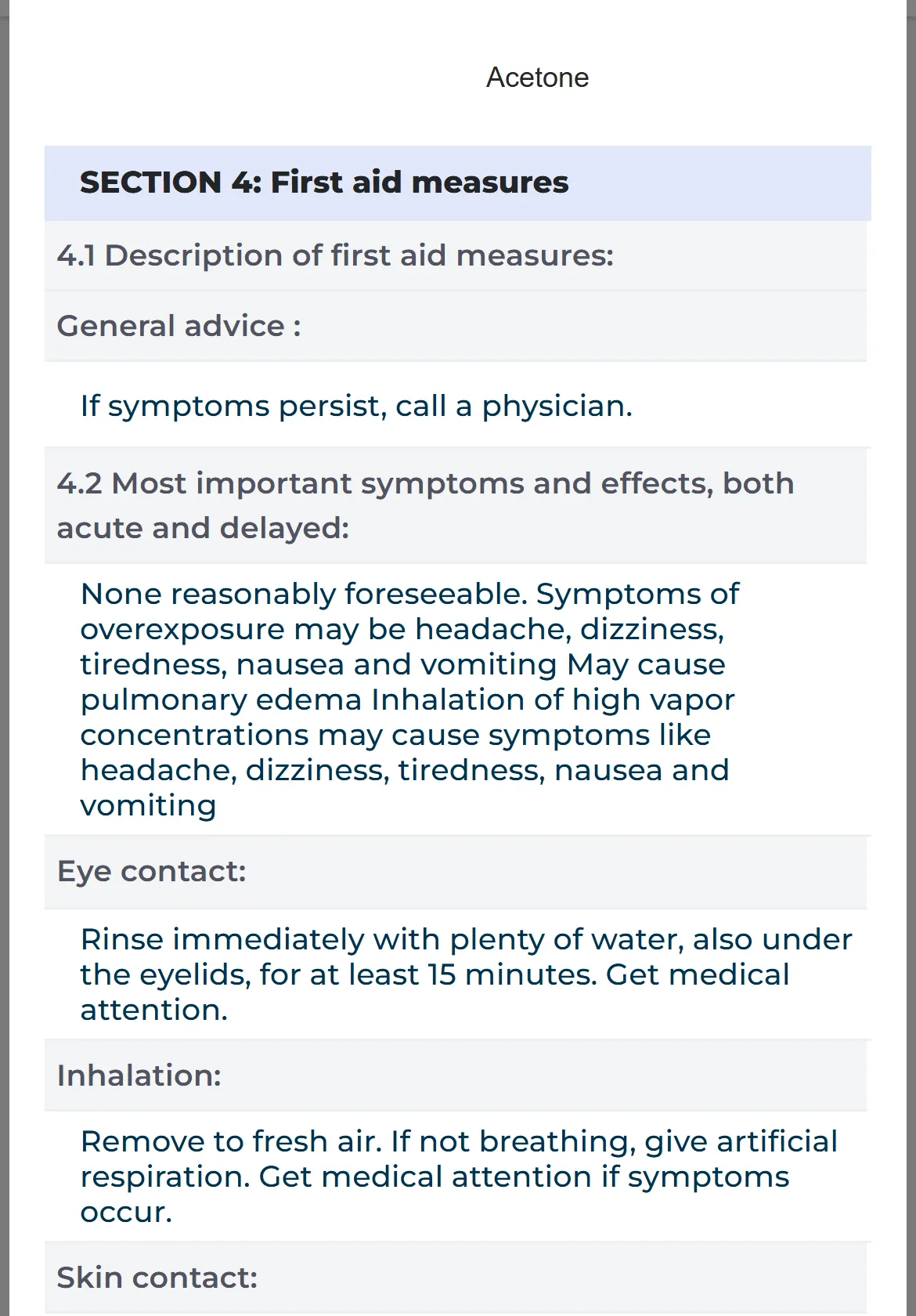
Read the whole SDS
Tap the eye (View details) to see all the information from the SDS, laid out to be easy to read on a phone. It starts with the pictograms, the PPE and the hazard ratings, followed by the sections of the SDS.
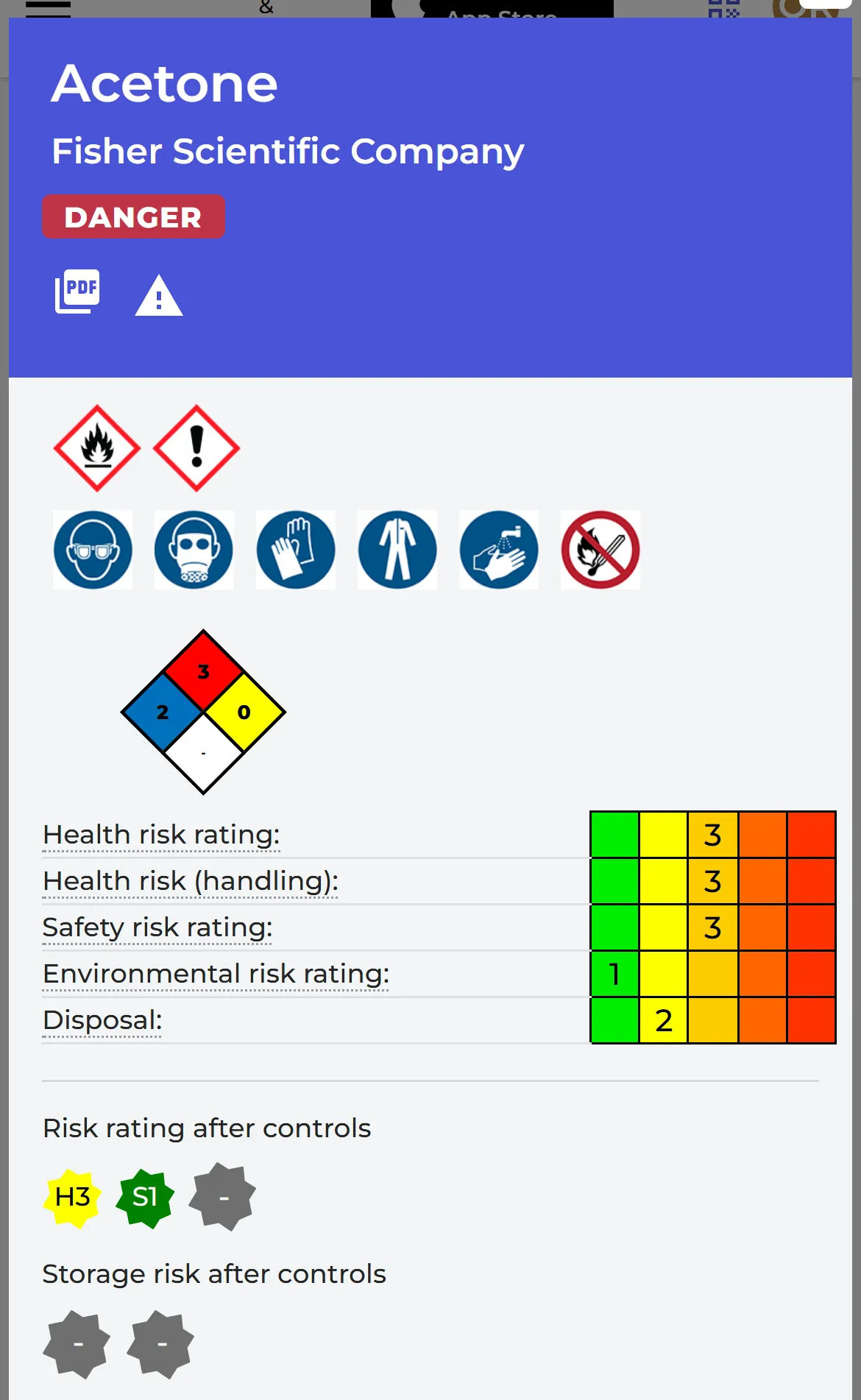
Tap the PDF icon (View PDF) to open the original SDS file. Other buttons let you print a label for a container (Print Label) and share the SDS (Share PDF). If you use SDS Manager in English, the Ai button lets you ask the SDS AI Assistant questions about the product. Always check important answers in the SDS.
More information in the list
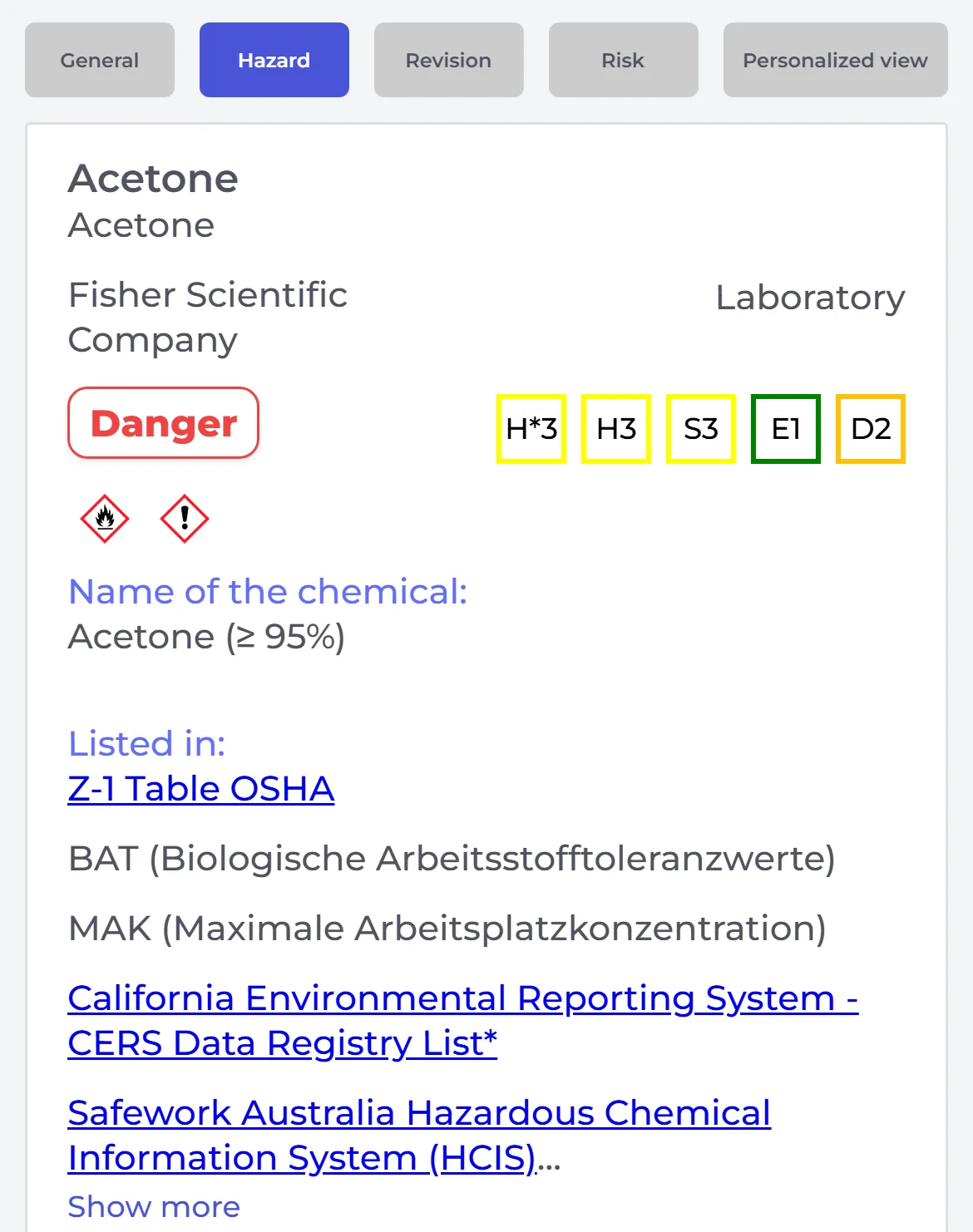
Above the list you can choose what to see for each product:
- Hazard: the chemical names, the lists the chemical is on, and the hazard statements.
- Revision: the date of the SDS and whether a newer version exists.
- Risk: the risk rating, if your company has made a risk assessment of the product.
- Personalized view (on some plans): tap ⊕ to choose your own columns, for example the physical state or pH.
If you cannot find the SDS
Your company can let SDS Manager show results from our global database of 30 million+ SDSs when your search finds nothing in your own library. Your company can also let you ask for a missing SDS to be added: tap Request Safety Data Sheet for this product to be added to our SDS Library below the search results.
Labels on containers
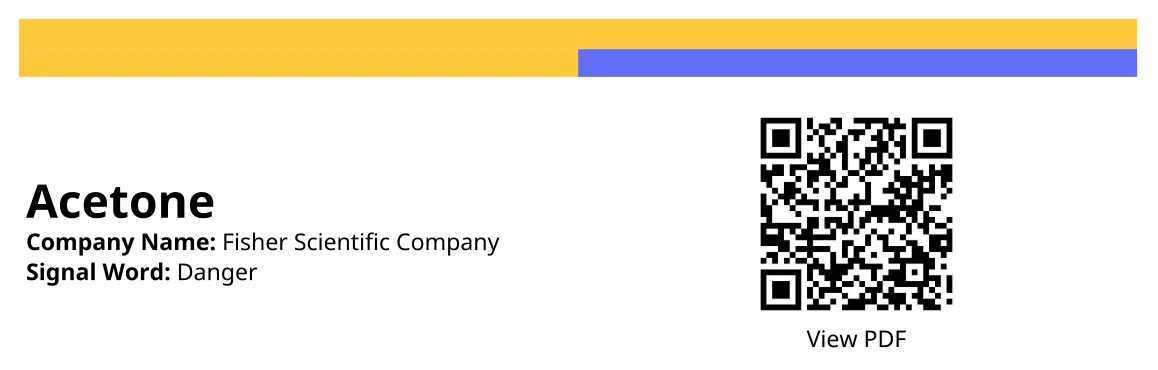
If a container has a label printed from SDS Manager, scan the QR code on the label to open the SDS of the product.
Job procedures
If you are assigned to a job procedure, open My Proc. (My job procedures) in the menu. Open the procedure, read it, and click Confirm I have read the job procedure.
The SDS Manager app
Do you want to scan barcodes or open SDSs without an internet connection? Use Download on the App Store or Get it on Google Play at the top of the SDS list to install the SDS Manager app. Read more: How do you install the SDS Manager iPhone-iOS and Android app?