Most employees only need to look up Safety Data Sheets (SDSs). They don't need a user account: give them a QR code poster. Anyone who scans the QR code with a phone opens your SDS library in the browser, with read-only access. They search by product or supplier name and open the SDS, but they cannot change anything.
Create a QR code poster
- Click QR Access (Employee Access) in the left menu, then Create QR poster.
- Enter a Name, for example the site or department the QR code is for. Choose the Language and the Measurement system (US or Metric).
- Choose Access to all SDSs to give access to every SDS in your library, or Customize access to choose locations. Click Create.
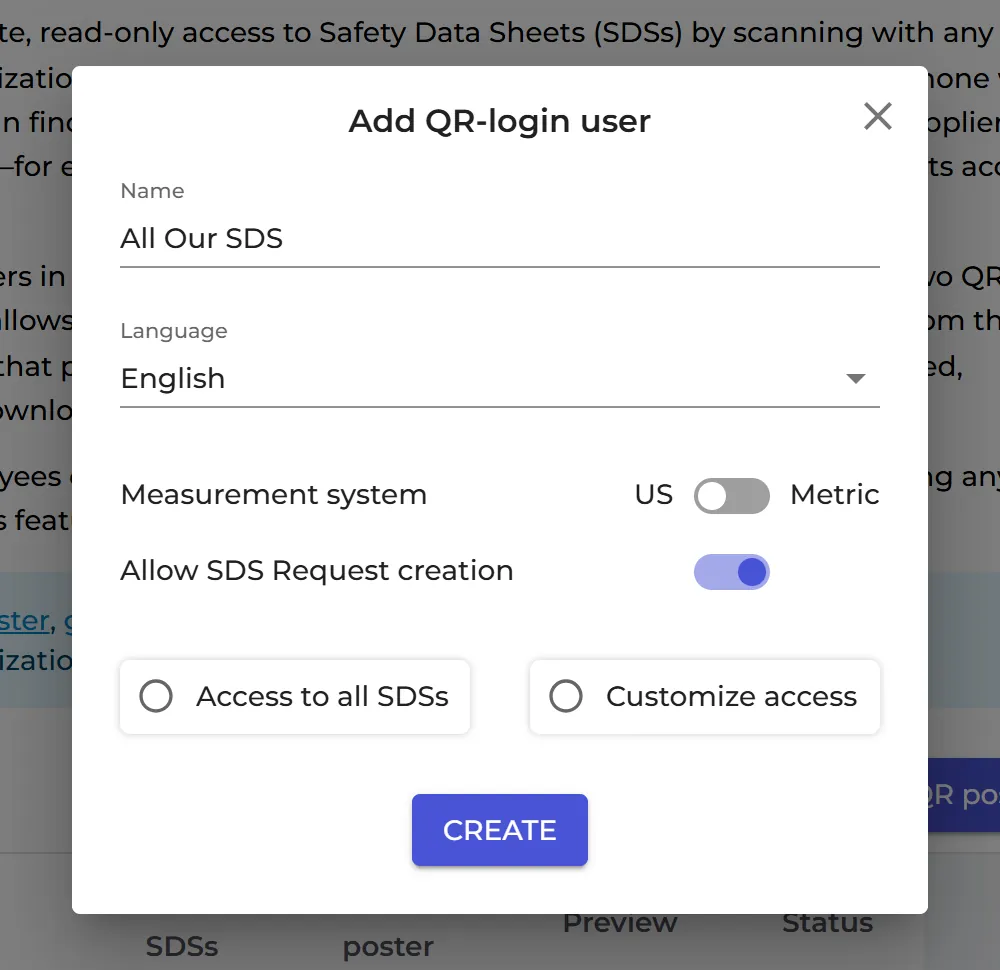
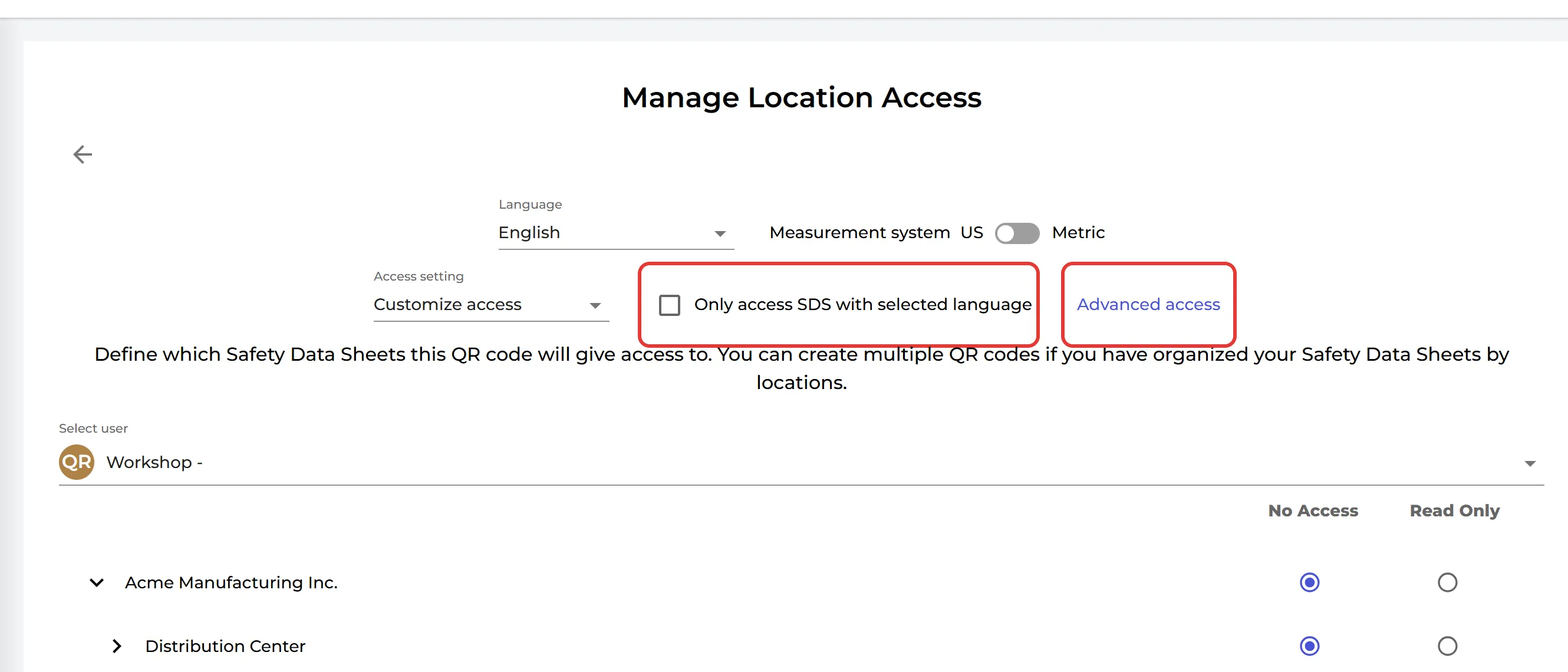
With Customize access, the Manage Location Access page opens. Choose the locations the QR code gives access to and click Save. Only the owner of the account can choose Access to all SDSs; QR codes made by an admin always give access to chosen locations.
Print the poster
Click the poster icon in the View QR poster column. Choose one of the two layouts and click Print QR poster. Under Poster Label you can change the name printed on the poster.
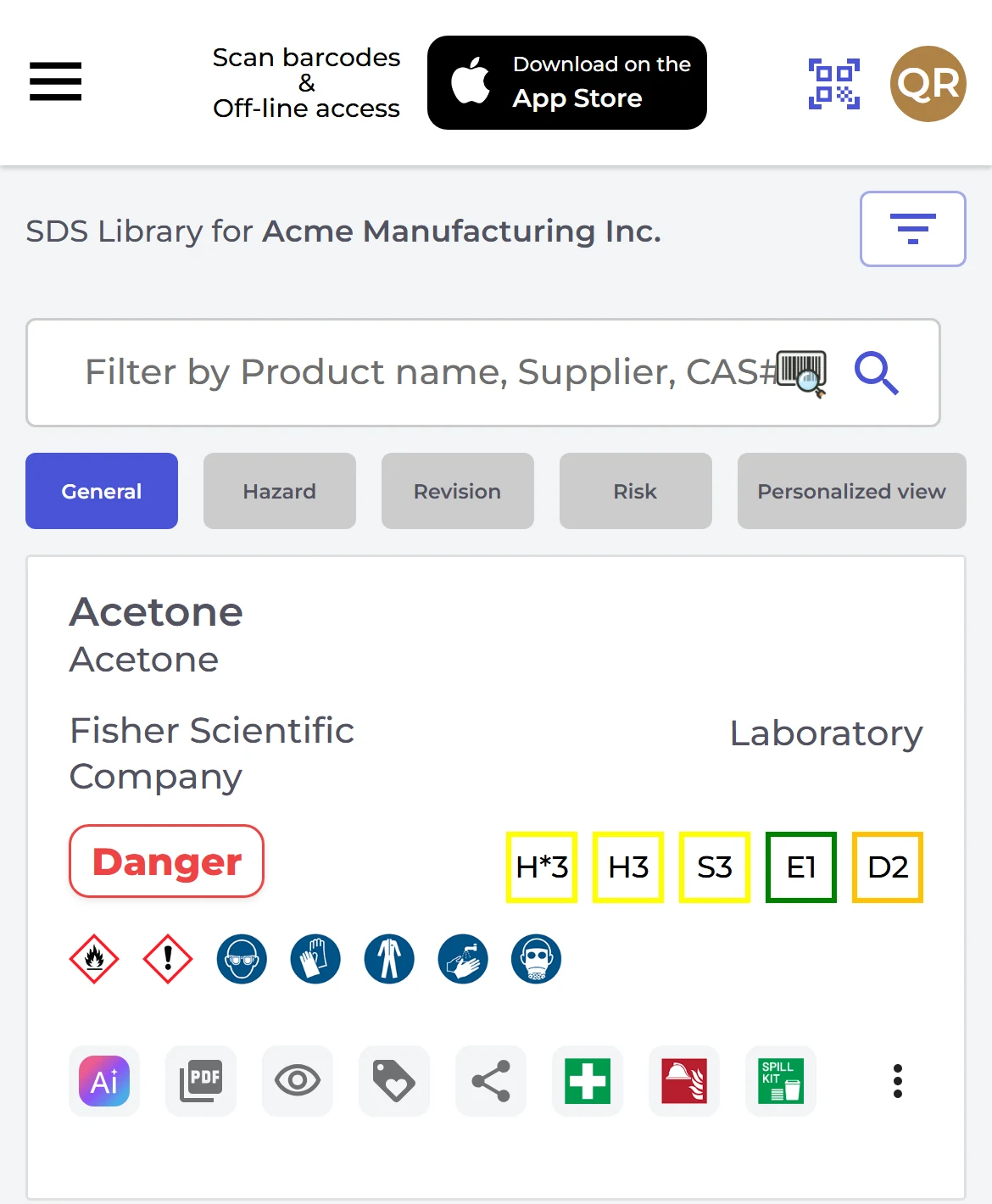
Click Preview SDS library for this code, or the eye icon in the Preview column, to see what your employees will see on their phone.
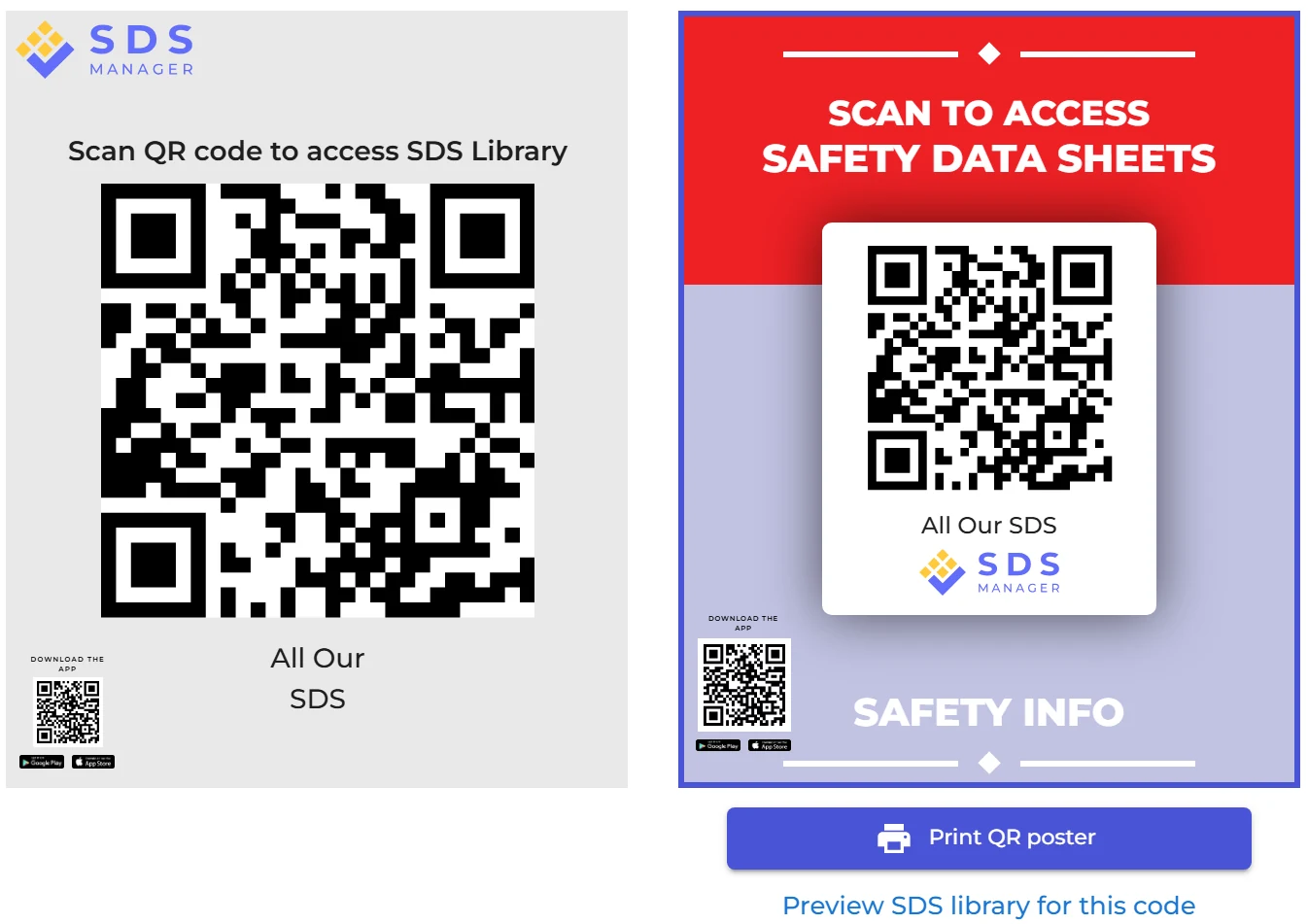
The small QR code in the lower-left corner of the poster installs the optional SDS Manager app (App Store or Google Play). With the app, scanning the large QR code downloads the SDSs to the phone, so employees can open them offline. To turn this off, switch off App access for QR users on the same page.
More you can do with a QR code
Click ⋮ on a QR code in the list:
- Edit QR poster: change the name, language or measurement system.
- URL for intranet access: copy the link of the QR code, to put on your intranet. Read more: How can I create a link on our intranet to access our SDS library?
- IP restrictions: let only devices on your company network use the QR code. Read more: Restrict QR code posters to devices on your corporate network (IP restriction)
- Edit location access: change the locations the QR code gives access to.
- Show go-live email suggestion: a ready-made e-mail with the link, which you can send to your employees from SDS Manager. We recommend sending it to yourself first and then forwarding it, so it does not end up in spam filters.
- Deactivate QR poster or Permanent Delete: stop the QR code from working.
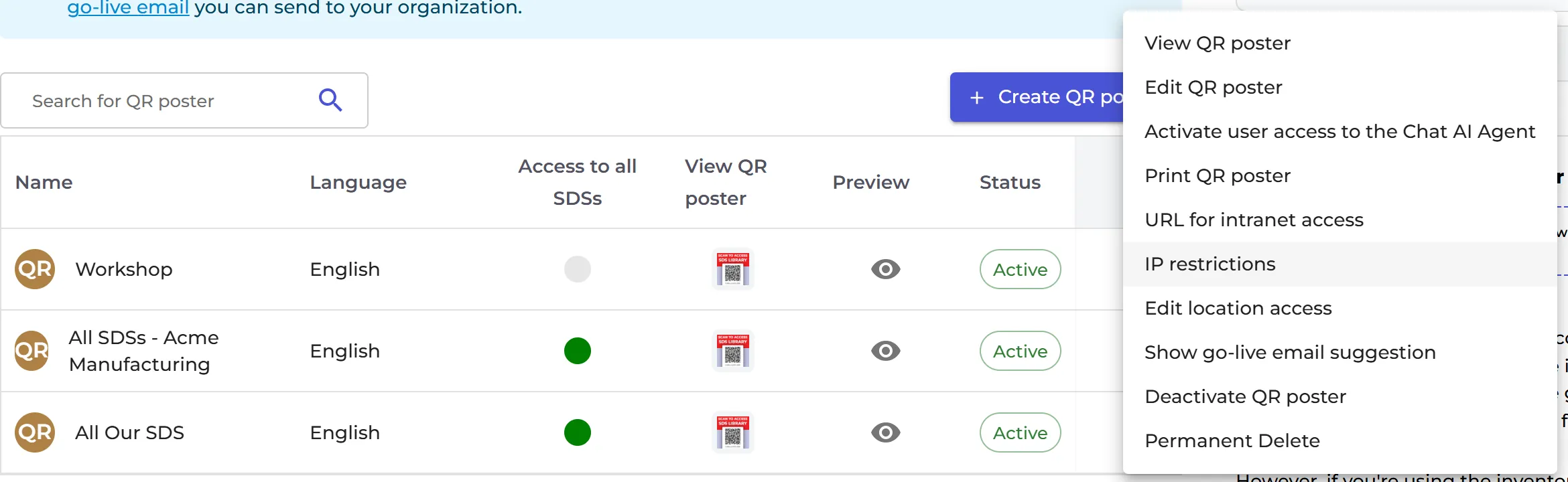
The settings on the right of the page apply to all your QR codes, for example Allow QR users to print labels, Allow QR users to add Barcodes to SDS in library and Allow SDS Request creation.
Employees who speak other languages
Each QR code has one language: the SDS library opens in that language for everyone who scans it. If your employees speak different languages, create one QR poster for each language.
Example: our demo SDS library, opened with a Spanish QR code. Click the picture to try it.
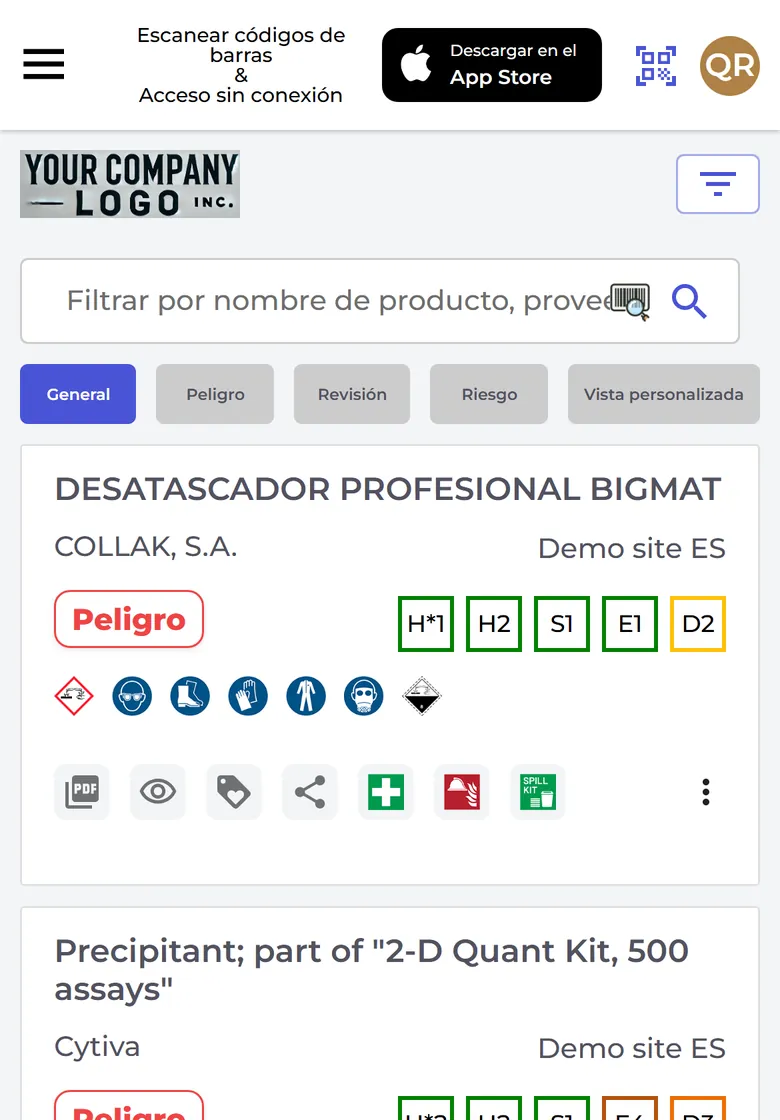
If your library has SDSs in several languages, tick Only access SDS with selected language on the Manage Location Access page of the QR code. Employees who scan it then only see the SDSs in the language of the QR code.
On the Pro and Enterprise plans, you can also switch on Enable automatic translation for this QR poster in the poster window. When an employee opens an SDS in another language, SDS Manager translates key sections, such as first aid and firefighting measures, into the language of the QR code. This is an automatic translation, for information only.
QR code posters are part of the Premium, Pro and Enterprise plans.