Your employees can find a Safety Data Sheet (SDS) by scanning the barcode (EAN or UPC code) on the product. Few SDSs have these codes, so you add the codes to the SDSs in your library first.
Find an SDS by scanning the barcode
Open the SDS library, for example by scanning your QR code poster. Tap the barcode icon in the search field and scan the barcode on the product with the camera. SDS Manager searches the library for the code and shows the SDS that has it.
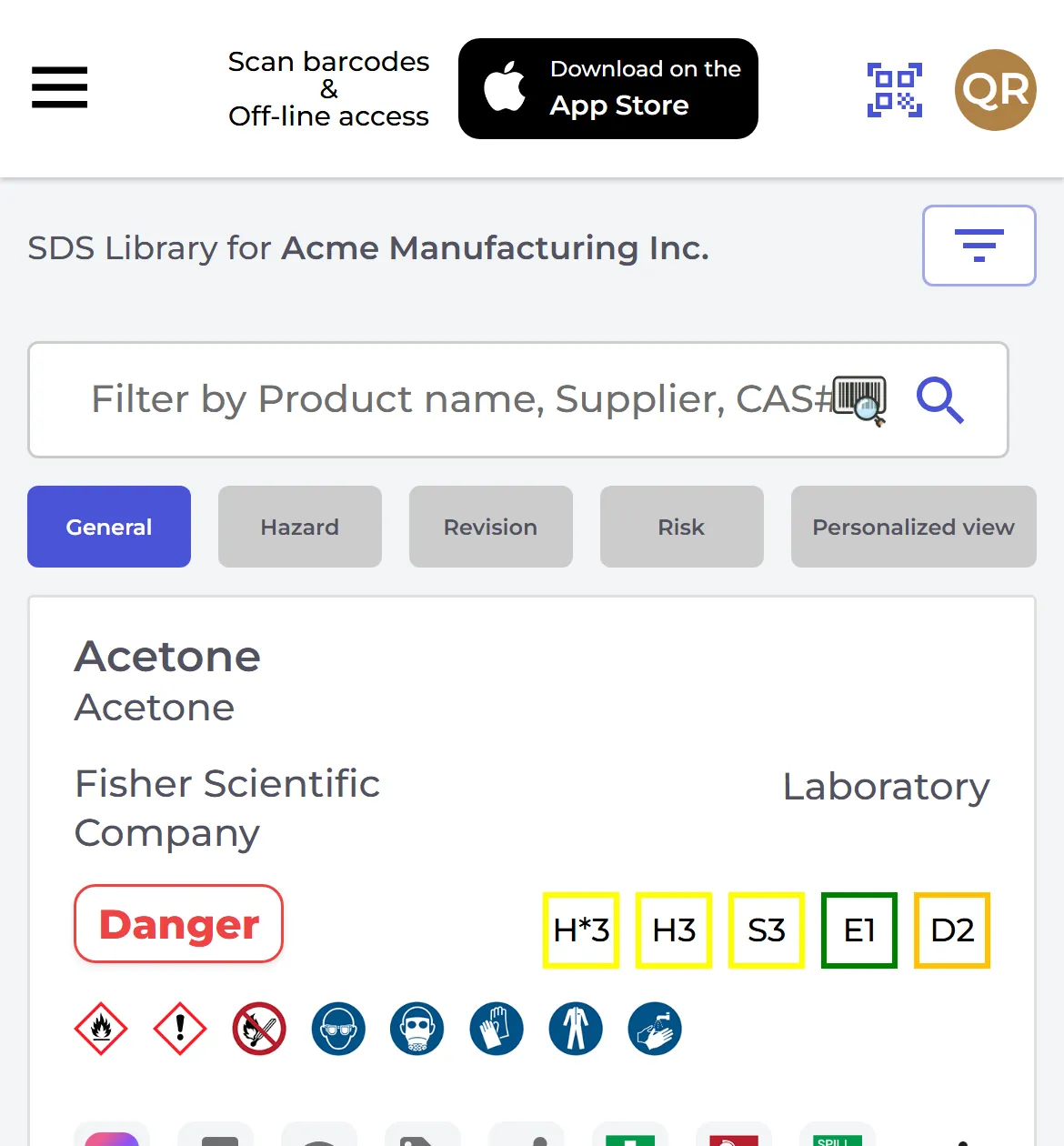
You can also use the round scan button at the bottom right of the screen. If no SDS has the code, you see Product not found. Choose Search manually to search by name, Scan again, or Register barcode to existing substance to link the code to the right SDS, so the next scan finds it.
Add barcodes to your SDSs
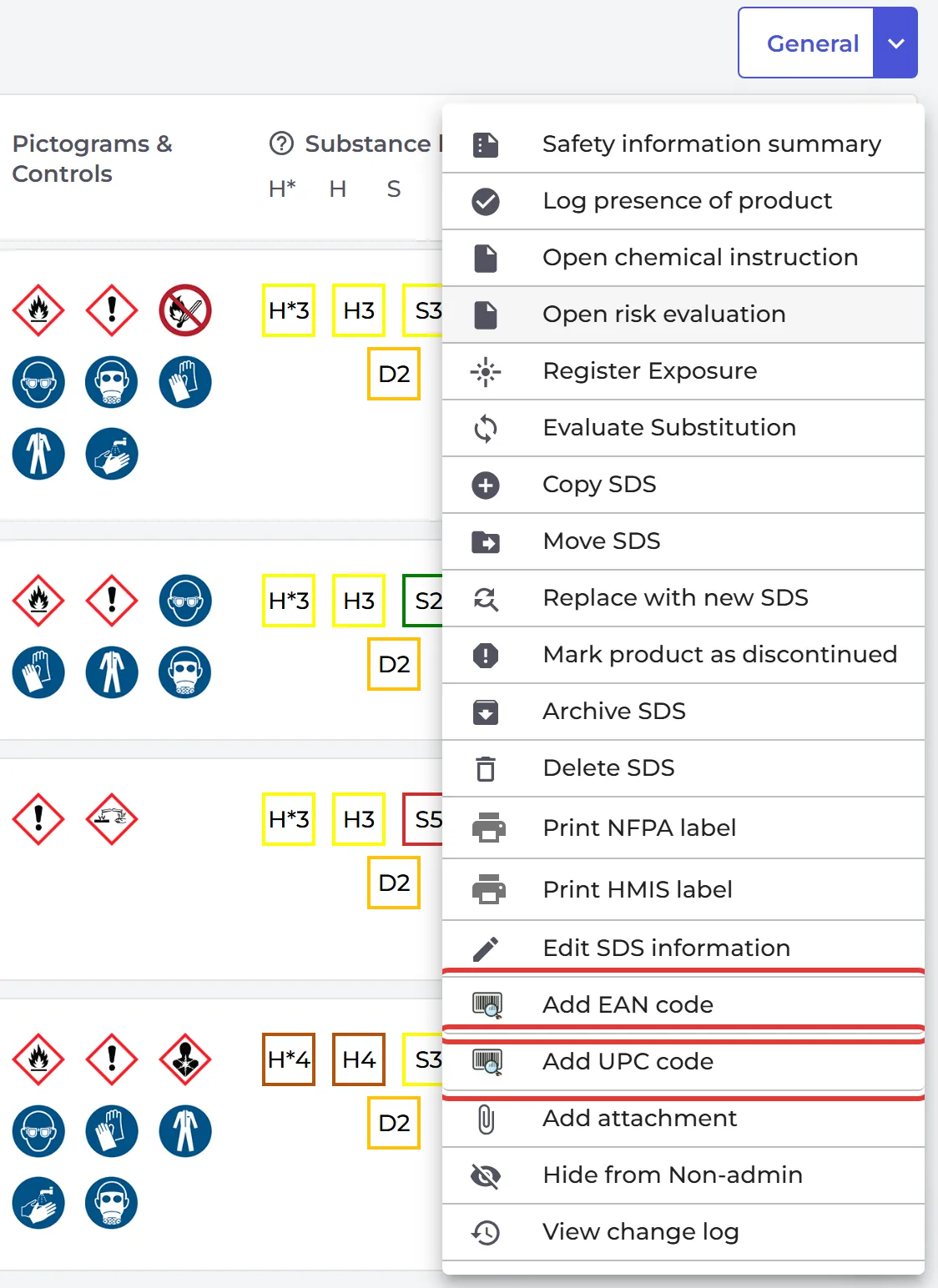
Owners and admins add the codes. Click ⋮ on the SDS and choose Add EAN code or Add UPC code. Type the code or scan it, and click Save. You can add several codes to one SDS: separate them with a comma.
Employees who use a QR code can add barcodes only if you allow it on the User management page (Allow QR users to add Barcodes to SDS in library).
Find the SDSs that have no barcode
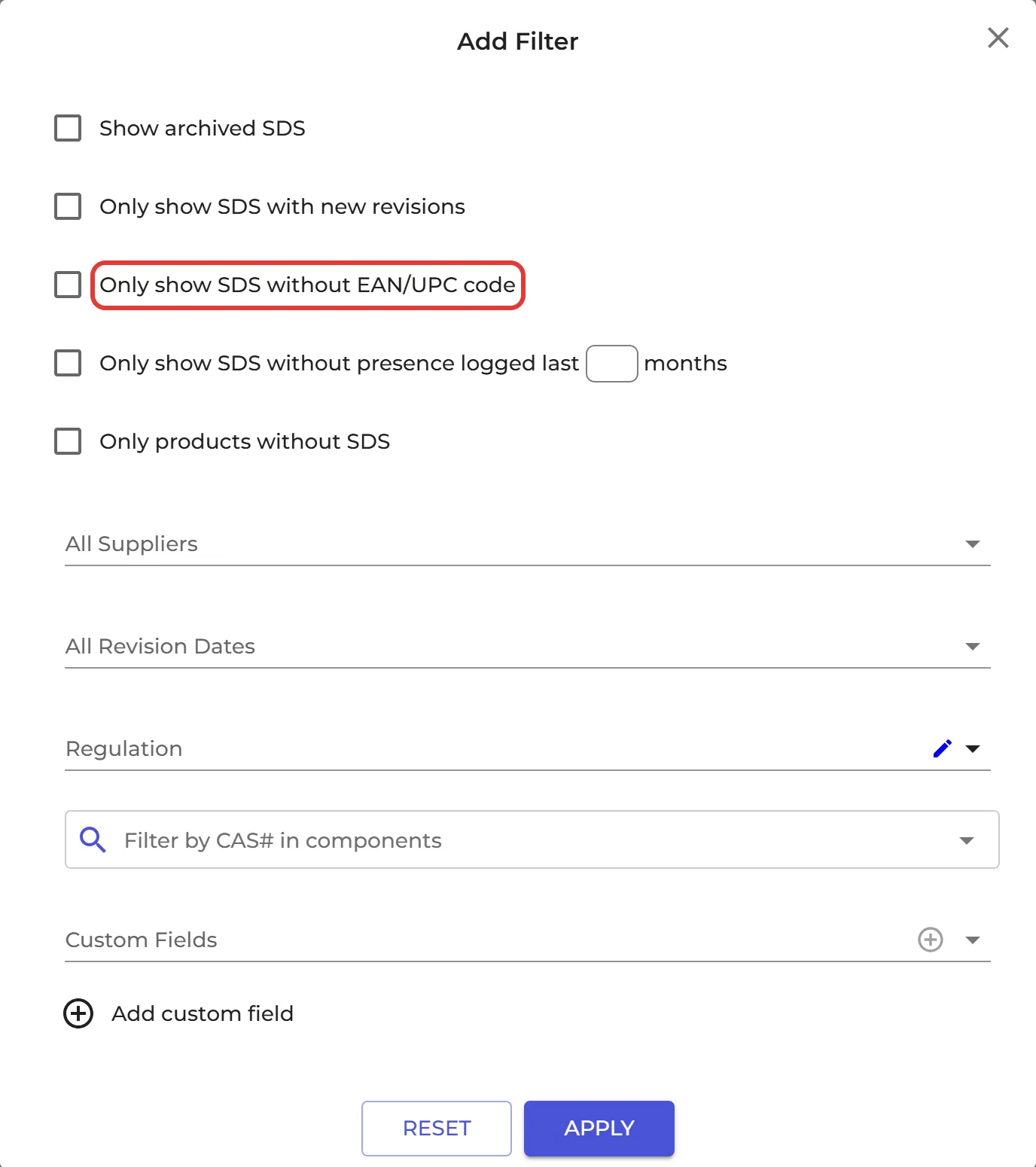
Click the filter button at the top of the location and tick Only show SDS without EAN/UPC code. On SDS Filter, the same filter is under Product Info.
The search field also finds an SDS by its SKU, its External System Id or its product code.