You can add as many users as you need: there is no extra fee for admin users or employees. Create user accounts for the people who manage your SDS library. Employees who only need to look up SDSs don't need an account: give them a QR code poster or a link on your intranet. Read more: How can our employees access our SDS library by scanning a QR code poster?
Invite a user
- Click More → User management and then Add user. You can also click More → Invite members.
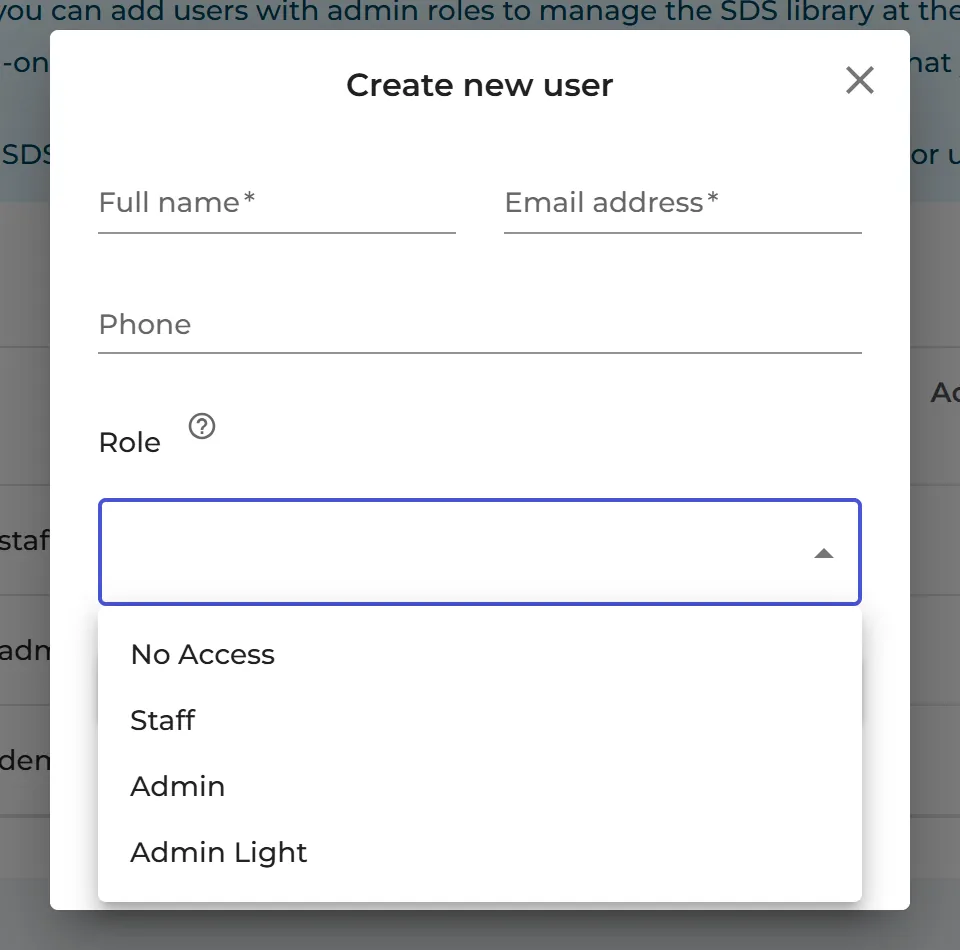
- Enter the Full name and Email address (the phone number is optional).
- Choose the Role: Admin, Admin Light, Staff or No Access. Read more: Can I assign different roles for people in a location?
- Choose Access to all SDSs to give the role on all locations, or Customize access to choose locations.
- Click Send invitation. The user gets an e-mail with a link to set a password.
Only the owner of the account can choose Access to all SDSs. Users invited by an admin get access to chosen locations.
To change the role of a user on each location later, click ⋮ on the user and choose Edit location access. Read more: How can I manage user's location access?
Add an admin for one location
On Locations (Sites & Locations), click the Add new admin user icon next to the location. The new user gets the Admin role on that location.

On the Free plan, only the owner of the account can use SDS Manager.