The link to put on your intranet is the link of a QR code poster. Employees who click it open your SDS library with read-only access, the same as when they scan the QR code. They don't need a user account.
Step 1: Choose or create a QR code
Click QR Access (Employee Access) in the left menu. You can use a QR code you already have, or click Create QR poster to make one for the intranet. Give it a name that tells which locations it gives access to. Read more: How can our employees access our SDS library by scanning a QR code poster?
Step 2: Copy the link
Click ⋮ on the QR code and choose URL for intranet access. The link is copied to your clipboard.
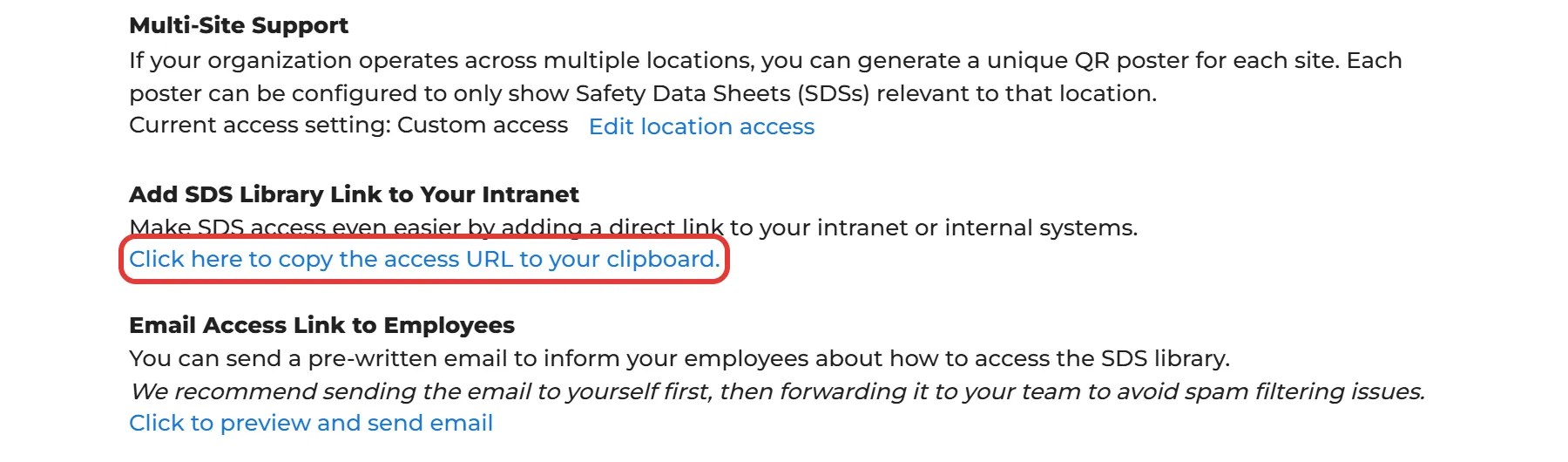
You can also open the poster (the icon in the View QR poster column) and click Click here to copy the access URL to your clipboard under Add SDS Library Link to Your Intranet.
Step 3: Add the link to your intranet
Paste the link on your intranet page, for example behind a button called "Safety Data Sheets". To test it, open the link in a private browser window: you should see your SDS library without logging in.
To tell your employees about it, use Show go-live email suggestion in the same menu. It gives you a ready-made e-mail with the link, which you can send from SDS Manager.
The link works for anyone who has it. To let only devices on your company network use it, read Restrict QR code posters to devices on your corporate network (IP restriction).