Your employees can ask you to add a Safety Data Sheet (SDS) to your library, for example when they use a product that is not in the library yet. Their requests show up on your Tasks page, where you add the SDS.
1. Switch on SDS requests
- Click More → Settings. Only the owner of the account can open this page.
- Check that Allow employees to request Safety Data Sheets to be added to Safety Data Sheets library is switched on. It is on by default. Changes are saved at once.
- We recommend that you also keep Employee SDS search: Show search result from global database if SDS is not found in Company SDS library switched on. Employees then find the SDS in our global database of 30 million+ SDSs and can request it with one click. Read more: Employee SDS Search: Display Results from Global Database if Not Found in Company Library

2. Allow requests from QR code posters
Employees who open your library with a QR code poster can only send requests if the poster allows it:
- When you create a poster (click QR Access (Employee Access) in the left menu, then Create QR poster), Allow SDS Request creation is already switched on when SDS requests are allowed in step 1. Switch it off for posters that must not send requests.
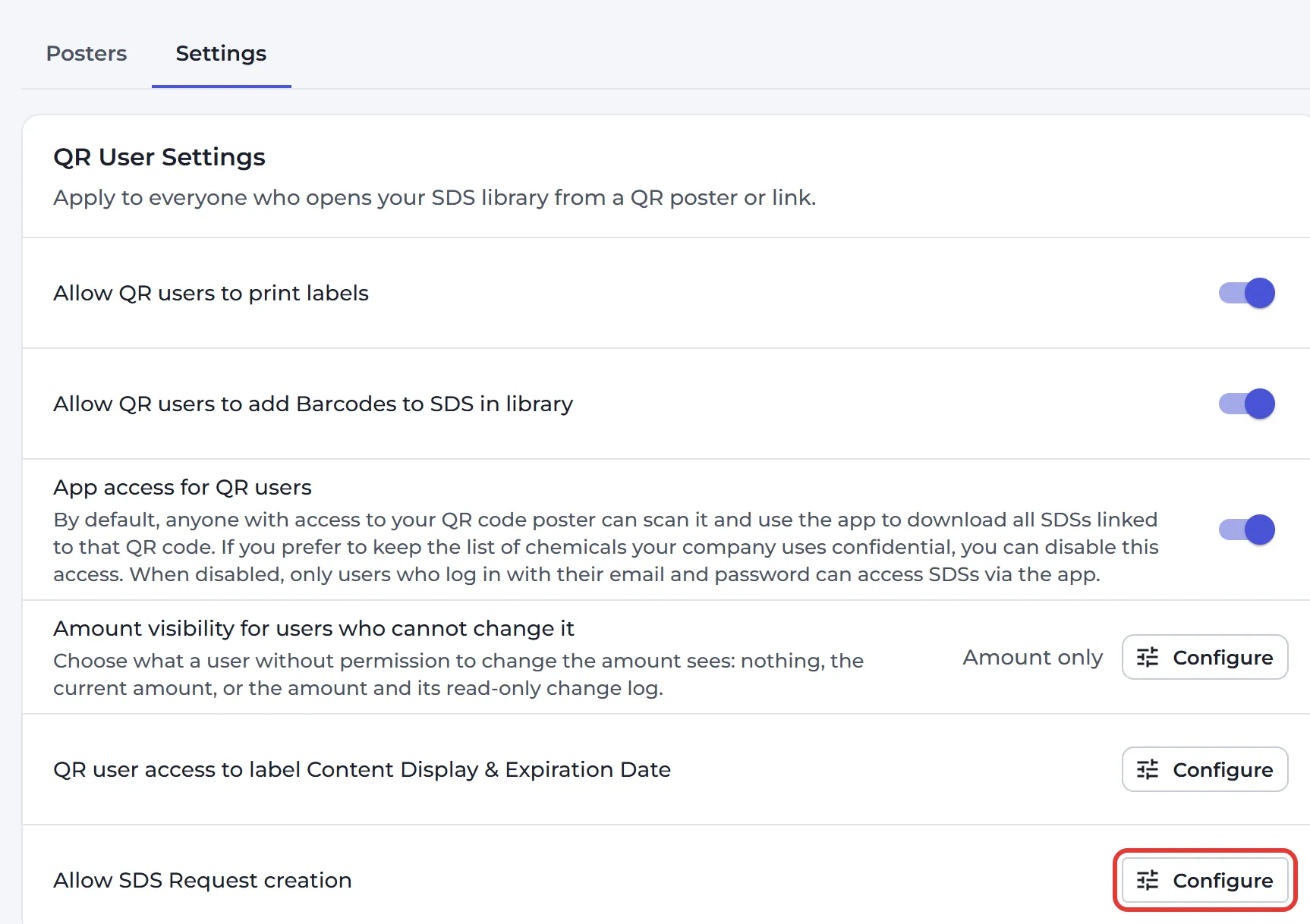
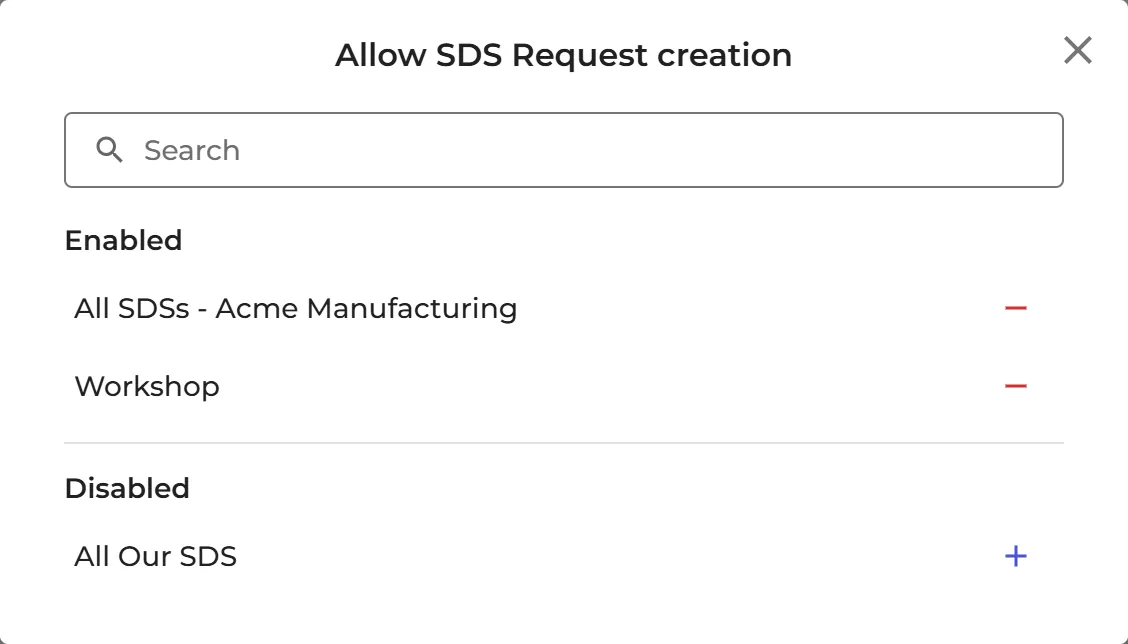
- For posters you already have: open the Settings tab on the same page, click Configure next to Allow SDS Request creation and choose the posters that may send requests.
Users who log in but may not add SDSs themselves, such as Staff users, can send requests as soon as the setting in step 1 is on.
3. How an employee requests an SDS
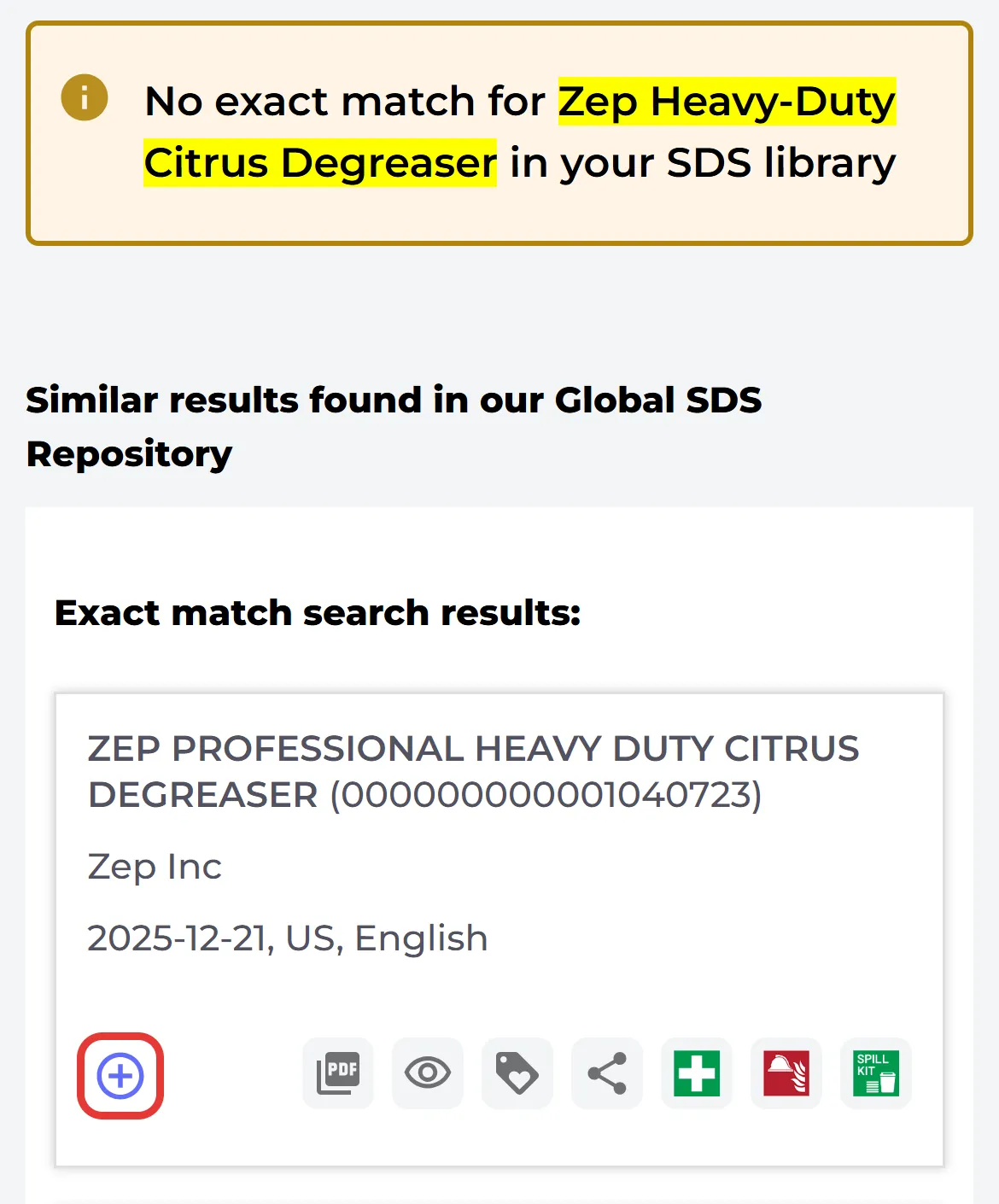
When an employee searches for a product that is not in your library, each result from our global database has a plus sign: Request Safety Data Sheet to be added to company library. Users who may not add SDSs also see a button with the same name below the SDS list.
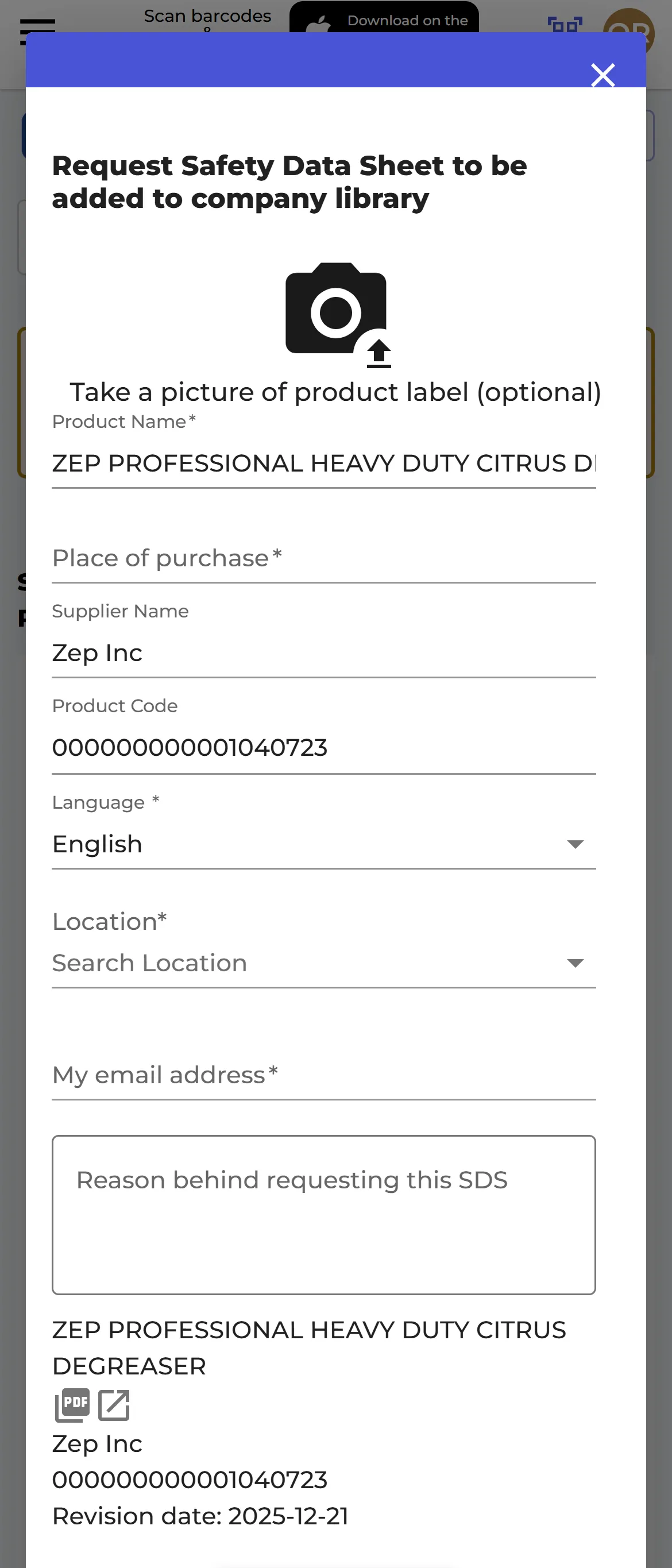
In the request window, the employee enters the product name and, if known, the supplier name and product code, and chooses the location. Employees who use a QR code poster also enter the place of purchase and their e-mail address, so you know who asked. They can add the reason for the request, and click Submit request.
4. Handle the requests
The Tasks icon at the top of the page shows how many tasks are waiting. Click it, or click Tasks (Pending Tasks) in the left menu, and open the SDS requests tab.
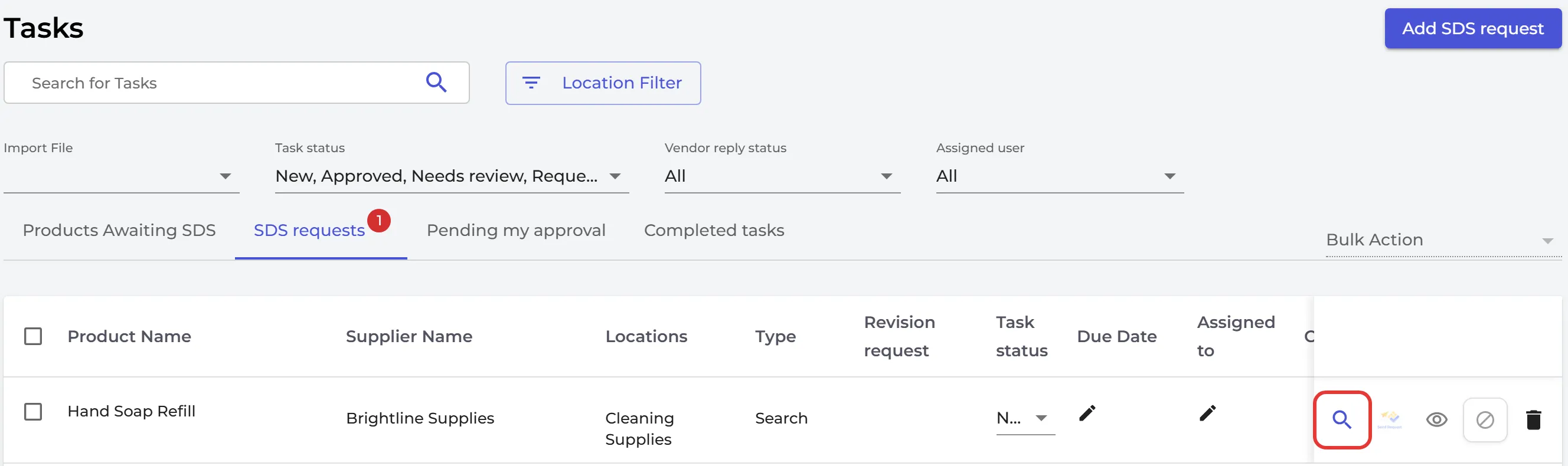
Click Find SDS on the request, choose the right SDS and click Add to SDS library. Owners and admins can add a requested SDS. If your company uses SDS Approval functionality, an SDS added by an admin must then be approved by an Admin with approval. Read more: SDS Requests - find SDS for chemicals/substances you have added/imported
Requests you have handled are listed on the Completed tasks tab.
Get an e-mail for each new request
Click your profile picture at the top right and choose Manage account. Under Email notifications, switch on New SDS Request and click Save settings. Read more: How to administer notifications from SDS Manager
The Tasks page is part of the Basic, Premium, Pro and Enterprise plans. QR code posters are part of the Premium, Pro and Enterprise plans.