A product in SDS Manager that does not have its Safety Data Sheet (SDS) yet is called an SDS request. SDS requests are created when you:
- import a product list (Excel or CSV): How do I import our xls/csv file with all the products we use?
- take pictures of product labels with your phone: How can I use my phone and take pictures of the products I want to add?
- enter a product by hand, for example when you buy a new chemical and have not received its SDS yet: How can I add chemicals to SDS Manager without an SDS?
- let your employees ask for a missing SDS: SDS Requests: Allow your employees to request the addition of SDSs
Add the location to each product when you import or photograph it. This saves work later.
Find your SDS requests
Click Tasks (Pending Tasks) in the left menu, or SDS Tasks under Manage SDS Library. The Tasks page has these tabs:
- Products Awaiting SDS: products from an imported list, a barcode scan or a picture that are not matched with an SDS yet.
- SDS requests: products added with the Add request for Safety Data Sheet dialog, for example by hand or by an employee.
- Pending my approval and Completed tasks.
Find the SDS
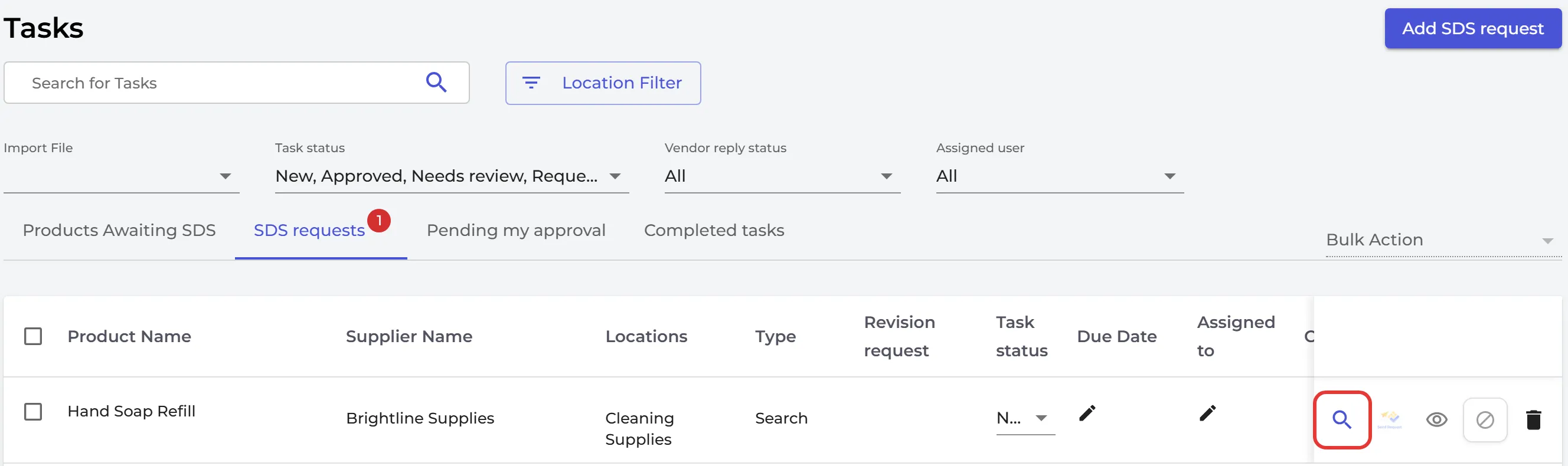
Click Find SDS (the magnifying glass) on the row. The Match SDS page searches our database of 30 million+ SDSs for the product. When you see the right SDS, click Add to SDS library. If the product or supplier name on the SDS is different from yours, you choose which one to keep in Select data to link. Then add the SDS to the location. If the product is used on several locations, you can add the SDS to all of them at once.
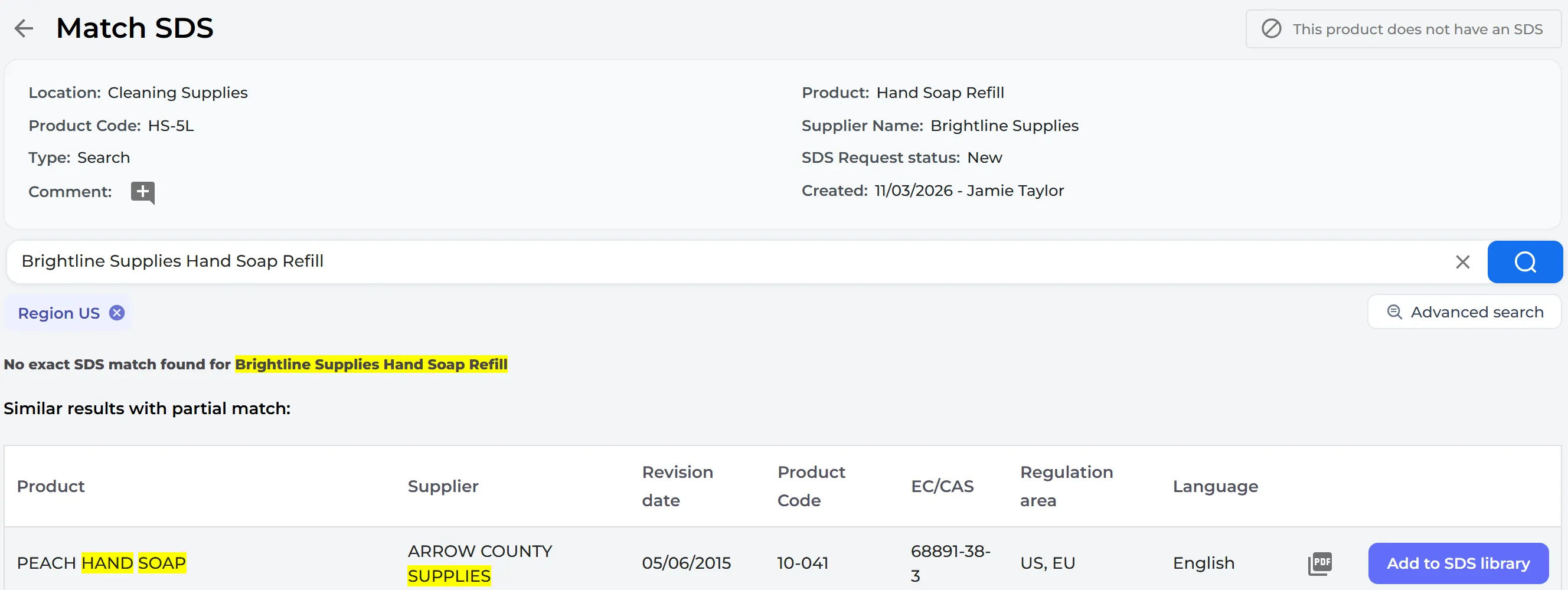
When the SDS is added, the product leaves the list of SDS requests.
If the SDS is not in our database
- Click Search using Google. Google opens in a new tab. Download the SDS you find, go back to SDS Manager and drag the file into the page.
- Ask your supplier: choose Email distributor to get SDS and enter the email address of the company you bought the product from. Your supplier must give you the SDS for the products they sell you. A grey envelope on the row shows that you have emailed the supplier. It turns blue when the supplier replies. Click it to read the reply; if the supplier sent the SDS, click Add to SDS library. Emailing suppliers from SDS Manager is part of the paid plans.
- Click Ask SDS Manager to help or Request assistance from the SDS Manager team, and our team looks for the SDS for you.
- Some products have no SDS at all. Click This product does not have an SDS on the row. Read more: How can I add non-hazardous substances without an SDS to my SDS library?
Read more: How to use our Google search feature to find Safety Data Sheet
Get an email about new SDS requests
Owners and admins can switch on New SDS Request under Email notifications in their account settings. They then get an email for each new SDS request on the locations they have access to. The email is off by default.