Some products, such as water or copy paper, do not need a Safety Data Sheet (SDS). You can still add them to your SDS library, so that employees who search for them see clearly that there is no SDS. There are three ways.
1. Mark the product as having no SDS
- Add the product without an SDS: open the location, click Add Safety Data Sheet, then Show other methods to add Safety Data Sheets to location and MANUALLY ENTER PRODUCT. Read more: How can I add chemicals to SDS Manager without an SDS?
- Open Tasks in the left menu. On the product's row, click This product does not have an SDS (the circle with a line through it).
- Click Confirm.
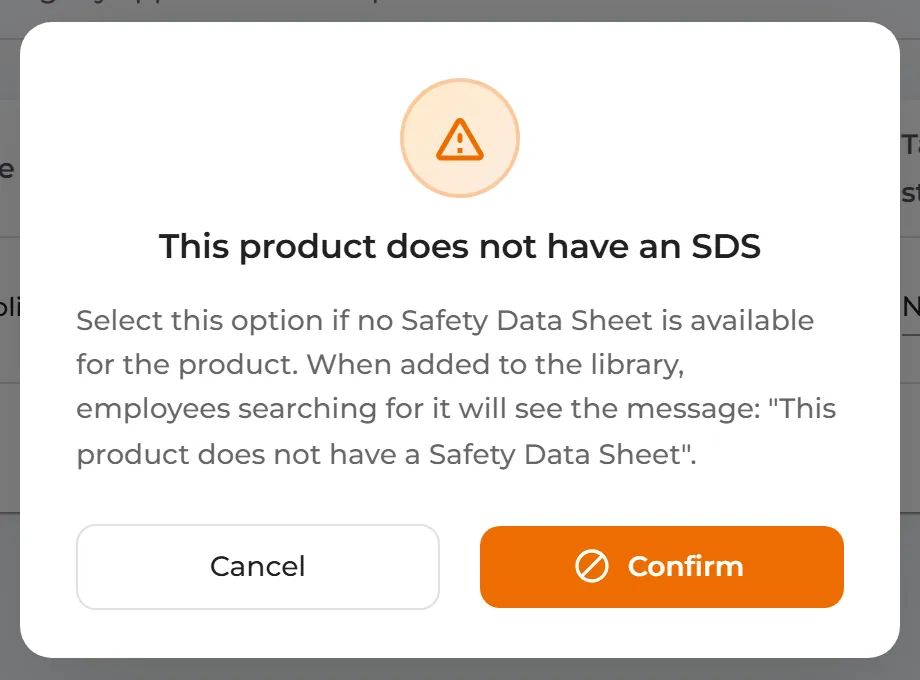
The product is added to the library. Employees who search for it see the message "This product does not have a Safety Data Sheet".
2. Add a product sheet instead of an SDS
If you have a document for the product, such as a product sheet, you can add it in place of the SDS. If you do not have one, you can use the file "This product is non-hazardous.pdf" attached at the bottom of this article.
- Open the location, click Add Safety Data Sheet and upload the PDF file.
- The file is not an SDS, so the upload shows FAILED and The file you uploaded was not a proper Safety Data Sheet file. This is expected.
- Choose Add SDS to library with manually entered product information. Check the Product Name and Supplier Name (the revision date is optional) and click Add SDS to location.
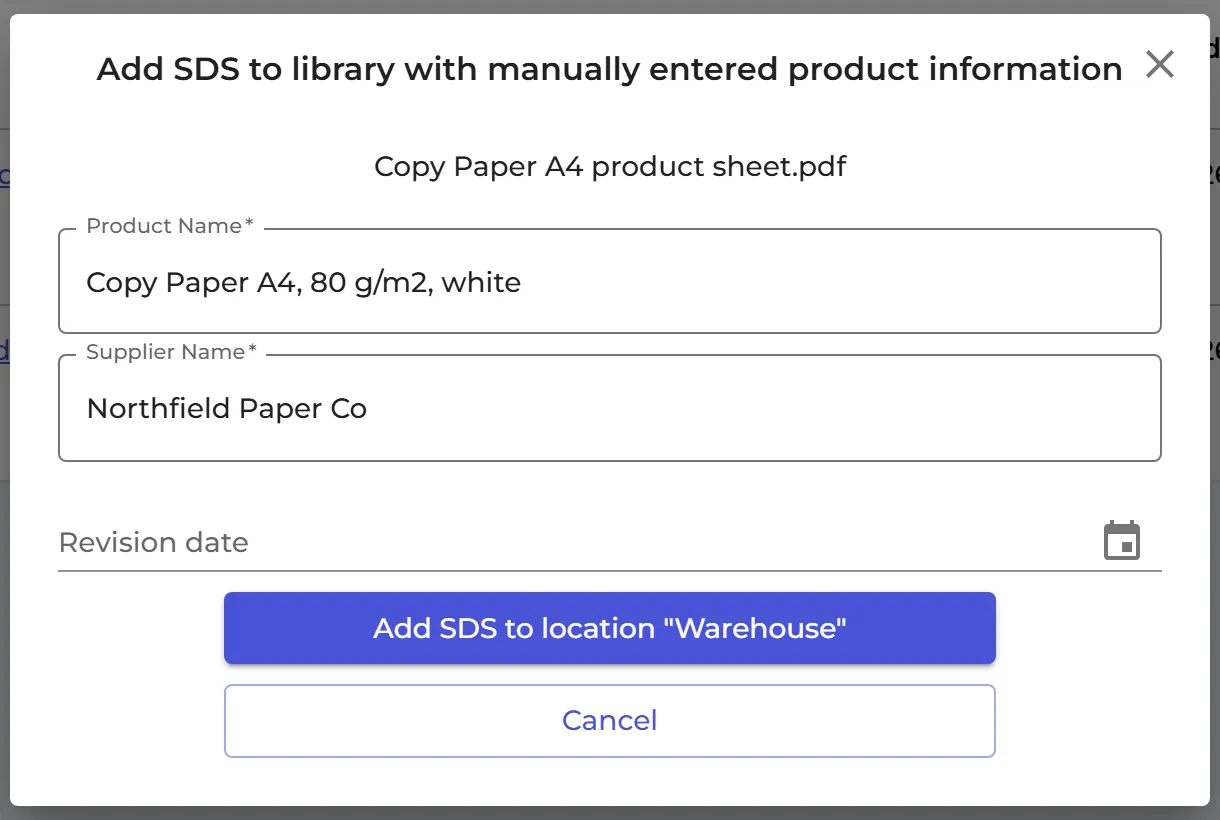
Employees who search for the product can now open the product sheet.
3. In a product list
When you import a product list, put N in the Require SDS column for products that do not need an SDS. Read more: Importing Product Lists and Linking SDSs
Attached files: