You can add a product to SDS Manager before you have its Safety Data Sheet (SDS), for example when you buy a new chemical. The product is saved as an SDS request, and you add the SDS when you get it.
Add the product
- Open the location in Manage SDS Library and click Add Safety Data Sheet.
- Click Show other methods to add Safety Data Sheets to location and choose MANUALLY ENTER PRODUCT.
- Fill in Add request for Safety Data Sheet: Product Name, Supplier Name and, if you know it, Product Code. You can also take a picture of the product label. Show more options has more fields, such as the EAN or UPC barcode and a due date.
- Click Save.
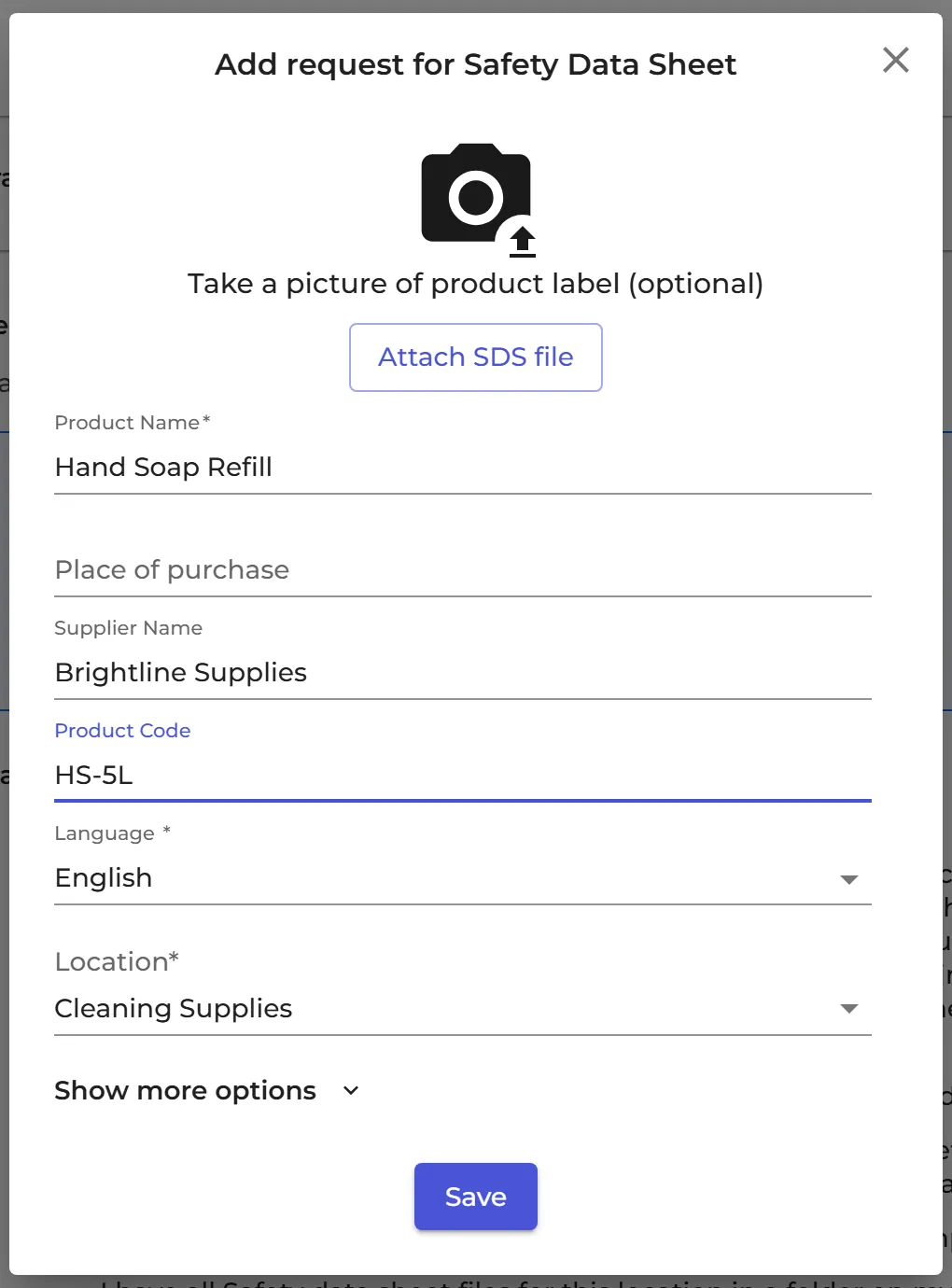
Only owners and admins can add products this way.
Add the SDS later
The product is listed under Tasks (Pending Tasks in the left menu), on the SDS requests tab. Ask your supplier for the SDS. When you have the file, click Find SDS on the row and drag the file into the Match SDS page, or pick the SDS from the search results there.
Read more: SDS Requests - find SDS for chemicals/substances you have added/imported
Does the product have no SDS at all, for example because it is not hazardous? Read How can I add non-hazardous substances without an SDS to my SDS library?
Do you have many products to add? Import them as a list: How do I import our xls/csv file with all the products we use?, or ask us to help: How can SDS Manager assist/help us with building our SDS library?