With the FREE plan of SDS Manager you can manage up to 200 Safety Data Sheets (SDSs). Your employees get access through an SDS binder. An SDS binder is one PDF file that holds all your SDSs, with an index that links to each one. It helps you meet the rule that employees who handle chemicals must have access to the SDSs.
You can change to the FREE plan when your free trial ends. Click More in the left menu, then Subscription, and choose Change to Free plan. Only the account owner can do this.
What the FREE plan includes
- Up to 200 SDSs. An SDS that you use on two locations counts as two. Archived SDSs do not count.
- Importing the SDS files you already have (PDF, ZIP or RAR).
- Adding SDSs from our global database of 30 million+ SDSs.
- SDS binders (PDF) with your company logo.
- Printing secondary container labels.
What the FREE plan does not include
- More users. Only the account owner works in SDS Manager, and you cannot invite other users.
- QR code posters and online access for employees. Your employees use the SDS binder instead.
- SDS updates. SDS Manager does not show you which SDSs have a newer version, and you cannot upgrade them in one click.
- Replace with new SDS, importing product lists, exporting to Excel, risk assessments and job procedures.
If you click a feature that your plan does not include, SDS Manager shows "This feature is not available on your current subscription plan." The account owner can click Show upgrade options to see the plans.
Get started in five steps:
- Import the SDS files you already have
- Add SDSs from our database
- Add your company logo
- Create the SDS binder for your employees
- Keep your SDSs up to date
Step 1: Import the SDS files you already have
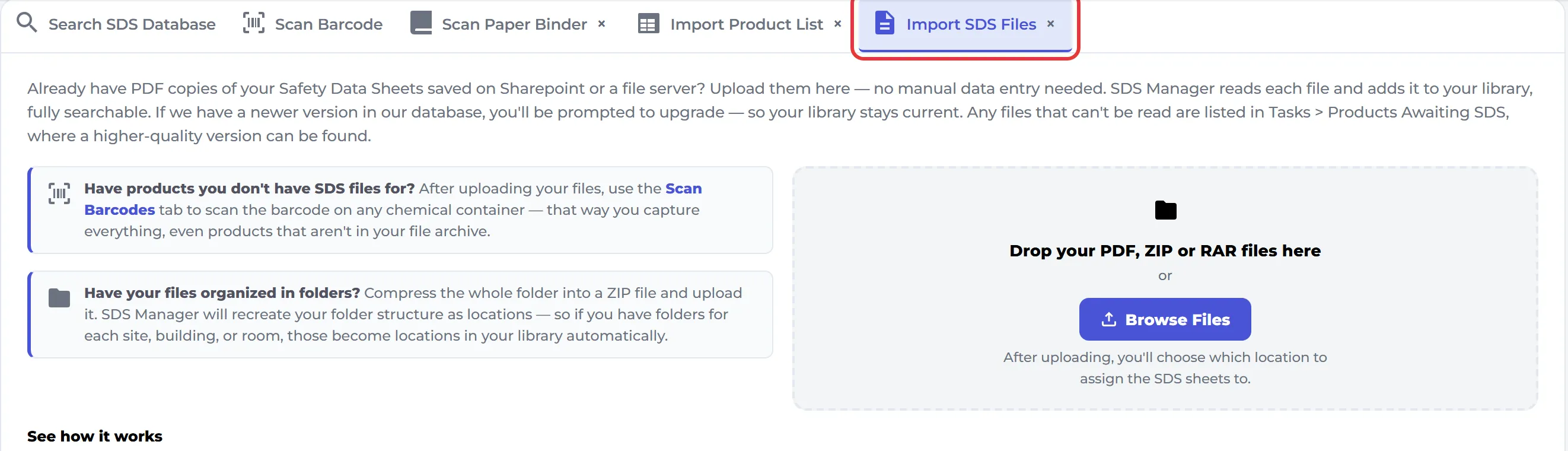
On the Dashboard, open the Import SDS Files tab and drop your PDF, ZIP or RAR files, or click Browse Files. You can also click More in the left menu, then Import ZIP Files. SDS Manager reads each file and adds it to your library, with no typing.
Read more: How do I import our current file-based SDS library?
Step 2: Add SDSs from our database
On the Dashboard, open the Search SDS Database tab to search our 30 million+ SDSs. Type the product name, supplier name, CAS# or UFI#, then pick the right SDS. It is added to your library. You can also open your library (Manage SDS Library in the left menu) and click Add Safety Data Sheet below the list.
Read more: How to add Safety Data Sheets to your SDS library
Step 3: Add your company logo
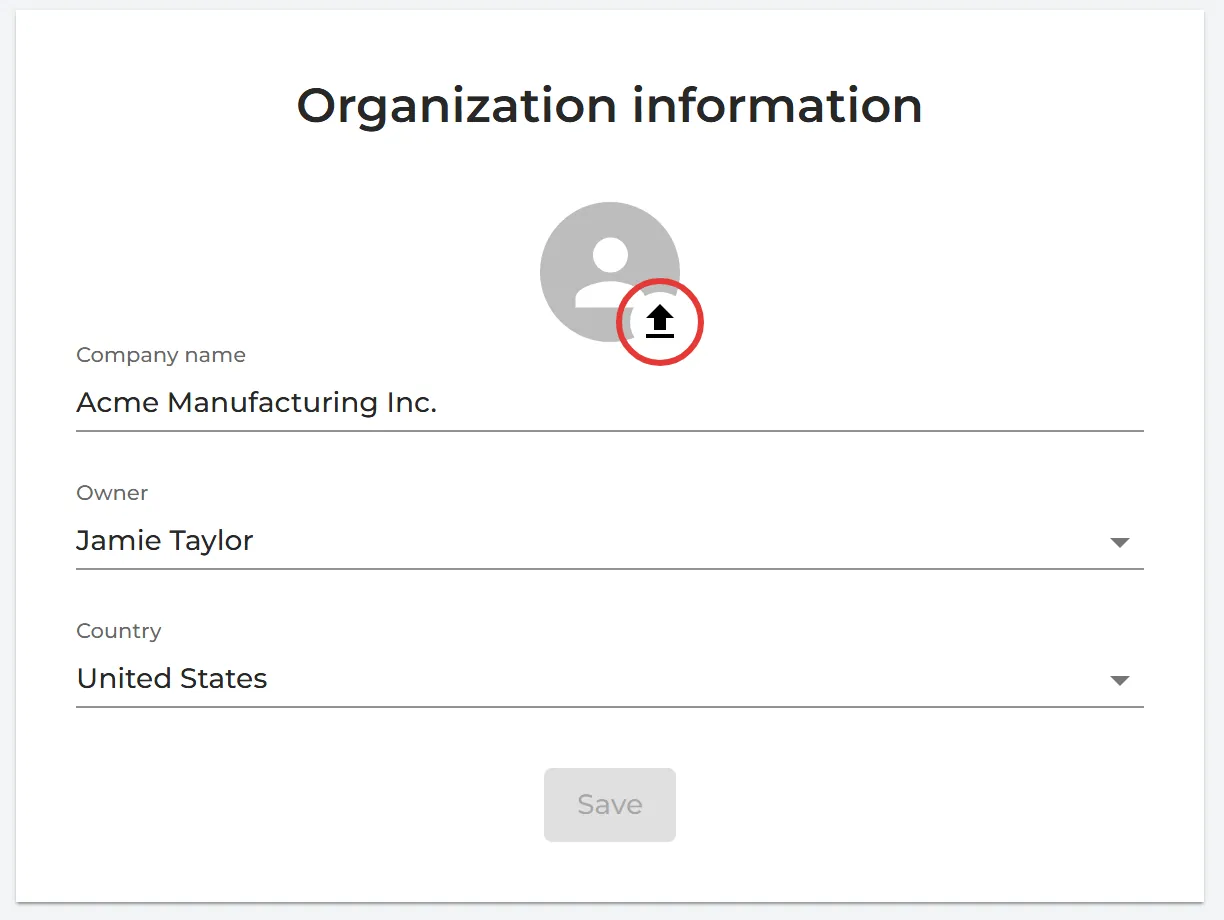
Click More in the left menu, then Organization profile. Click the round picture at the top of Organization information and upload your logo. The logo is printed on the cover page of your SDS binders.
Step 4: Create the SDS binder for your employees
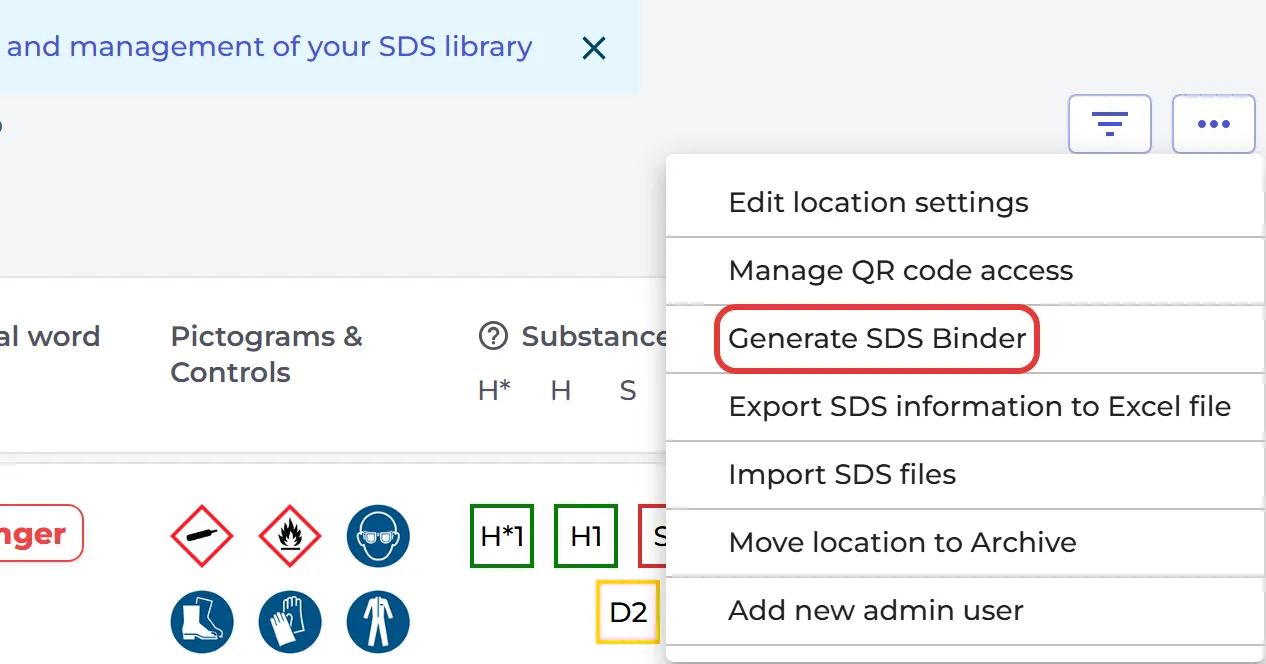
Open your library (Manage SDS Library in the left menu) and click Generate SDS Binder. You also find it in the More options (⋯) menu at the top right. If the location has sub-locations, switch on Include sub-locations first so that their SDSs are included. A large binder is made in the background and sent to you by email.
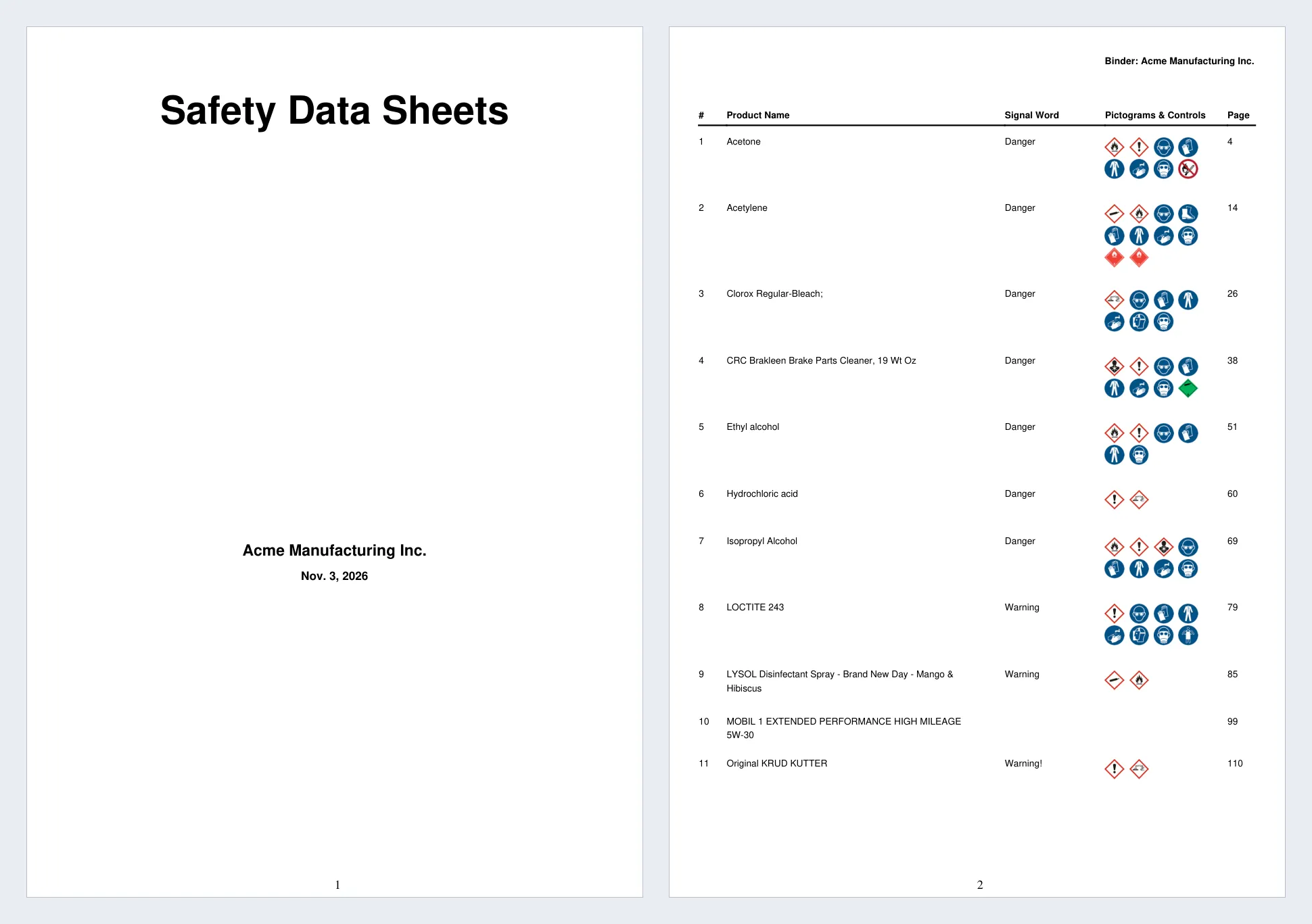
The binder starts with a cover page with your logo and an index of all SDSs, with the signal word and pictograms of each product. Click a page number in the index to go straight to that SDS.
Give the binder to your employees. Save the PDF where they can open it, for example on a shared drive or your intranet, or print it. Make a new binder each time you add or replace SDSs.
Read more: How to create an SDS-Binder file? · What is a MSDS-Binder?
Step 5: Keep your SDSs up to date
Suppliers issue new revisions of their SDSs, and you must use the latest one. On the FREE plan, SDS Manager does not tell you when a newer version exists. When a supplier sends you a new SDS, add the new file to your library. Then archive the old one: click ⋮ on its row and choose Archive SDS. After that, make a new SDS binder.
Read more: My supplier sent me a new updated Safety Data Sheet · What do I do with SDS for chemicals that we no longer use (Archive SDS)?
On the paid plans, SDS Manager finds new revisions for you, and you can update your SDSs in one click. See User manual for "Manage SDS Updates".
Note on the FREE plan
The FREE plan is meant for managing your SDSs and making an SDS binder for your employees. It has one admin user, the account owner, and it does not include QR code access. Your employees open the SDSs in the SDS binder.
Do you need more users, QR code posters or automatic SDS updates? Read more about the FREE plan and our paid plans.
Attached files: