If your Safety Data Sheets (SDSs) are PDF files, for example on a file share, you can import all of them into SDS Manager. SDS Manager reads each file and extracts its content, so every SDS is searchable in your new library with no typing.
Are your SDSs in another SDS management system? Read How do I migrate our current SDS vendor library to SDS Manager?
Where to import your files
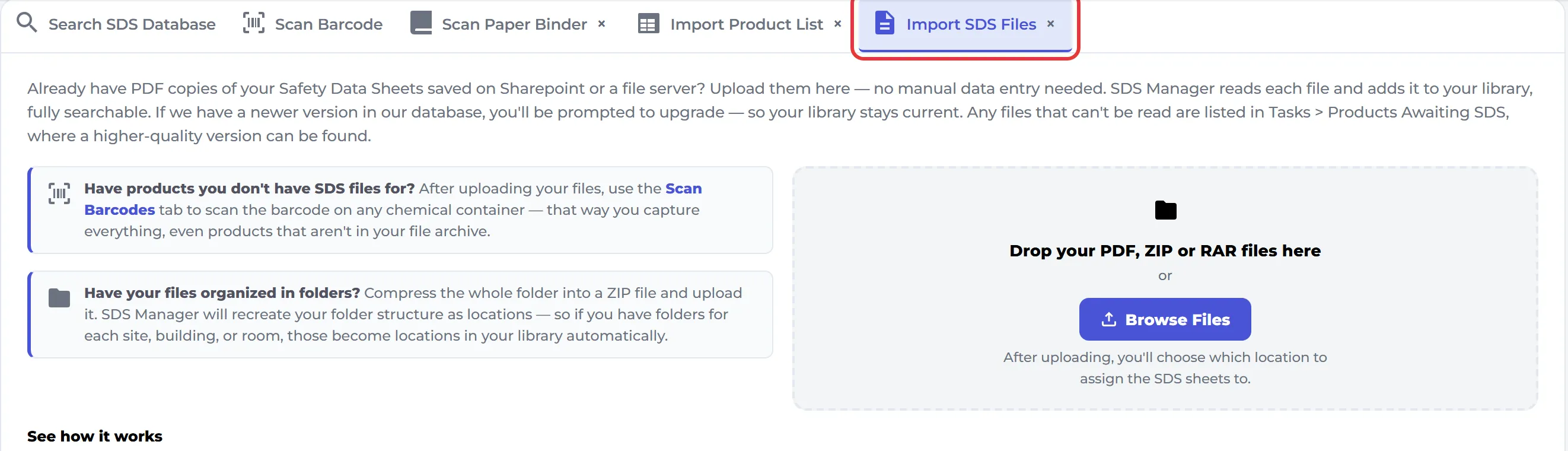
- On the Dashboard: open the Import SDS Files tab and drop your files, or click Browse Files.
- On a location: open the location in Manage SDS Library, click More options (⋯) at the top right and choose Import SDS files.
- From the left menu: click More, then Import ZIP Files.
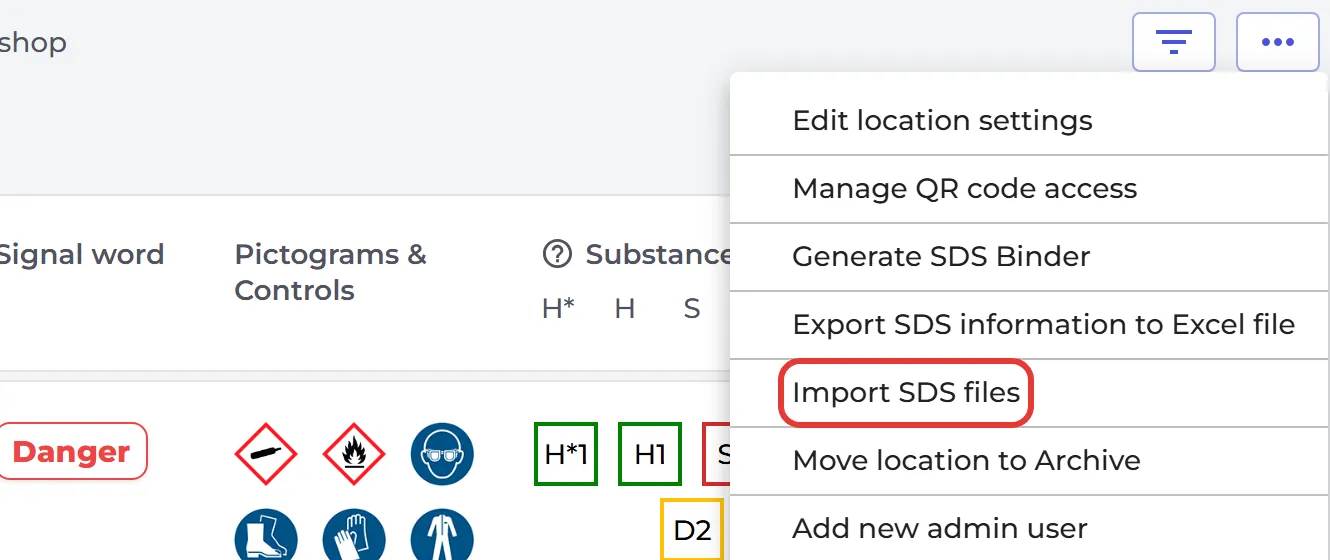
The last two open the page Import your SDS files. Drop your files there or click Browse File.
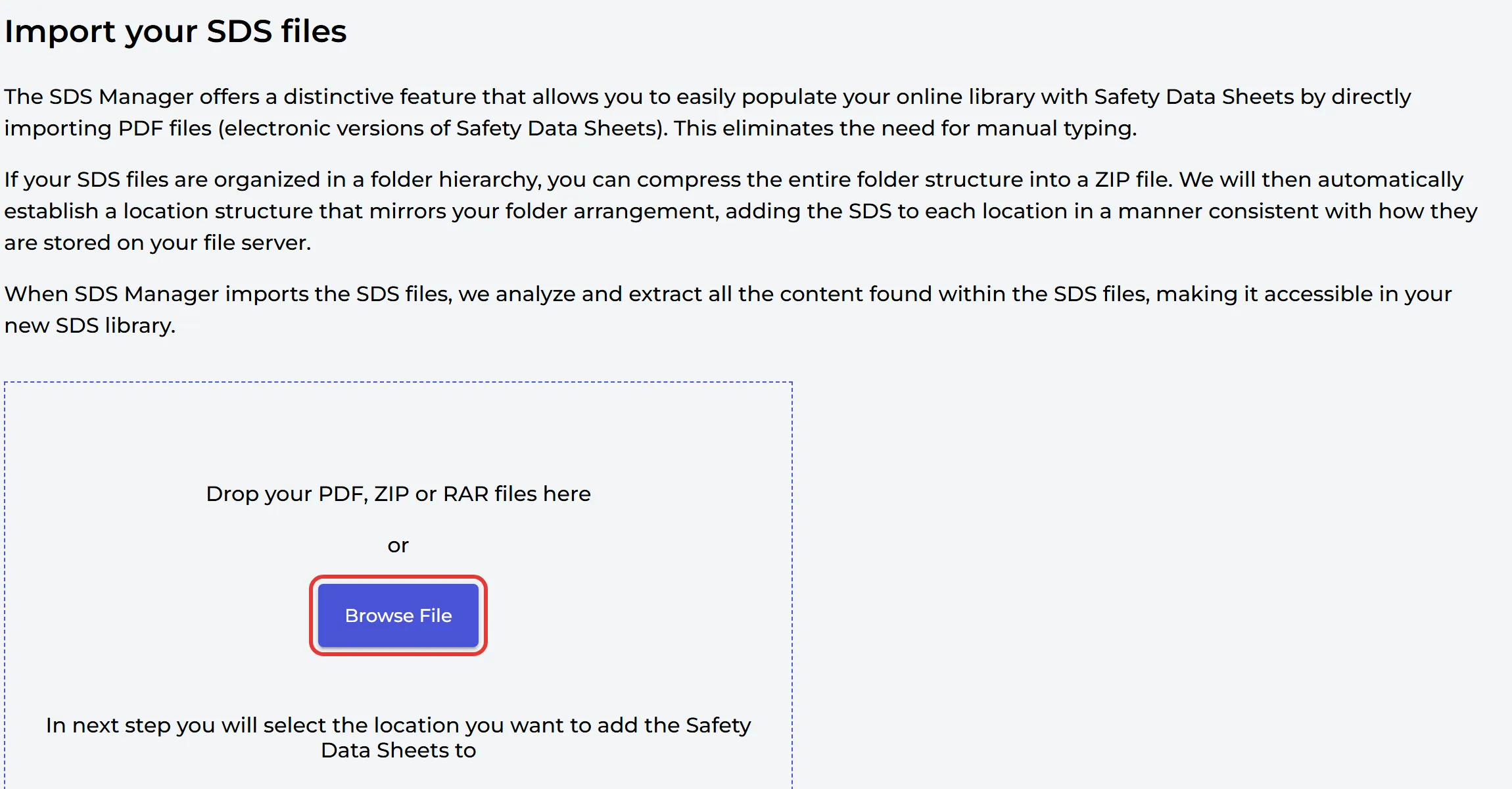
You can upload PDF, ZIP or RAR files, up to 20 files at a time, and only one file type per upload. The largest file you can upload depends on your plan: 25 MB per file on plans with up to 400 SDSs, and more on larger plans. If a ZIP file is too big, split it into several smaller ones.
After the upload, choose the location the SDSs should go to and click Upload.
Keep your folder structure
If your SDS files are stored in folders, compress the whole folder structure into one ZIP file and import it. SDS Manager creates a location for each folder and adds the SDSs to the same places as on your file share:
- The folders in the ZIP file become sub-locations of the location you choose. SDS files that are not in a folder go into the chosen location itself.
- Do you want the folders as top-level locations instead? Tick Create new location(s) at the root level of the location hierarchy for files and folders in the zip-file in the upload dialog.
If a location with the same name already exists in the same place, SDS Manager uses it and does not create a second one. For a ZIP file you choose one location.
One PDF file with many SDSs (SDS binder)
Do you have a PDF file with many SDSs in it, such as an SDS binder for each location? Upload it in the same way. SDS Manager finds each SDS in the file and adds them as separate SDSs to the location. This way you can fill your library with thousands of SDSs in a few minutes.
If the PDF is one product made of several parts, for example a kit, open Advanced options in the upload dialog and choose Upload as KIT SET (SDS Binder). The file is then kept together. This works for one PDF file at a time.
Do you only have printed SDSs in a binder? Read How do I migrate our current SDS binder to SDS Manager?
Add a single SDS file
Open the location in Manage SDS Library and click Add Safety Data Sheet below the list. Under Already have the PDF-file of the Safety Data Sheet you want to add to your library? drag the file into the box or click Browse File.
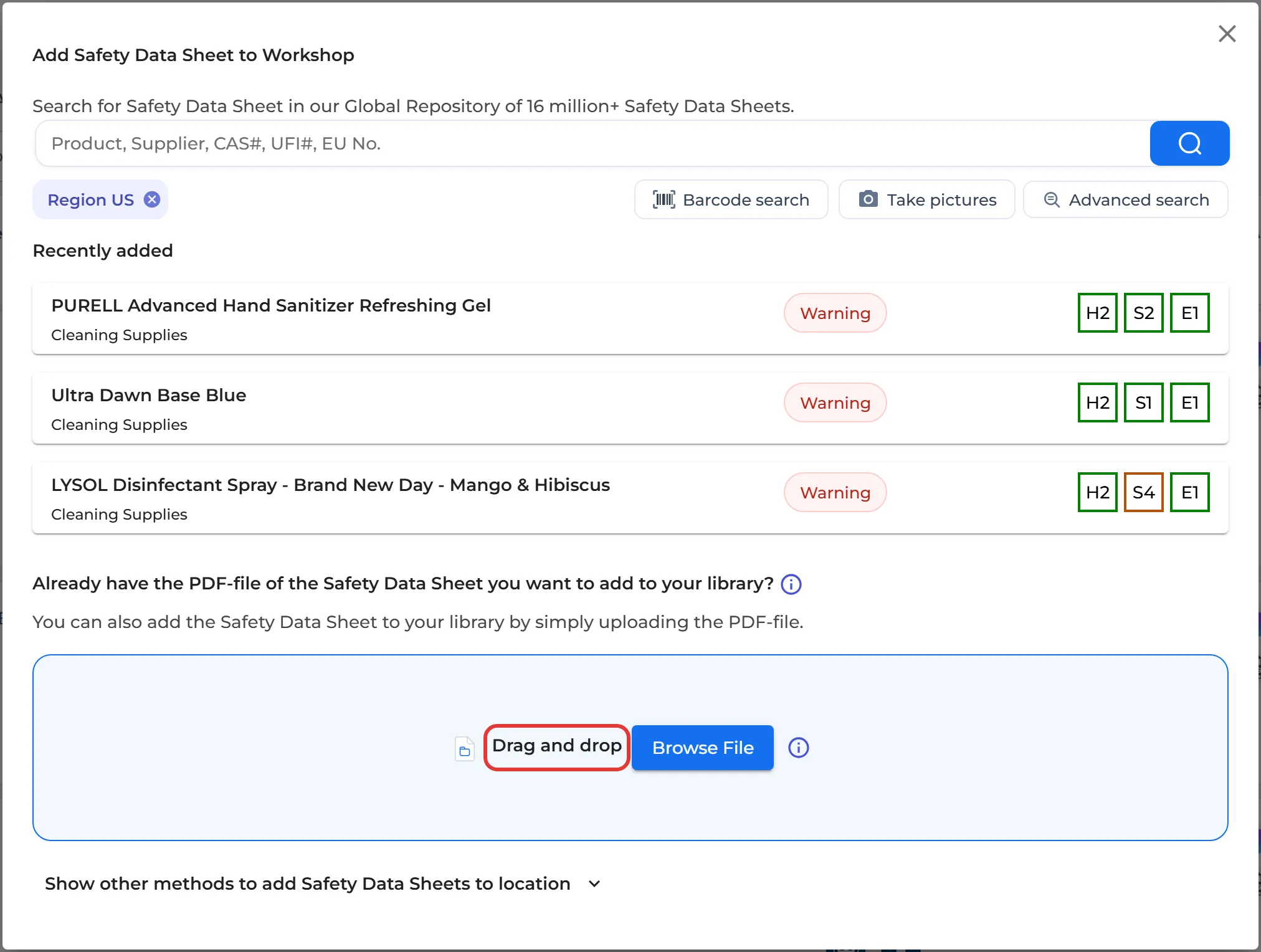
Show other methods to add Safety Data Sheets to location at the bottom of the dialog has more options, such as IMPORT SDS-BINDER and IMPORT ZIP-FILE.
After the import
- Follow your imports under Import status in the left menu. It appears after your first import.
- If we have a newer version of some of the imported SDSs in our database, SDS Manager tells you after the import. Click Click here to see which SDS have newer version. You can always find them later under Updates → SDS where newer version exists. Read more: User manual for "Manage SDS Updates".
- Files that SDS Manager could not read are listed under Tasks → Products Awaiting SDS. Read more: Troubleshooting PDF Import Failures.
Other ways to build your library
- You have a list of your chemicals in Excel or CSV but no SDS files: How do I import our xls/csv file with all the products we use?
- All the ways to add SDSs: How to add Safety Data Sheets to your SDS library
- Let us move your SDS library for you: Can SDS Manager staff do the migration of our SDS library for us?