Custom fields are your own fields on the Safety Data Sheets (SDSs) in your library, for example the process or the department where a chemical is used, or an expiry date.
Create a custom field
- Open a location in Manage SDS Library, click General at the top right and choose Personalized view.
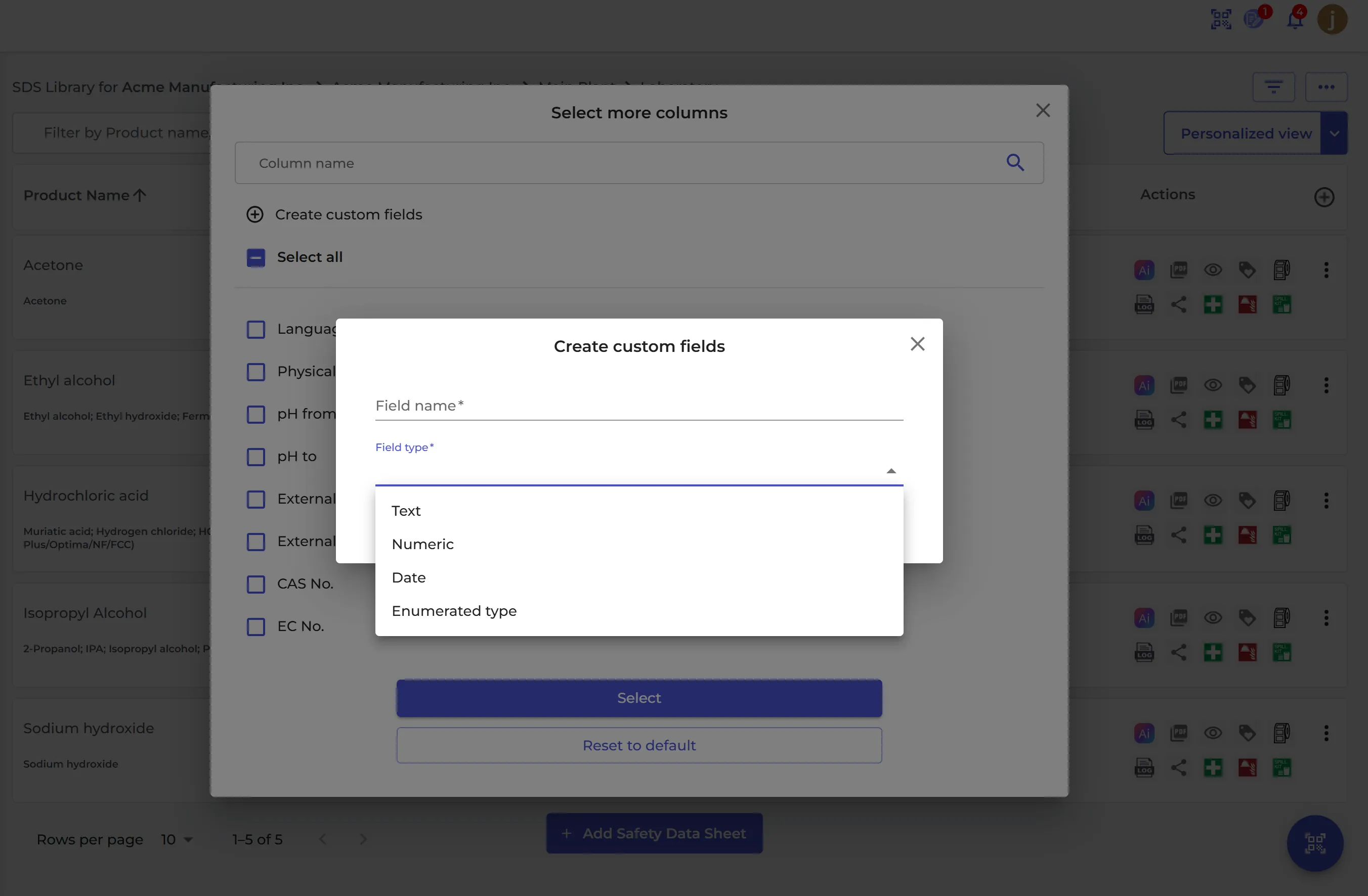
- Click the + icon (Add more columns), then Create custom fields.
- Enter the Field name and choose the Field type: Text, Numeric, Date or Enumerated type. For an enumerated type, enter the values users can choose from.
- Click Save.
Fill in the values
- For one SDS: open the SDS details and click the pencil next to the field.
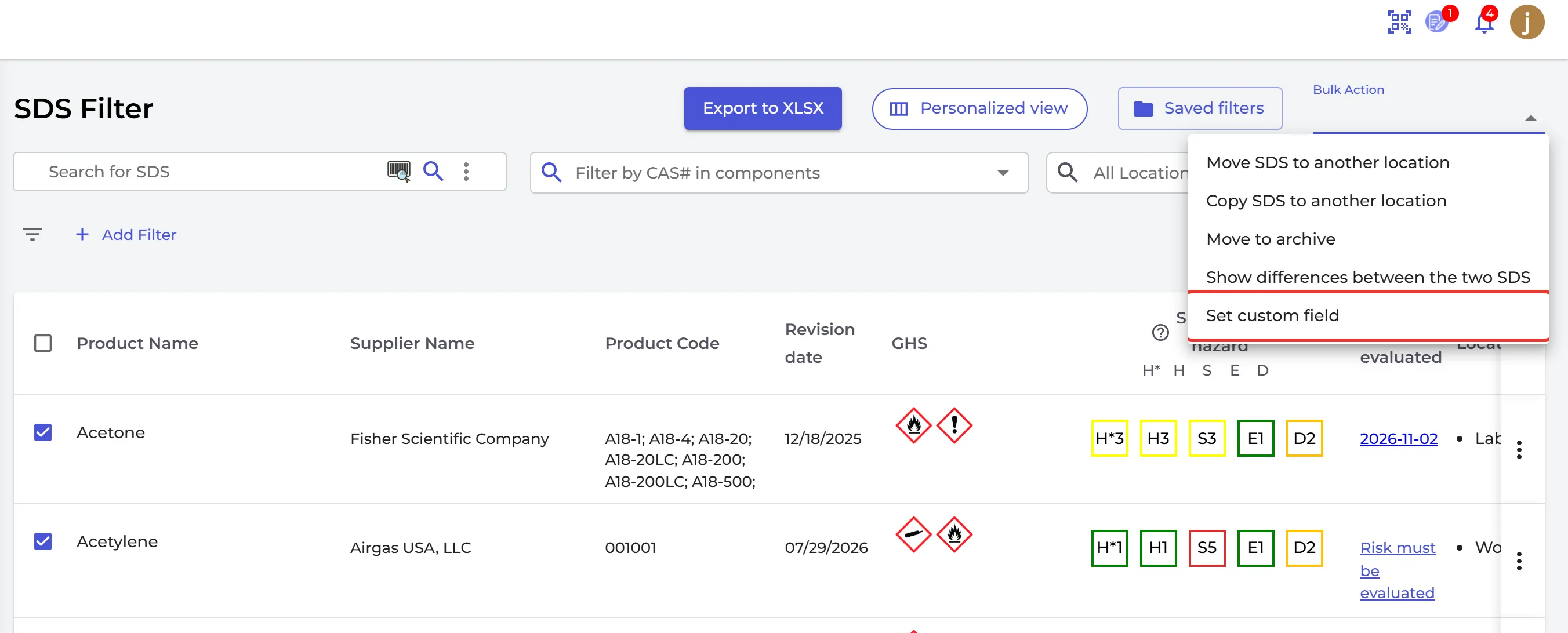
- For many SDSs: tick them on SDS Filter and choose Set custom field under Bulk Action.
- When you import a product list, you can import values into your custom fields: How do I import our xls/csv file with all the products we use?
Use the values
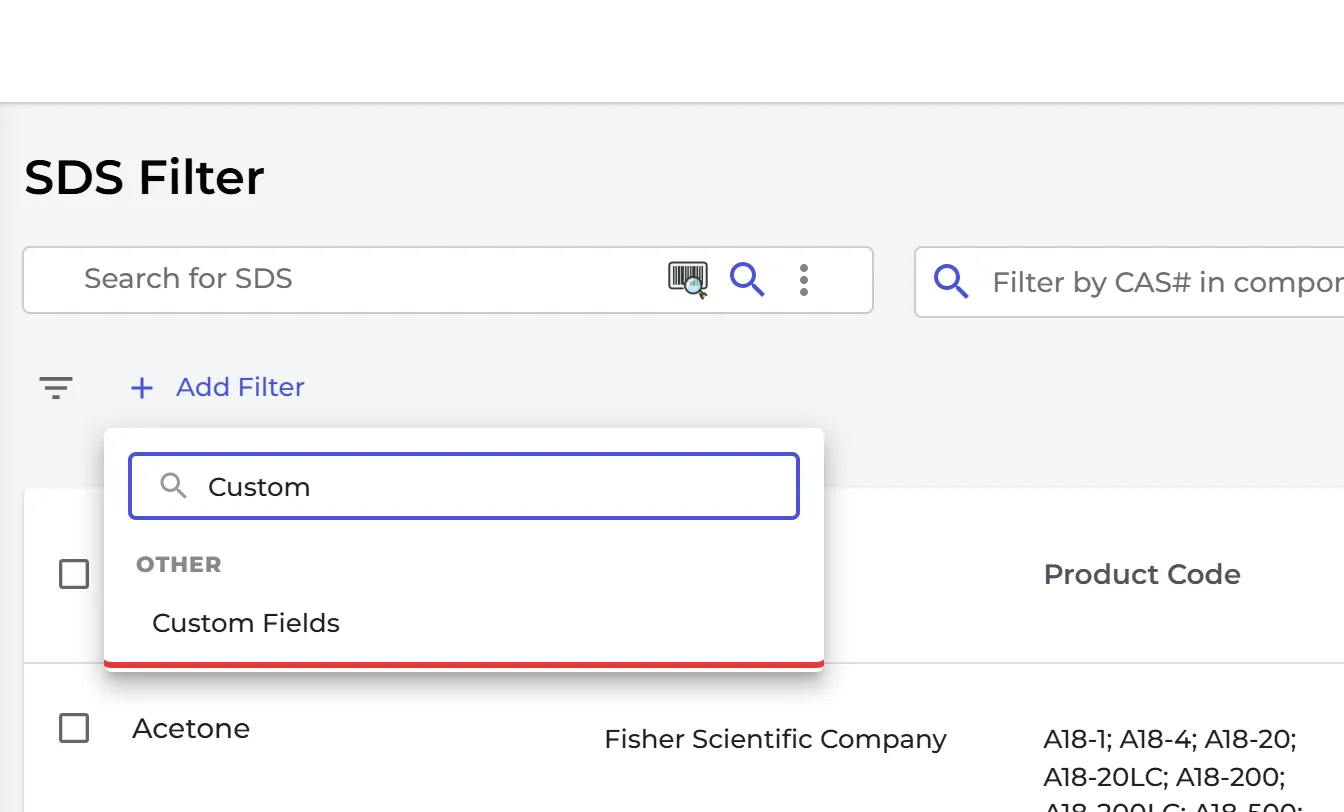
On SDS Filter, add the Custom Fields filter to list the SDSs with a given value, for example all SDSs used in "Process A", or the SDSs where the field is empty. You can also show the fields as columns: How can I get a listing for things like 'Auto-ignition temperature' of all chemicals?