You can export your Safety Data Sheet (SDS) library to a file in three ways. Exporting is part of the Pro and Enterprise plans.
1. Export the whole library
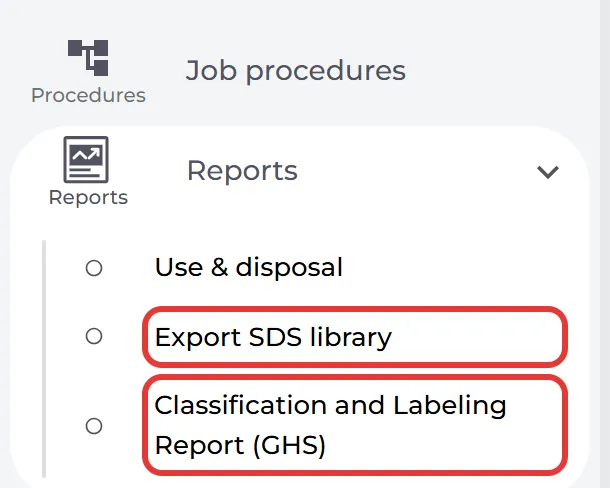
- Click Reports in the left menu.
- Click Export SDS library.
SDS Manager prepares the file in the background and then downloads it as a CSV file (sds-library.csv), which you can open in Excel. Under Reports you also find Classification and Labeling Report (GHS), a CSV file with the GHS classification and labeling information of your SDSs. Only owners and admins see these two items.
2. Export a location with the columns you choose
- Open the location in SDS Admin (Manage SDS Library). To include the SDSs on its sub-locations, switch on Include sub-locations.
- Choose Personalized view and click the ⊕ button Add more columns. Tick the data you want in the file, for example the flash point, or your own custom fields.
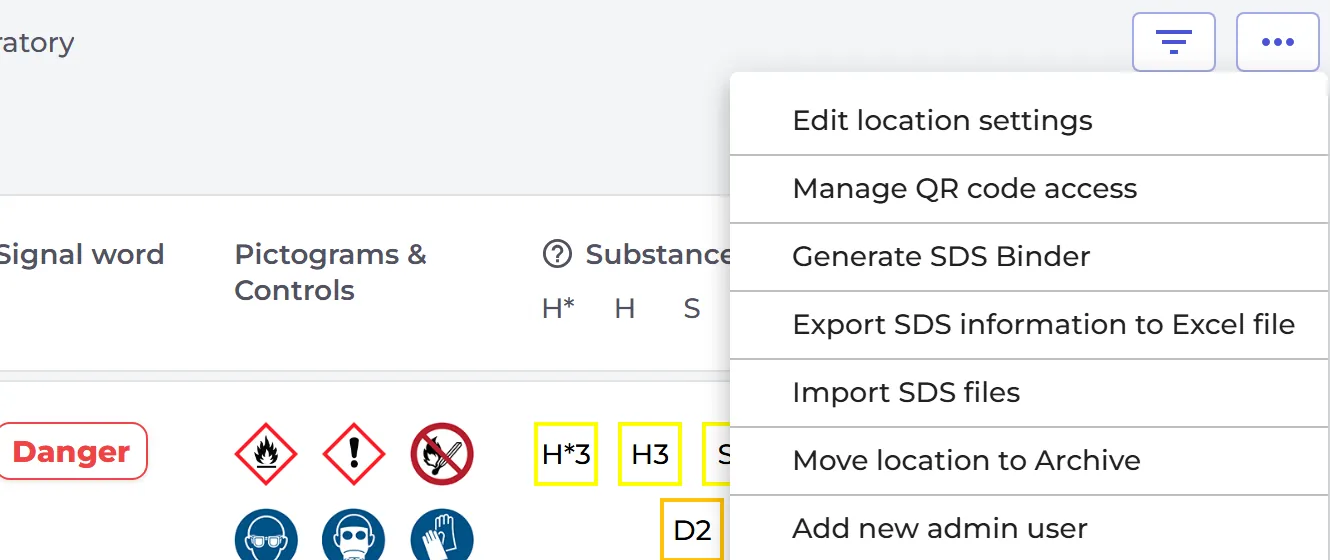
- Click More options (⋯) at the top right and choose Export SDS information to Excel file.
The Excel file has one row for each SDS, with the columns of your Personalized view. You can choose from hundreds of data fields from the SDSs.
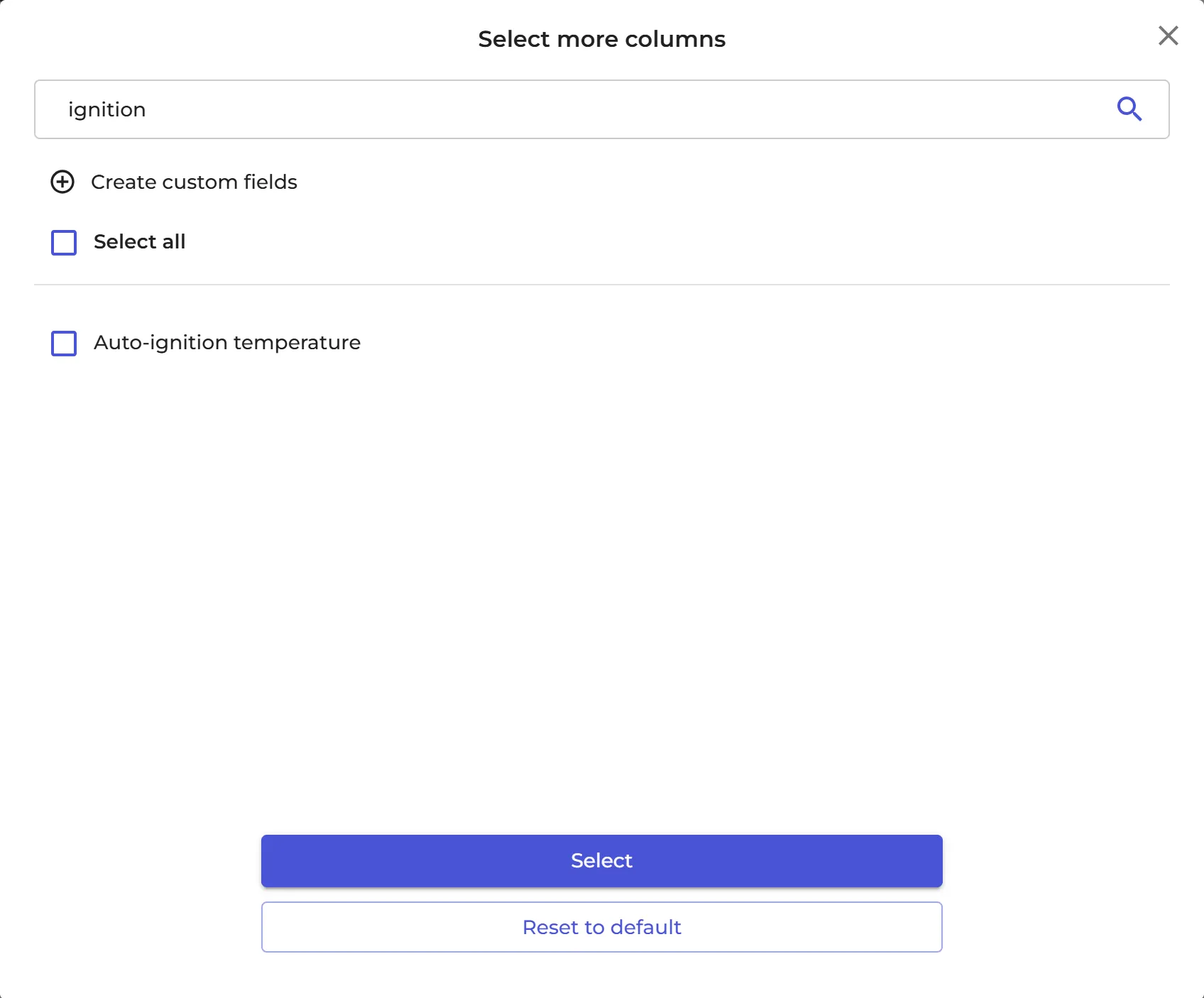
Read more: How can I get a listing for things like 'Auto-ignition temperature' of all chemicals? · How can I create custom fields linked to my SDSs?
3. Export a filtered list
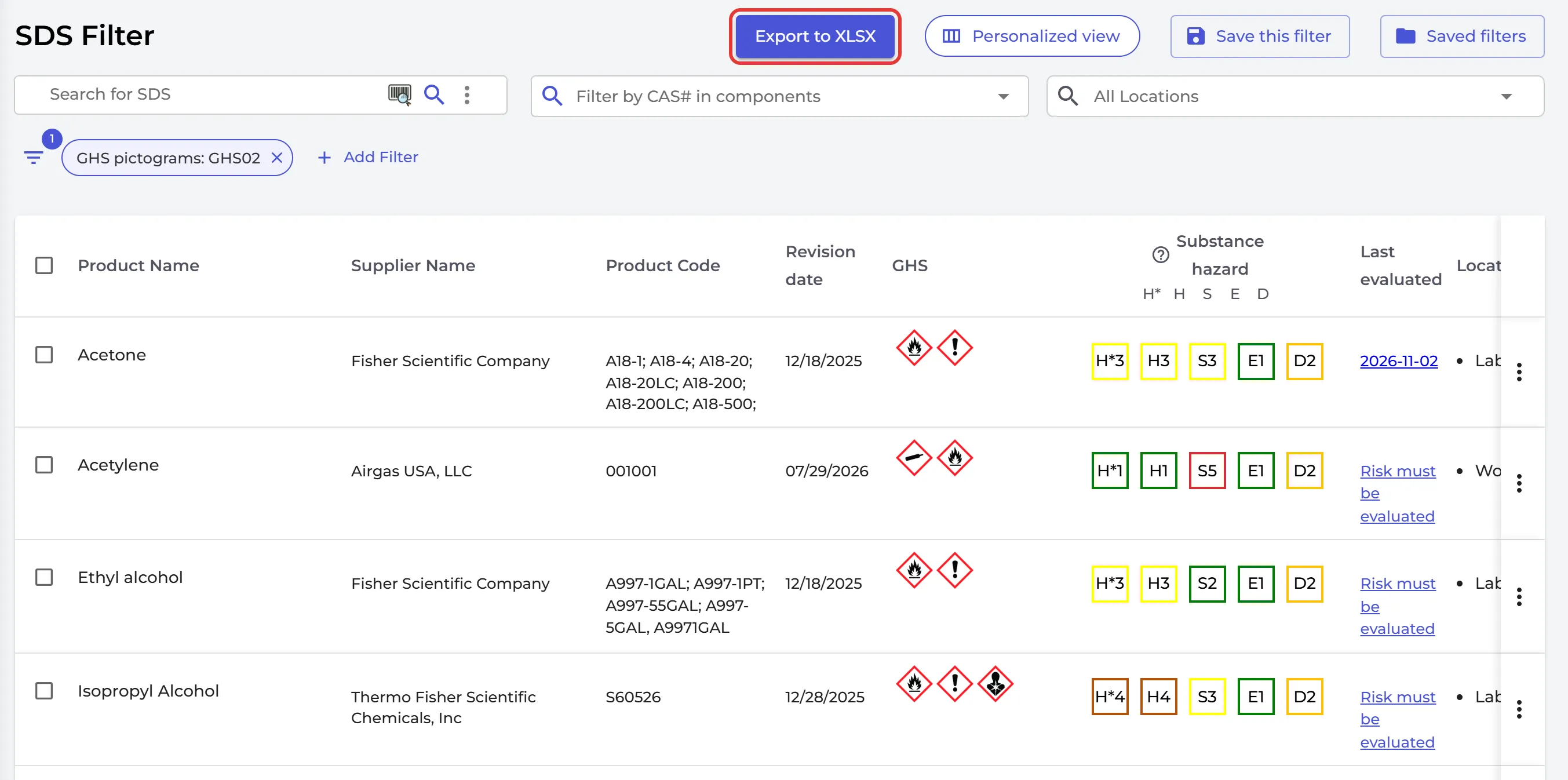
On Filter (SDS Filter) in the left menu you can filter your SDSs, for example to find all SDSs with the flammable (GHS02) pictogram. Click Export to XLSX to get the result as an Excel file.
Do you want to keep another system in sync with your SDS library? Use our API: How to use API to get JSON export/sync of your SDS Library to external systems
Attached files: