A QR code poster normally gives access to the SDSs on the locations you choose. You can also give it access to SDSs by the value of a custom field. For example, with a custom field "Department" with the values "North" and "South", one QR code can open every SDS marked "North", on any location.
Step 1: Create the custom field
Create a custom field with the field type Enumerated type (a list of values) and set the value on your SDSs. Read more: How can I create custom fields linked to my SDSs?
Step 2: Link the QR code to a value
- Click QR Access (Employee Access) in the left menu, click ⋮ on the QR code and choose Edit location access.
- Click Advanced access.
- Choose the field in Custom fields of enumerated type and the value in Custom field value, and save.
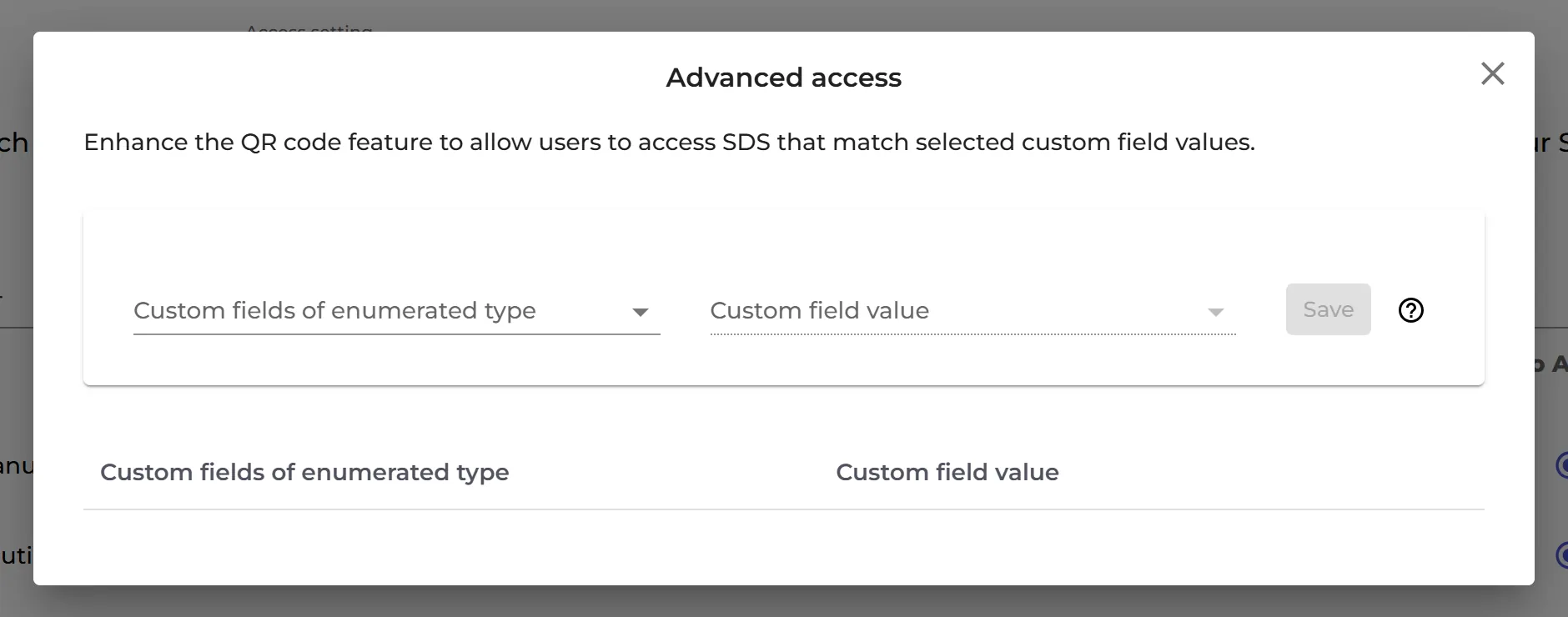
Employees who scan the QR code then see the SDSs on its locations and also every SDS with the chosen value. Advanced access cannot be used for a QR code with Access to all SDSs, because that QR code already opens every SDS.
Custom fields are part of the Pro and Enterprise plans.