You can change the product name of any Safety Data Sheet (SDS) in your library, for example to the name your company uses for the product. You edit the other information that SDS Manager has read from the SDS the same way.
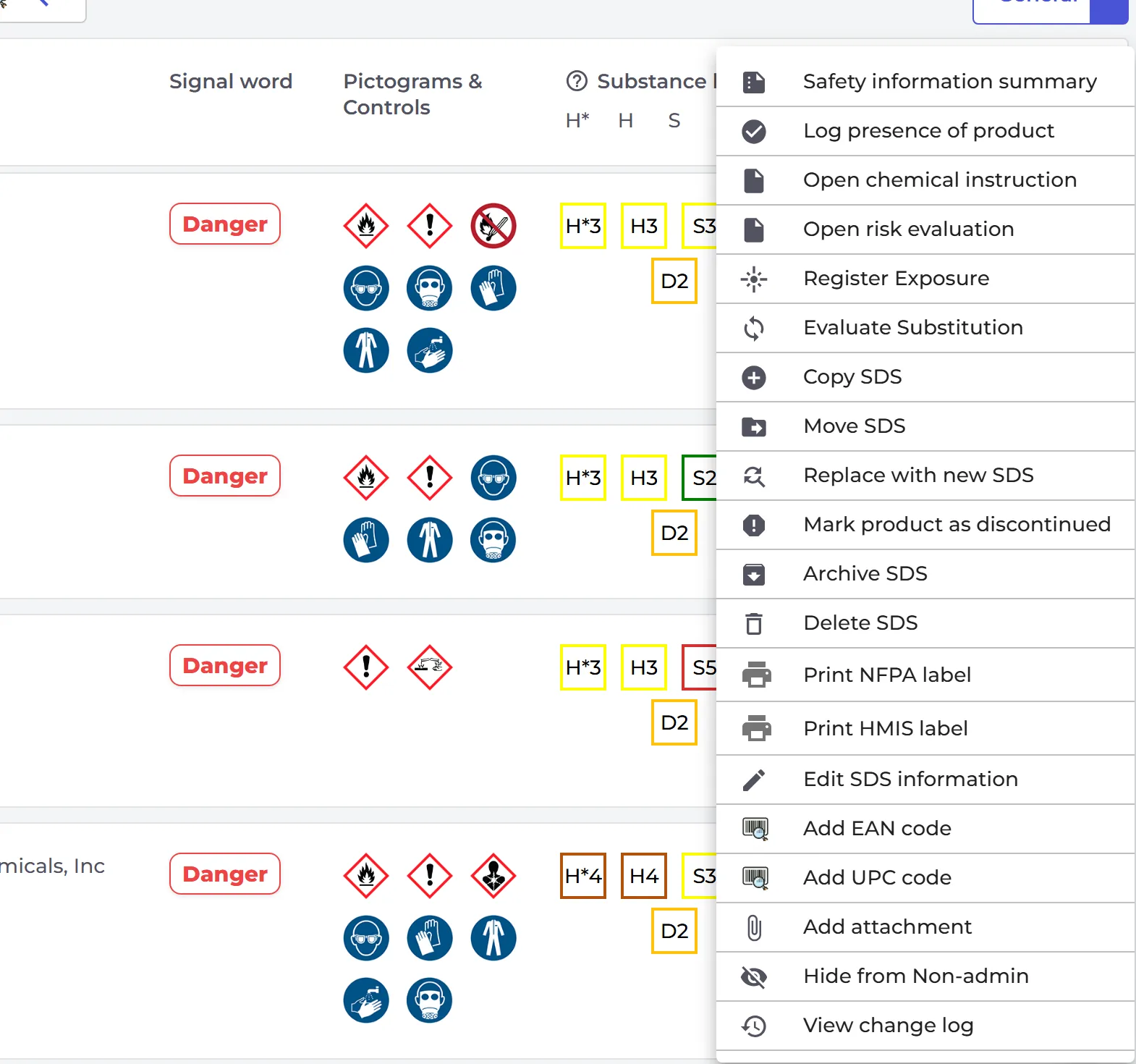
- Open the location in SDS Admin (Manage SDS Library) and click the product name. You can also click ⋮ on the SDS and choose Edit SDS information.
- Under General Information, point at the product name. Click the pencil that appears next to it.
- Type the new name and click the save icon. Click the X to cancel. The product name cannot be empty.

Owners, admins and Admin Light users can edit SDS information on their locations; Staff users cannot. Editing SDS information is part of all paid plans and the free trial, but not of the Free plan.
If the SDS is on more than one location
The first time you edit an SDS that is on several locations, SDS Manager asks Confirm to apply edits to all instances of same SDS?
- Click OK to change the SDS on all locations. This cannot be undone.
- Click Cancel to change it only on this location.
The box Apply the edits on this SDS to all instances of same SDS at the top of the window shows your choice.
Keep the official name too
Should your employees find the product under both names? Then add your name as a synonym instead of changing the product name. SDS Manager finds the SDS when you search for either name. Read more: How can I assign a synonym name to an SDS?
Every change is listed under View change log on the SDS. Read more: How can i know who added or updated an SDS in our SDS library? · How can I edit information that is extracted from an SDS?