SDS Manager reads the information in each Safety Data Sheet (SDS) and shows it on the details page of the SDS. You can correct this information and add what is missing.
Open the SDS
Click the SDS in SDS Admin (Manage SDS Library), My SDS (All my SDSs) or Filter (SDS Filter). You can also click ⋮ on the SDS and choose Edit SDS information. Read more: How can I see all the details about an SDS?
Change a value
- Point at the value you want to change. A pencil appears next to it.
- Click the pencil, change the text and click the save icon. Click the X to cancel.

Rows that have no information in the SDS are hidden. Tick Show rows where SDS has no information to show them, so that you can fill them in.
Add data to a section
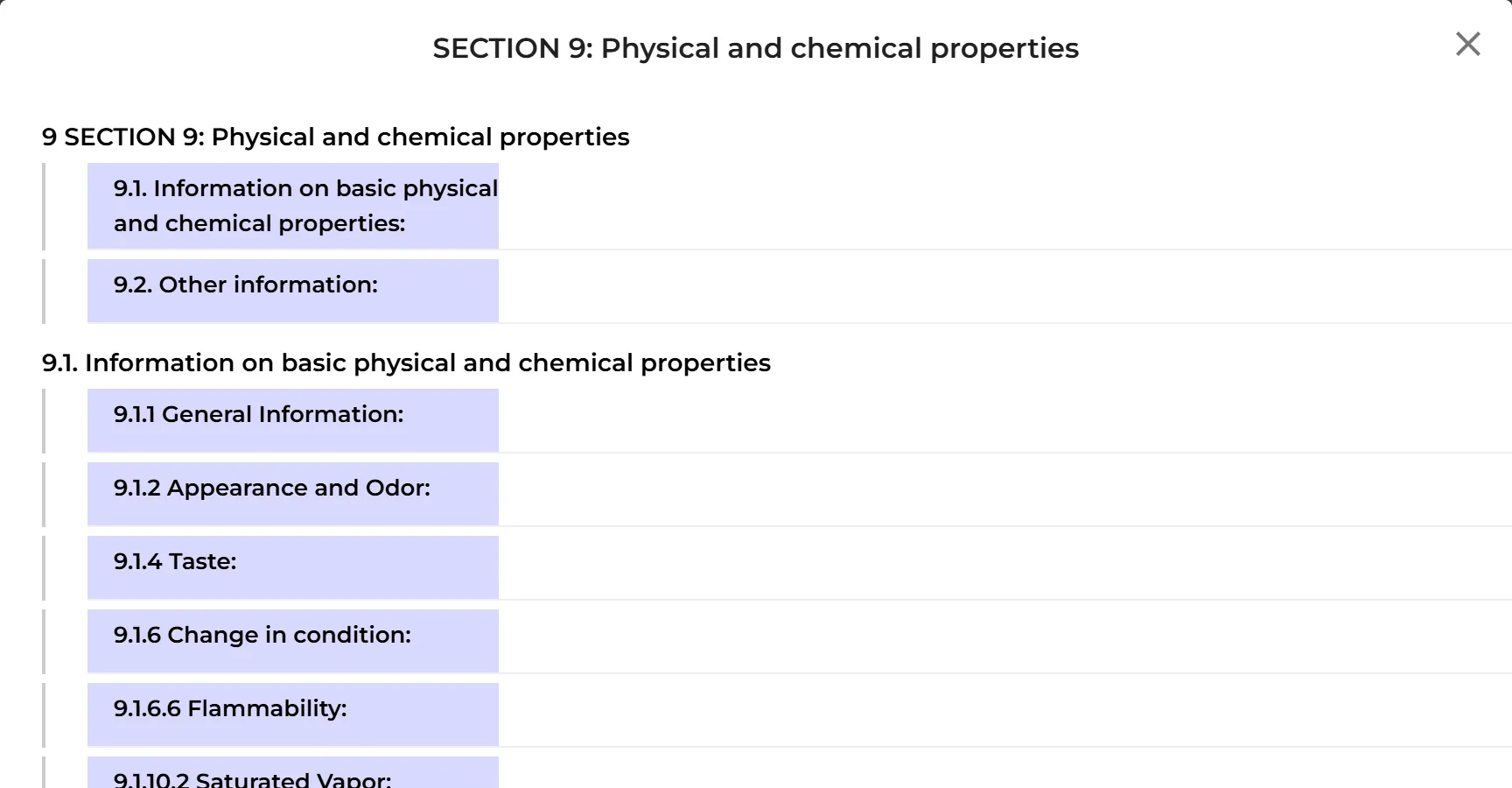
- Point at the heading of a section, for example section 9. A plus button (Add) appears next to it.
- Click it. A window lists all the data fields of that section.
- Point at the field you want to fill in, click the pencil, type the value and click the save icon.
Sections 1 and 3 do not have this button.

Good to know
- If the SDS is on more than one location, you can apply your edits to all of them: Apply the edits on this SDS to all instances of same SDS. Read more: How can I edit the product name on an SDS?
- Every change is listed under View change log. Read more: How can i know who added or updated an SDS in our SDS library?
- Owners, admins and Admin Light users can edit SDS information on their locations; Staff users cannot. Editing SDS information is part of all paid plans and the free trial, but not of the Free plan.