The SDS Manager app for iPhone and Android gives your employees access to your Safety Data Sheets (SDSs), also when they are offline. With the app they can also find an SDS by scanning the barcode on the product.
We recommend QR code posters as the main way for employees to open your SDSs: they work on any phone, without installing anything. The app is very useful for users who need offline access, or who want to find SDSs by scanning product barcodes. Read more: How can our employees find the SDS for a chemical?
Install the app
Download the SDS Manager app from the App Store (iPhone) or from Google Play (Android). You can also scan the small QR code in the lower-left corner of your QR code poster: it opens the app in the store.
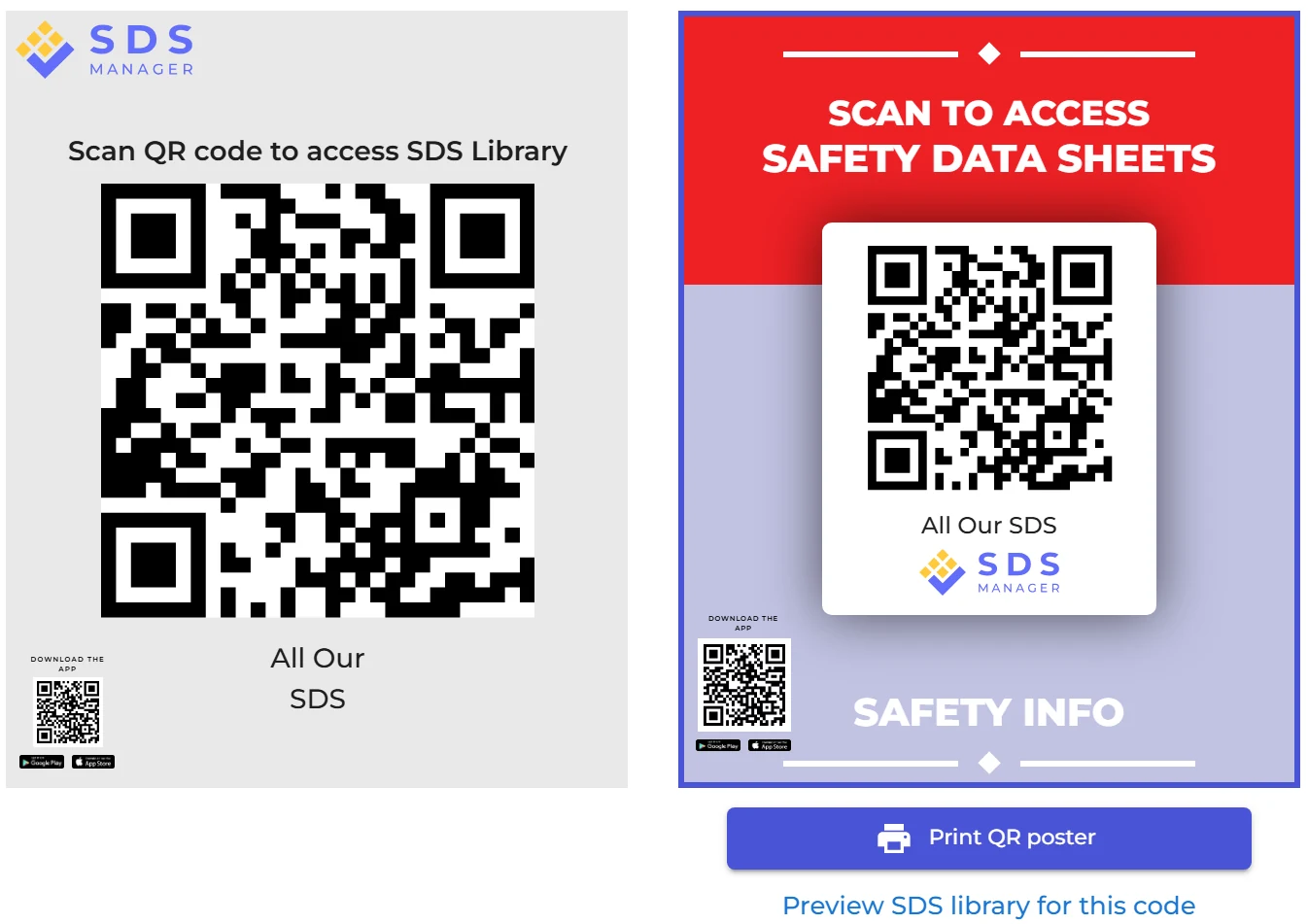
In SDS Manager, the My SDS page also has buttons for the App Store and Google Play. These buttons, and the small QR code on the poster, are shown while App access for QR users is switched on (see below).

Open your SDS library in the app
Open the app and do one of these:
- scan the large QR code on your QR code poster, or
- log in with your SDS Manager e-mail address and password.
The app then downloads the information of all the SDSs you have access to, so you can read it offline. When the phone is online, the app fetches the changes to your SDS library, so the copy on the phone stays up to date.
Find an SDS
Search for the product by its name, or scan the barcode (EAN or UPC code) on the product.
To find SDSs by barcode, the barcodes of your products must be linked to your SDSs, because each package size of a product has its own barcode. Owners and admins can add the codes in SDS Manager. Read more: How to lookup an SDS by scanning Barcode (EAN-/UPC-code). You can also do it in the app: scan the barcode of a product, and if it is not found, search for the product by name and link the barcode to its Safety Data Sheet.
Keep your list of chemicals private
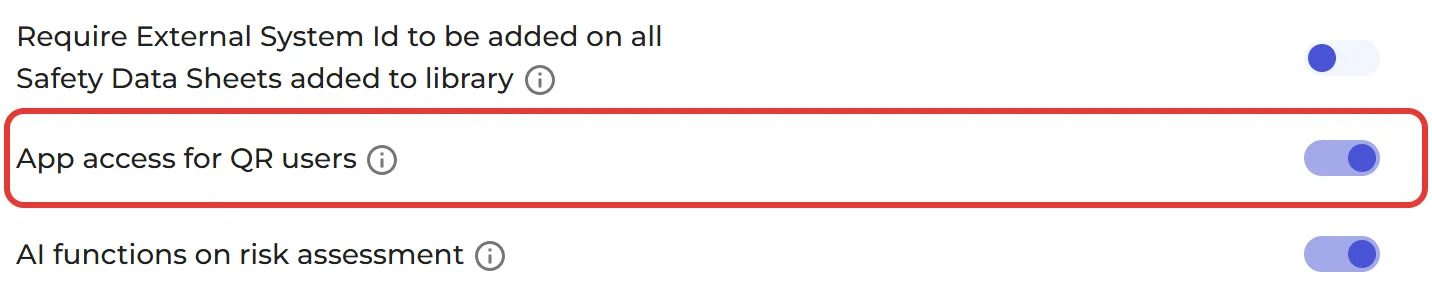
Anyone with access to your QR code poster can scan it in the app and download all the SDSs that the QR code gives access to. If you want to keep the list of chemicals your company uses confidential, switch off App access for QR users on the Settings page (More → Settings). Then only users who log in with their e-mail address and password can open your SDSs in the app.
The app for offline access is part of the Premium plan and higher. See the pricing page.