A secondary container label goes on a smaller container, such as a spray bottle, jug or jar, that you fill from the supplier's container at work. Many rules, such as OSHA's Hazard Communication Standard in the US, require these containers to be labelled. SDS Manager makes the label from the Safety Data Sheet (SDS).
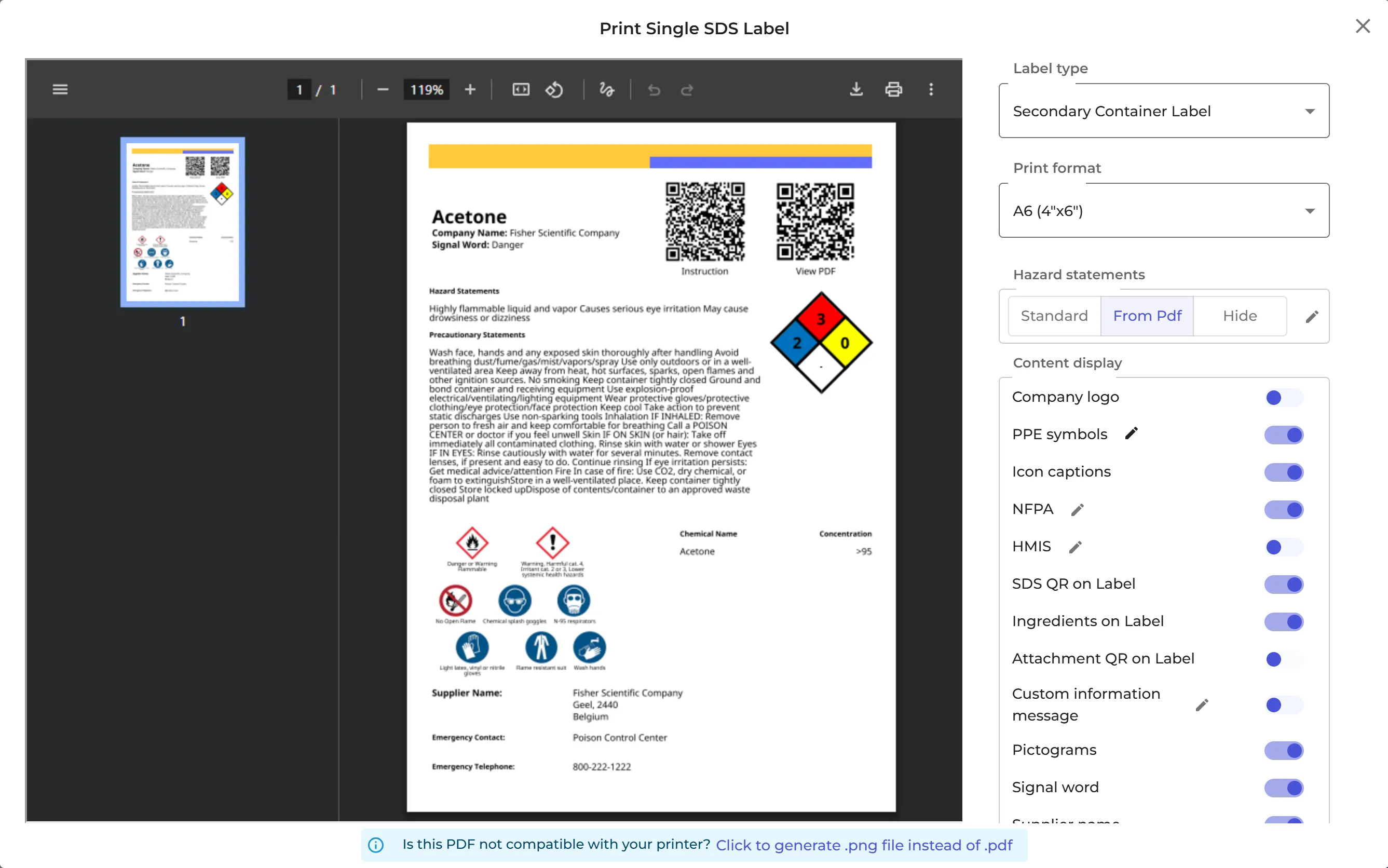
The label shows the product name, the supplier, the signal word, the hazard pictograms, the hazard and precautionary statements, PPE symbols, the ingredients and the emergency phone number. It also has QR codes: one opens the SDS and, if the product has a risk assessment, one opens its chemical instruction.
Print a label
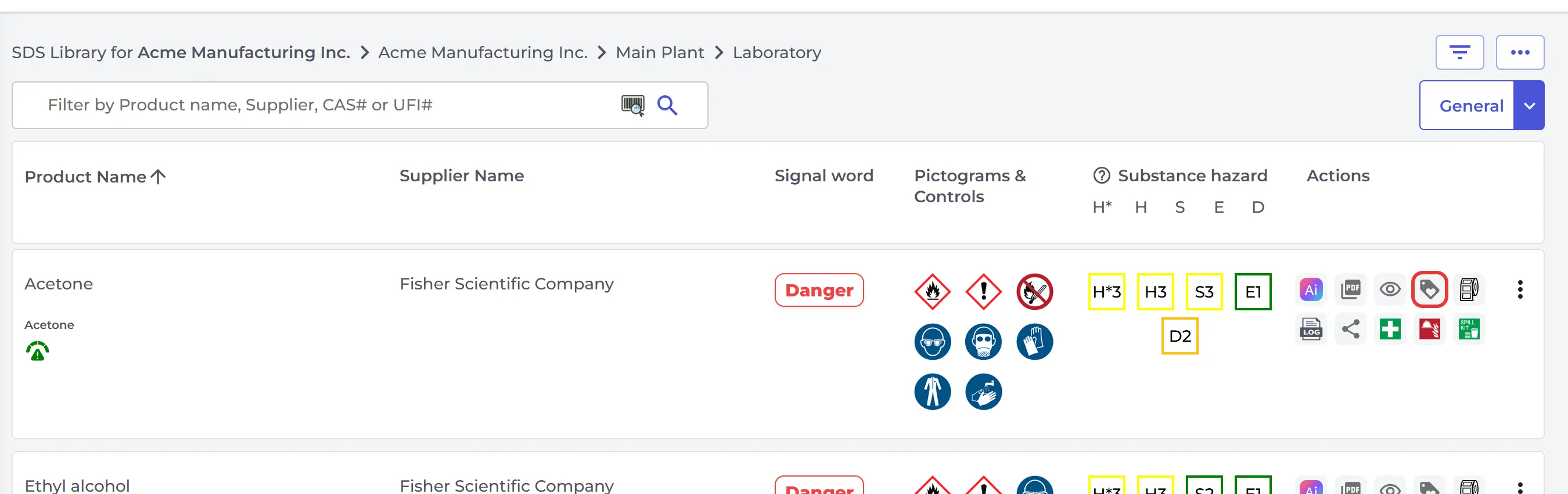
- Open the location in Manage SDS Library and find the SDS.
- Click the label icon (Print Label) on its row.
The Print Single SDS Label window opens, with a preview of the label on the left:
- Label type: Secondary Container Label or Transport Label.
- Print format: the label size, or a sheet of Avery or Brady labels. Read more: What secondary container label formats are supported?
- Hazard statements: Standard uses the standard text for each H-statement, From Pdf uses the exact text from section 2 of the SDS, and Hide leaves them out. Click the pencil to edit the text.
- Content display: switch each part of the label on or off, for example Company logo, PPE symbols, SDS QR on Label, Ingredients on Label or Custom information message.
- Expiration Date, and the size of the icons, the text and the QR codes.
Print or download the label with the buttons above the preview. If your printer has trouble with the PDF, click Click to generate .png file instead of .pdf.
Print on a sheet of Avery or Brady labels
Choose the sheet under Brady & Avery label in Print format. Click the cell on the sheet where printing should start, so you can use a sheet that is partly used. Set the number of Copies, or choose Fill Page. Then click Print Label.
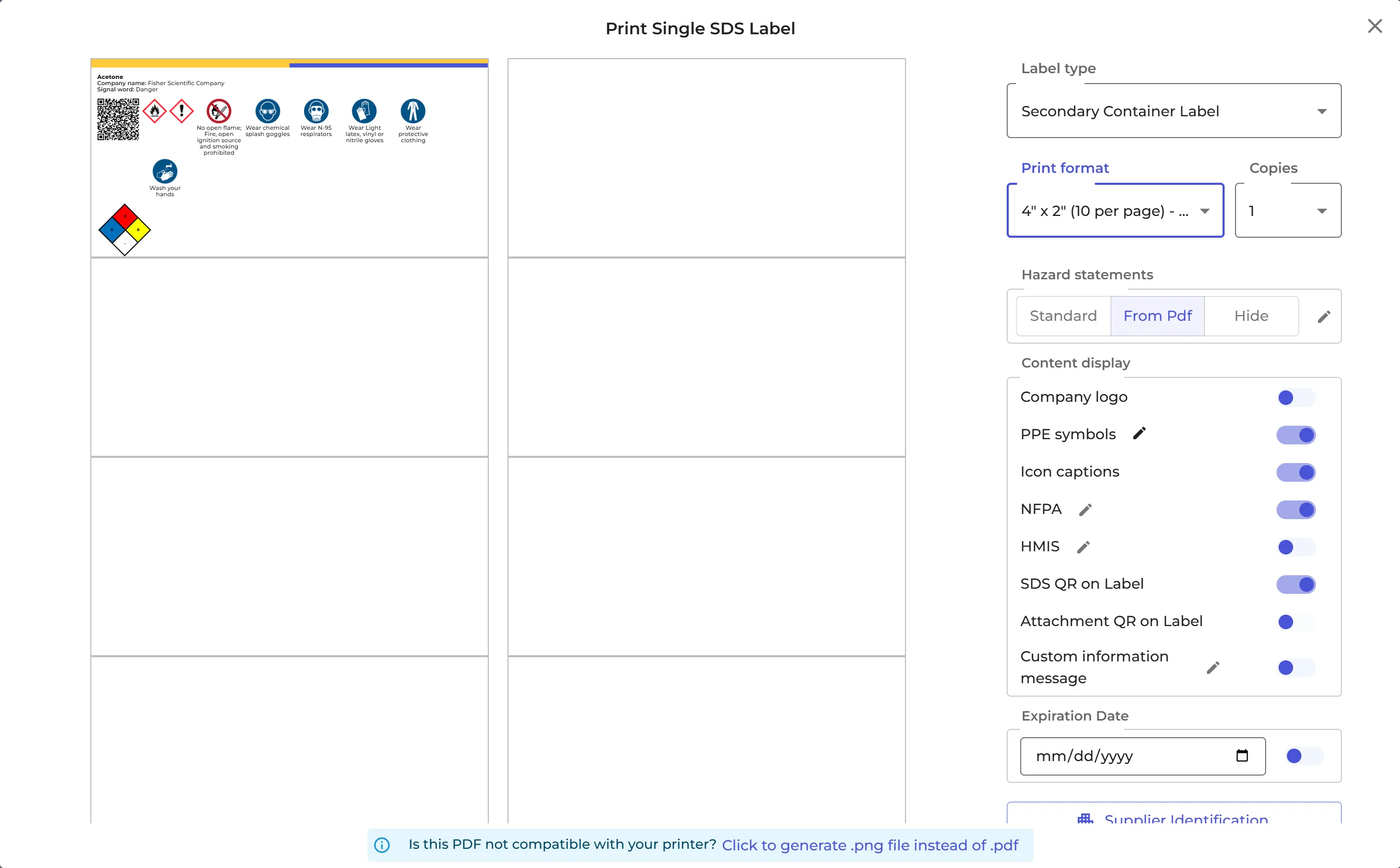
To print labels for several SDSs on one sheet, read How to Create an Avery/Brady Label for an SDS PDF?
More you can add to the label
- Your own note, marked as Info, Warning or Danger: Add information labels on SDSs - shown in the SDS list and on labels
- The NFPA diamond and the HMIS bar (US and Canada): Print NFPA label for chemical · Print HMIS (WHMIS) label for chemical
To keep your choices for the next label, click Save label layout settings. Employees who open your library with a QR code can print labels only if you allow it under QR Access (Employee Access) (Allow QR users to print labels).