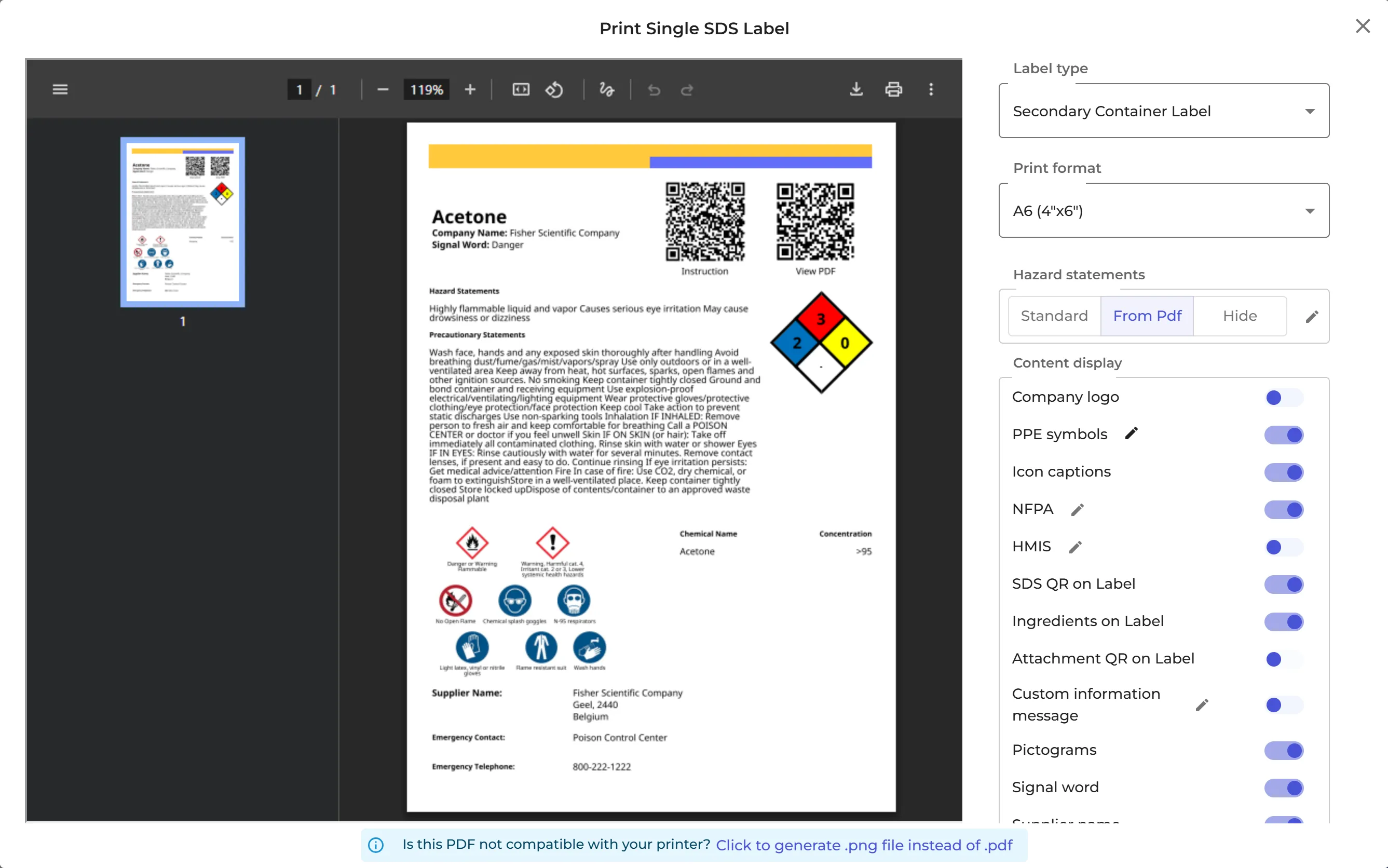
An NFPA label shows the NFPA 704 diamond of a chemical: health (blue), flammability (red) and instability (yellow), each from 0 to 4, and special hazards (white), such as OX for oxidizers or W for chemicals that react with water.
Print an NFPA label
- Open the location in Manage SDS Library, click ⋮ on the SDS and choose Print NFPA label.
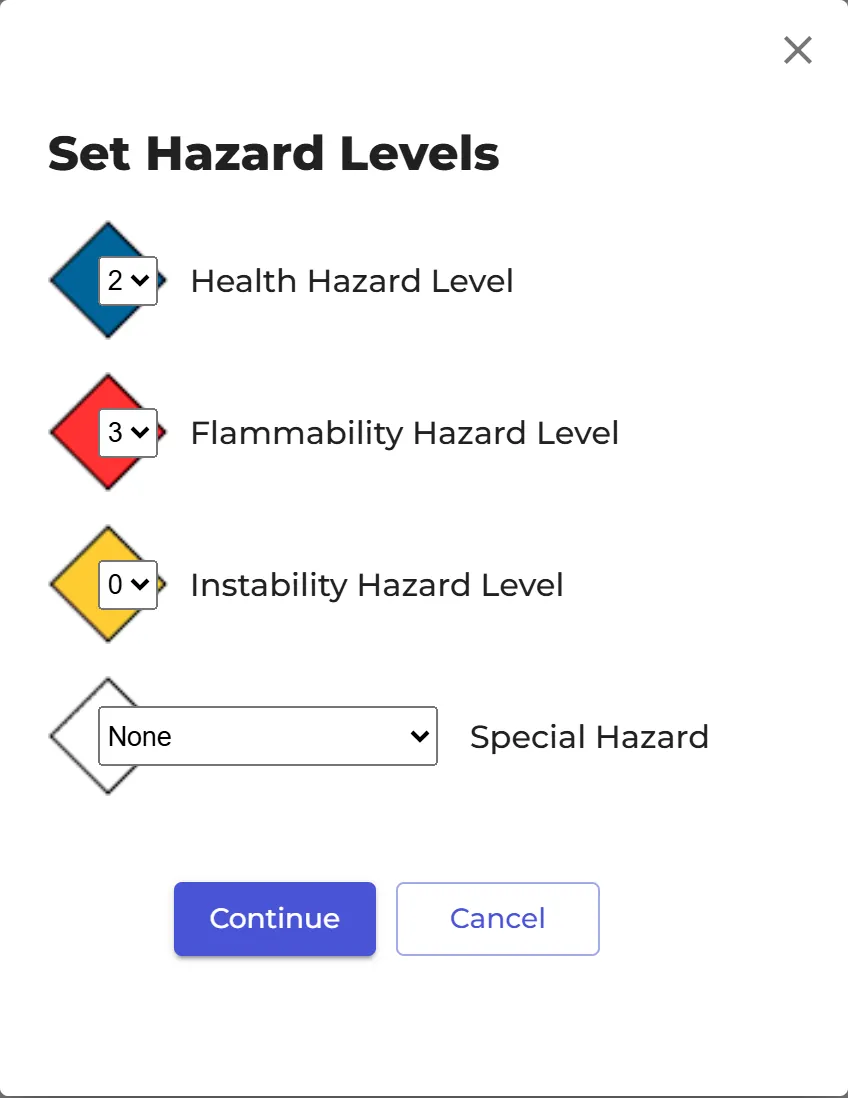
- In Set Hazard Levels, check or choose the Health Hazard Level, Flammability Hazard Level, Instability Hazard Level and Special Hazard. If SDS Manager has found NFPA ratings for the product, they are filled in. Click Continue.
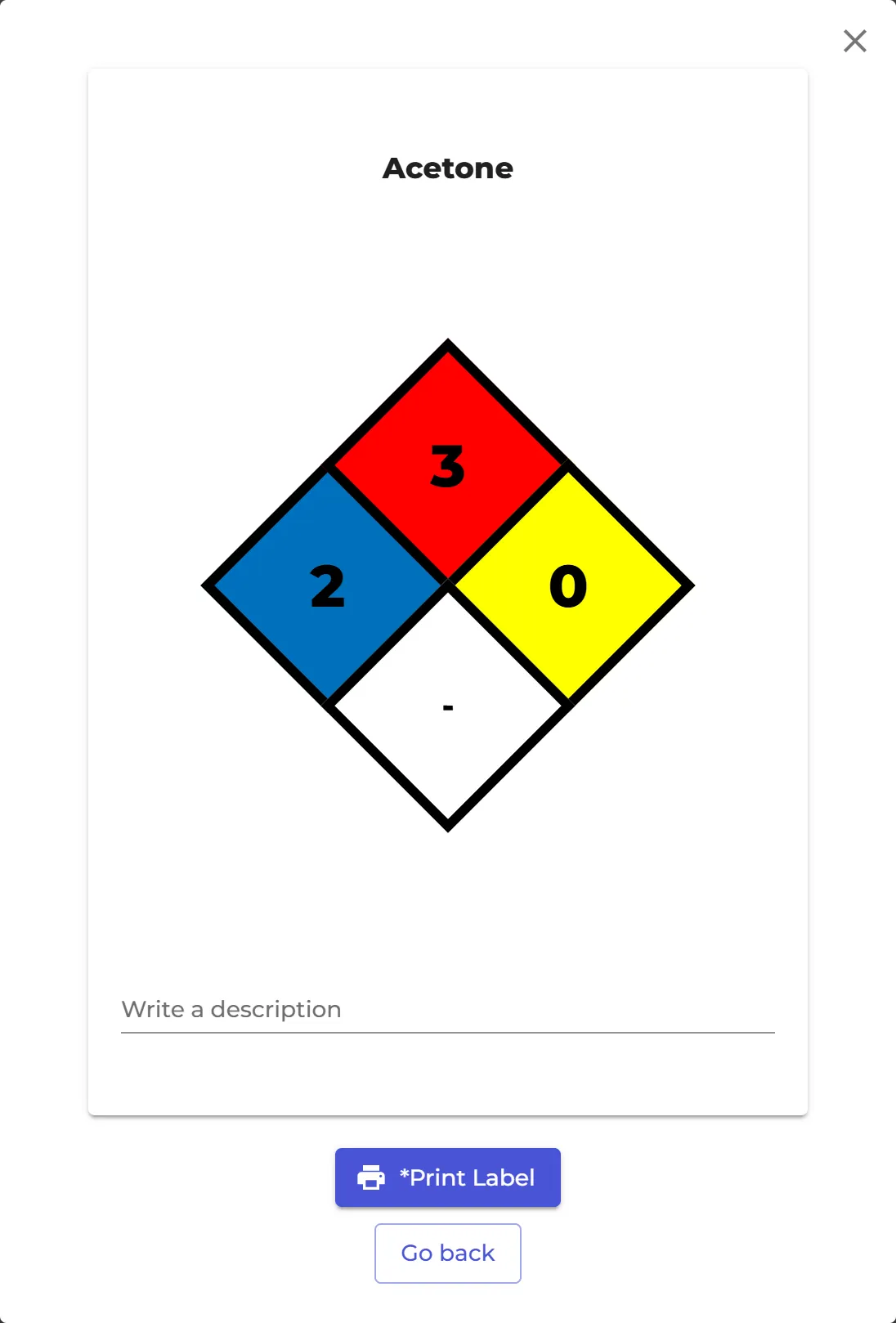
- Check the label. Click Write a description to add a text, then click Print Label.
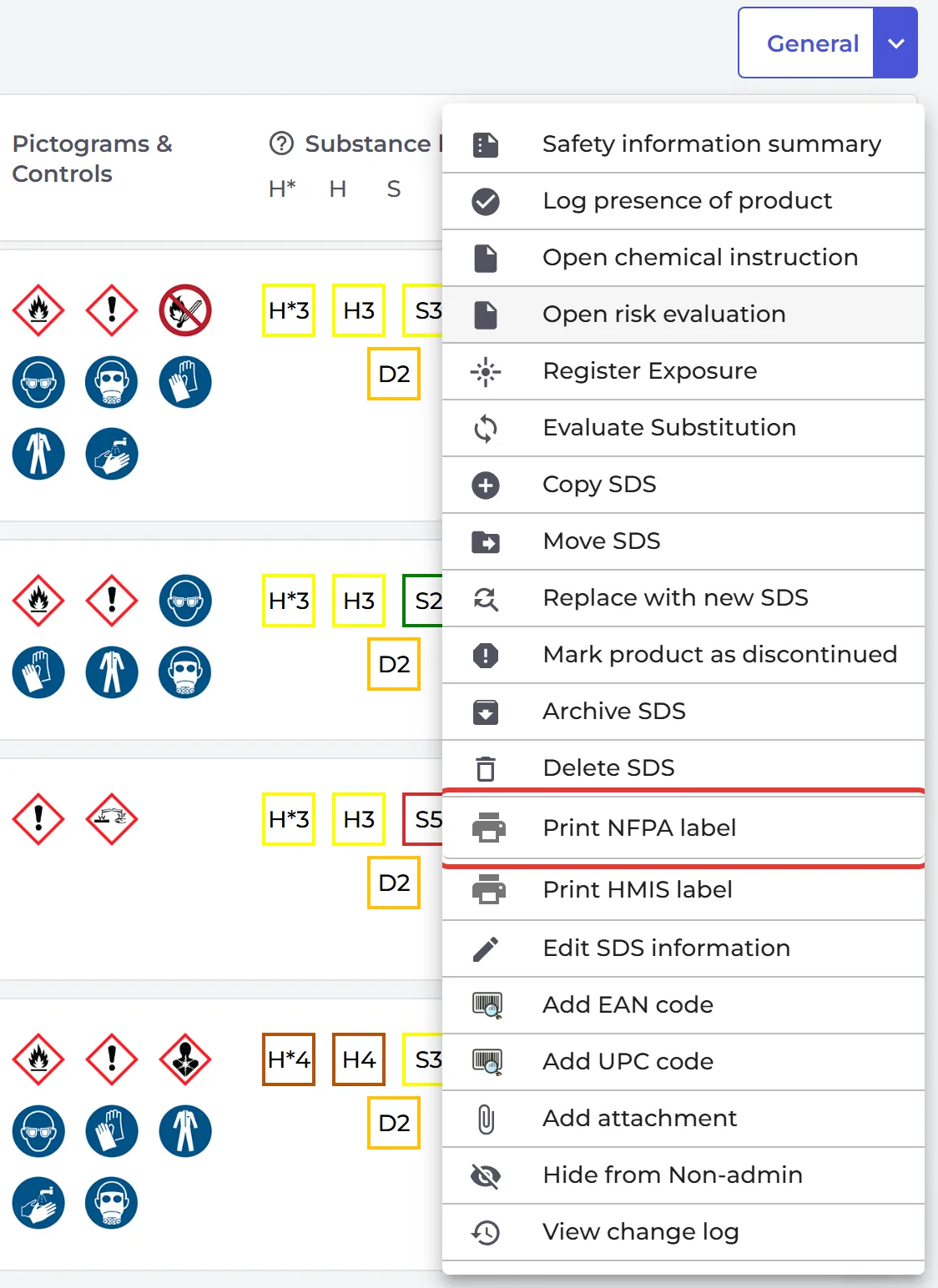
Don't see Print NFPA label?
The NFPA and HMIS options are shown when your organization's country is the United States or Canada. Click More in the left menu, then Organization profile, and check the Country.
NFPA on the secondary container label
The secondary container label can show the NFPA diamond too. In the label window, use the NFPA switch under Content display, and click the pencil next to it to change the levels. Read more: How to create Secondary container labels for hazardous chemicals