You can print labels for several SDSs on one sheet of Avery, Brady or DuraLabel labels, or on plain paper. Each label has the product name, the hazards and a QR code that opens the Safety Data Sheet (SDS). You do this on a computer.
Step 1: Choose the SDSs
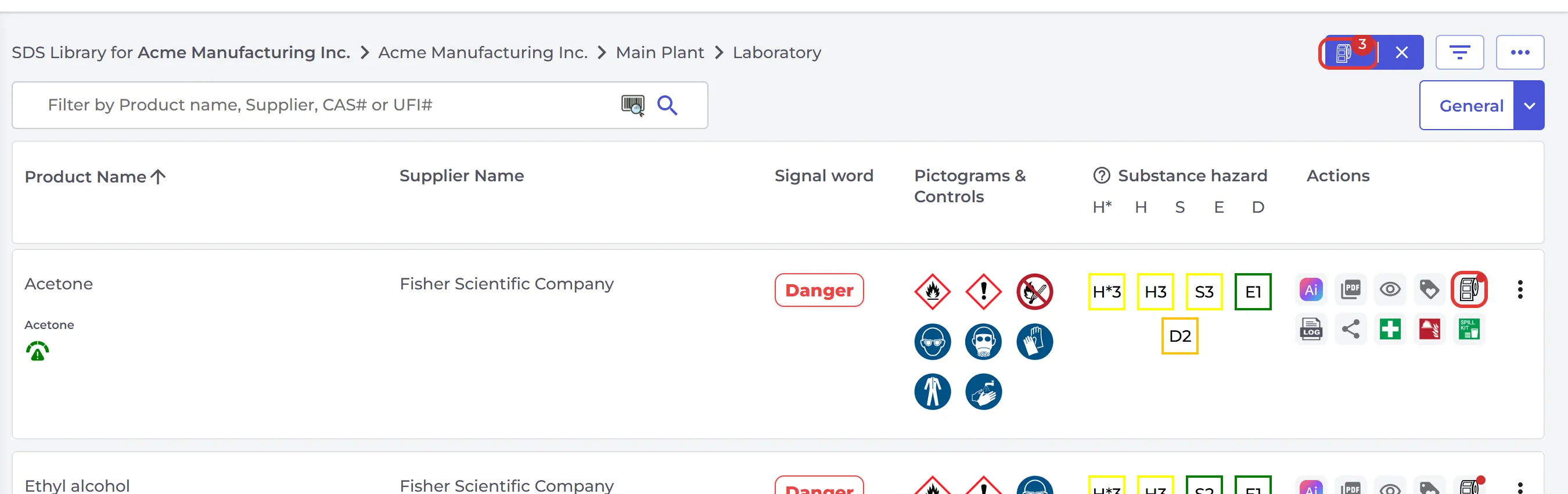
Open the location in Manage SDS Library. Click the Add to print Avery/Brady label icon on each SDS you want a label for. A red dot shows the SDSs you have added.
A Print Avery/Brady label button appears at the top of the page, with the number of SDSs you added. Click the X next to it to empty the list.
Step 2: Print the labels
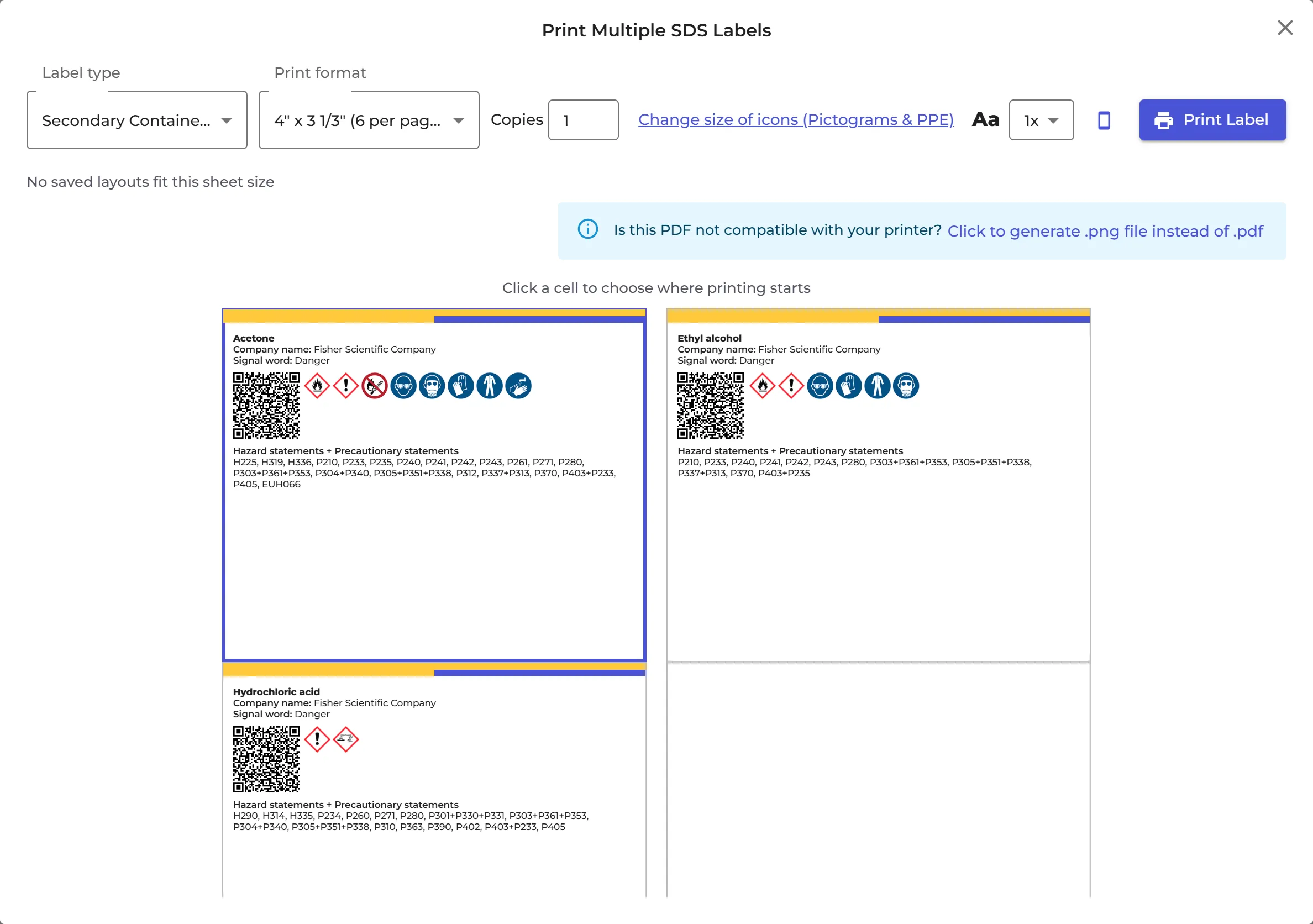
Click Print Avery/Brady label. In Print Multiple SDS Labels:
- Choose the Print format: an Avery, Brady or DuraLabel sheet, or a plain paper size.
- Set the number of Copies of each label.
- Click the cell where printing should start, so you can use a sheet that is partly used.
- Change the layout, the page margin, the gap between labels and the size of the icons if you need to.
Click Print Label.
The list of supported sheets is in What secondary container label formats are supported? To print one detailed label for a single SDS, read How to create Secondary container labels for hazardous chemicals.