You can build a location structure that matches your company, with as many levels as you need, for example site › building › room.
Add locations
- Click Locations in the left menu to open Sites & Locations.
- Click Add location. In Create a location, type the Name and choose the Parent location, or No parent for a top-level location. Click Create.
- To add a sub-location, click + (Add sub-location) on the row of the location it belongs under.
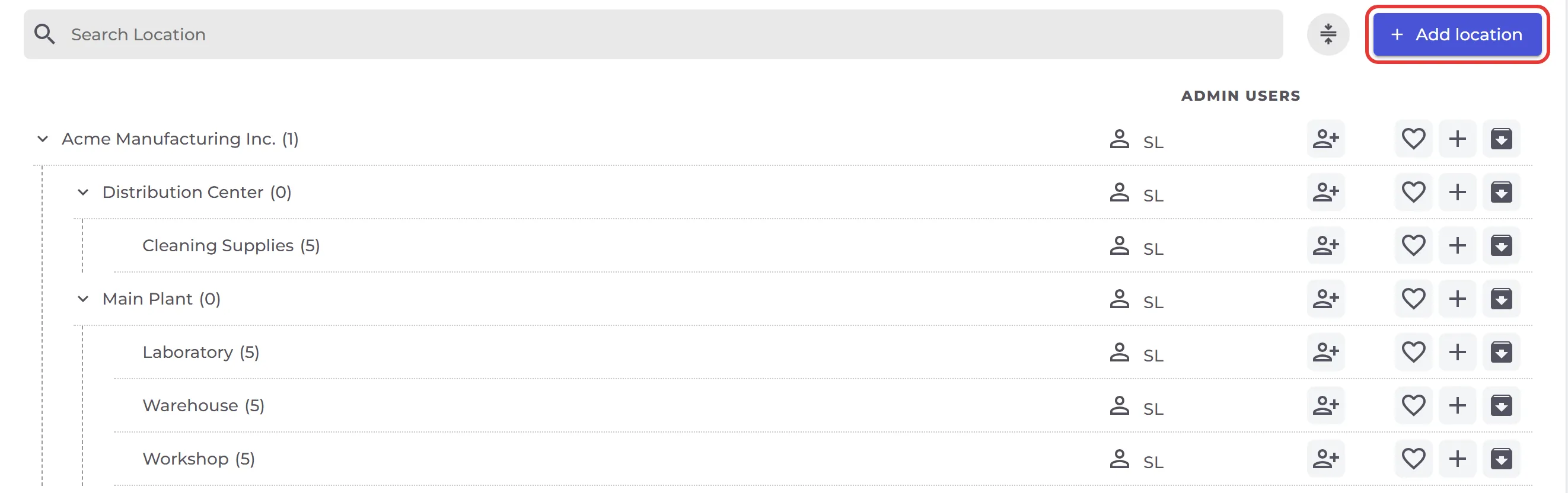
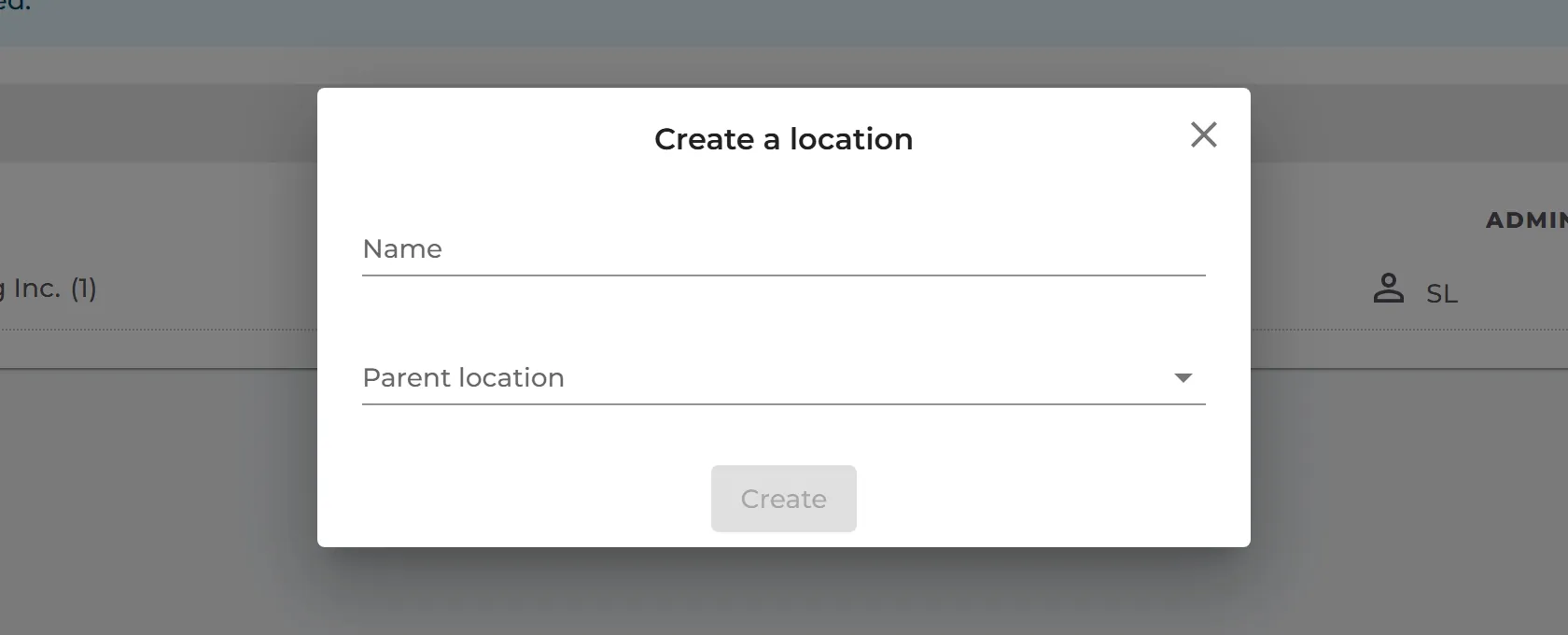
You can also add locations from the left menu: Add location is at the bottom of the location list under Manage SDS Library. Did you import a ZIP file with folders? Then the folders became locations already: How do I import our current file-based SDS library?
Move a location to another parent
- Open the location in Manage SDS Library.
- Click More options (⋯) at the top right and choose Edit location settings.
- Choose the new Parent location and click Save.
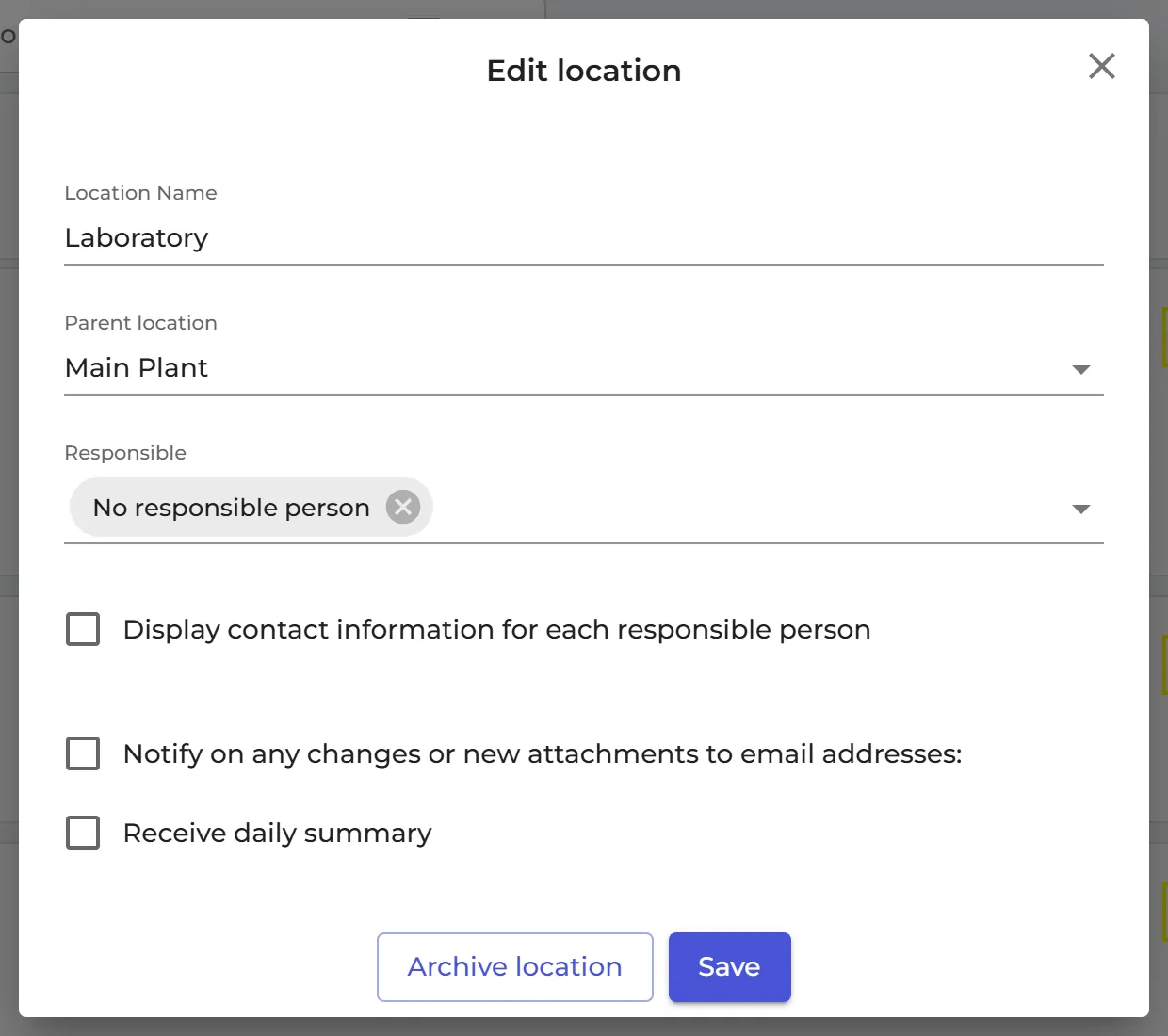
Archive or delete a location
Click Move to archive on the location's row in Sites & Locations. Its sub-locations are archived too. Read more: Where can I see archived locations? · How can I delete a location?