Check your Safety Data Sheet (SDS) library against the products you really use once a year or more often. Make sure you have an SDS for each product in use, and archive the SDSs of products you no longer use.
Step 1: Mark the products you find
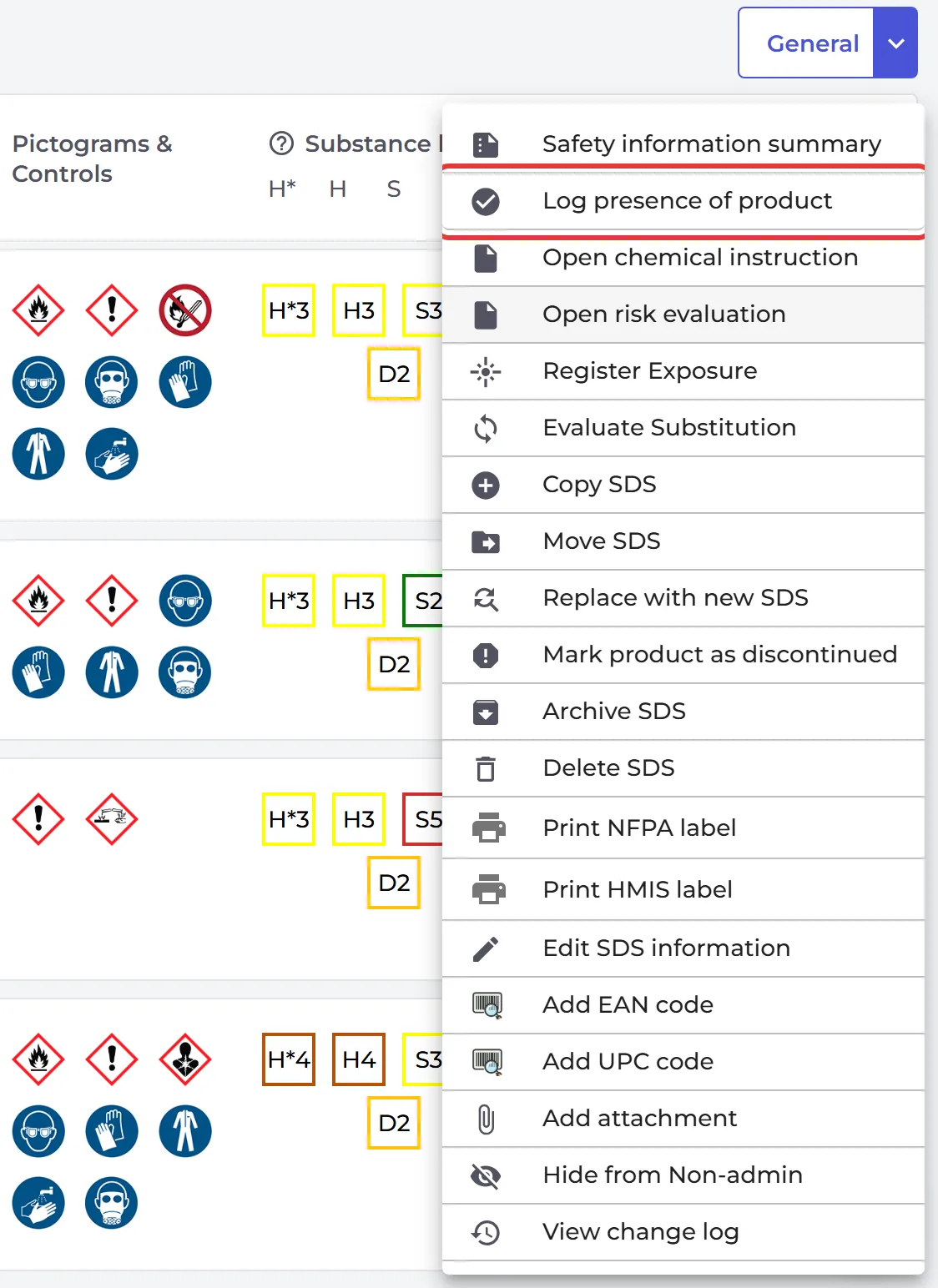
Walk around each location. For each product you find, look up its SDS, for example by scanning the barcode (How to lookup an SDS by scanning Barcode (EAN-/UPC-code)). Click ⋮ on the SDS and choose Log presence of product. SDS Manager saves the date and who logged it.
Step 2: Add the products that have no SDS
For a product that is not in your library, take a picture of its label with your phone. Read more: How can I use my phone and take pictures of the products I want to add to our SDS library? You can also take pictures of all products on a location and check them later on your computer.
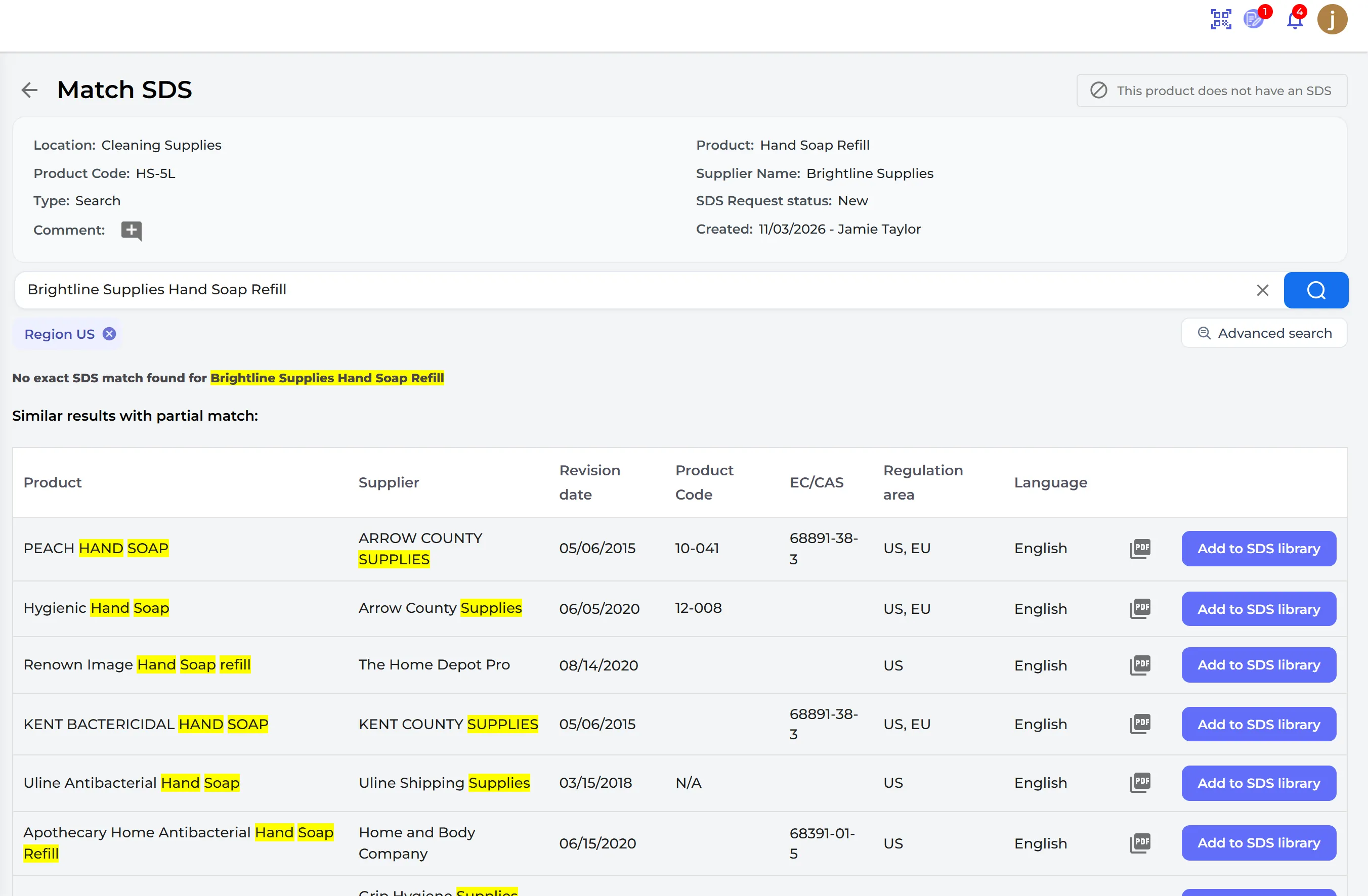
The pictures are listed under Tasks → Products Awaiting SDS. Click Find SDS on each one:
- To check if the SDS is already in your library, switch the database chip to Only in use by your company.
- If the SDS is already on this location, click Complete request using existing SDS. This also logs the product's presence.
- If not, click Add to SDS library on the right SDS.
Step 3: Archive the SDSs of products no longer in use
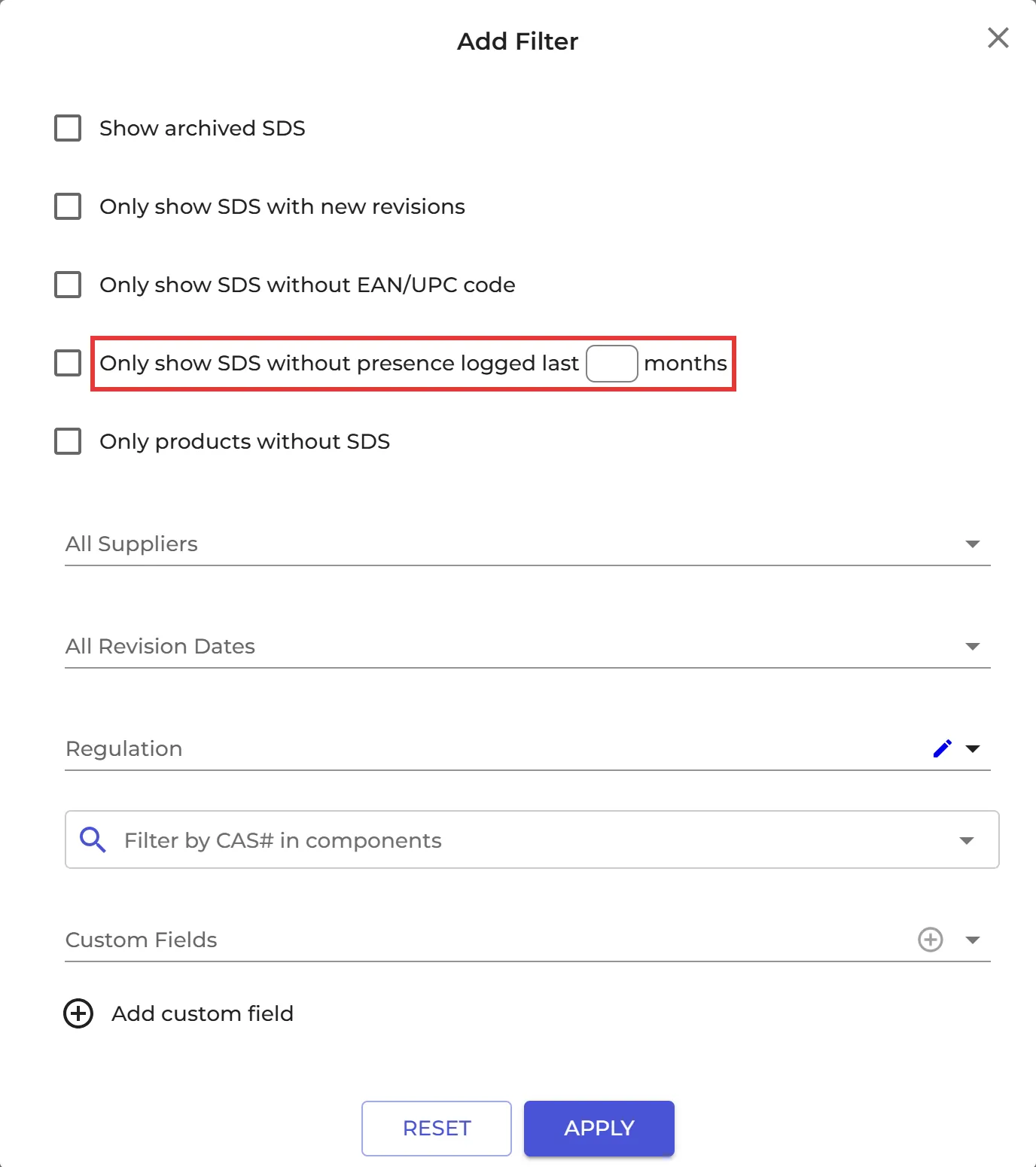
Open the location, click the filter button and tick Only show SDS without presence logged last, with a number of months. The SDSs listed are the products you did not find. Archive them: What do I do with SDS for chemicals that we no longer use (Archive SDS)? On SDS Filter, the Presence of Product filter does the same for all your locations.
Logging the presence of products is part of the Pro and Enterprise plans.