You can copy a Safety Data Sheet (SDS) to more locations, or move it to another location. You can do this for one SDS from its menu, or for many SDSs at once on SDS Filter.
Copy or move one SDS
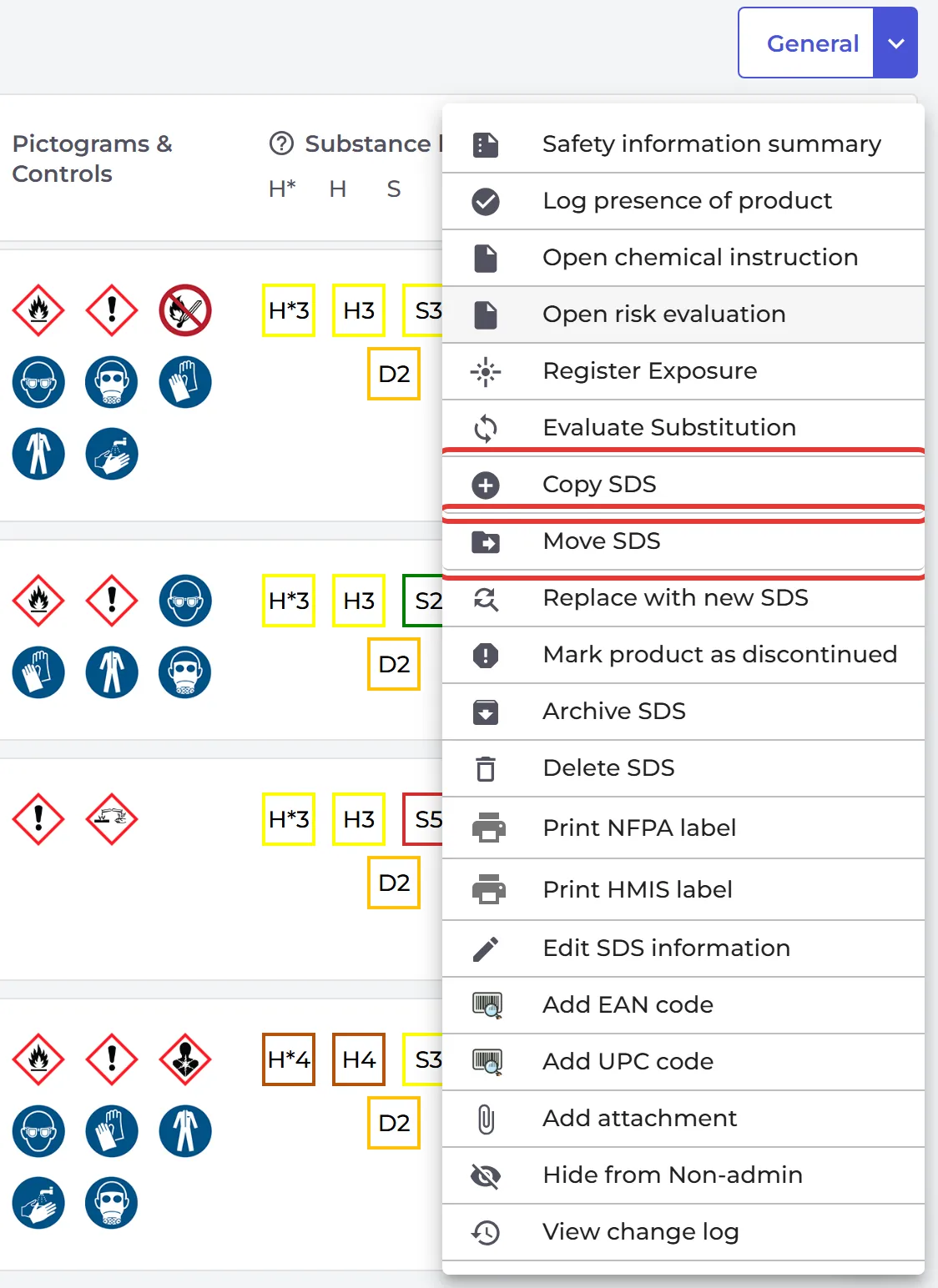
Open the location in Manage SDS Library and click ⋮ on the SDS.
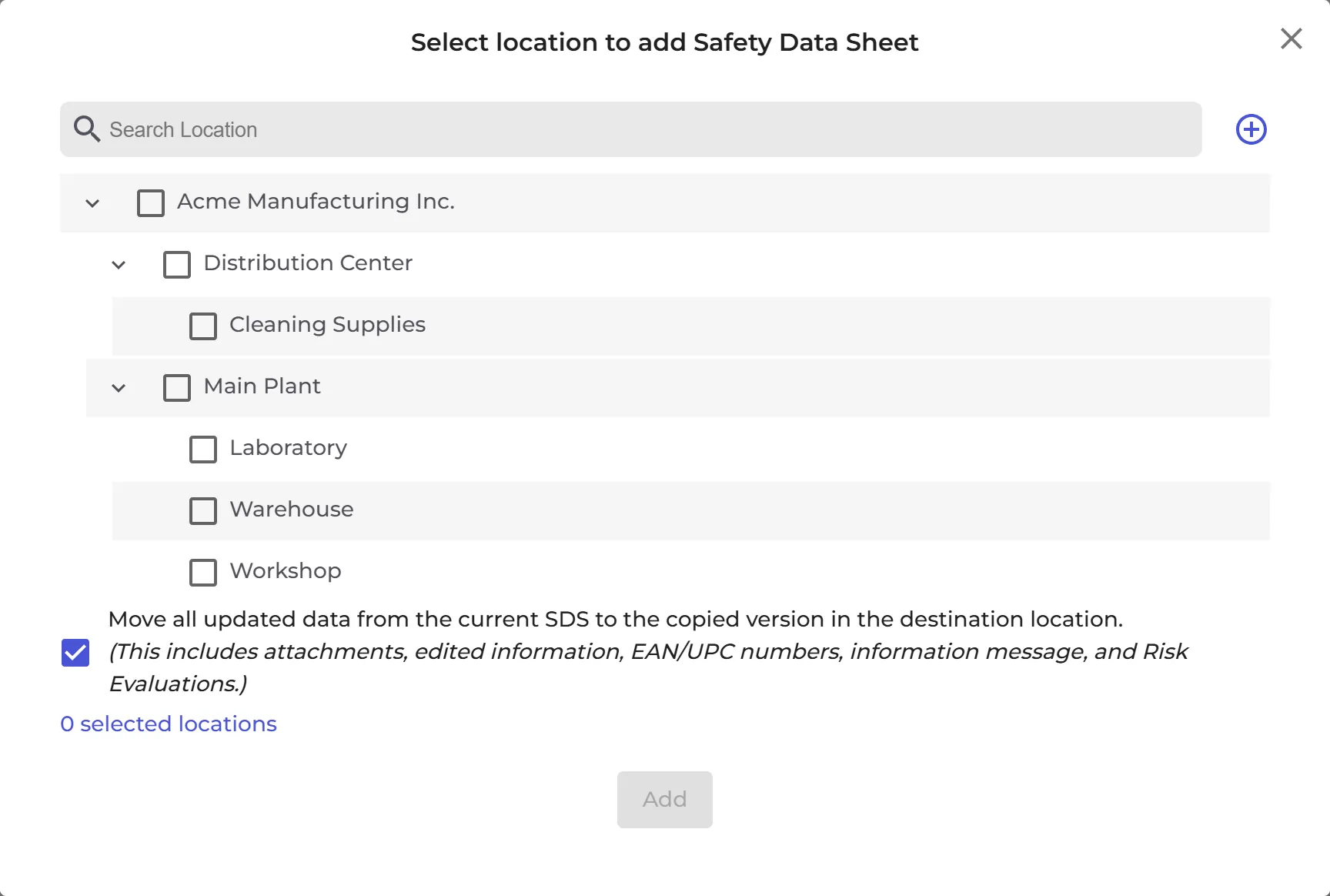
- Copy SDS: tick the locations to add the SDS to and click Add. The option Move all updated data from the current SDS to the copied version in the destination location is on. It copies your attachments, edited information, EAN/UPC numbers, information message and risk evaluations with the SDS. Untick it to copy the SDS only.
- Move SDS: choose the new location in Move to other location and click Move.
Copy or move many SDSs at once
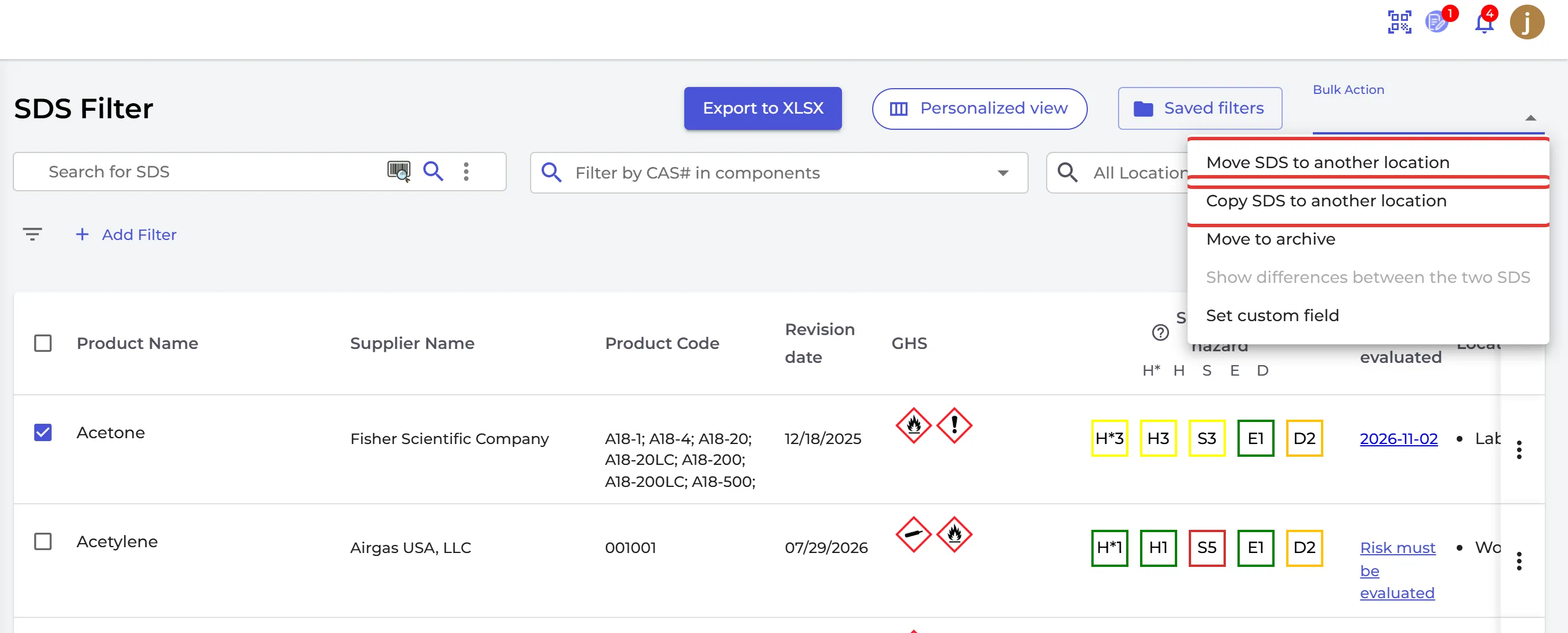
- Click Filter (SDS Filter) in the left menu.
- Tick the SDSs.
- Open Bulk Action and choose Move SDS to another location or Copy SDS to another location.
Owners and admins can do this. Read more: How can I add an SDS to multiple locations in one operation?