You can add one SDS to several locations in one go, and copy several SDSs to another location at once.
Add a new SDS to several locations
Search for the product in Global SDS Search (under More in the left menu), on the Dashboard, or in the Add Safety Data Sheet dialog of a location. Click + on the SDS you want. In Select location to add Safety Data Sheet, tick all the locations where the product is used and click Add.
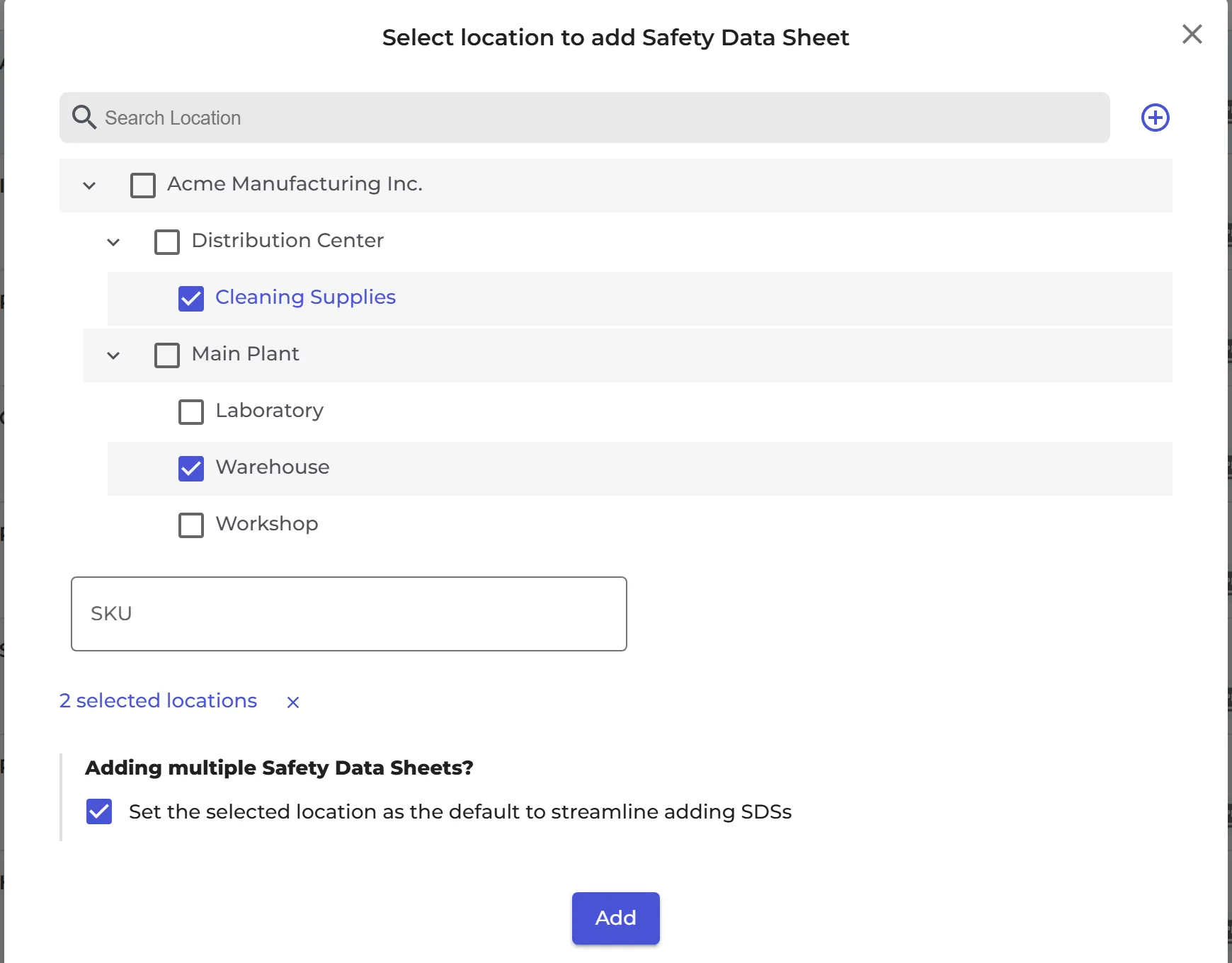
If Set the selected location as the default to streamline adding SDSs is ticked, the next SDSs you add go straight to the same locations. If you are an admin on more than one location and start from a location, + first asks whether to add the SDS to that location or to other locations: choose Add to other locations.
Add an SDS you already have to more locations
Click ⋮ on the SDS in your library and choose Copy SDS. Tick the locations to copy it to.
Copy several SDSs to another location at once
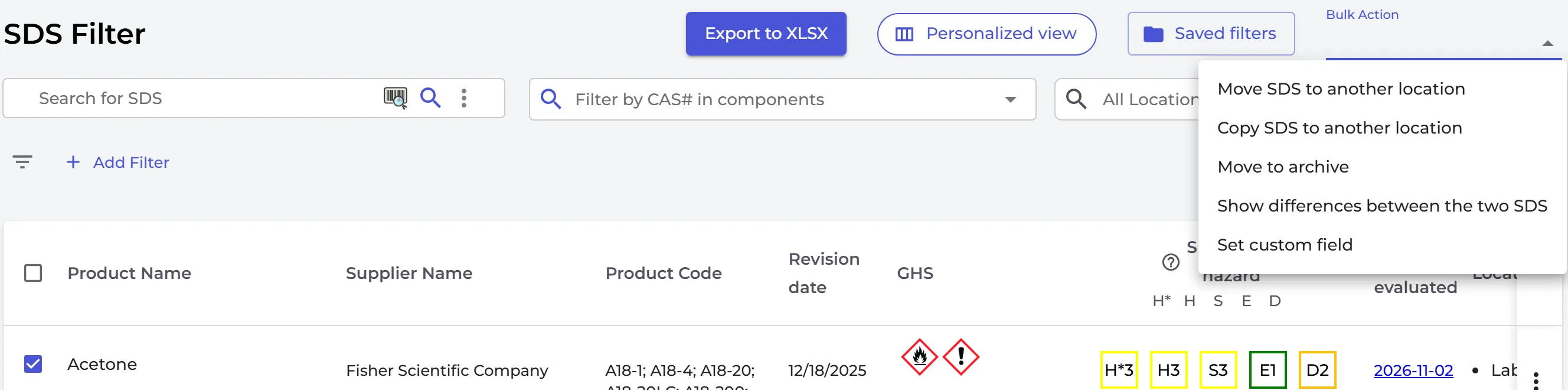
- Click Filter (SDS Filter) in the left menu.
- Tick the SDSs you want to copy.
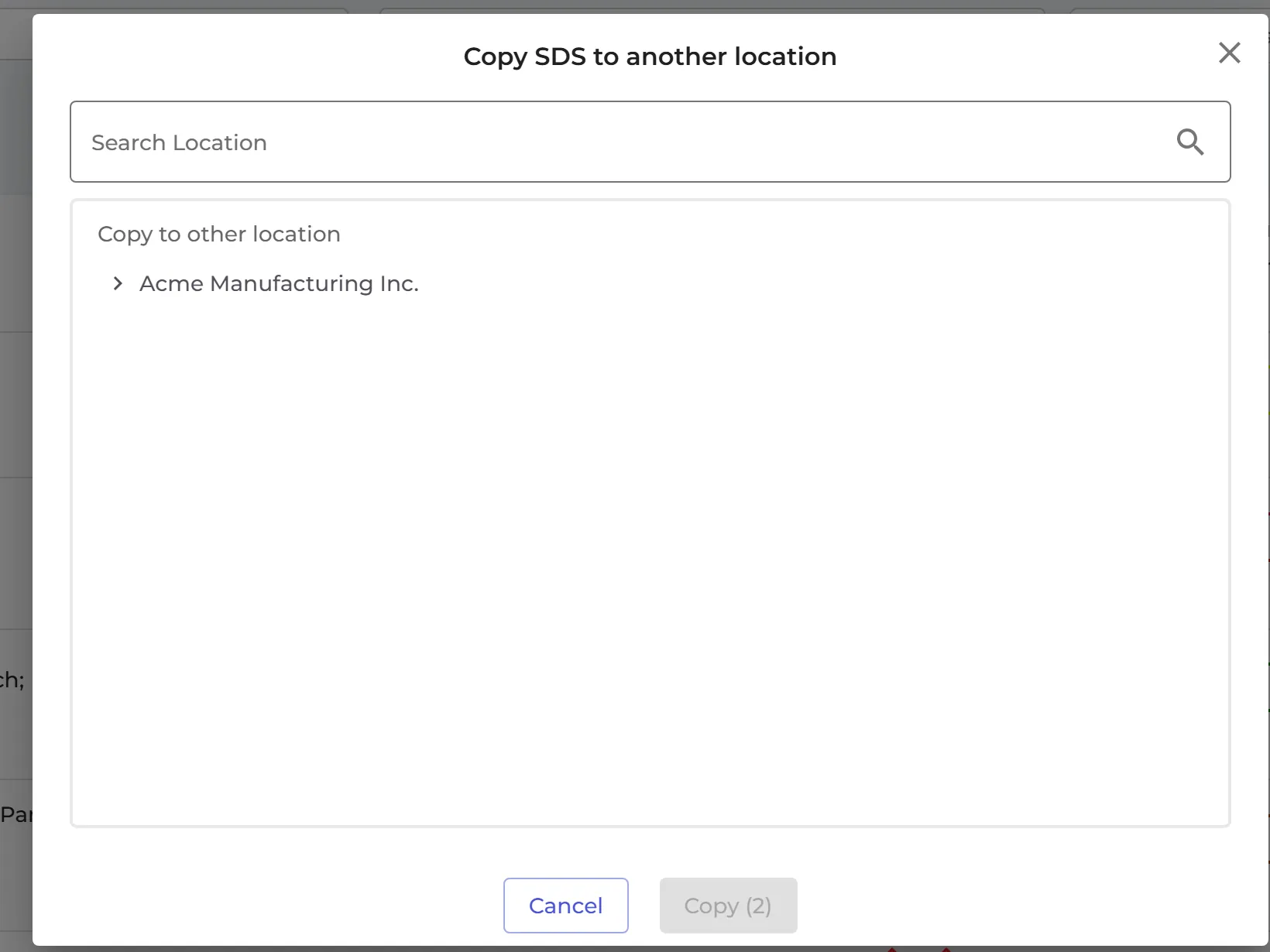
- Open Bulk Action and choose Copy SDS to another location.
- Choose the location and click Copy.
Move SDS to another location in the same menu moves the SDSs instead of copying them. Read more: How can I move or copy SDSs from one location to another?