When your SDS library is ready, tell your employees how to find the Safety Data Sheets (SDSs). SDS Manager has a ready-made e-mail for this, with the link to your SDS library.
Step 1: Create a QR code poster
Employees open your SDS library with a QR code poster or its link, without a user account. Click QR Access (Employee Access) in the left menu, then Create QR poster. Read more: How can our employees access our SDS library By scanning QR Code poster?
Step 2: Send the e-mail
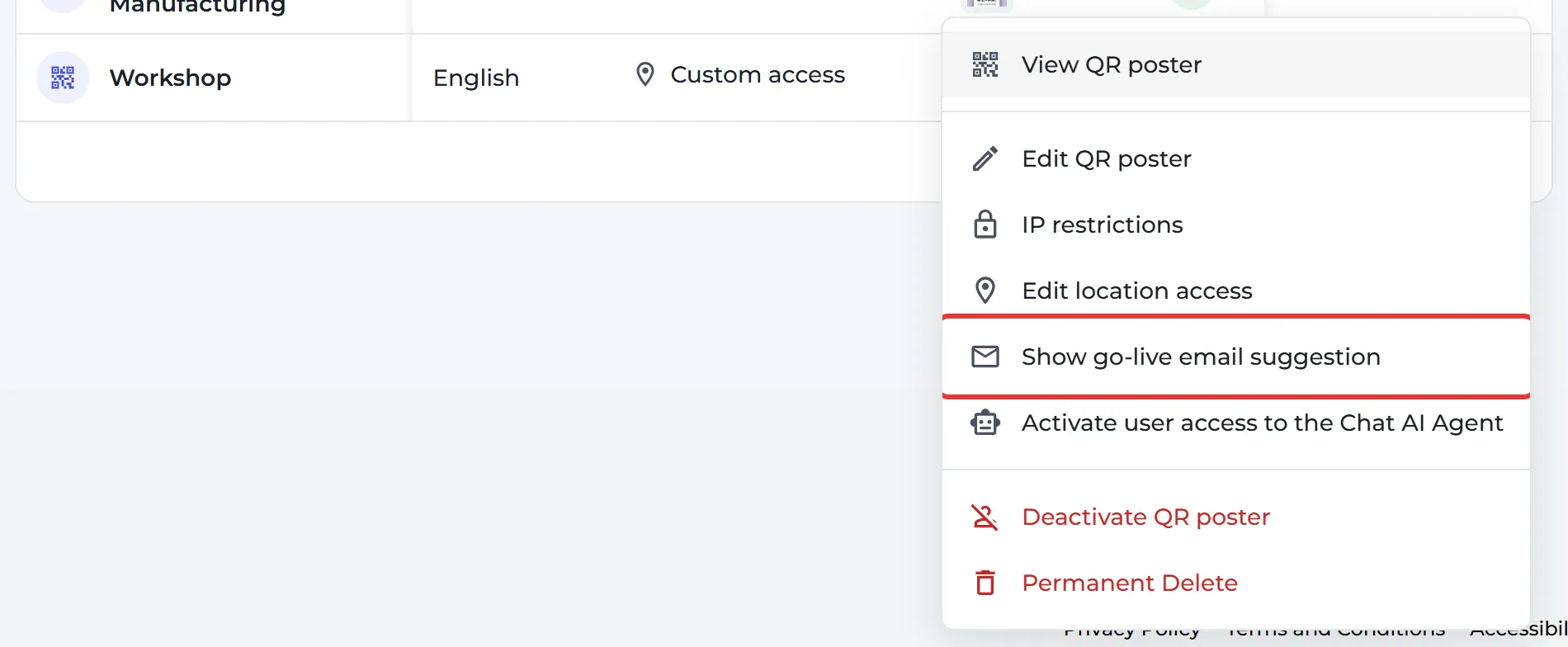
- On the same page, click ⋮ on the QR code and choose Show go-live email suggestion. You can also open the poster (the poster icon in the View QR poster column) and click Click to preview and send email under Email Access Link to Employees.
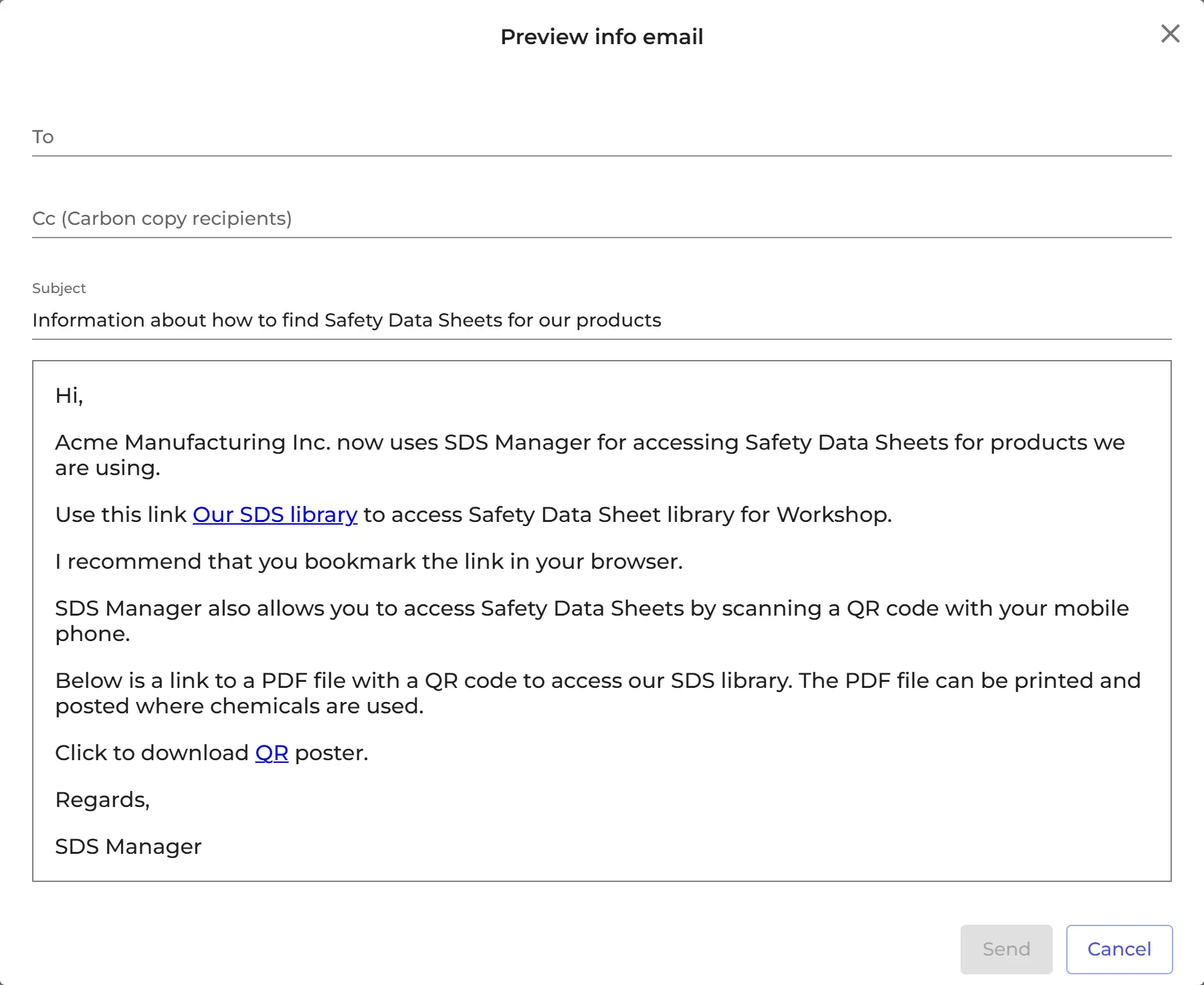
- The window Preview info email shows the e-mail, with the link to your SDS library and a link to download the QR poster. Fill in To and, if you like, Cc (Carbon copy recipients). You can change the Subject and the text.
- Click Send.

We recommend that you send the e-mail to yourself first, and then forward it to your team from your own e-mail account. An e-mail sent from SDS Manager to many employees can easily end up in their spam folder.
Owners and admins can send the e-mail. QR code posters are part of the Premium, Pro and Enterprise plans. During the free trial you can preview the e-mail, but not send it.
You can also put the link on your intranet: How can I create a link on our intranet to access our SDS library? · More tips for the launch: Go live checklist