To delete a Safety Data Sheet (SDS) from your library for good, you first archive it. Then you delete it from the archive.
1. Archive the SDS
- Find the SDS in SDS Admin (Manage SDS Library) or My SDS (All my SDSs).
- Click ⋮ on the SDS and choose Archive SDS. If the SDS is on more than one location, choose the location.
- Click OK.
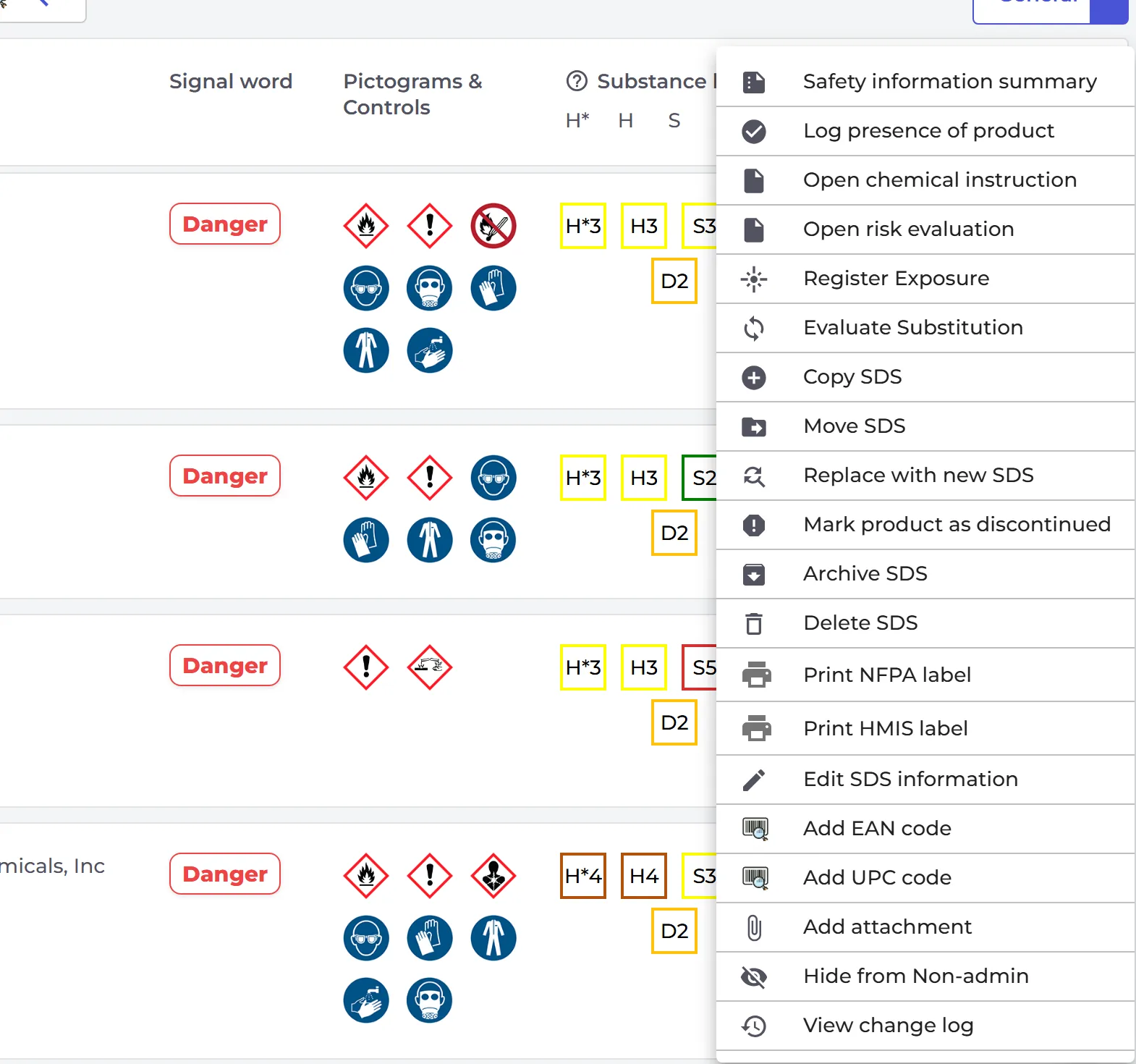
Delete SDS in the same menu does not delete anything. It only explains these steps.
2. Delete it from the archive
- Click Archive under SDS Admin (Manage SDS Library) in the left menu, or More → Archive. The menu item is only shown once you have archived something.
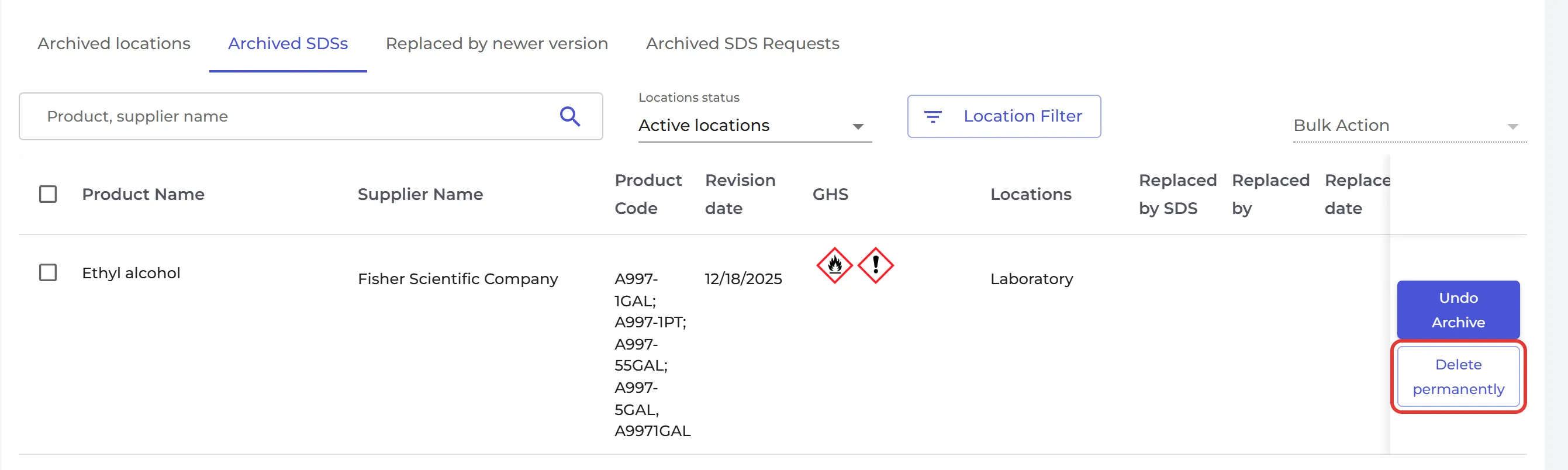
- Open the Archived SDSs tab.
- Click Delete permanently on the SDS. SDS Manager asks Confirm delete SDS ... permanently. Click OK.
To delete several SDSs at once, tick them and choose Delete permanently under Bulk Action.
Owners and admins can archive SDSs and delete them permanently. Admin Light and Staff users cannot.
Do you only want to stop using the SDS? Then archiving is enough. Archived SDSs do not count towards the number of SDSs in your plan, and Undo Archive puts an SDS back on its location. Read more: What do I do with SDS for chemicals that we no longer use (Archive SDS)? · To delete a whole location: How can I delete a location?