Yes. Every user has a role, and you can give them a different role on each location.
The roles
- Owner: the person who created the account (one per account). The owner can do everything, including the Organization profile, the subscription and Settings.
- Admin: manages the SDS library on their locations: adds, moves, replaces and archives SDSs. Admins cannot open the Organization profile, the subscription or Settings.
- Admin Light: like Admin, but cannot add, move, replace, archive or upgrade SDSs.
- Staff: can look up SDSs and safety summaries and print labels, but cannot change anything.
- No Access: cannot see anything.
Employees who open your library with a QR code poster always have read-only access. Read more: How can our employees access our SDS library by scanning a QR code poster?
Set the role per location
- Click More → User management, click ⋮ on the user and choose Edit location access.
- Under Change user role, choose the user's main role.
- Under Access setting, choose Customize access (only the owner can change this).
- Choose the role on each location in the location tree, and click Save.
For example, this Staff user has Staff on Main Plant and the locations under it, and No Access on the other locations:
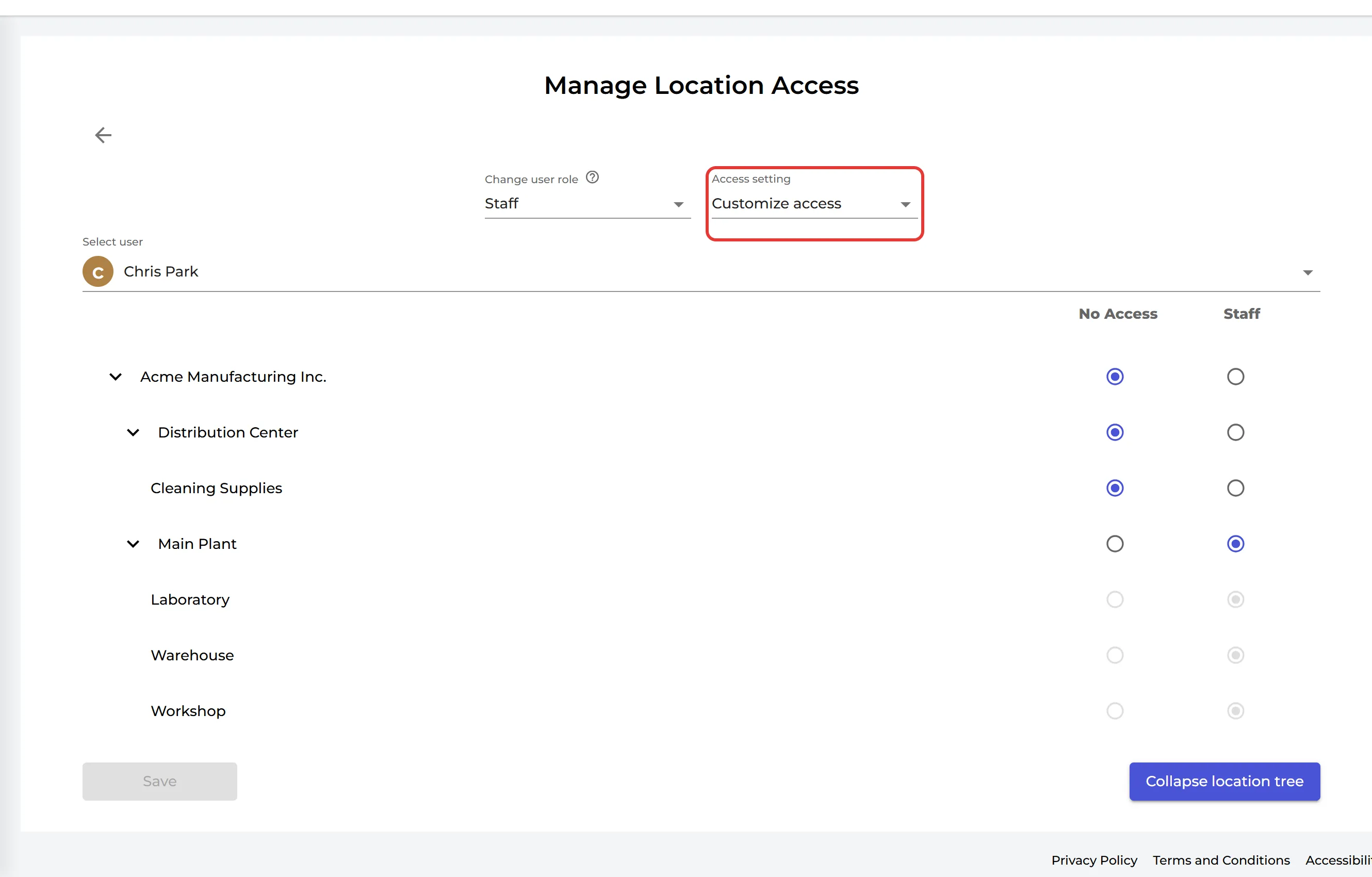
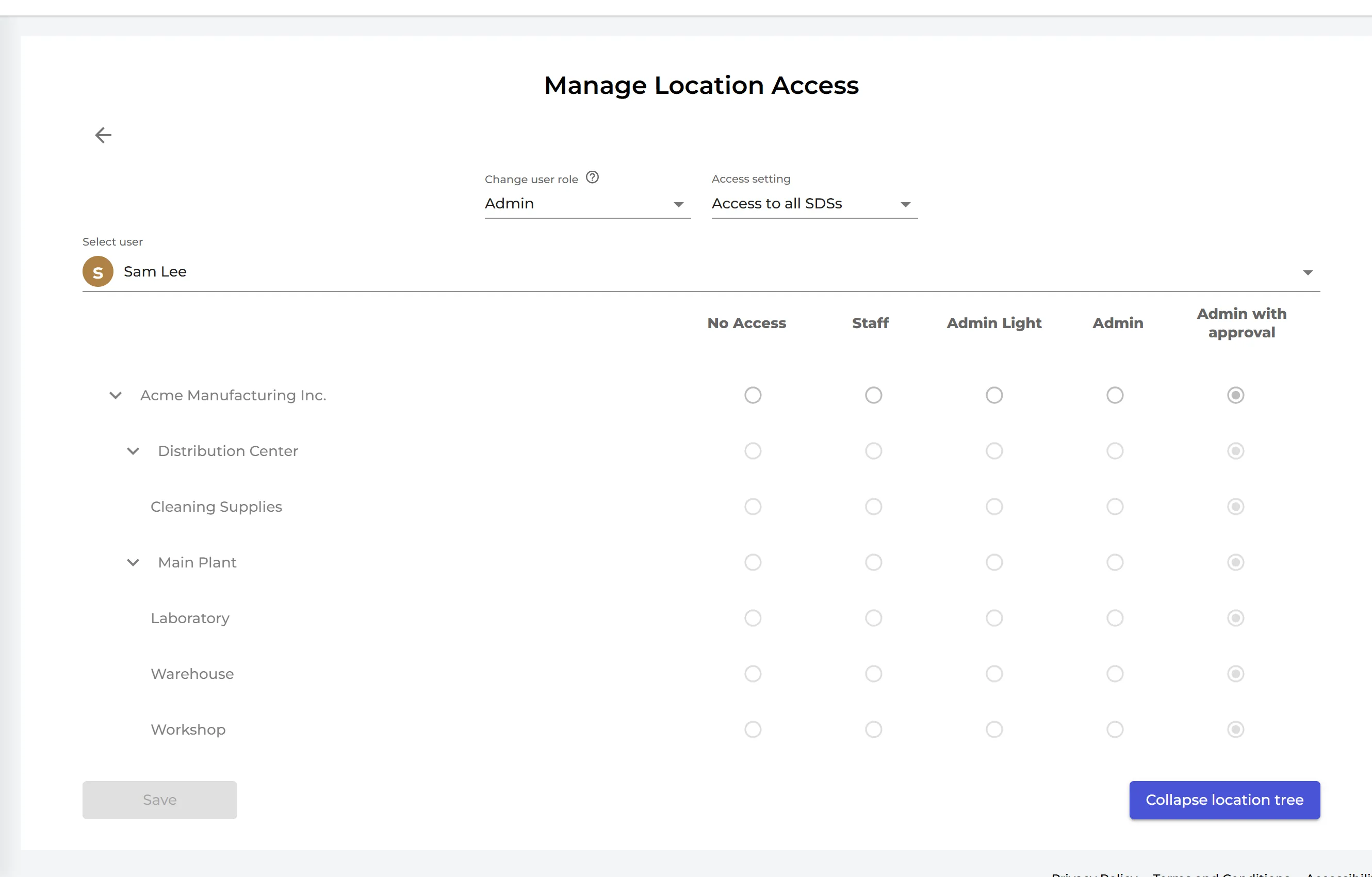
The roles you can choose on a location depend on the main role. An Admin can get No Access, Staff, Admin Light, Admin or Admin with approval on each location. Admin with approval is an Admin who can also approve SDSs, risk assessments and job procedures on that location. An Admin Light can get No Access, Staff or Admin Light, and a Staff user No Access or Staff.
In an SDS approval flow, the users you choose as approvers of a step can approve that step, whatever their role. Read more: SDS Approval function explained