With SDS approval, a chemical is only used in your company after someone you trust has approved its Safety Data Sheet (SDS). SDS Manager has two ways to do this. You switch them on in Settings (More → Settings in the left menu).
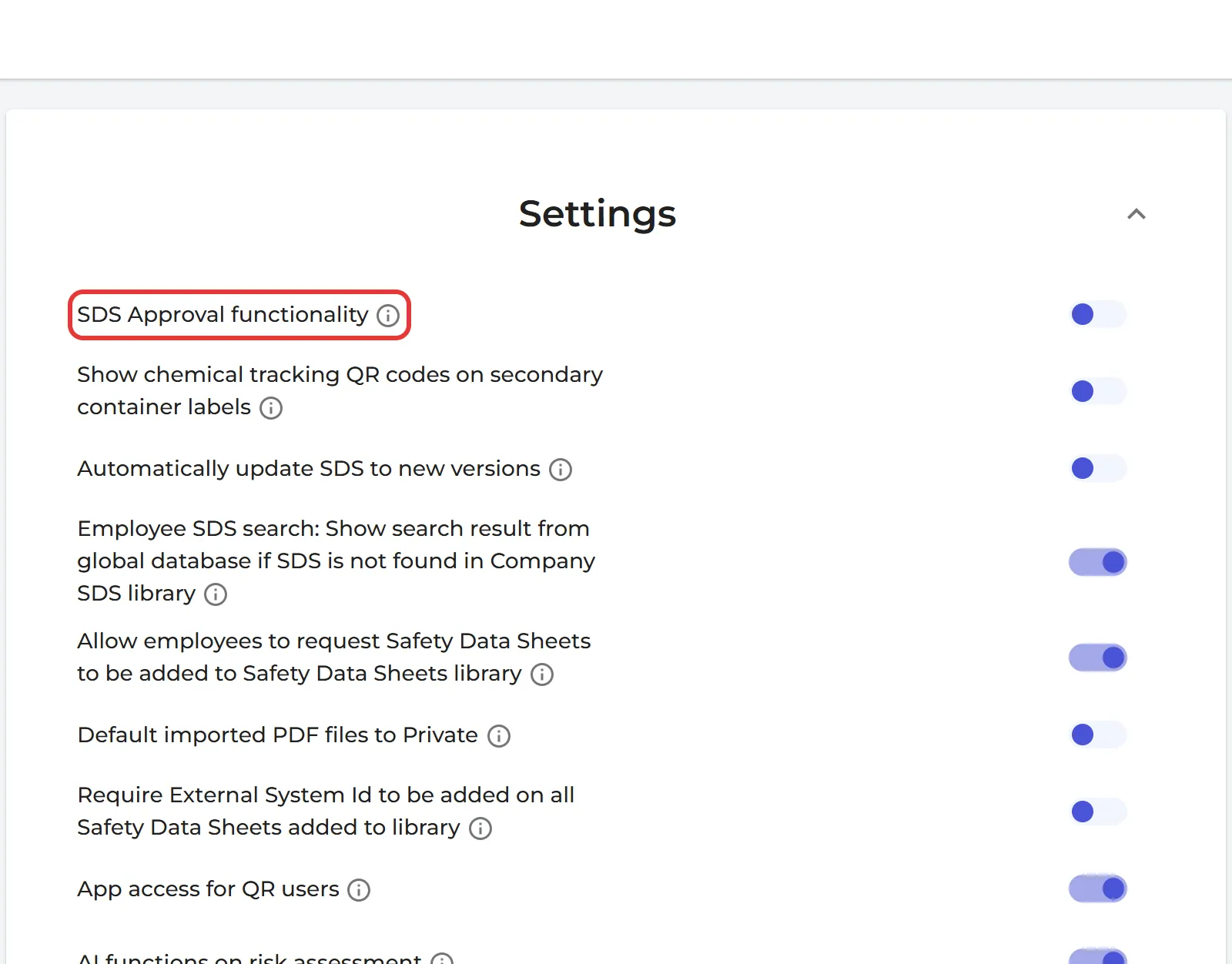
SDS Approval functionality: an approval status on each SDS
Switch on SDS Approval functionality. Then:
- each SDS gets an approval status: Approved, Pending approval, Not allowed for use or No approval info;
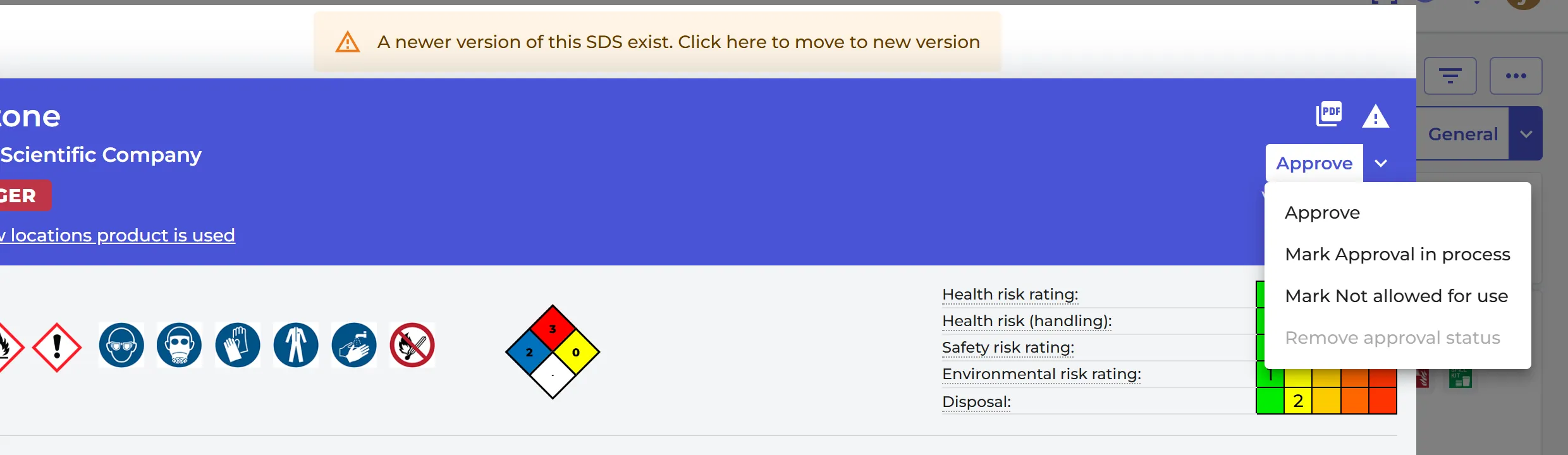
- on the SDS details page, the Approve menu has Approve, Mark Approval in process, Mark Not allowed for use and Remove approval status. You can add a comment when you approve;
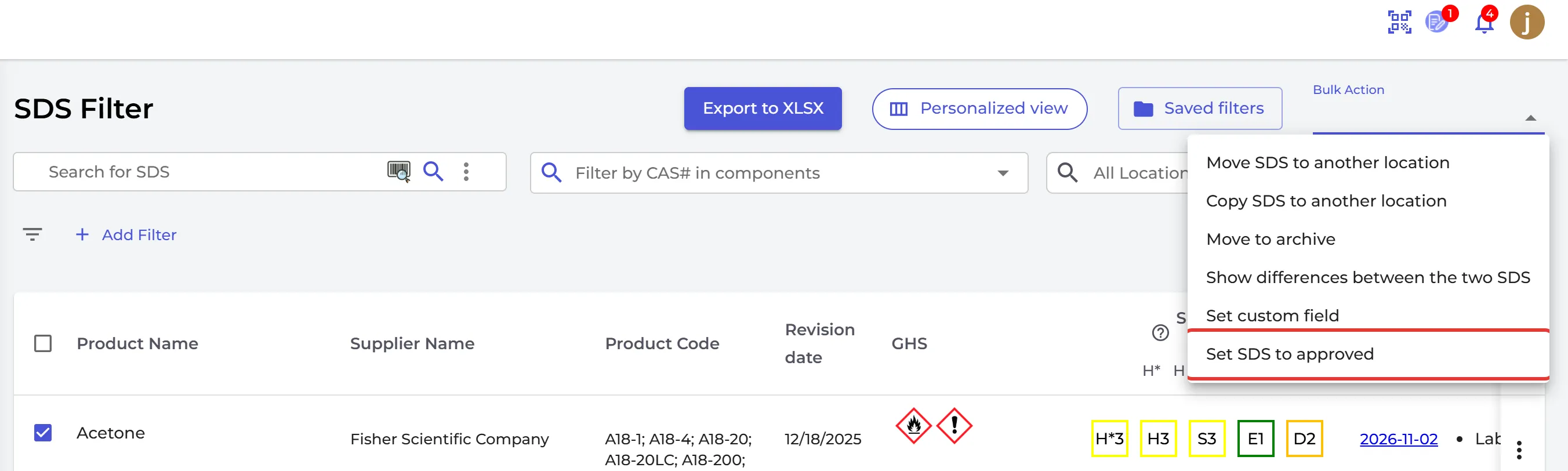
- on SDS Filter, you filter by Approval Status, and you approve many SDSs at once with Bulk Action → Set SDS to approved;
- admins cannot add SDSs to the library directly. They send a request, and a user with the Admin with approval role approves it.
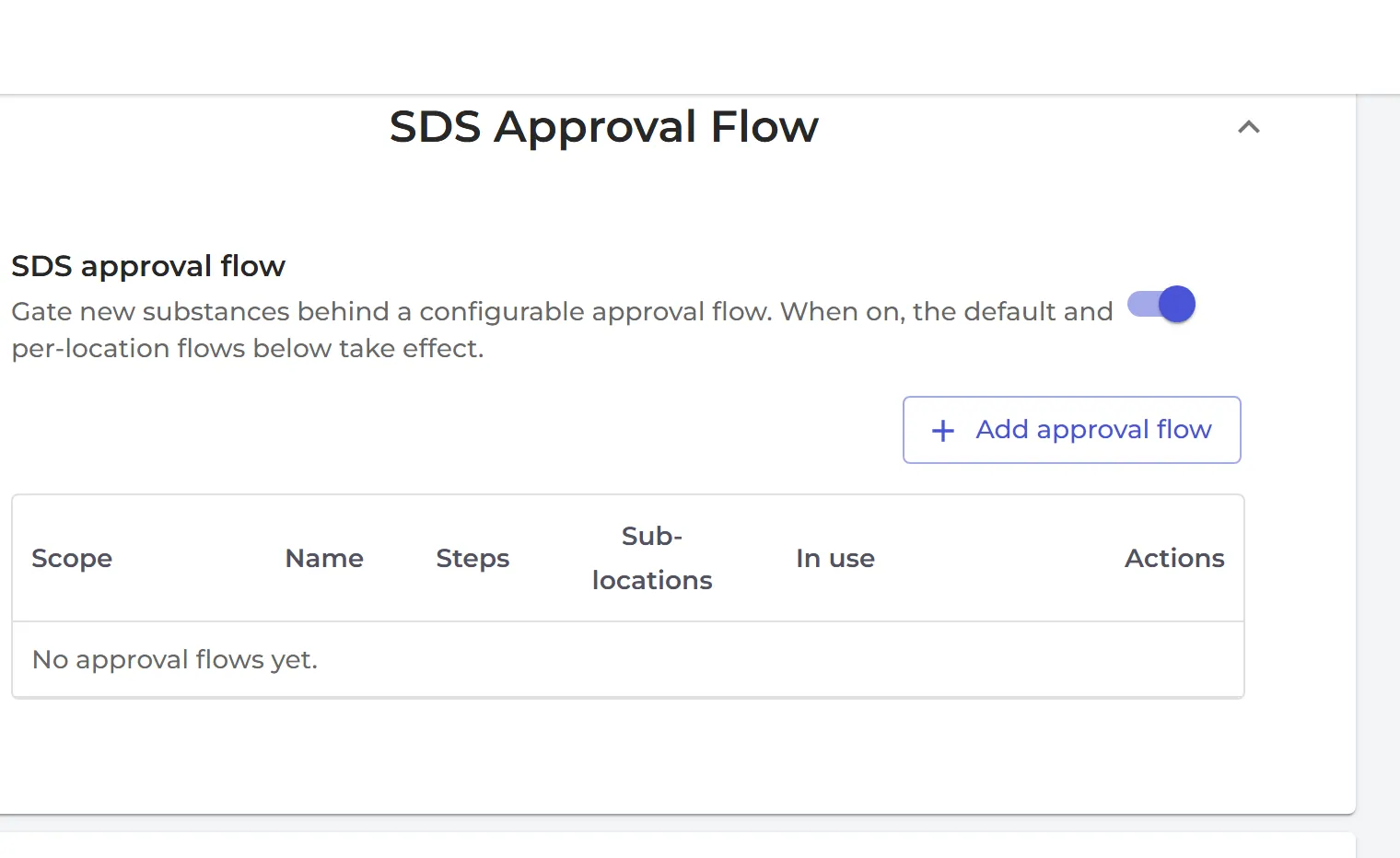
SDS approval flow: approval in several steps
Under SDS Approval Flow, switch on SDS approval flow and set up the Default approval flow: give each step a name and choose its approvers. You can set up other flows for some locations with Add approval by location, and require a different approver for each step.
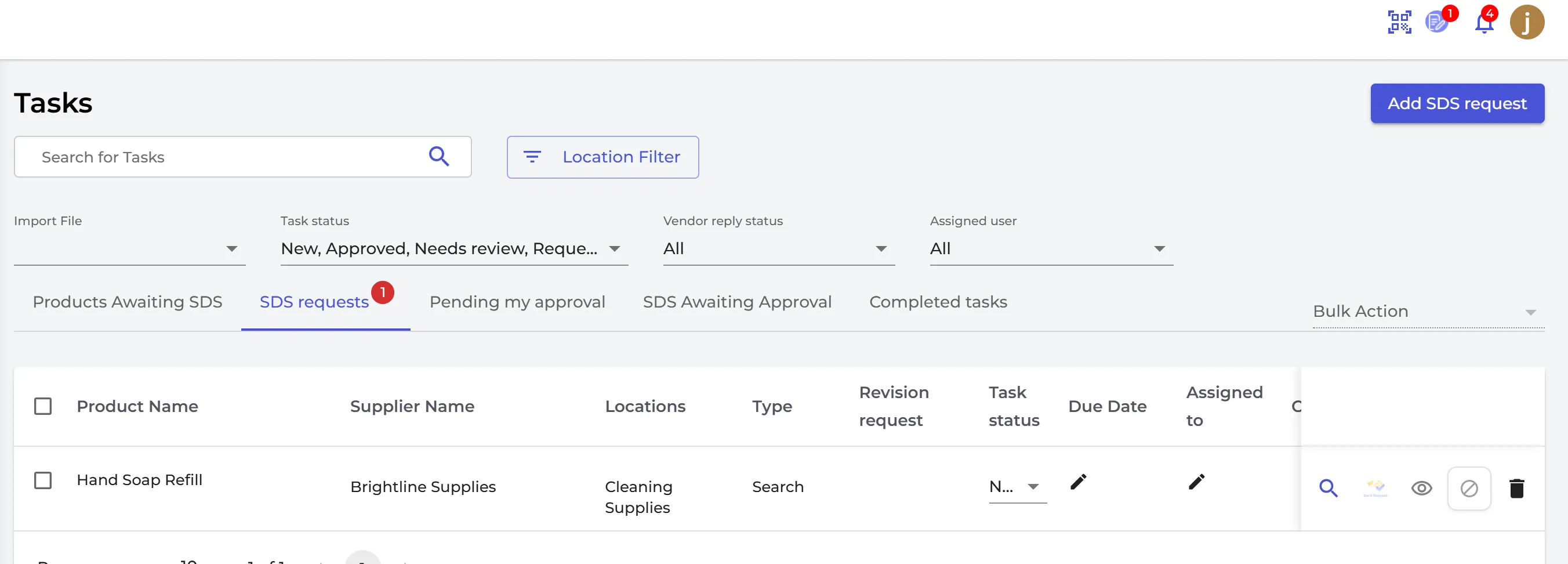
New SDSs then wait under Tasks → SDS Awaiting Approval. Each approver approves their step, and the last step adds the SDS to the library (Approve and add SDS to library).
Who can approve
Users need the role Admin with approval on the location to approve SDSs and risk assessments. You set roles in User management. A regular admin who tries to approve sees that only users with the role "Admin with approval" can approve. In an approval flow, the approvers of each step can approve it.
Approval of SDS requests from employees
When an employee asks for an SDS to be added, an approver clicks Register my approval on the request and writes a comment. To pass the request on, choose the Next approver and tick Send notification email to the next approver. The request then shows under Tasks → Pending my approval for that person. Approvers can also get an e-mail when an SDS waits for them (SDS waiting for my approval).
If your company has no approval process, leave both switches off.