Yes. You choose which locations each user can see, and which role they have on each location.
- Click More → User management.
- Click ⋮ on the user and choose Edit location access.
- Under Access setting, choose Customize access instead of Access to all SDSs (only the owner can change this).
- In the location tree, choose No Access on the locations the user should not see, and a role such as Staff or Admin on the others. Click Save.
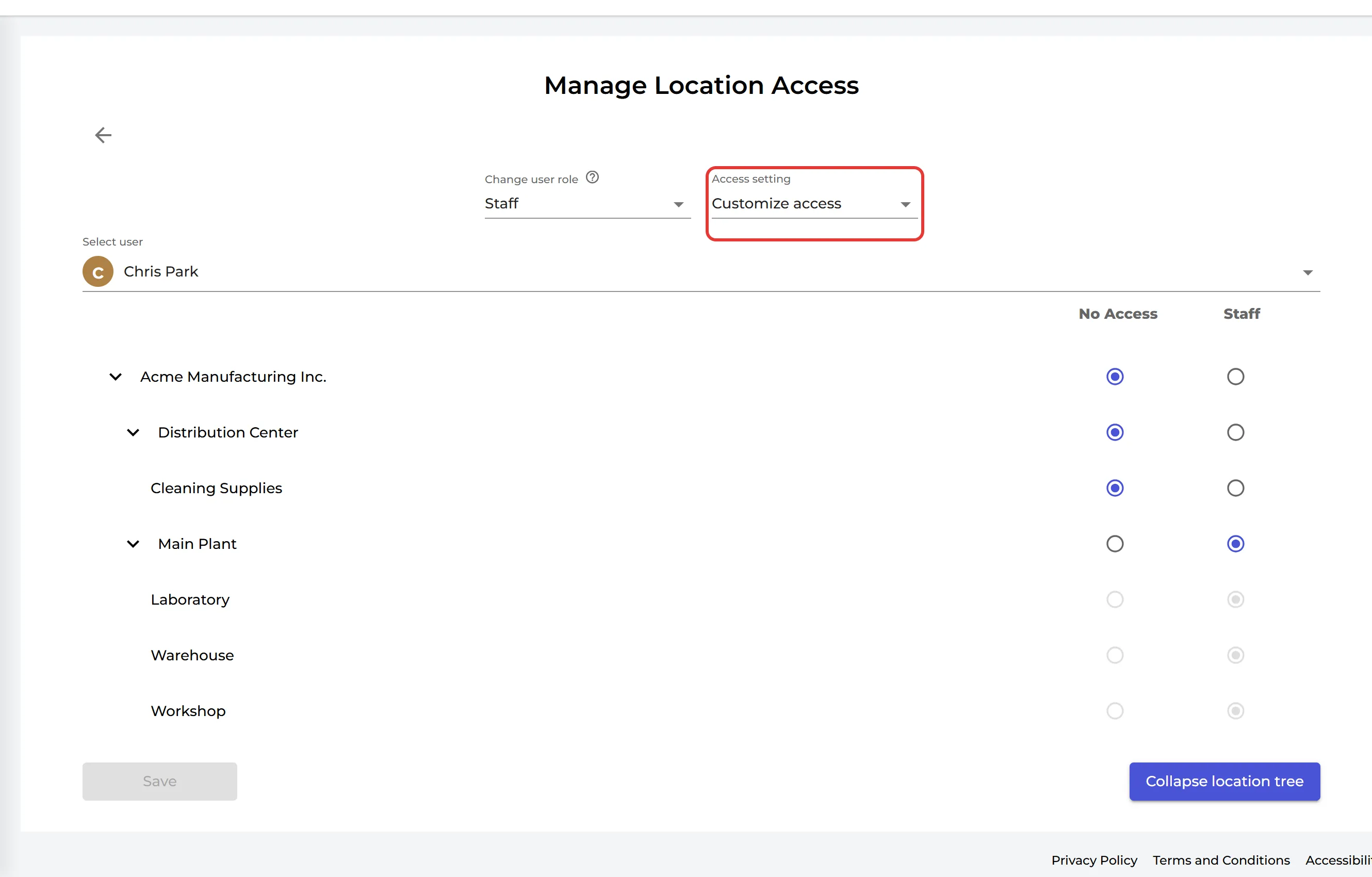
The locations under a location get the same role. In the picture, Laboratory, Warehouse and Workshop get Staff from Main Plant.
A user with No Access on a location cannot see it or its SDSs. Read more about the roles: Can I assign different roles for people in a location?
QR code posters work the same way: click QR Access (Employee Access) in the left menu, click ⋮ on the QR code and choose Edit location access.