Every container label you print from SDS Manager has a QR code. Anyone who scans it with a phone opens the Safety Data Sheet (SDS) of the product, without logging in.
Print a label with a QR code
- Open the location in Manage SDS Library and find the SDS.
- Click the label icon (Print Label) on its row.
- Choose the label size in Print format. Under Content display, check that SDS QR on Label is switched on.
- Print or download the label.
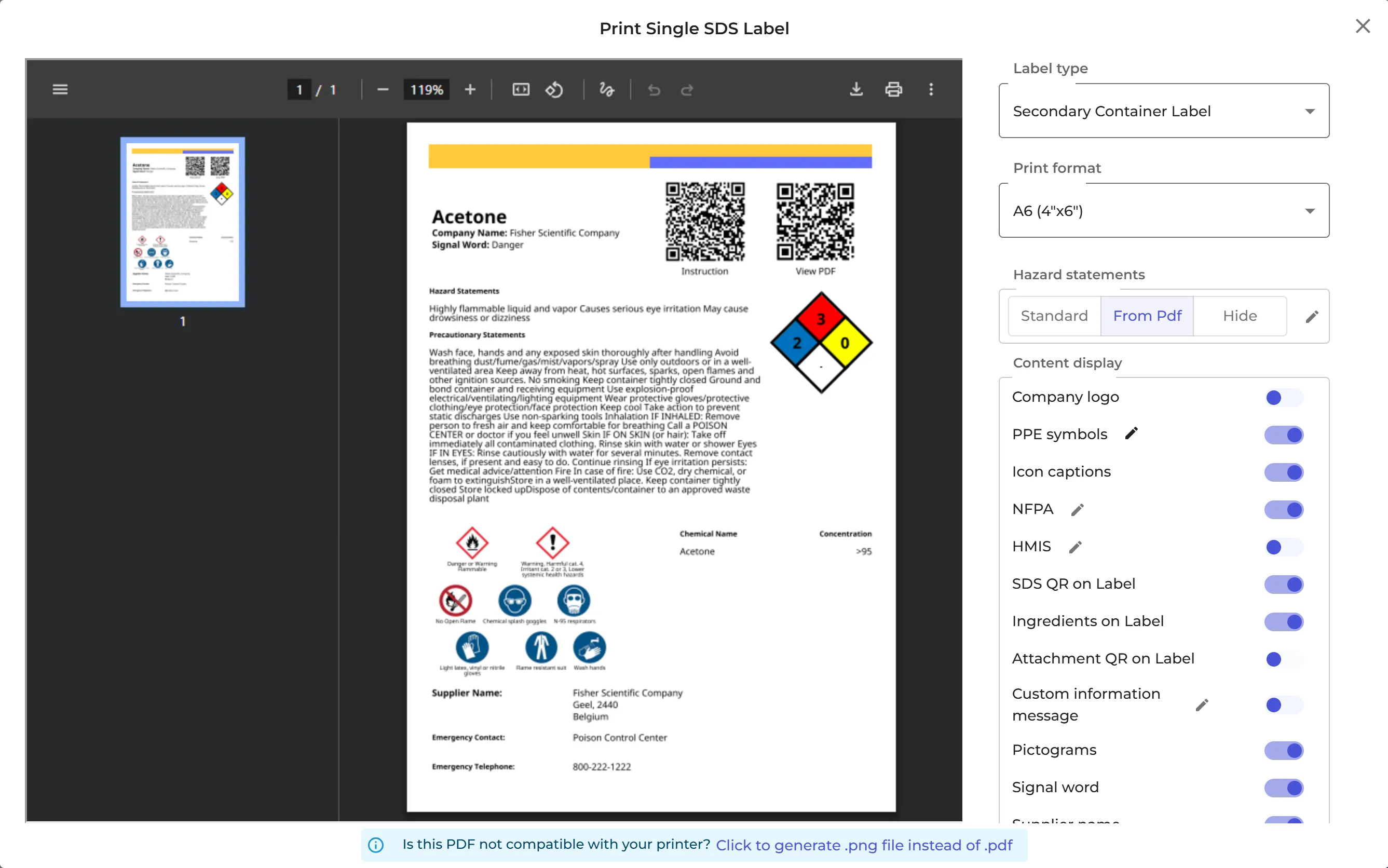
More QR codes on the label
- Attachment QR on Label: a QR code that opens the attachments of the SDS, for example a product sheet.
- If the product has a risk assessment, a QR code opens its chemical instruction.
- If Show chemical tracking QR codes on secondary container labels is switched on in Settings, a QR code lets users register how much of the chemical they used.
In the same window you choose the hazard statement text, the PPE symbols, your own information message and the NFPA or HMIS data (US and Canada). Read more: How to create Secondary container labels for hazardous chemicals