Do you have a list of the chemicals you use, in Excel or CSV? Import it into SDS Manager. Each row becomes a product in your library. SDS Manager then helps you find the Safety Data Sheet (SDS) for each product. You can import as many lists as you like, for example one per department or site.
Where to import
On the Dashboard, open the Import Product List tab. Or click More in the left menu, then Import product list.
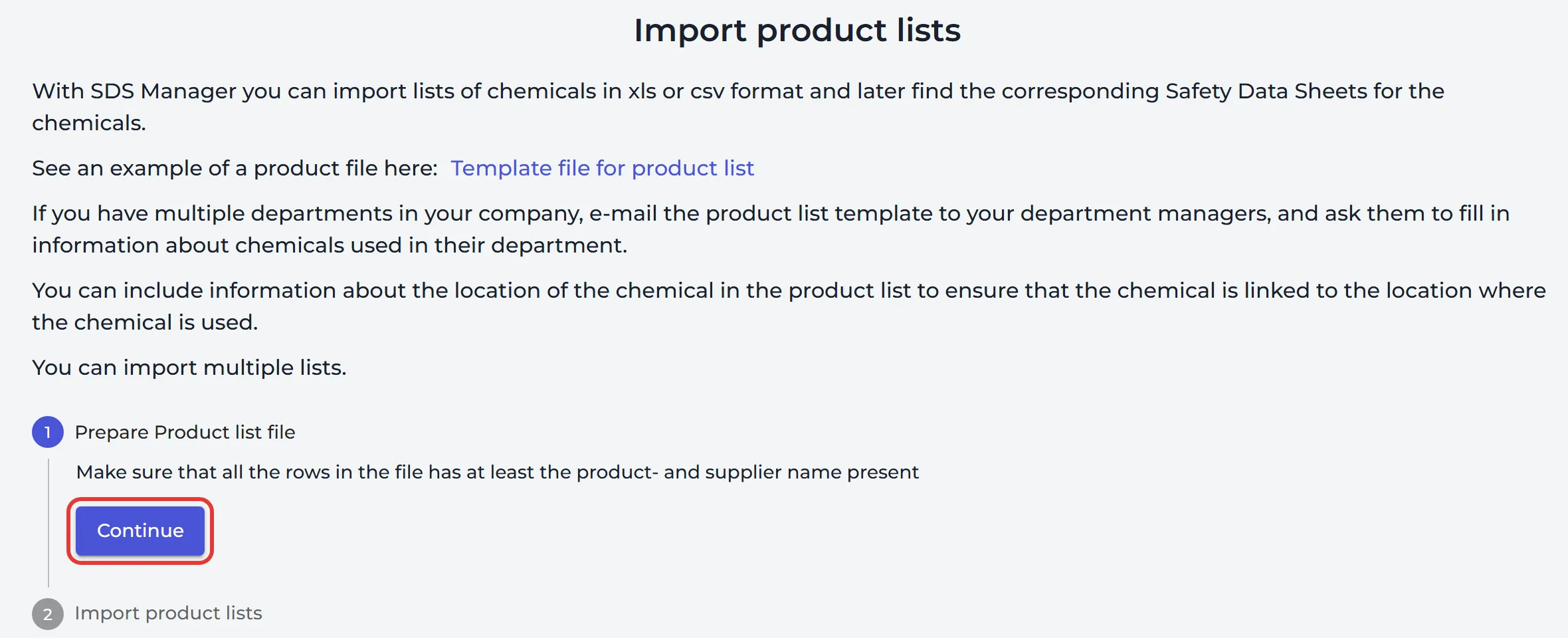
If you have several departments, you can e-mail the list to your department managers and ask them to fill in the chemicals they use.
Prepare your file
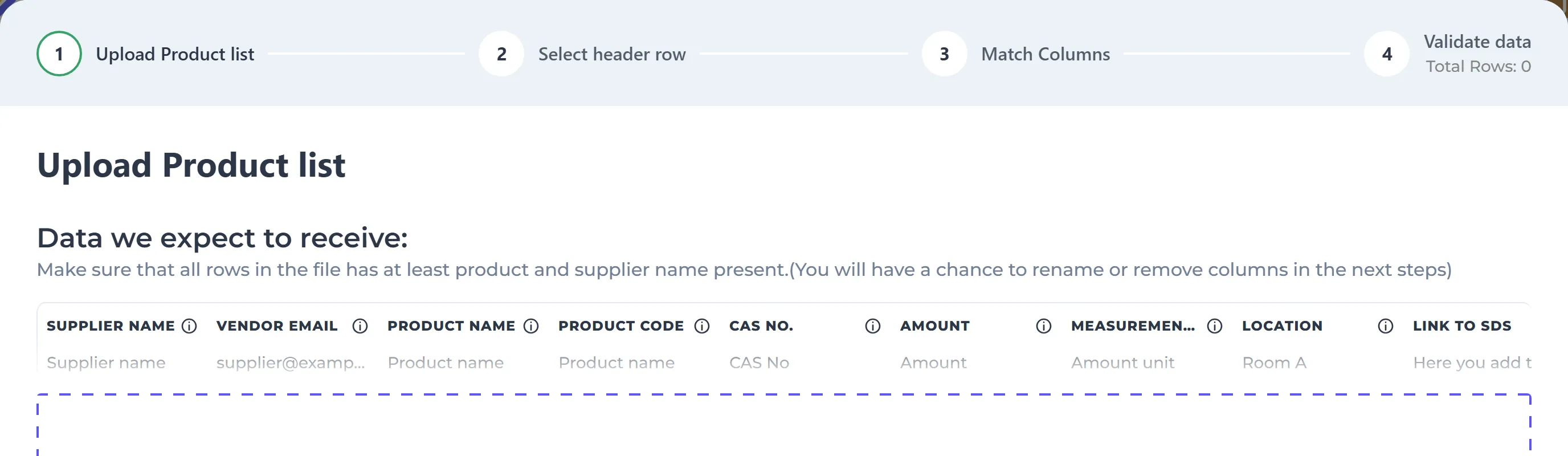
Use an .xlsx, .xls or .csv file with one product per row. Every row must have at least the product name and the supplier name. You can use your own column names. You match them to the fields in SDS Manager during the import. These are the fields you can import:
Want a ready-made file? Download the template Template_product_list_import.xlsx at the bottom of Importing Product Lists and Linking SDSs.
| Field | What to put in it |
|---|---|
| Supplier Name | Required. The company you buy the product from. |
| Product Name | Required. |
| Vendor Email | The e-mail of the company you buy the product from. |
| Product Code | The supplier's product code. |
| CAS no. | The CAS number. |
| Amount and Measurement unit | How much you have, for example 20 and L. The amount must be a number. |
| Location | Where the product is used. Separate levels with /, for example Main Plant/Workshop. Locations that do not exist yet are created. |
| Link to SDS | A web address of the SDS PDF, if you have one. |
| SKU | Your own item number. |
| External system Id | The id of the product in your ERP system. |
| EAN and UPC | The barcode numbers of the product. |
| Require SDS | Y or N. |
| Your custom fields | Any custom field you have made in SDS Manager. Read more: How can I create custom fields linked to my SDSs? |
Import the file
Click Continue, then Import product lists. The import wizard has four steps:
- Upload Product list: click Select file. If the file has several sheets, choose the one to use.
- Select header row: click the row that holds your column names.
- Match Columns: for each column in your file, choose the field it should go to. Click Add custom field if you need a new field.
- Validate data: fix the rows marked with errors, or select them and click Discard selected rows. Show only rows with errors helps with long lists. Click Confirm.
If some rows have no location, choose the location for them and click Submit. Then SDS Manager asks: Do you want us to automatically add Safety Data Sheets to your library when we find a SDS with identical product name and supplier name? Click Yes or No.
After the import
Your lists are shown in a table below the wizard, with the number of products and how many were matched or not matched with an SDS. Click the number of unmatched products, or Find SDS for imported chemicals, to find the SDSs that are still missing. The products without an SDS are also listed under Tasks → Products Awaiting SDS.
Do you also have the SDS files for the products in a list? Click the upload icon on the list's row and upload the PDF files, or a ZIP file with them. Each file is matched to a product, and you confirm the matches.
Read more: Importing Product Lists and Linking SDSs · SDS Requests - find SDS for chemicals/substances you have added/imported
Use SDS Manager with your ERP system
Import your SKU and your ERP system's product id (External system Id) with the products. Your employees can then also find an SDS by the part number you use. When you export your SDS library to Excel, the file has these ids and a permanent link to each SDS in the SDS Path column. You can import that file into your ERP system, so that every product there links to its SDS.
Read more: How can I export our SDS library to a Excel/xlsx/csv file? · How can users find SDS using ERP part number? · How to use API to get JSON export/sync of your SDS library