Suppliers issue new revisions of their Safety Data Sheets (SDSs), often every one to three years, for example when rules change or when they correct or add information. You should always use the latest version. SDS Manager helps you find the new versions and update your library.
How SDS Manager finds new versions
SDS Manager checks thousands of supplier websites for new revisions and adds them to its database. When it finds a newer version of an SDS in your library, the bell at the top of the page shows how many SDSs have a newer version. You can also get an e-mail: switch on New revision of an SDS in your e-mail notifications. Read more: How to administer notifications from SDS Manager
Upgrade an SDS to the new version
Click the bell, or SDS where newer version exists under Updates (SDS Updates) in the left menu. The page lists each SDS with its revision date and the revision date of the newer version.
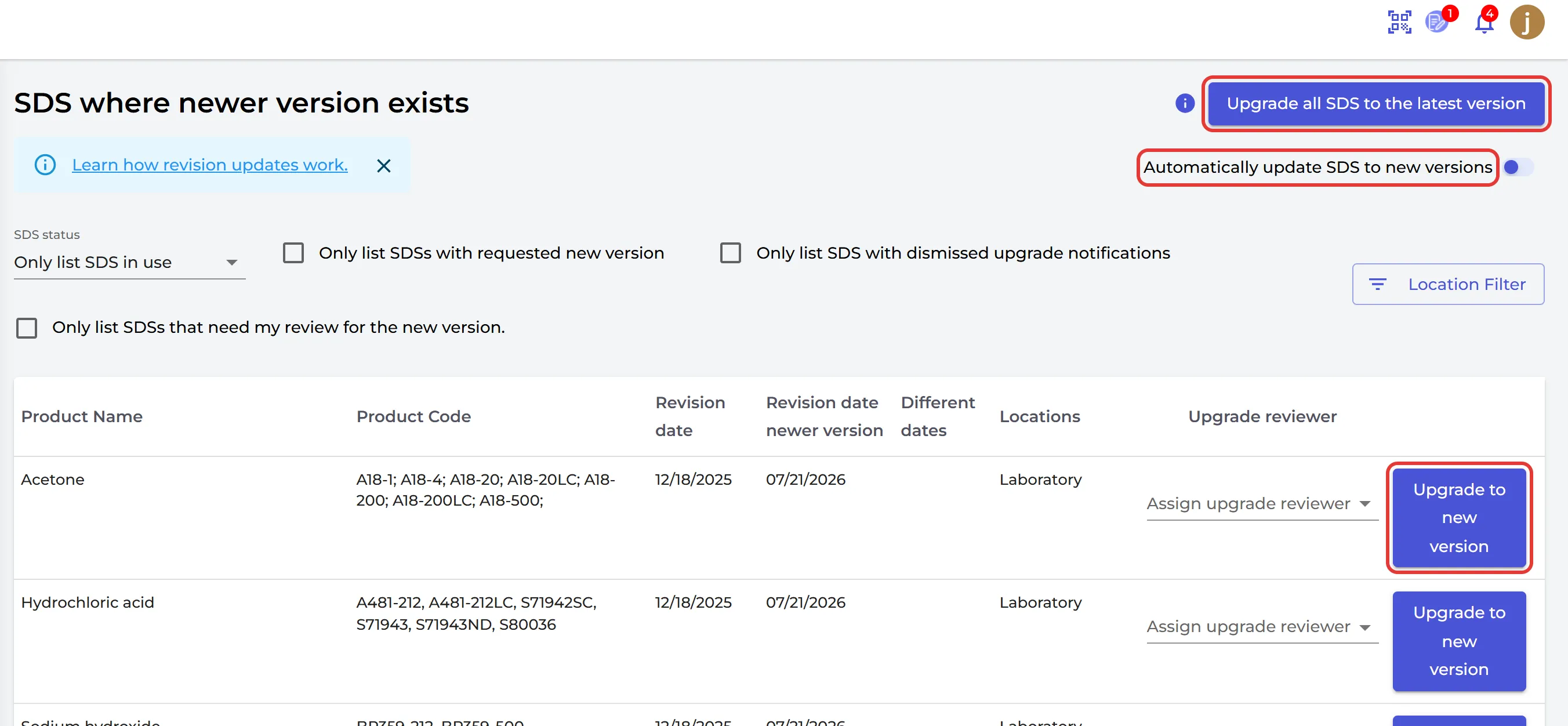
- Click Upgrade to new version on the SDS. SDS Manager shows the Current version and the Newer Version side by side, with the changed values marked.
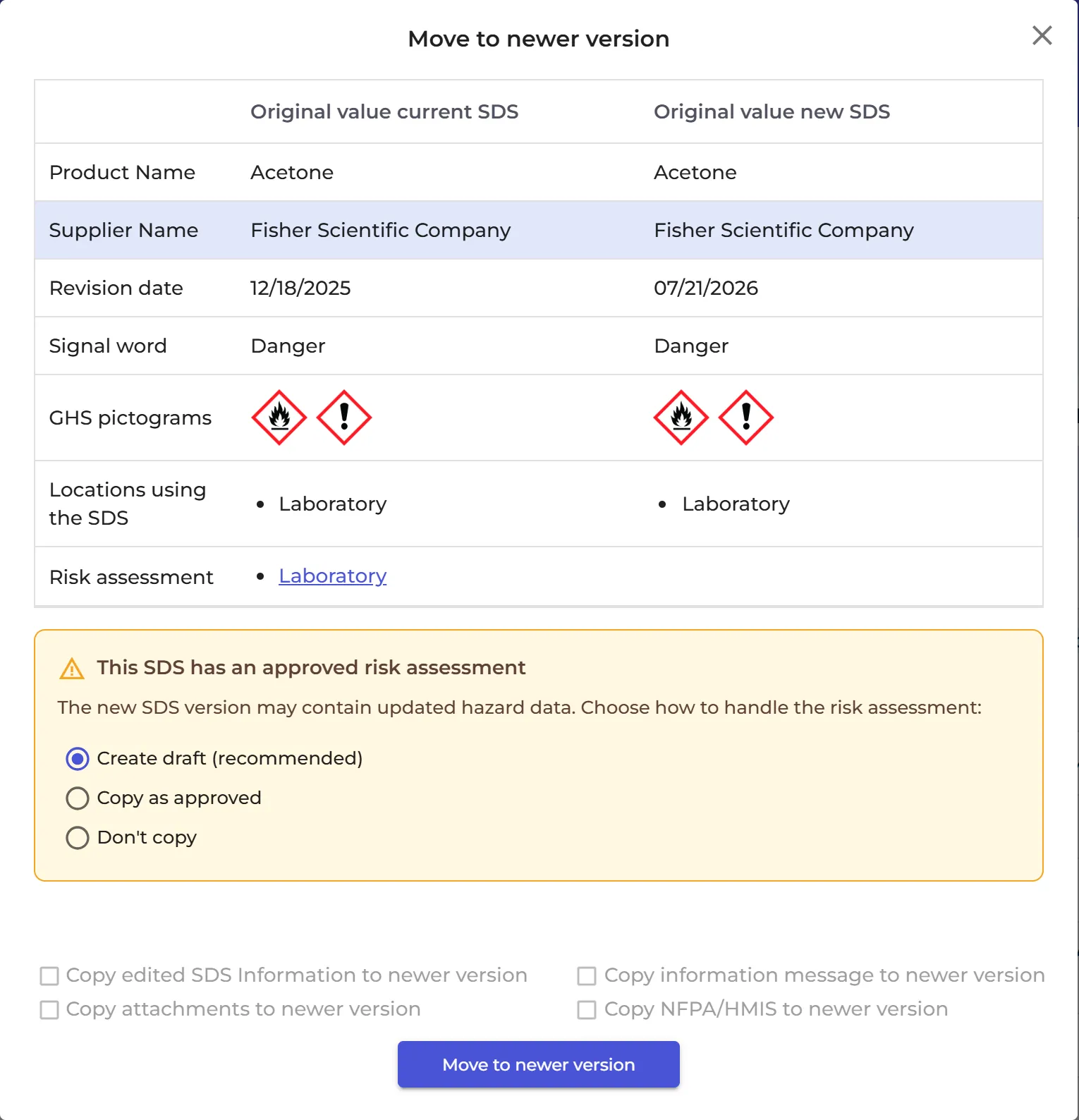
- Click Upgrade to new version. Choose what to copy to the new version: your edited SDS information, attachments, information message and NFPA/HMIS data. For a risk assessment, choose Create draft (recommended), Copy as approved or Don't copy.
- Choose if the new version replaces the SDS on this location only or on all locations.
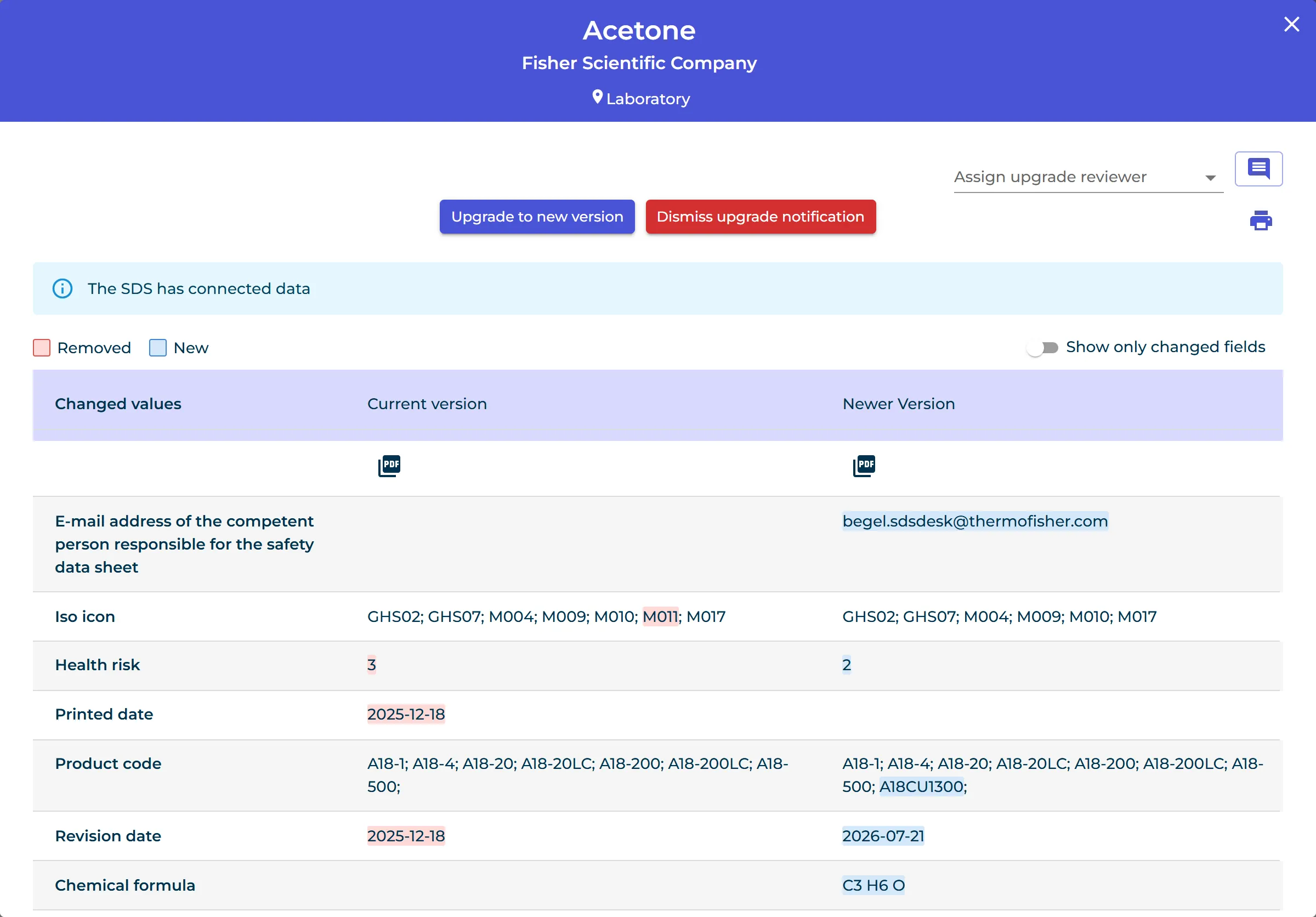
Don't want the new version? Click Dismiss upgrade notification. To let a colleague check the new version first, choose them in Assign upgrade reviewer.
To upgrade all the SDSs at once, click Upgrade all SDS to the latest version. You choose if your own data is copied to the new versions, or if only the SDSs without your own data are upgraded.
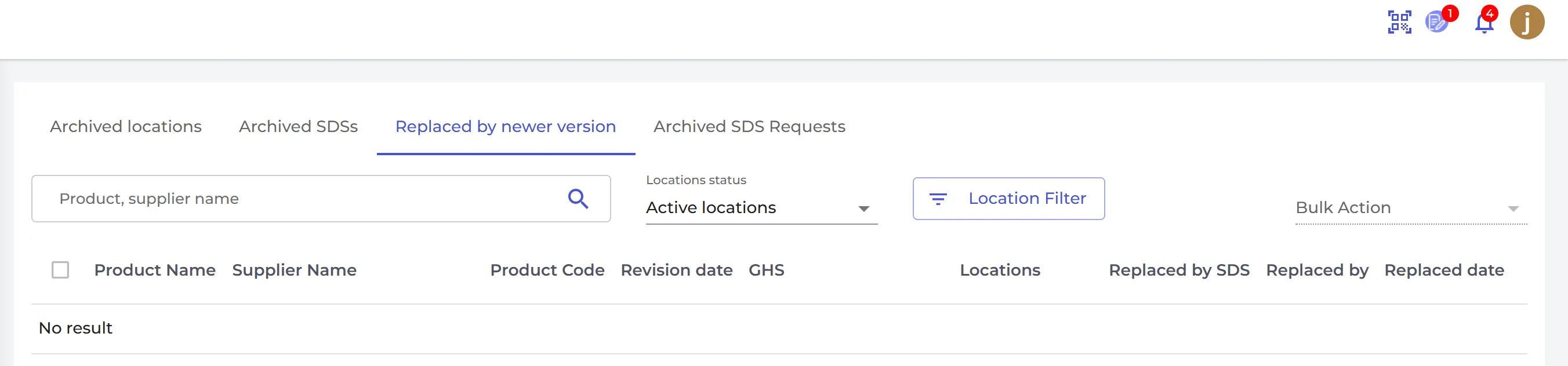
The old versions are kept. You find them in the Archive, on the Replaced by newer version tab.
Auto-pilot: update SDSs automatically
Switch on Automatically update SDS to new versions, on the same page or on the Settings page. SDS Manager then replaces your SDSs with the newer versions by itself. SDSs with your own data, such as edited information, attachments, a risk assessment, NFPA/HMIS data or an information message, are not upgraded automatically: you upgrade those yourself. Switch on the e-mail SDS has automatically been upgraded to new version to be told about each upgrade.
Ask your suppliers for updated SDSs
Some suppliers do not publish their SDSs online. You can ask them for updated SDSs by e-mail, from the pages under Updates (SDS Updates) in the left menu:
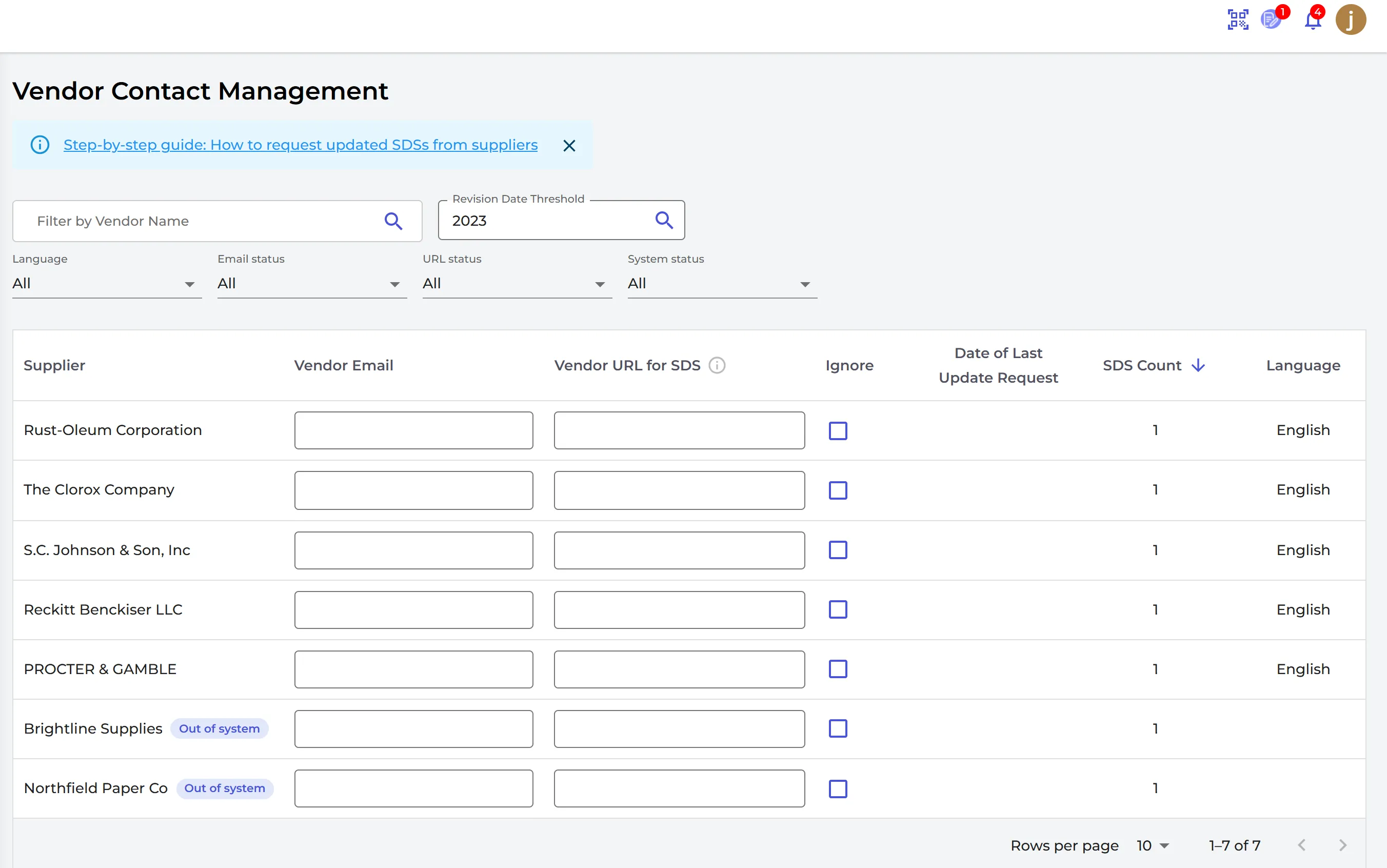
- Vendor Contacts: your suppliers, sorted by the number of SDSs you have from them. Enter the e-mail address of each supplier you want to ask.
- Request Updated SDS: the suppliers with SDSs older than the Revision Date Threshold (by default three years ago). Click the details icon to choose the SDSs to ask for. Click Preview Messages to check the e-mails, then Send All. The e-mails are written in the supplier's language.
- Sent Requests: the requests you have sent. SDSs you have asked for are not listed on Request Updated SDS again. To ask again later, open the messages of the request and move the SDSs back to the request list.
- Inbox (from vendors): the answers from your suppliers, with the files they sent and their messages. SDS Manager reads each SDS file and marks it as a new SDS, a new version, an outdated SDS or a duplicate.
If a new version is not found or matched automatically, replace the SDS yourself. Read more: How does the revision update work?
SDS updates are part of the Premium, Pro and Enterprise plans.