Suppliers issue new revisions of their Safety Data Sheets (SDSs), often every one to three years. SDS Manager checks thousands of supplier websites for new revisions and tells you when it finds a newer version of an SDS in your library. Read more: User manual for "Manage SDS Updates" - see how you can upgrade SDSs to the latest version
We cannot promise to find every new version, because some suppliers do not publish their SDSs online. We also offer an extra service where we check all your SDSs by hand once a year.
Sometimes a product gets a new name or a new supplier. SDS Manager then cannot link the new SDS to the one in your library. So check your oldest SDSs now and then, and replace them yourself.
Find your oldest SDSs
Click Filter (SDS Filter) in the left menu, add the Revision date filter and choose the dates to list the SDSs with an old revision date.
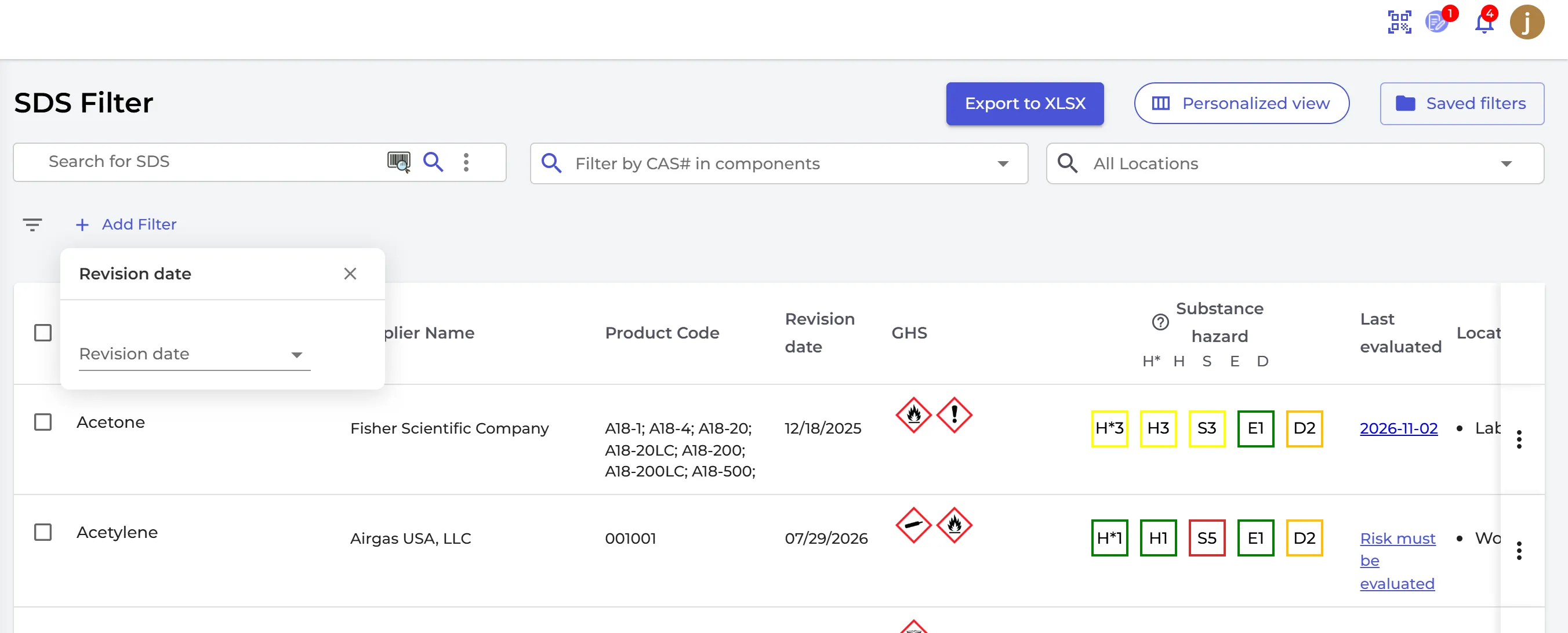
Replace an SDS with a newer one
- Click ⋮ on the SDS and choose Replace with new SDS.
- SDS Manager searches its database for the product. If there are no good results, remove some words from the product or supplier name and search again.
- Click + on the newer SDS.
- Choose what to copy to the new SDS, such as your edited information, attachments and information message, and on which locations to replace it. Confirm.
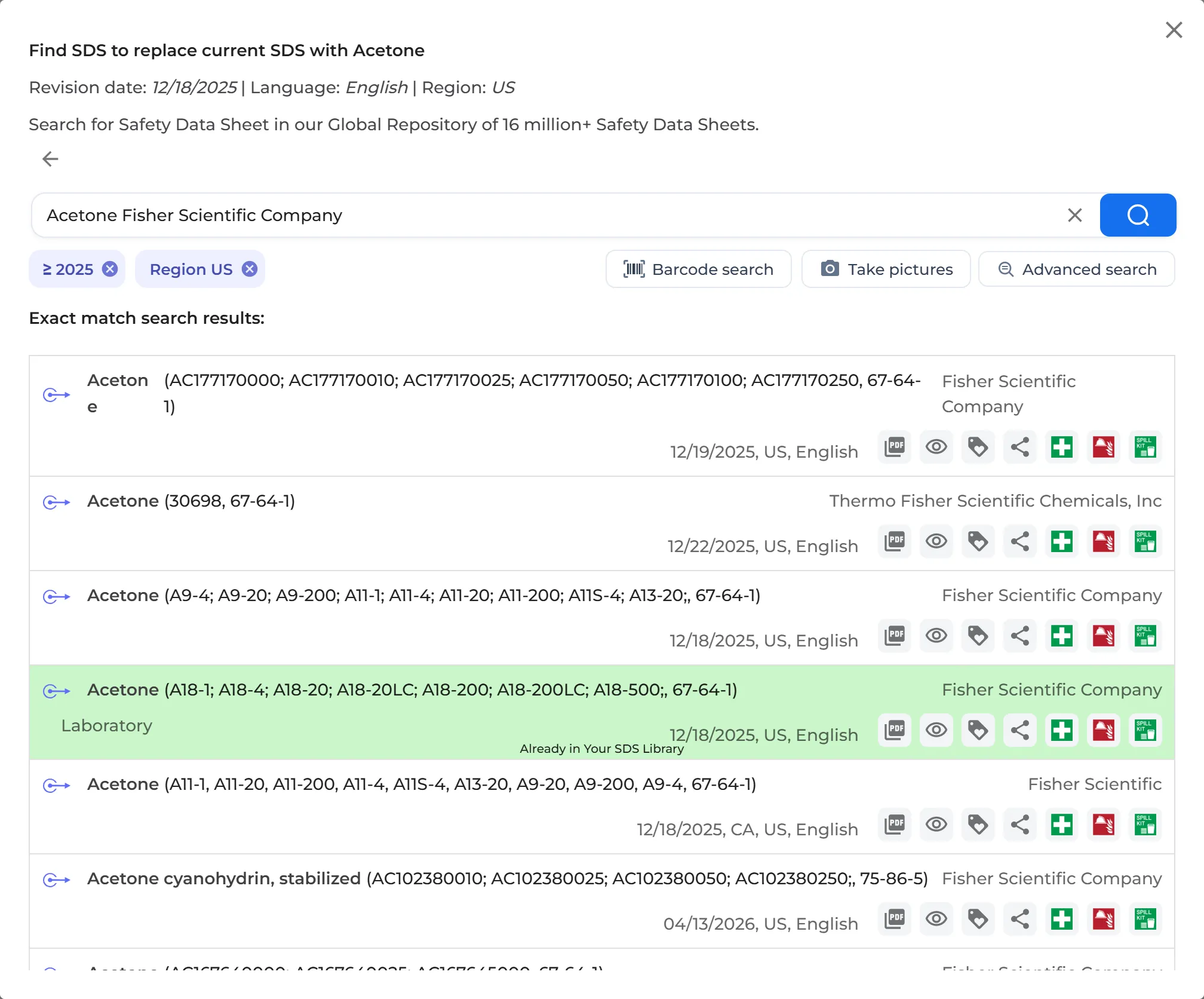
The old SDS moves to the Archive, on the Replaced by newer version tab. Its risk assessment, amount and EAN/UPC codes go with the new SDS.
Not in our database? Search Google
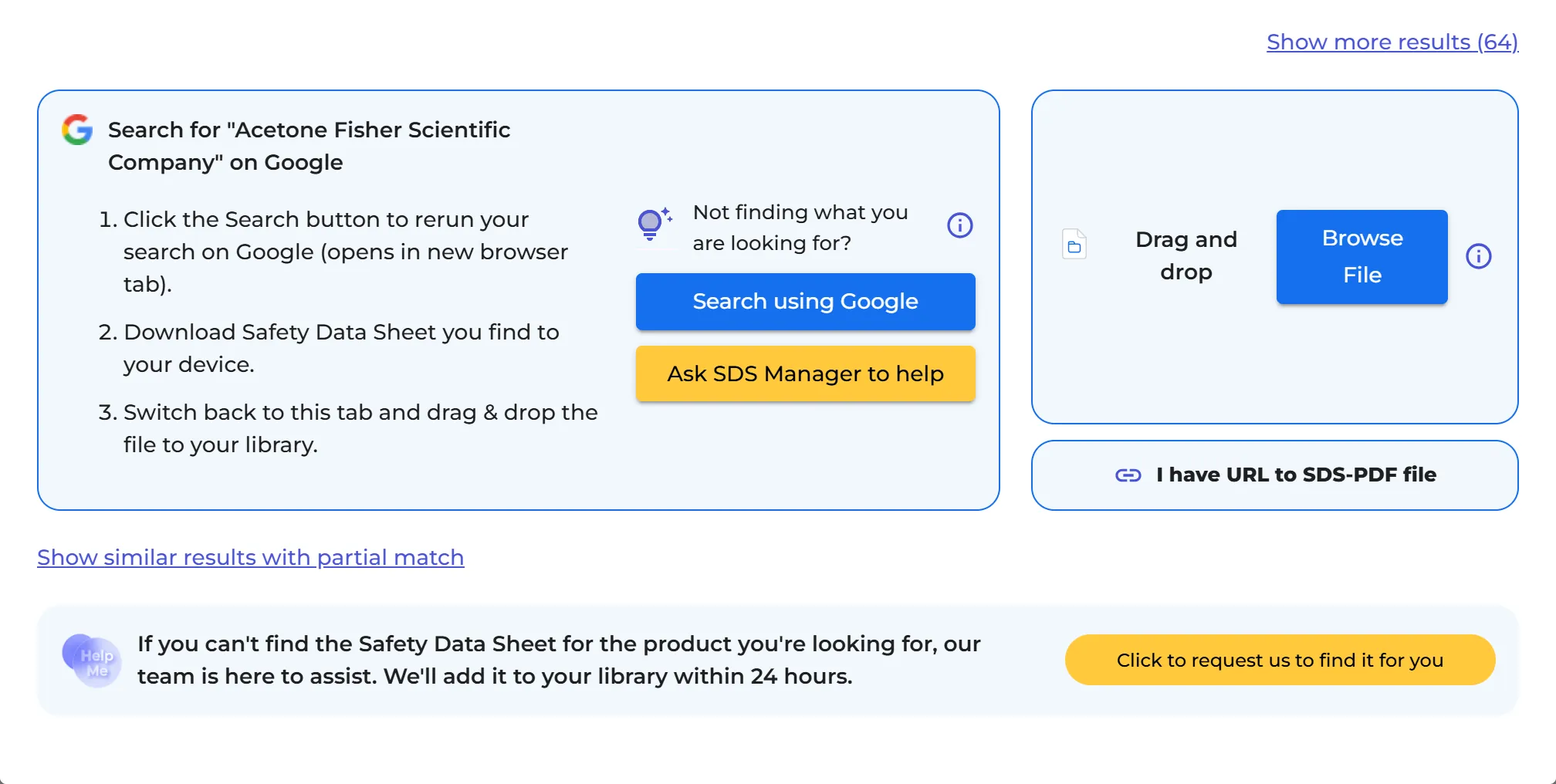
Click Search using Google at the bottom of the window. Google opens in a new tab. Download the SDS you find, go back to SDS Manager and drag the file into the window, or click Click here to browse files. If you have a link to the PDF, use I have URL to SDS-PDF file. SDS Manager reads the file, and you confirm the replacement.
Still can't find it? Click Click to request us to find it for you. Our team looks for the SDS and adds it to your library, usually within 24 hours.
Not on Google either? Ask your supplier
Answer No to Did you find the Safety Data Sheet through Google? and click Click to send Email. Enter the supplier's e-mail address, check the message and send it. When the supplier answers with the SDS, it is added to SDS Manager, and you can replace your SDS with it. To ask many suppliers at once, use Request Updated SDS: User manual for "Manage SDS Updates" - see how you can upgrade SDSs to the latest version