Some SDSs may be sensitive, for example for chemicals used in a research lab. You can hide an SDS from users who are not admins on its location.
- Open the location in Manage SDS Library and find the SDS.
- Click ⋮ on the SDS and choose Hide from Non-admin.
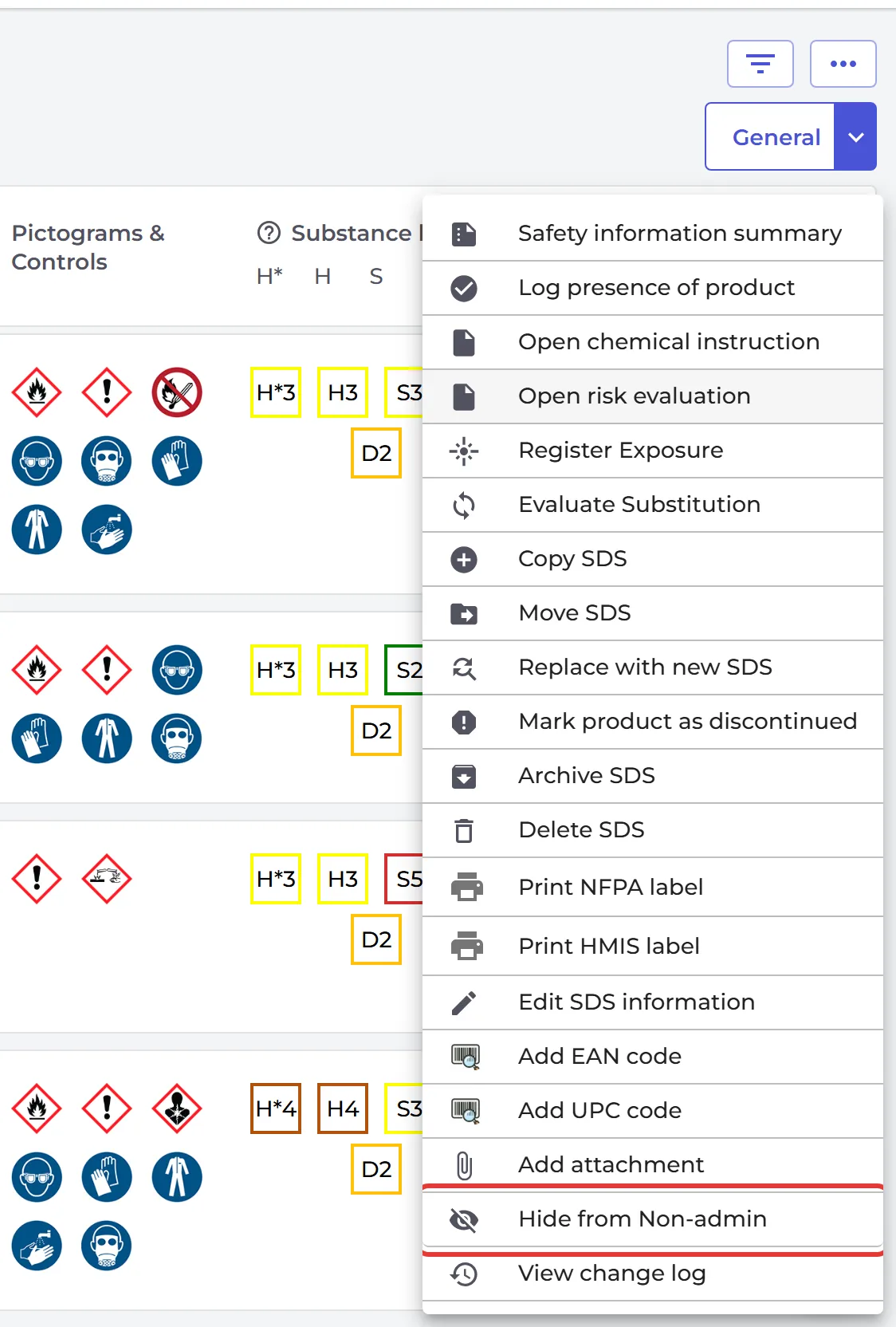
The SDS is then hidden from users with the Staff role, from employees who use a QR code or your intranet link, and in the app. The owner and users with an Admin or Admin Light role on the location still see it.
To show the SDS to everyone again, choose Show for all roles in the same menu.
Only the owner and admins of the location can hide SDSs. Hiding SDSs is part of the Pro and Enterprise plans.