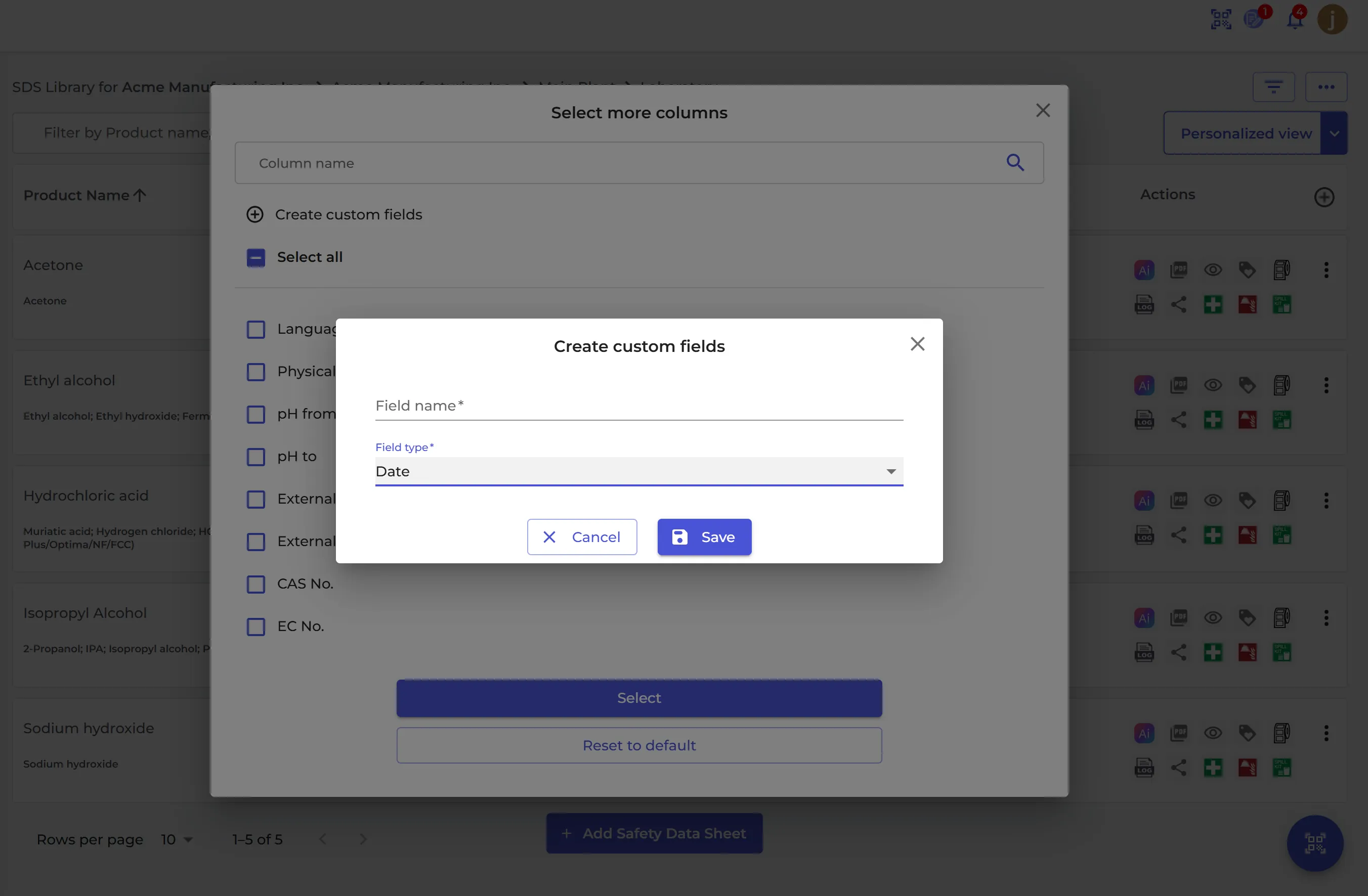
SDS Manager has no fixed expiry date for a Safety Data Sheet (SDS), but you can add your own with a custom field of the type Date.
- Create a custom field named, for example, Expiry date with the field type Date. Read how: How can I create custom fields linked to my SDSs?
- Set the date on each SDS: open the SDS details and click the pencil next to Expiry date. For many SDSs at once, use Bulk Action → Set custom field on SDS Filter.
- To list the SDSs that expire in a period, go to SDS Filter, add the Custom Fields filter, choose Expiry date and set the From and To dates.
Do you want to track the expiry date of the product itself, for example per batch? Use the stock tracking instead: How can I edit the amount of a product on a location?