With the SafetyCulture integration, SDS Manager copies the Safety Data Sheets (SDSs) of your locations into folders in the Documents module of SafetyCulture. Your staff can then open them in SafetyCulture.
Before you start: you need a SafetyCulture account. SafetyCulture is now branded Mitti by SafetyCulture. The SafetyCulture page on our website shows which plans you need.
Step 1: Sign up for SDS Manager
- Go to sdsmanager.com/safetyculture and start the free trial from that page.
- Already have an SDS Manager account, or did you sign up from another page? Then you will not see the SafetyCulture settings. Contact us at support_en@mail.sdsmanager.com and we will switch on SafetyCulture linking for your account.
Step 2: Generate your SafetyCulture API token
- Open the API tokens page of your SafetyCulture account: app.safetyculture.com/account/api-tokens. If your account is in the EU region, use app.eu.safetyculture.com/account/api-tokens.
- Click "Generate API token".
- Copy the token and keep it somewhere safe.
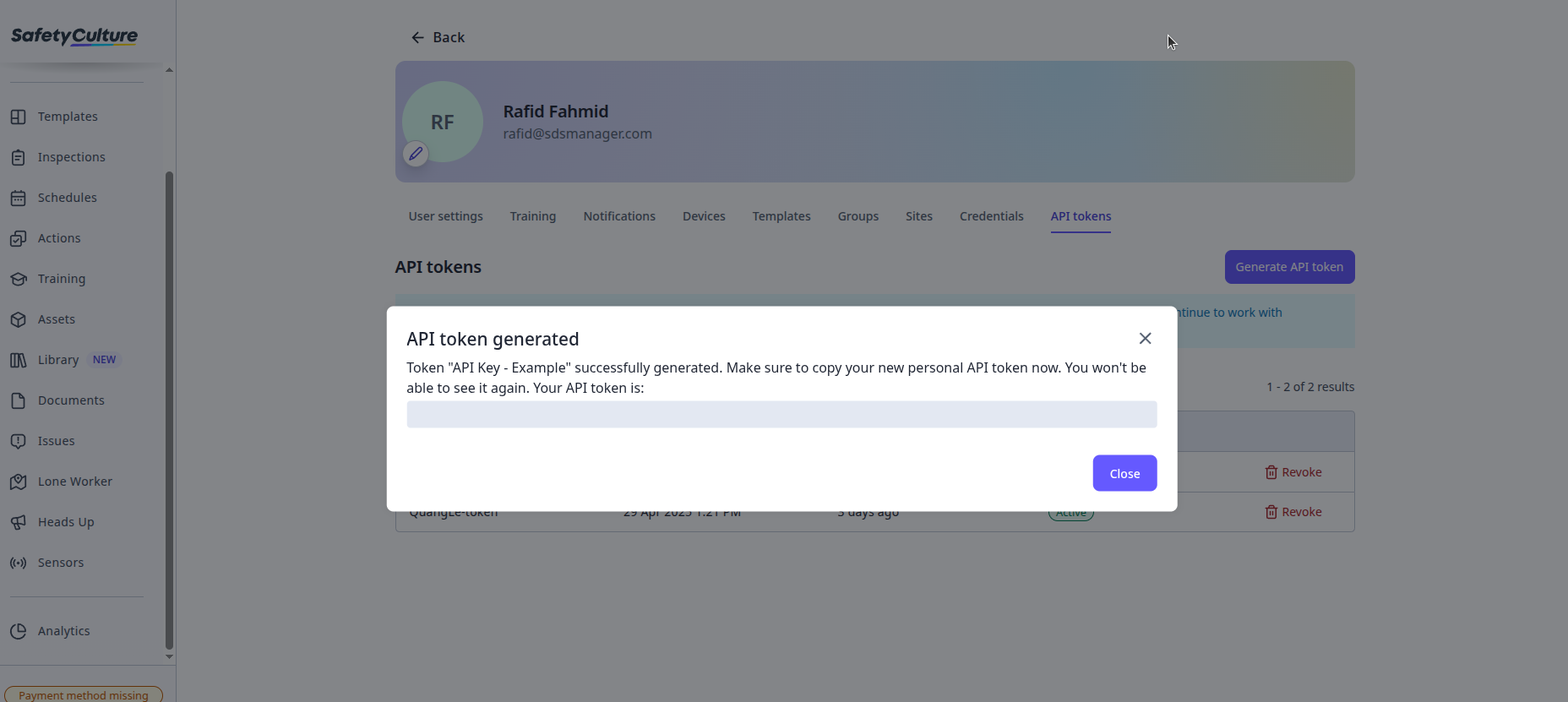
Important: SafetyCulture API tokens expire when they have not been used for 30 days. When your token has expired, SDS Manager tells the owner of the account on the Dashboard. Generate a new token in SafetyCulture and enter it in that window, or in the settings (Step 3).
Step 3: Connect SDS Manager to SafetyCulture
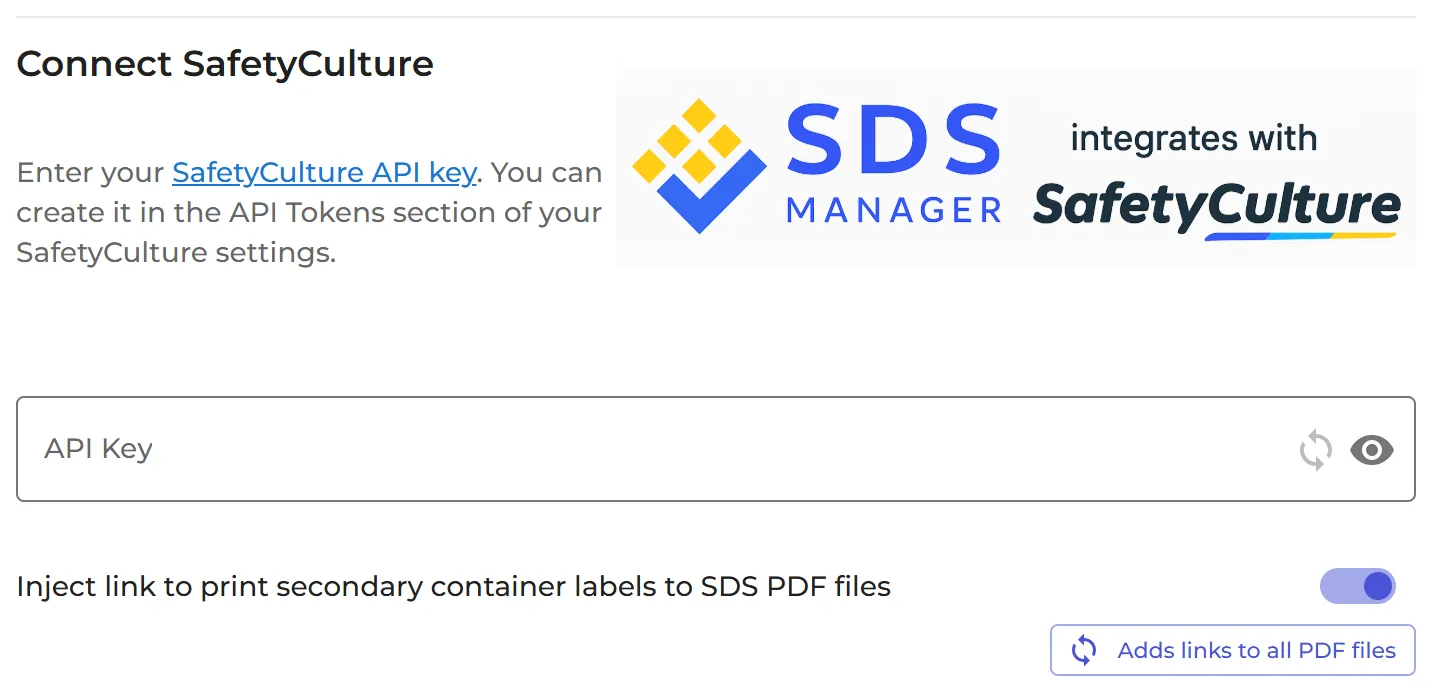
When the owner of the account opens the Dashboard in SDS Manager, the window Connect SafetyCulture asks for the token. Paste it into the field and click Save.
You can also enter or replace the token later: click More → Settings and paste it into API Key under Connect SafetyCulture.
Link SafetyCulture folders to your locations
1. Create a folder in SafetyCulture
In the Documents module of SafetyCulture, create a folder for the SDSs, for example "SDS Manager".
2. Link the folder to a location in SDS Manager
When you sign up for SDS Manager, a first location is created for you. Link it to the folder you just created:
- Open the location in Manage SDS Library.
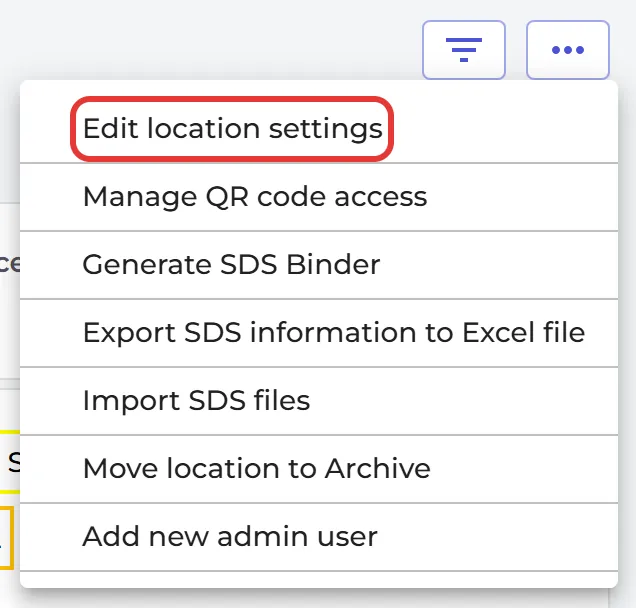
- Click More options (⋯) and choose Edit location settings.
- In SafetyCulture Folder, search for and select your SafetyCulture folder, and save.
3. Optional: create a folder hierarchy
To organize the SDSs by department, site or other criteria, create subfolders under the "SDS Manager" folder in SafetyCulture. Link each subfolder to a location in SDS Manager, as in step 2.
Synchronization
In Edit location settings, click the Sync icon next to SafetyCulture Folder and confirm with OK. All the SDSs on the location are copied to the linked SafetyCulture folder.
To sync all locations at once, click the sync icon in the API Key field on the Settings page (Synchronize all SDSs from your locations to the corresponding SafetyCulture folders).
After the synchronization, the files are in your SafetyCulture folder:
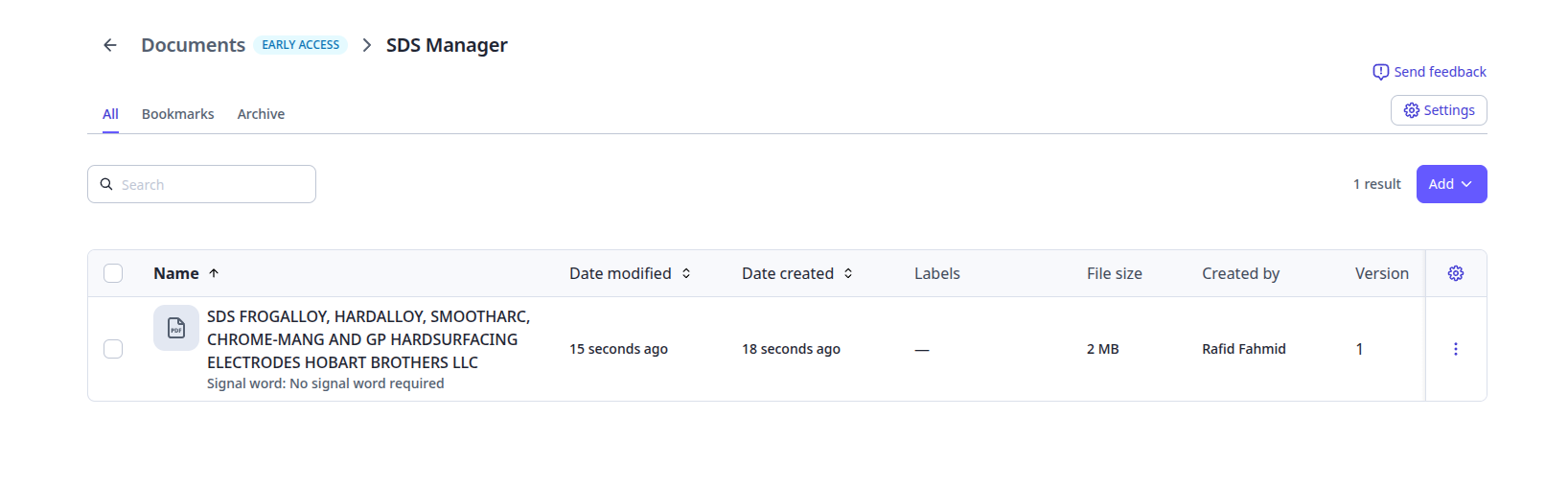
When you add a new SDS to a linked location in SDS Manager, it is synced to the SafetyCulture folder for that location automatically.
Links for printing secondary container labels
On the Settings page, switch on Inject link to print secondary container labels to SDS PDF files to add a link for printing labels to each SDS PDF in SafetyCulture. Click Adds links to all PDF files (or Removes links from all PDF files) to update the PDFs that are already in SafetyCulture. You can run this update again 4 hours after it has finished.
Free trial
During the free trial, you can sync up to 20 SDSs to SafetyCulture. You can add more SDSs to SDS Manager, but they are synced to SafetyCulture only when a paid plan is active.