If you only have a paper copy of a Safety Data Sheet (SDS), scan it to a PDF file and upload it to the location in Manage SDS Library (Add Safety Data Sheet, then drag the file into the box).
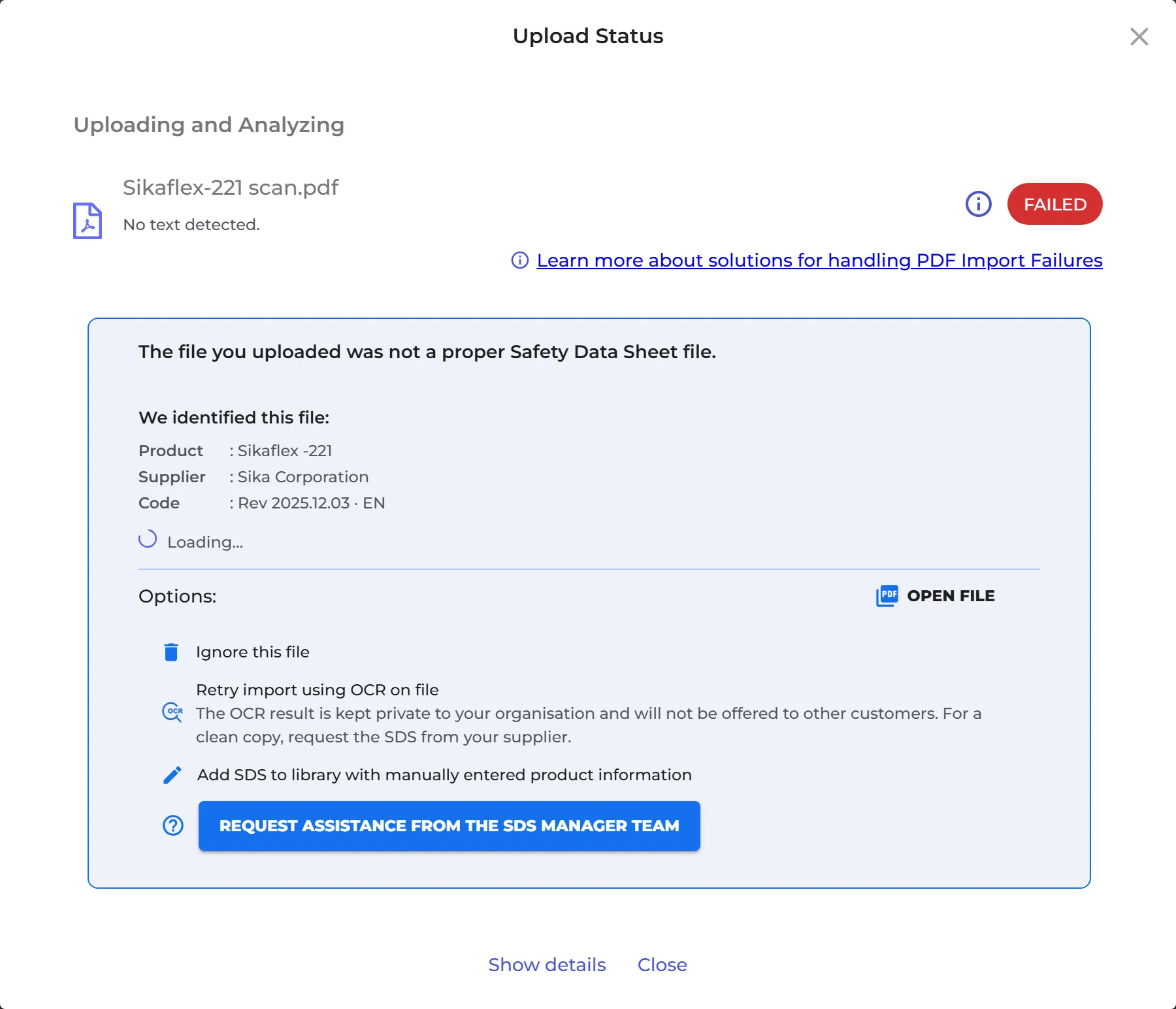
A scan has no text that SDS Manager can read, so the upload shows FAILED and No text detected. Click Retry import using OCR on file. SDS Manager then reads the text in the picture (OCR) and adds the SDS to the location. This works best with a clear, straight scan.
The SDS made from your scan is private to your organization and is marked Scanned copy · private.

You can also retry OCR later from Import status in the left menu (the OCR icon on the file).
If OCR does not work, ask your supplier for an electronic copy, or add the file with Add SDS to library with manually entered product information: enter the product name and the supplier name, and the scan is added to the location as it is. You can then add more information with Edit SDS information in the ⋮ menu of the SDS.
Have a whole binder of printed SDSs? It is quicker to photograph the first page of each SDS: How do I migrate our current paper-based SDS library to SDS Manager? Read more about failed imports: Troubleshooting PDF Import Failures: Steps to Take