When SDS Manager cannot import a PDF file, the most common reason is that the file is a scan: a picture of a printed Safety Data Sheet (SDS) with no text in it. Other reasons are that the file is protected, is not an SDS, or has a very unusual layout.
What you see when the import fails
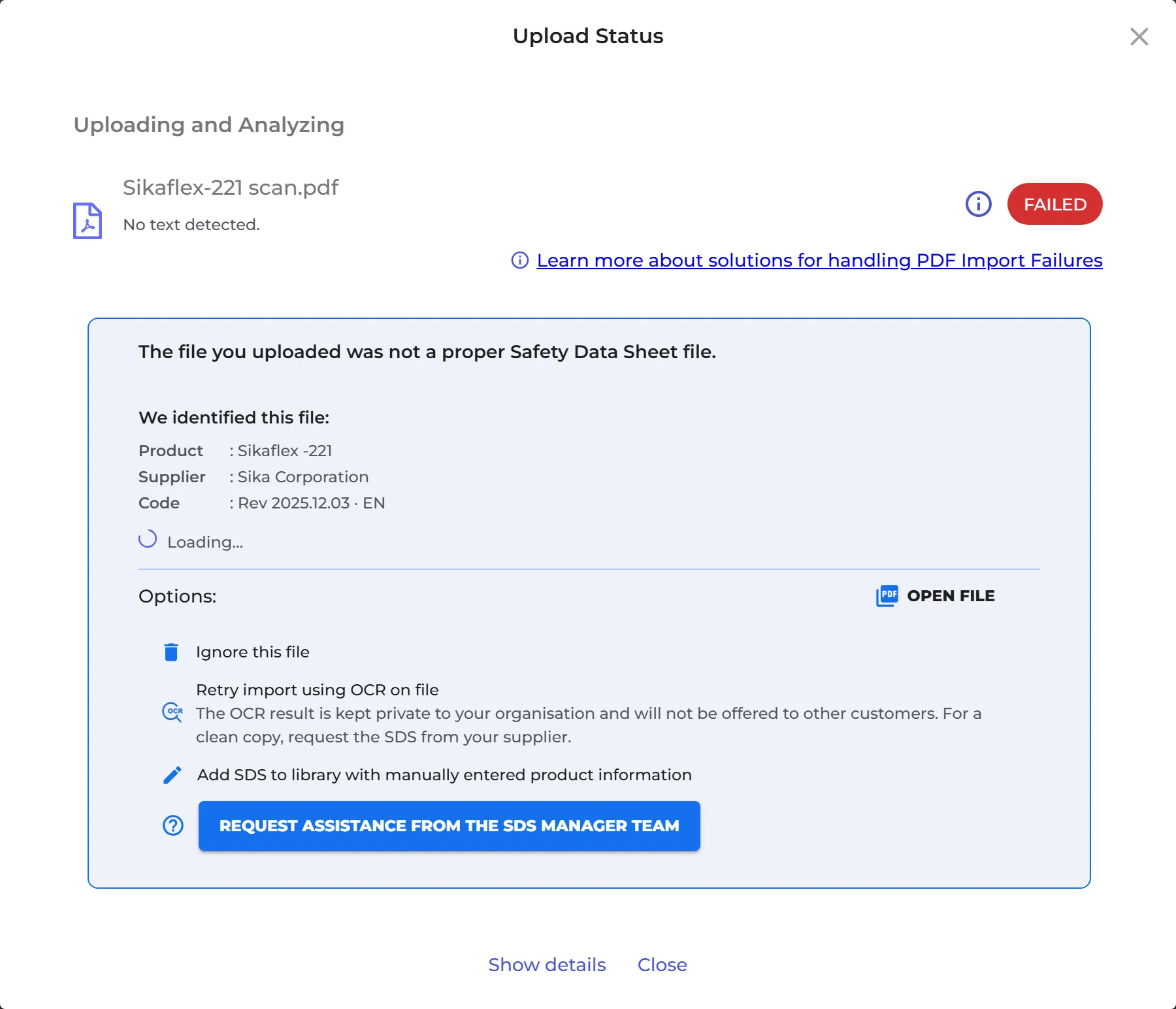
The upload shows FAILED. For a scan it says No text detected. and The file you uploaded was not a proper Safety Data Sheet file. SDS Manager often still recognizes the product and shows it under We identified this file. Under Options you can choose:
- Retry import using OCR on file: SDS Manager reads the text in the picture (OCR) and imports the SDS again. The result is private to your organization and is marked Scanned copy · private.
- Add SDS to library with manually entered product information: enter the Product Name and Supplier Name (the revision date is optional) and click Add SDS to location. The file is added to the location as it is.
- Request assistance from the SDS Manager team.
- Ignore this file.
For a scan, the best result is a new electronic copy: ask your supplier for it, or search our database or Google for the SDS.
After a manual entry, you can add the signal word, hazard statements, pictograms and other information: click ⋮ on the SDS and choose Edit SDS information.
Several files or a ZIP file
If some files in an upload fail, SDS Manager says One or more files had issues with import. See details on Import status page. In the File import status window, click Fix failed imports to go through the files one by one.
The Import status page
Click Import status under Manage SDS Library in the left menu. It appears after your first import. The page lists the files that failed, with the error and a Resolution link.
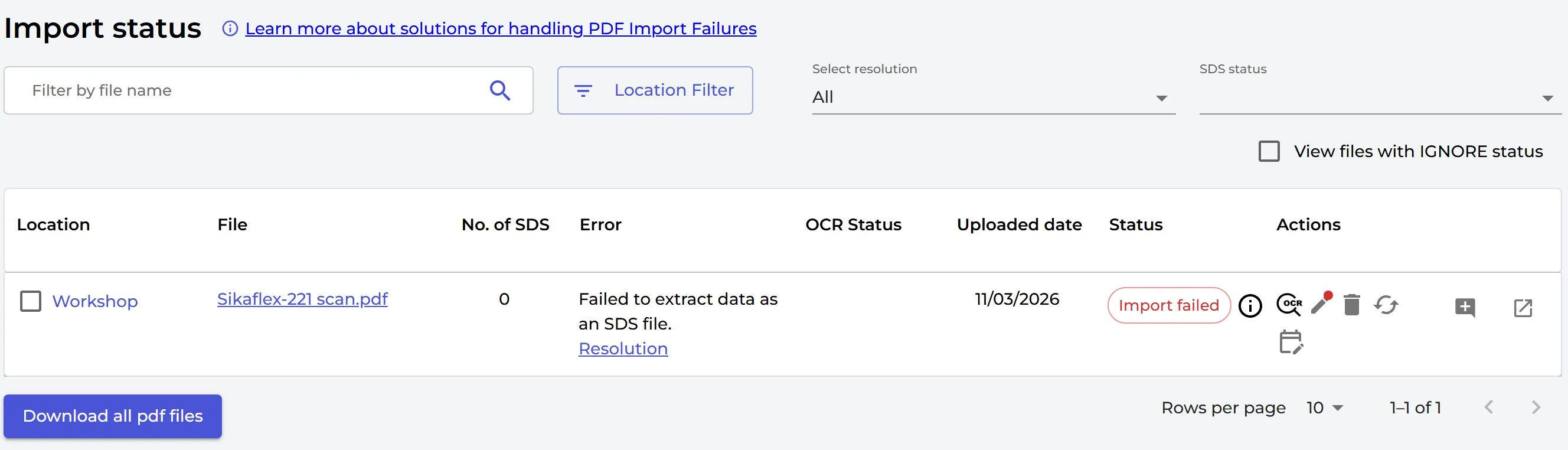
The icons on a failed file:
- Retry using OCR (the OCR icon): for scans.
- Add SDS to library with manually entered product information (the pen). A red dot means SDS Manager found a matching SDS that you can use instead.
- Delete file: delete it and import a better file.
- Replace with new SDS: replace the file with an SDS from our database, from Google, or a new file from your supplier.
- Add request for SDS: save the product as an SDS request and find the SDS later.
- Add comment.
Not sure yet what to do with a file? Choose a resolution for it, for example Need to contact supplier for new SDS, and come back to it later. When you filter on failed files, you can also use Retry all using OCR, Retry extraction or Bulk Add SDS (Manual) for many files at once.
Read more: I have a hard-copy or scan of an SDS file I like to add to our library