What is the SDS Manager eCommerce API?
The SDS Manager eCommerce API lets your webshop, ERP, or back-office system work with your safety data sheets automatically, server-to-server, without anyone logging in through a browser. With it you can download your full SDS library together with structured GHS/CLP hazard data, email the correct up-to-date SDS to a customer, and subscribe or unsubscribe customers from automatic new-version notifications.
It is built for online sellers of hazardous chemicals who need to display compliant hazard information (EU CLP) and deliver safety data sheets to their buyers reliably and automatically. The API uses a single, long-lived API key for authentication and exposes four endpoints: Library, Send SDS, Subscribe, and Unsubscribe.
Which API endpoints are available?
The SDS Manager eCommerce API currently provides four endpoints. All of them share the same base URL (https://inventory.sdsmanager.com) and are authenticated with your X-Ecommerce-Api-Key header.
| # | Endpoint | Method | Purpose |
|---|---|---|---|
| 1 | /api/ecommerce/library/ |
GET | Download your full SDS library with structured GHS/CLP hazard data (pictograms, signal word, H/P/EUH statements, UFI, PPE icons). Best for syncing your webshop or ERP. |
| 2 | /api/ecommerce/messages/send-sds/ |
POST | Email the correct, up-to-date SDS to a customer, with the PDF attached. |
| 3 | /api/ecommerce/subscriptions/subscribe-sds/ |
POST | Subscribe a customer's email to automatic new-version notifications for a specific SDS. |
| 4 | /api/ecommerce/subscriptions/unsubscribe-sds/ |
POST | Remove a customer's email from new-version notifications. |
A simple way to think about them: the Library endpoint lets you read your whole catalogue of safety data sheets, while Send SDS, Subscribe, and Unsubscribe let you act on an individual customer. Each endpoint is described in detail further down in this FAQ.
Note: Calling the API requires an active eCommerce subscription (eCommerce Premium or Pro). API keys can be generated by the account owner on any Inventory Manager Pro/Enterprise or eCommerce Premium/Pro plan — but an Inventory Manager plan on its own does not enable the endpoints: calls return 401 "No active ecommerce subscription for this API key." until an eCommerce subscription is active.
What do I need before I can use the API?
To use the API you need:
- An active eCommerce subscription (eCommerce Premium or Pro) — this is what enables the API endpoints. (Account owners on Inventory Manager Pro/Enterprise can generate a key, but the endpoints stay locked until an eCommerce subscription is active.)
- Account owner access — only the account owner can generate and manage API keys.
- Product identifiers in your library — to send or subscribe by SKU, EAN, UPC, or external system ID, those identifiers must be stored on your SDS items. You can add them in bulk under Import → Product list. (The internal SDS ID always works, with no setup needed.)
What is an API key and why do I need one?
An API key is a unique secret string that identifies your account when your systems call the API. It replaces the browser-style login (JWT tokens), which expires after a few minutes and is impractical for automated, server-to-server use.
With an API key, your server simply includes the key in every request — no repeated logins, no token refreshing. The key stays valid until you regenerate or revoke it, making it the recommended method for any automated integration.
How do I generate my API key?
1.Log in as the account owner.
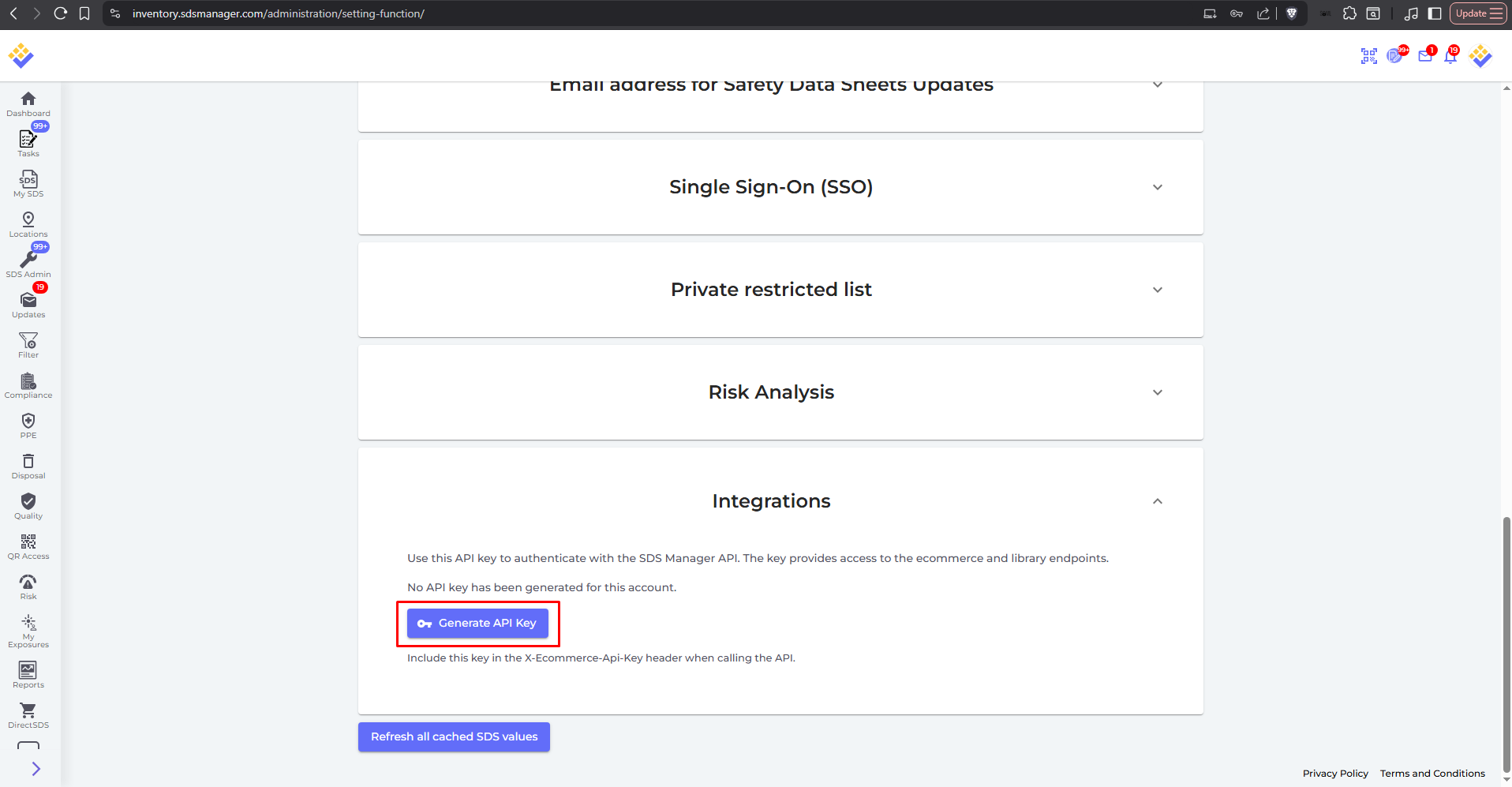
2. Open Settings and scroll to the Integrations section.
3. Click Generate API Key.
4. Copy the key immediately and store it somewhere safe. The full key is shown only once. After you leave the page it is displayed masked (for example abcd1234****wxyz) and cannot be revealed again.
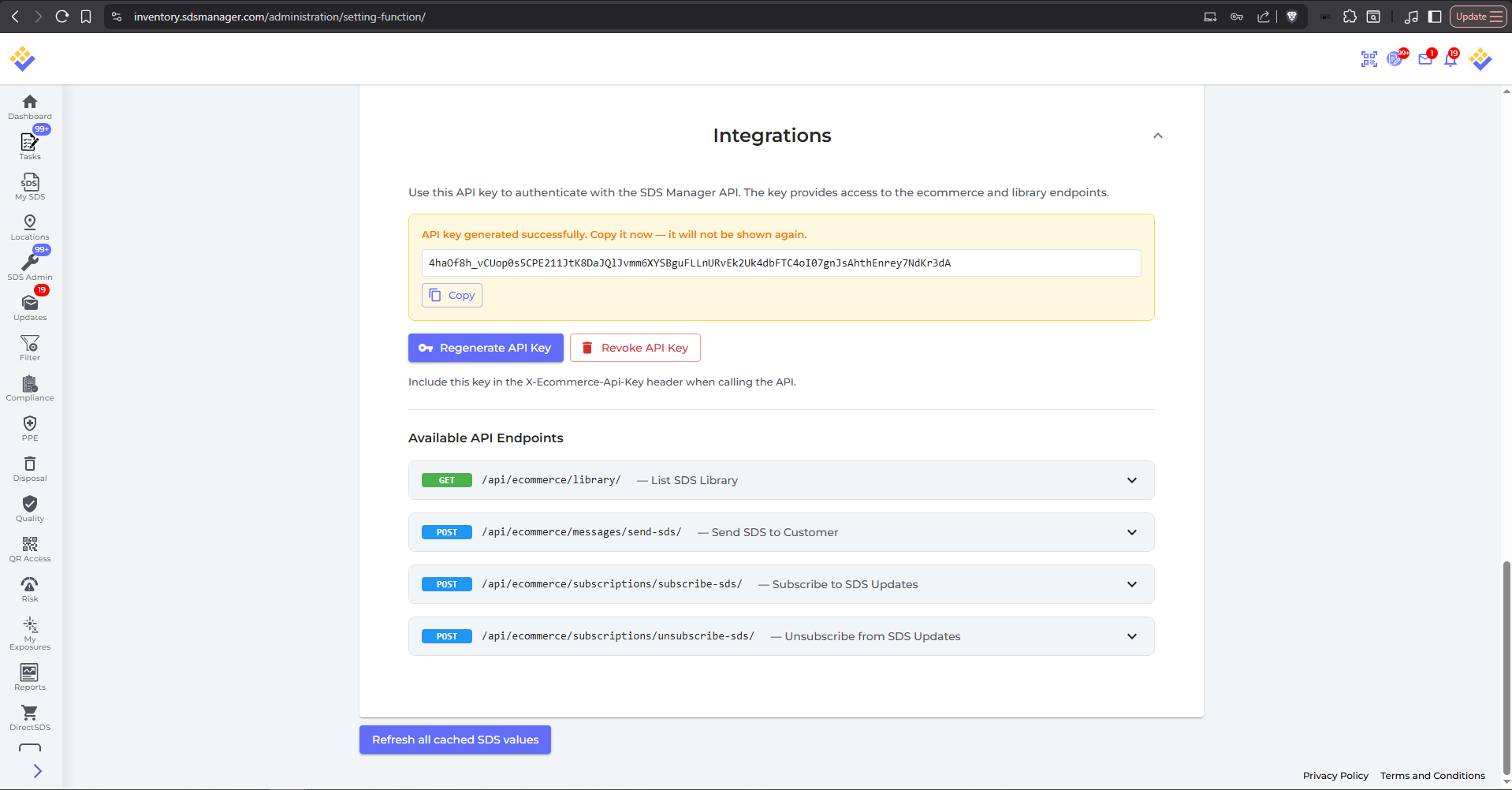
If you ever lose the key, you can generate a new one at any time — but remember that doing so replaces the old one.
How do I authenticate my API requests?
Include your API key in the request header on every call:
X-Ecommerce-Api-Key: YOUR_KEYThe base URL for all endpoints is:
https://inventory.sdsmanager.comIf the header is missing, the key is invalid, or the key has been revoked, the API responds with 401 Unauthorized.
How do I regenerate or revoke my API key, and what happens to my integrations?
In Settings → Integrations you can:
- Regenerate — creates a brand-new key and immediately invalidates the old one. Any request using the old key returns
401 Unauthorized. - Revoke — deletes the key entirely and stops all API access until you generate a new one.
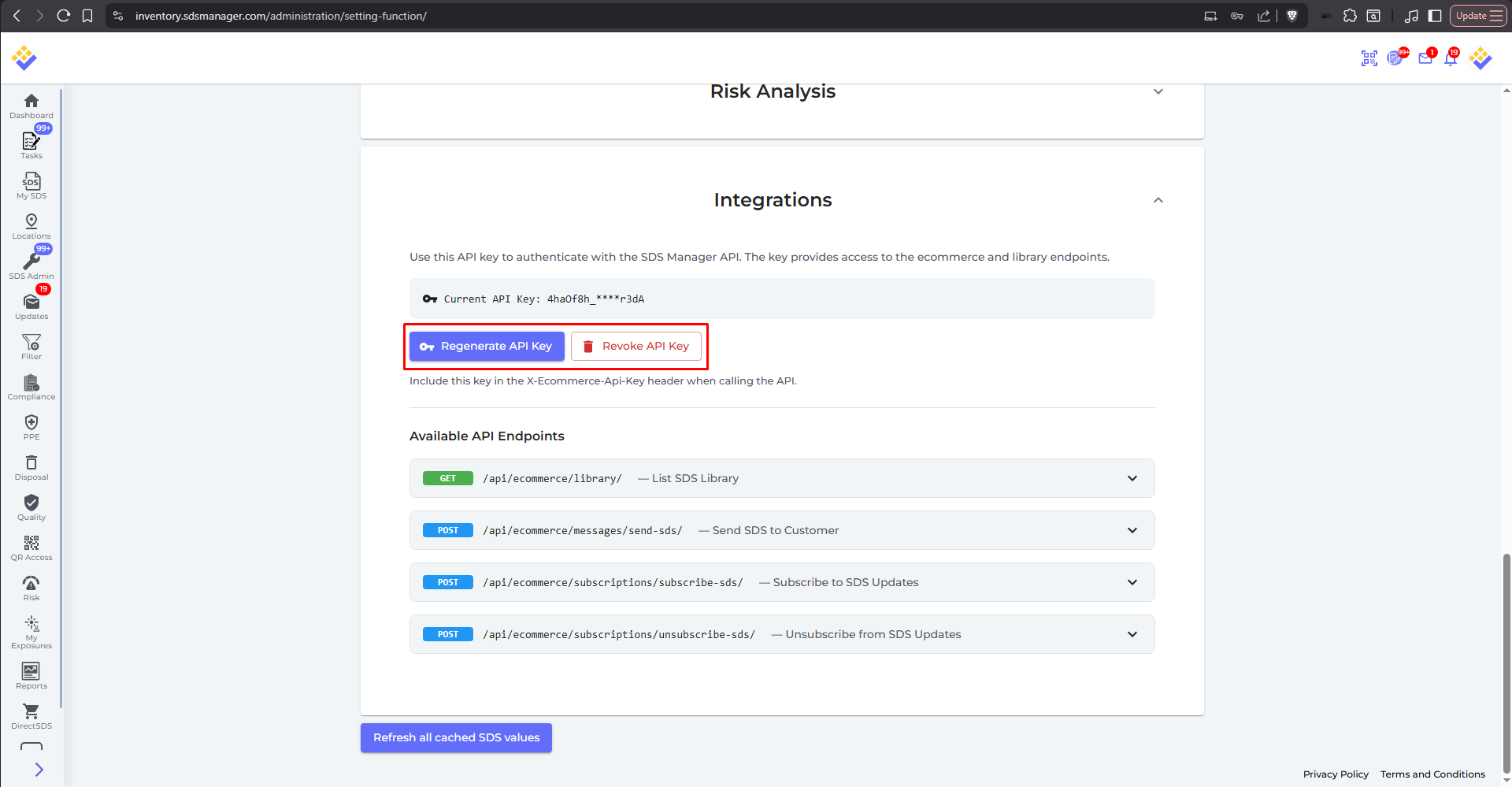
In both cases, any integration still using the previous key will stop working. Always update every system that uses the key right after regenerating or revoking it. A confirmation dialog is shown before either action to prevent accidental changes.
How do I keep my API key secure?
Treat your API key like a password:
- Never expose it in browser/client-side code, public websites, or shared repositories.
- Store it server-side, for example in a secure environment variable.
- Limit access to the people who genuinely need it.
- If you suspect it has been leaked, regenerate it immediately — this invalidates the exposed key.
Your key authenticates as your account and can only access your own data.
Which product identifier should I use?
Any one of the following identifiers is enough to point the API at the right product or SDS:
| Identifier | Description |
|---|---|
sku |
Your product SKU as stored in SDS Manager |
ean |
EAN barcode number |
upc |
UPC barcode number |
external_system_id |
Your ERP or external system's product ID |
sds_id |
SDS Manager's internal SDS ID (returned by the Library endpoint) |
Use whichever your shop or ERP already stores. If you don't have product identifiers set up yet, sds_id works out of the box because every SDS has one.
How do I view my full SDS library?
Call the Library endpoint to retrieve every active SDS in your library (archived items, and items without a matched SDS, are excluded) together with its structured GHS/CLP data. This is the best way to populate your webshop's product pages or sync with your ERP.
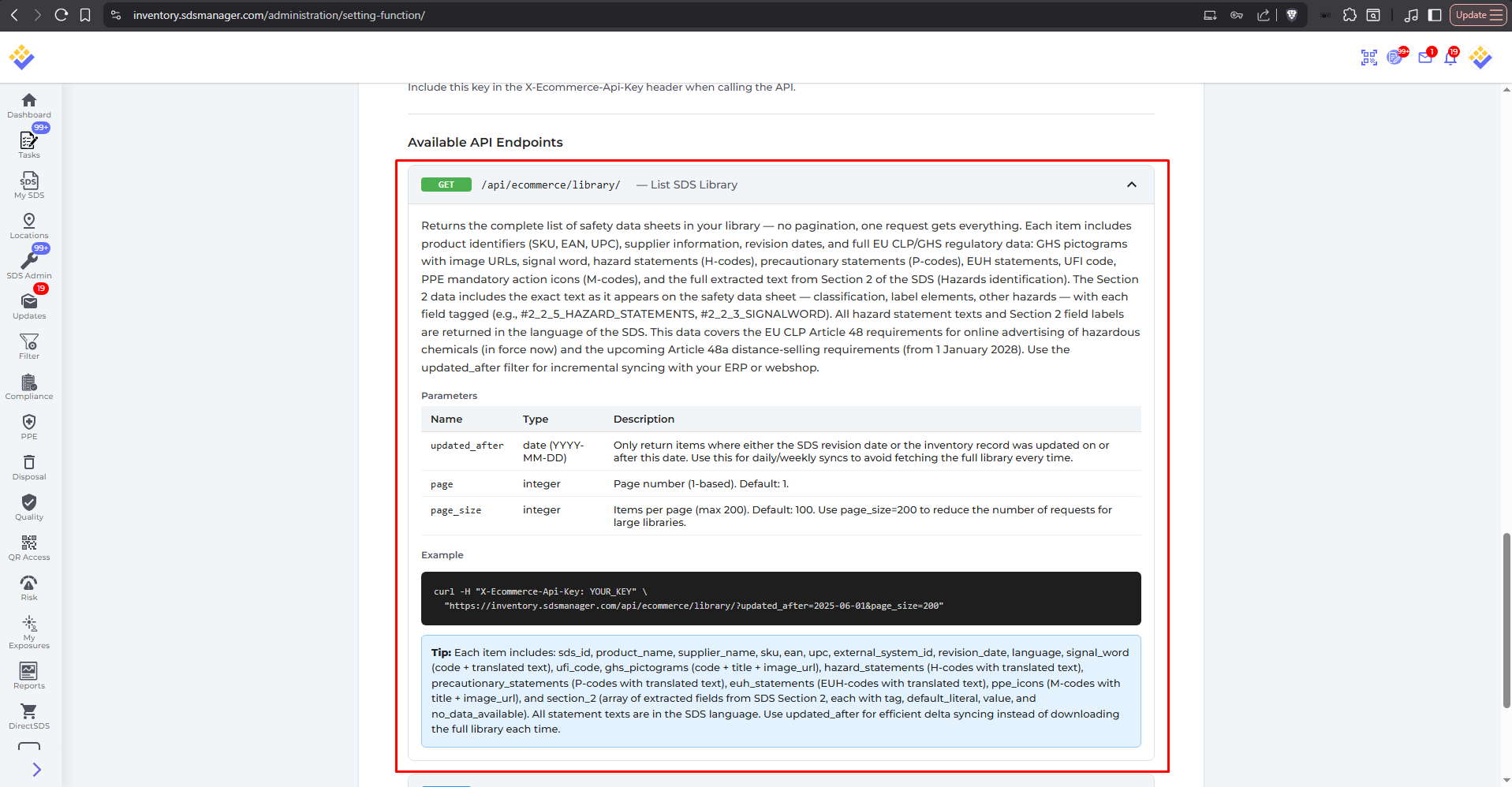
GET /api/ecommerce/library/

curl -H "X-Ecommerce-Api-Key: YOUR_KEY" \
  "https://inventory.sdsmanager.com/api/ecommerce/library/?updated_after=2025-06-01&page_size=200"
Parameters
| Name | Type | Description |
|---|---|---|
updated_after |
date (YYYY-MM-DD) | Optional. Only return items whose SDS revision or inventory record changed on/after this date. |
page |
integer | Optional. Page number (default 1). |
page_size |
integer | Optional. Items per page (max 200, default 100). |
Each item includes: id (the inventory record's id), sds_id, product_name, supplier_name, sds_product_name, sds_supplier_name, sku, ean, upc, external_system_id, revision_date, updated_date, language, signal_word (code + translated text), ufi_code, ghs_pictograms (code + title + relative image URL), hazard_statements (H-codes with translated text), precautionary_statements (P-codes with translated text), euh_statements (EUH-codes with translated text), ppe_icons (M-codes with title + relative image URL), and section_2 (the extracted Section 2 fields). All hazard texts are returned in the language of the SDS (falling back to English). Image URLs are relative paths — prefix them with https://inventory.sdsmanager.com/ to load the image. Note: product_name and supplier_name are your inventory item's values, which may differ from the SDS's own sds_product_name and sds_supplier_name.
Example response (one item):
{
  "id": 987654,
  "sds_id": 123456,
  "product_name": "Example Cleaner",
  "supplier_name": "Example Chemicals AS",
  "sds_product_name": "Example Cleaner 5L",
  "sds_supplier_name": "Example Chemicals AS",
  "sku": "PROD-001",
  "ean": "7012345678901",
  "upc": null,
  "external_system_id": "ERP-555",
  "revision_date": "2025-03-14",
  "updated_date": "2025-03-20T09:15:00Z",
  "language": "no",
  "signal_word": { "code": "D", "text": "Fare" },
  "ufi_code": "U1A2-3B4C-D5E6-F7G8",
  "ghs_pictograms": [
    { "code": "GHS02", "title": "Flammable", "image_url": "media/GHS_pictogram_files/GHS02.png" }
  ],
  "hazard_statements": [
    { "code": "H225", "text": "Meget brannfarlig væske og damp." }
  ],
  "precautionary_statements": [
    { "code": "P210", "text": "Holdes vekk fra varme..." }
  ],
  "euh_statements": [],
  "ppe_icons": [
    { "code": "M002", "title": "Wear eye protection", "image_url": "media/iso_icon_files/m002.png" }
  ],
  "section_2": []
}
How do I keep my data in sync without downloading everything each time?
Use the updated_after parameter on the Library endpoint to fetch only the items that changed since your last sync:
curl -H "X-Ecommerce-Api-Key: YOUR_KEY" \
  "https://inventory.sdsmanager.com/api/ecommerce/library/?updated_after=2025-06-01"
Run a scheduled job (daily or weekly) that passes the date of your previous sync. This returns only new and updated SDS records, which is far faster and lighter than downloading the entire library every time.
Why does the library hazard data matter for compliance?
Online sellers of hazardous chemicals must display GHS/CLP hazard information for the products they sell. The Library endpoint provides exactly this data in a structured, ready-to-publish form — pictograms, signal words, hazard (H) statements, precautionary (P) statements, EUH statements, and UFI codes.
This supports EU CLP Article 48 (in force now), which governs the advertising of hazardous chemicals, as well as the upcoming Article 48a distance-selling requirements that apply from 1 January 2028.
How do I email an SDS to a customer?
Use the Send SDS endpoint. SDS Manager finds the correct, latest SDS by the identifier you provide and emails it to the recipient with the PDF attached — so you never have to store or send PDFs yourself.
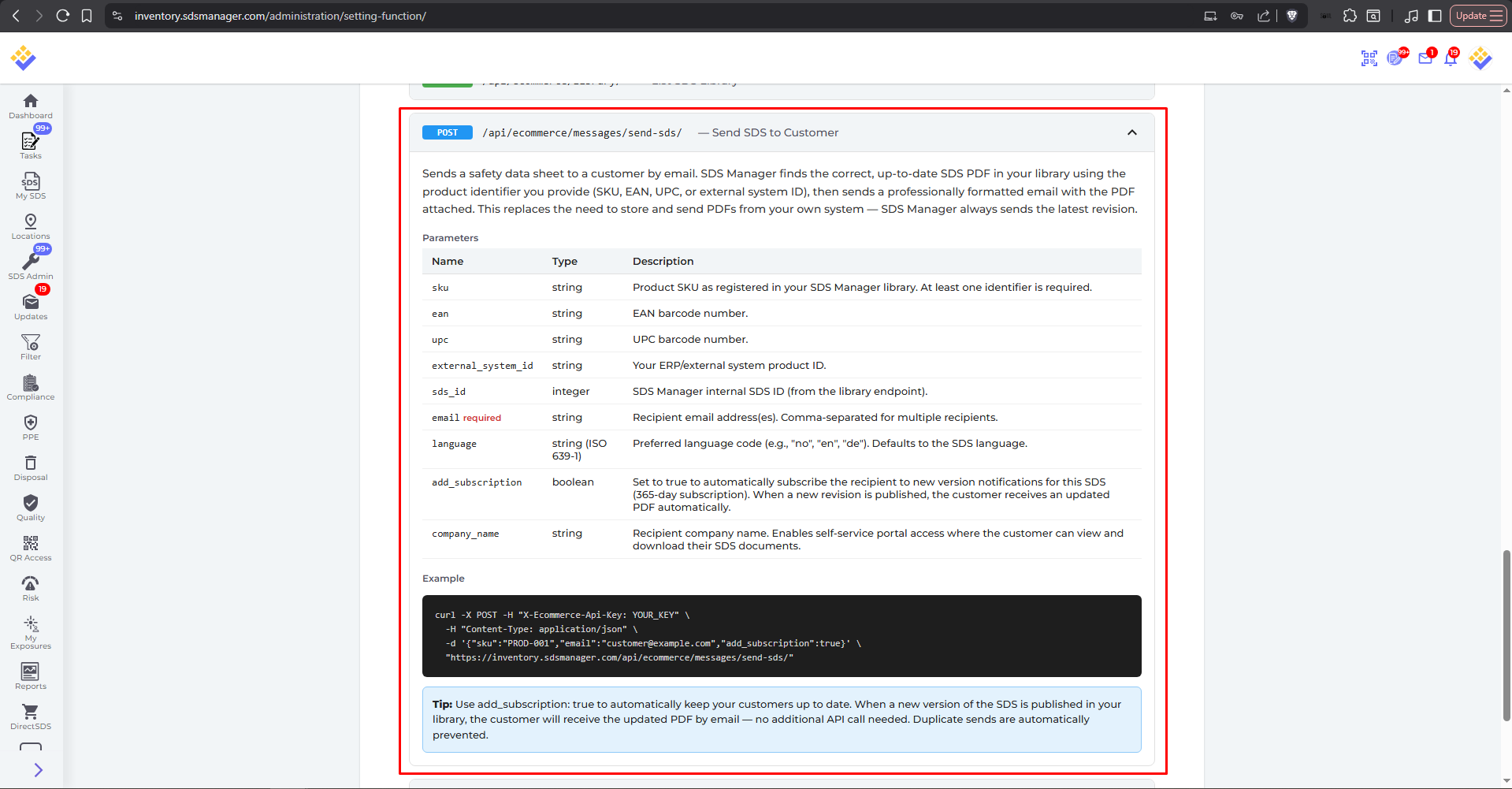
POST /api/ecommerce/messages/send-sds/

curl -X POST -H "X-Ecommerce-Api-Key: YOUR_KEY" \
  -H "Content-Type: application/json" \
  -d '{"sku":"PROD-001","email":"customer@example.com","add_subscription":true}' \
  "https://inventory.sdsmanager.com/api/ecommerce/messages/send-sds/"
Parameters — email is required, and you must provide at least one product identifier.
| Name | Required | Description |
|---|---|---|
email |
Yes | Recipient address(es). Comma-separated for multiple recipients. |
sku / ean / upc / external_system_id / sds_id |
At least one | Identifies the product/SDS to send. |
language |
No | Language for the notification email (ISO 639-1, e.g. no, en, de). Defaults to English (en) if omitted. This sets the email wording only — it does not change which SDS PDF is sent (that's chosen by the identifier). |
add_subscription |
No | Set true to also subscribe the recipient to new-version notifications (365-day subscription). |
company_name |
No | Recipient's company name; enables self-service portal access where they can view and download their SDS documents. |
Duplicate sends are automatically prevented: if every requested SDS was already sent to that recipient, the call returns 400 ("This product has already been sent to the specified email address…"); if only some are new, only the new ones are sent.
How do I subscribe a customer to new-version updates?
Use the Subscribe endpoint to register a customer's email for automatic notifications about a specific SDS. When a new revision is published in your library, the subscribed email automatically receives the updated PDF. This is useful when you want to set up subscriptions without sending the SDS right away — for example, when bulk-subscribing existing customers.
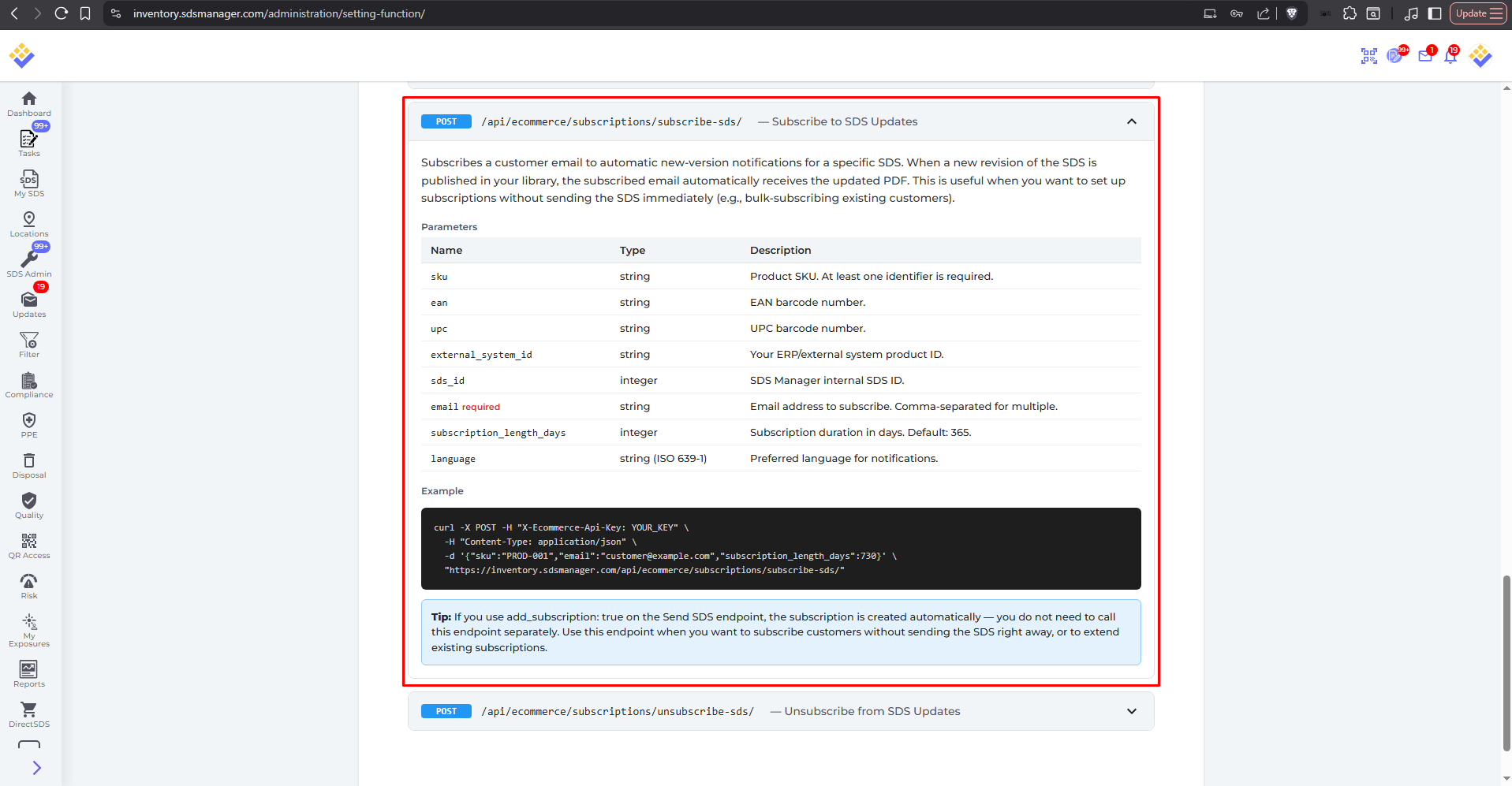
POST /api/ecommerce/subscriptions/subscribe-sds/

curl -X POST -H "X-Ecommerce-Api-Key: YOUR_KEY" \
  -H "Content-Type: application/json" \
  -d '{"sku":"PROD-001","email":"customer@example.com","subscription_length_days":730}' \
  "https://inventory.sdsmanager.com/api/ecommerce/subscriptions/subscribe-sds/"
Parameters — email is required, plus at least one product identifier.
| Name | Required | Description |
|---|---|---|
email |
Yes | Email address(es) to subscribe. Comma-separated for multiple. |
sku / ean / upc / external_system_id / sds_id |
At least one | Identifies the SDS to subscribe to. |
subscription_length_days |
No | Subscription duration in days. Default: 365. |
language |
No | Preferred language for notifications (ISO 639-1). |
company_name |
No | Recipient's company name; enables self-service portal access (same as on Send SDS). When supplied, the email is enrolled as a portal end-customer/end-user. |
If you already used add_subscription: true on the Send SDS endpoint, the subscription is created automatically and you do not need to call this endpoint separately.
How do I unsubscribe a customer?
Use the Unsubscribe endpoint to remove a customer's email from new-version notifications. Its behaviour depends on whether you include a product identifier:
- With an identifier (e.g.
email+sku) — removes only that specific subscription. - Without any identifier (just
email) — unsubscribes the email from all SDS notifications.
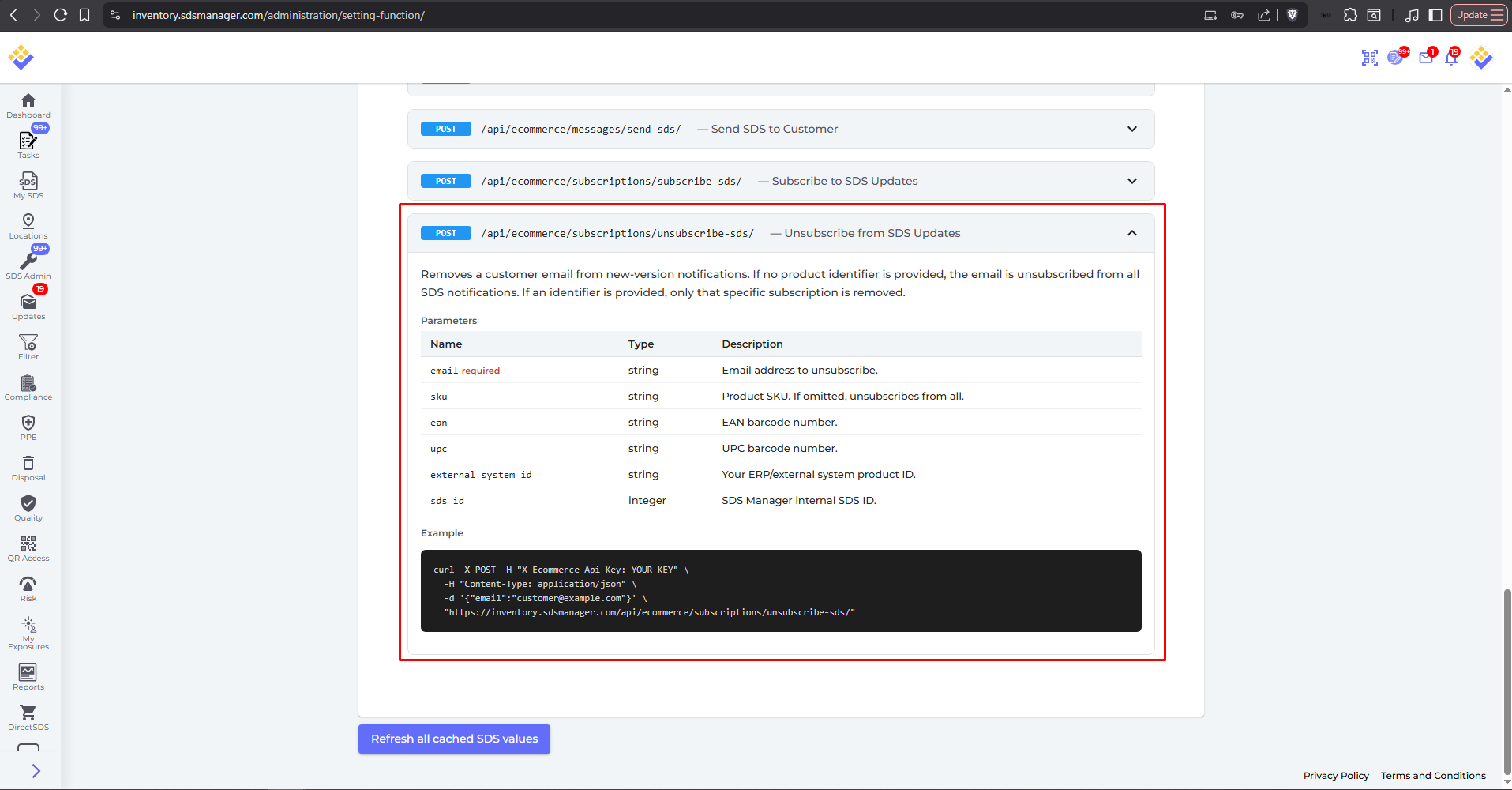
POST /api/ecommerce/subscriptions/unsubscribe-sds/

curl -X POST -H "X-Ecommerce-Api-Key: YOUR_KEY" \
  -H "Content-Type: application/json" \
  -d '{"email":"customer@example.com"}' \
  "https://inventory.sdsmanager.com/api/ecommerce/subscriptions/unsubscribe-sds/"
Parameters
| Name | Required | Description |
|---|---|---|
email |
Yes | A single email address to unsubscribe. Unlike Send SDS and Subscribe, this endpoint does not accept a comma-separated list. |
sku / ean / upc / external_system_id / sds_id |
No | Removes only this subscription. If omitted, the email is unsubscribed from everything. |
Do my existing browser/login (JWT) integrations still work?
Yes. The eCommerce endpoints continue to accept the existing login-based (JWT) authentication exactly as before, so current integrations are unaffected. The API key is an additional, recommended method specifically for automated server-to-server use.
Why didn't my SDS email get delivered?
If a Send SDS request doesn't result in a delivered email, check the following:
- The identifier you sent matches a product in your library.
- The recipient email address is valid.
- The SDS PDF service is available — in rare cases a temporary outage can prevent the PDF from being generated. Retrying shortly usually resolves this.
What do the common error responses mean?
- 401 Unauthorized — the API key is missing, invalid, or has been revoked/regenerated; or the key's account has no active eCommerce subscription (e.g. Inventory Manager Pro/Enterprise without an eCommerce plan), which returns "No active ecommerce subscription for this API key." Verify the
X-Ecommerce-Api-Keyheader, that the key is current, and that an eCommerce subscription is active. - 404 Not Found when sending/subscribing — the product identifier didn't match any SDS in your library; the response names the field, e.g.
{"detail": "SKU not found: PROD-001"}. Confirm the SKU/EAN/UPC/external ID is stored on the correct item, or use thesds_idfrom the Library endpoint. - 400 Bad Request — a required field is missing or malformed: no email, no product identifier ("At least one of sds_id, sku, external_system_id, ean, upc is required"), or an invalid email address.