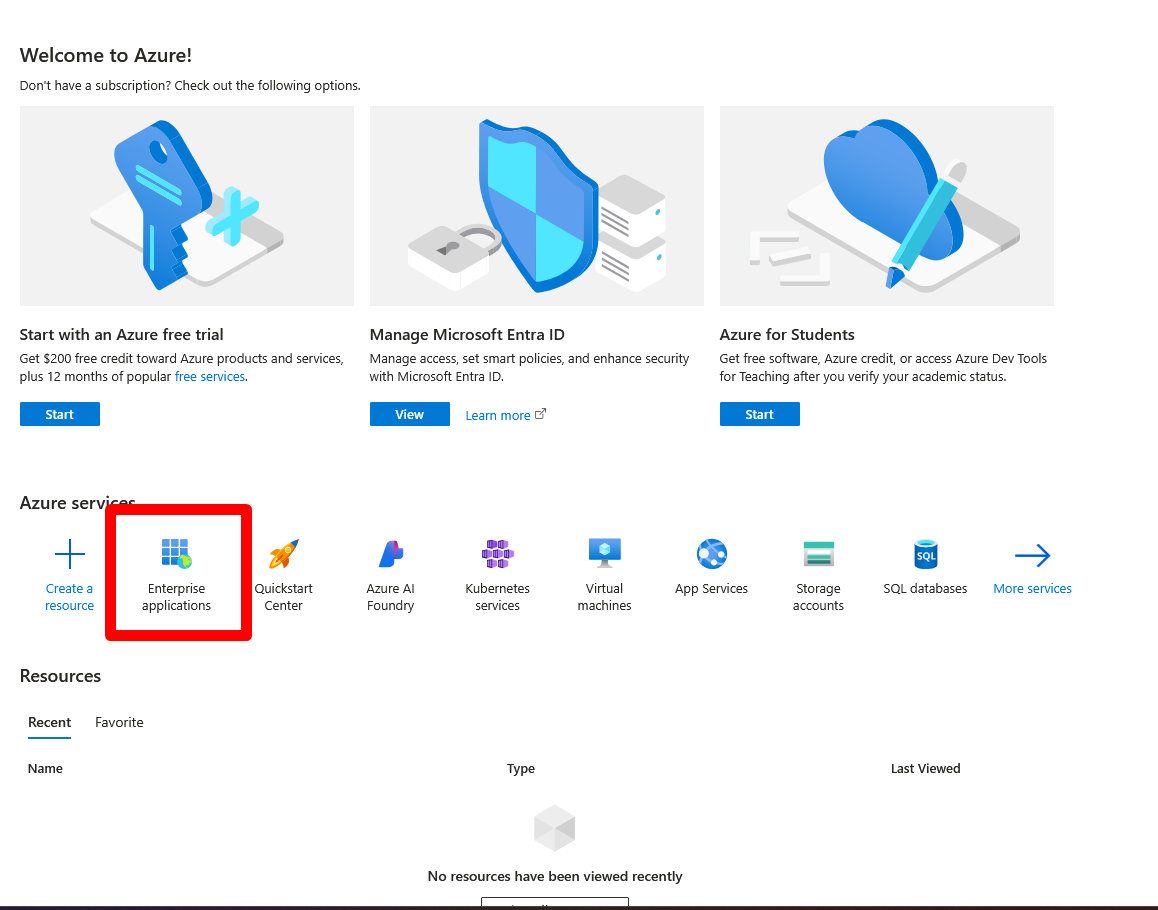
1. On the Microsoft Azure Dashboard, select Enterprise applications.
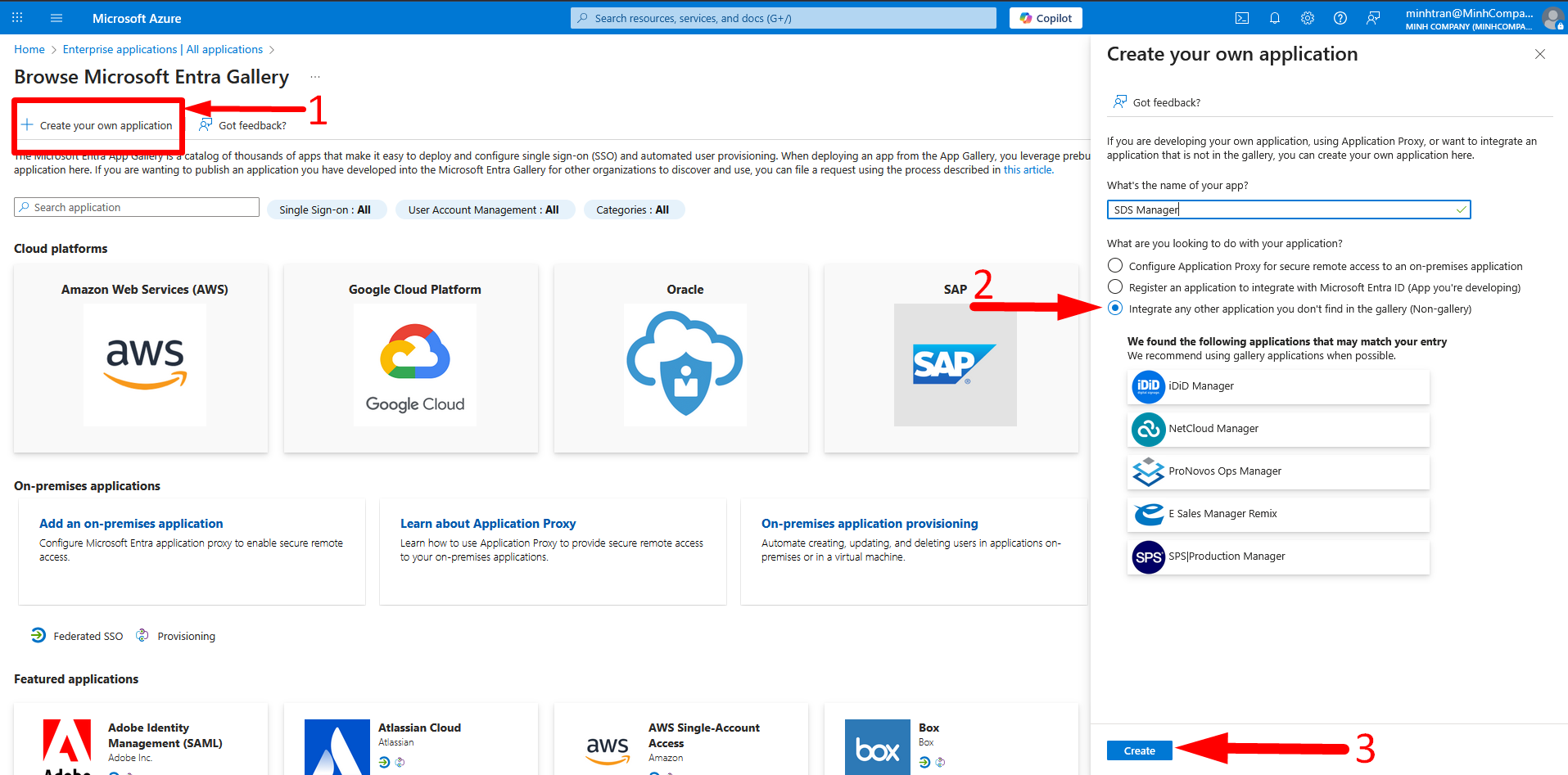
2. On this page, create your own application by selecting "Integrate any other application you don't find in the gallery (Non-gallery)", then enter the name of your application and click Create.
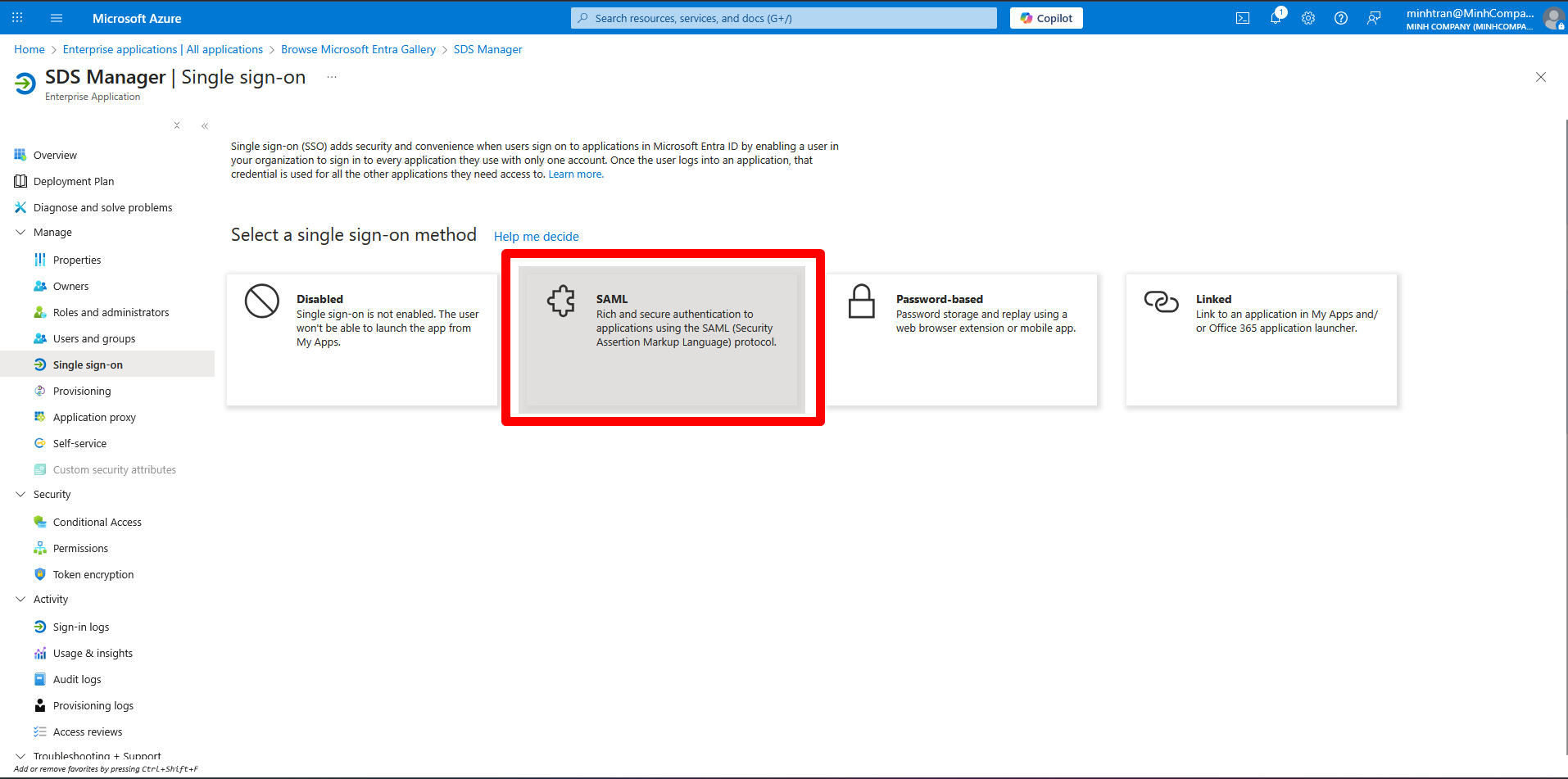
3. For the Single Sign-On settings, choose SAML.
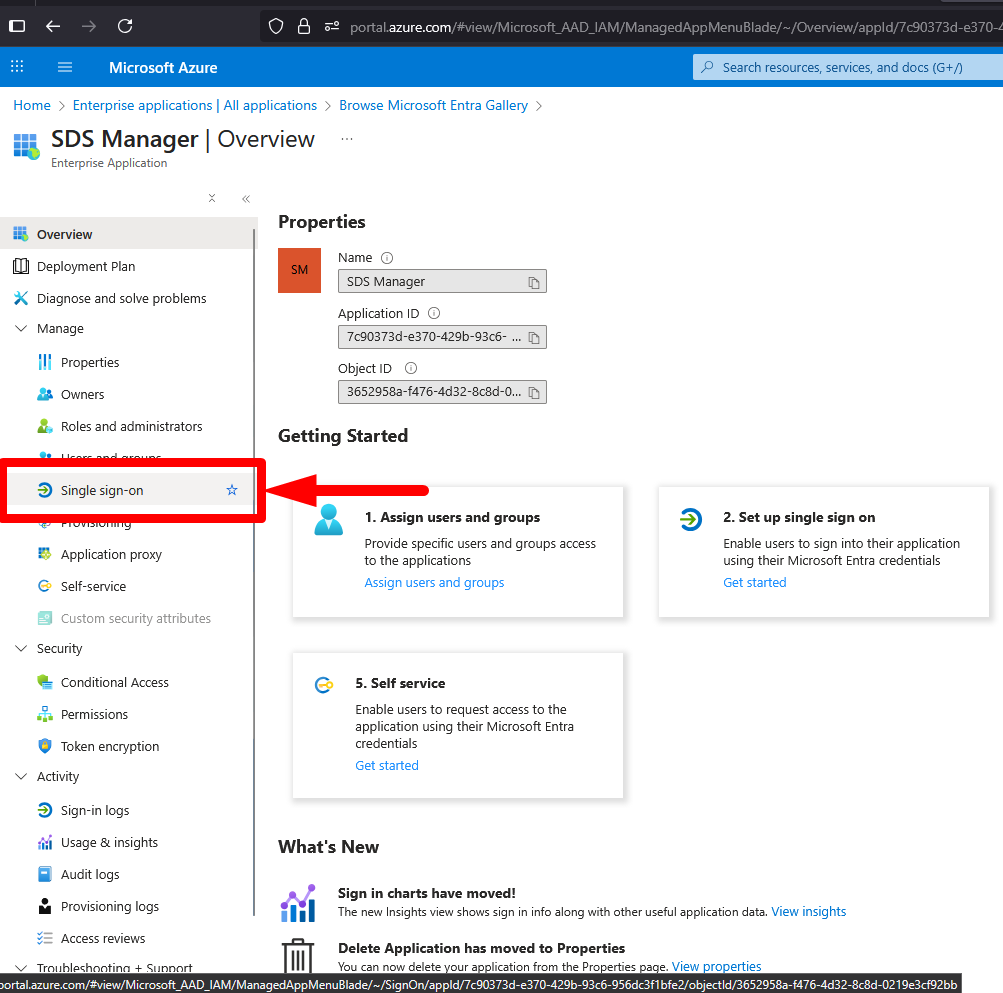
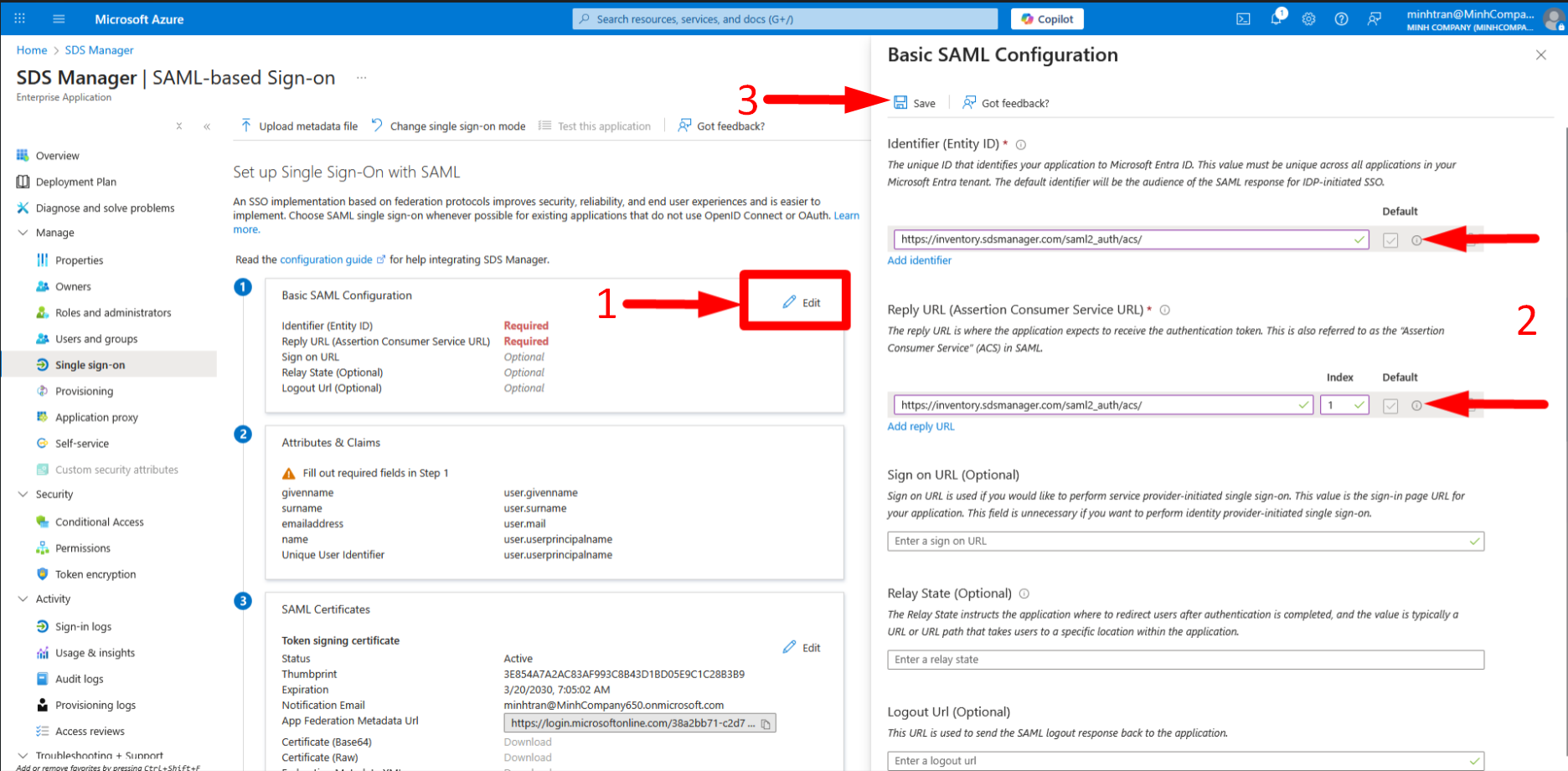
4. Edit the Basic SAML configuration by entering:
-
Identifier (Entity ID):
https://inventory.sdsmanager.com/saml2_auth/acs/ -
Reply URL (Assertion Consumer Service URL):
https://inventory.sdsmanager.com/saml2_auth/acs/
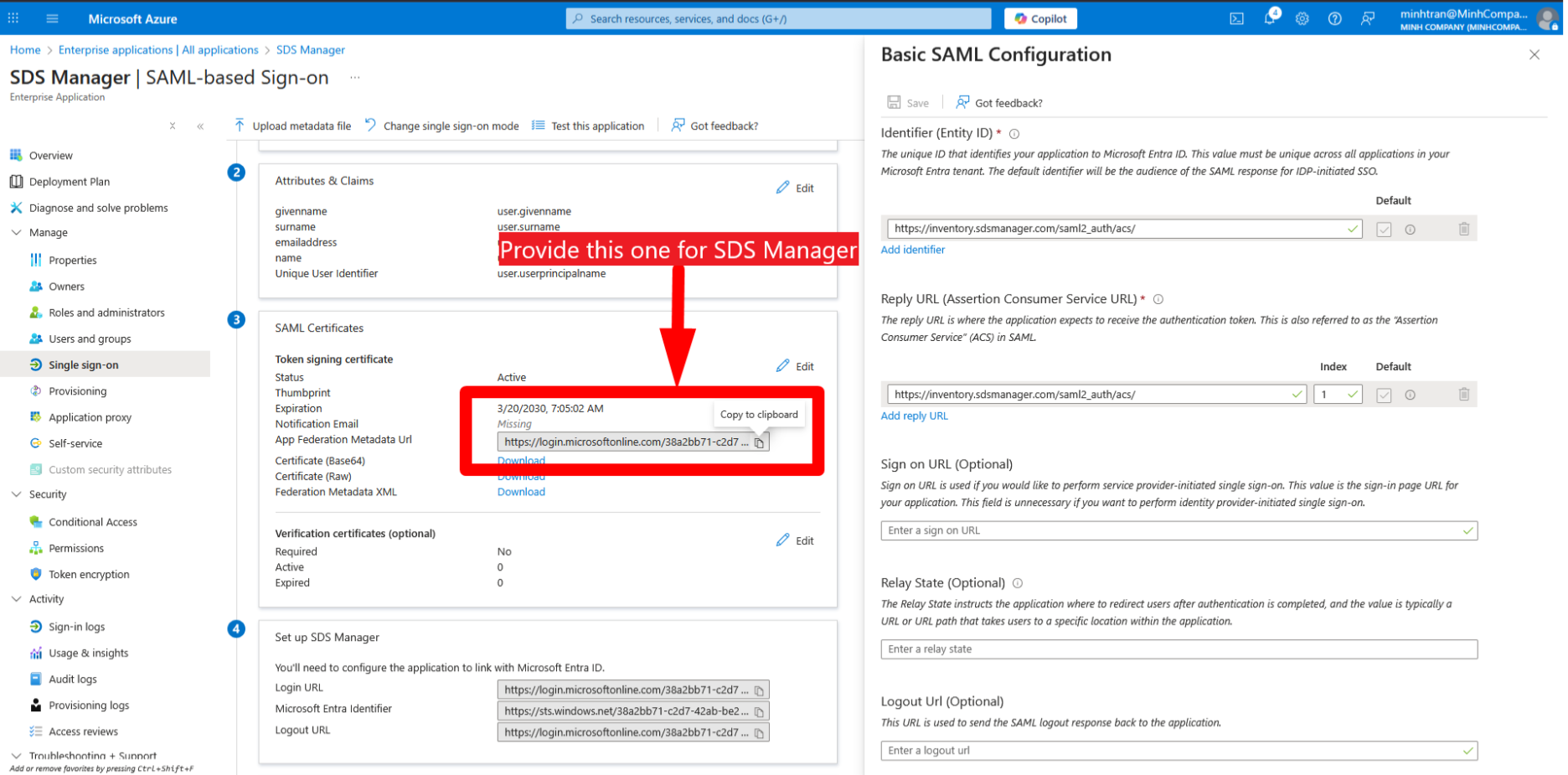
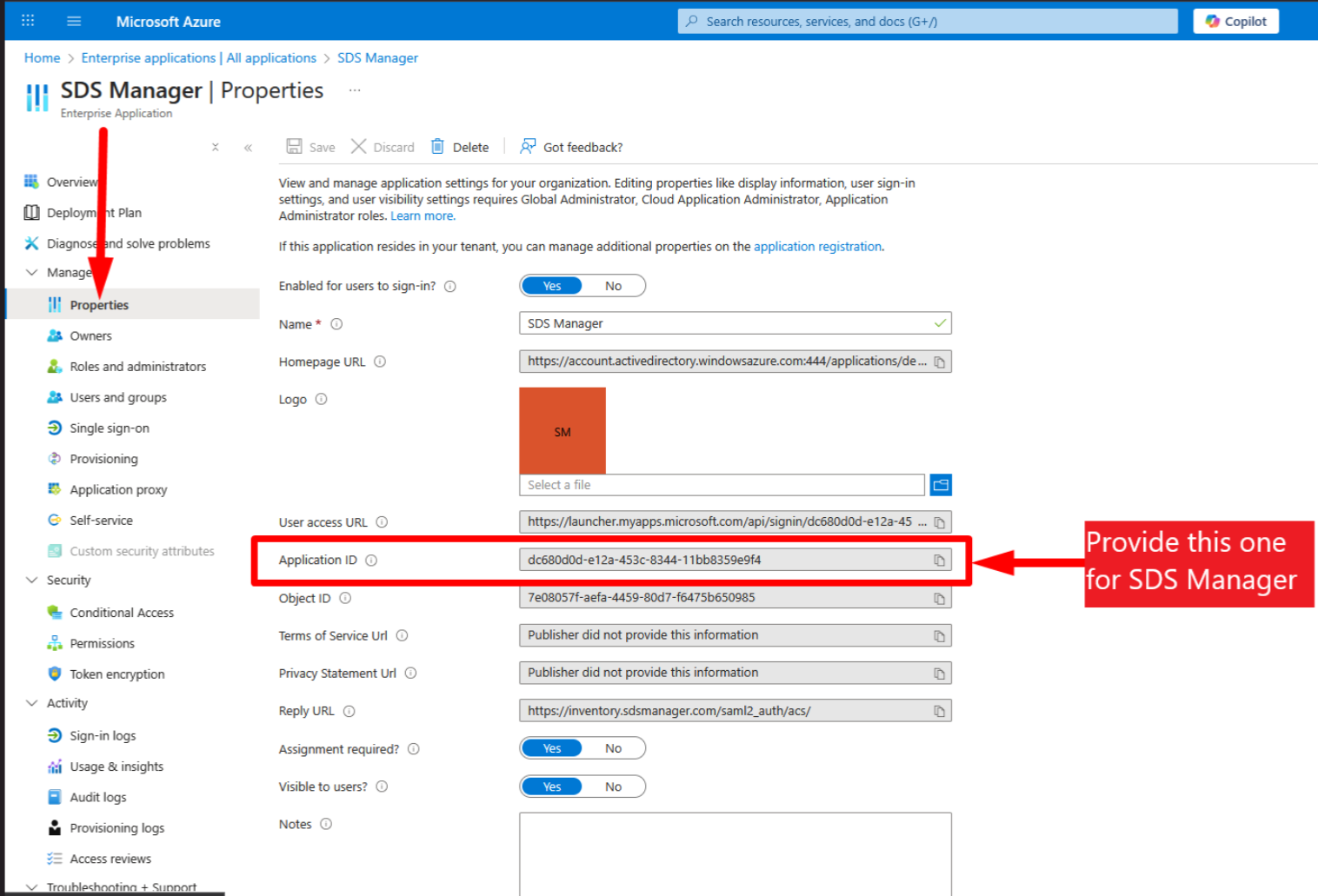
5. Finally, please provide the SDS Manager Team with the App Federation Metadata URL and Application ID, so we can complete the setup for you.
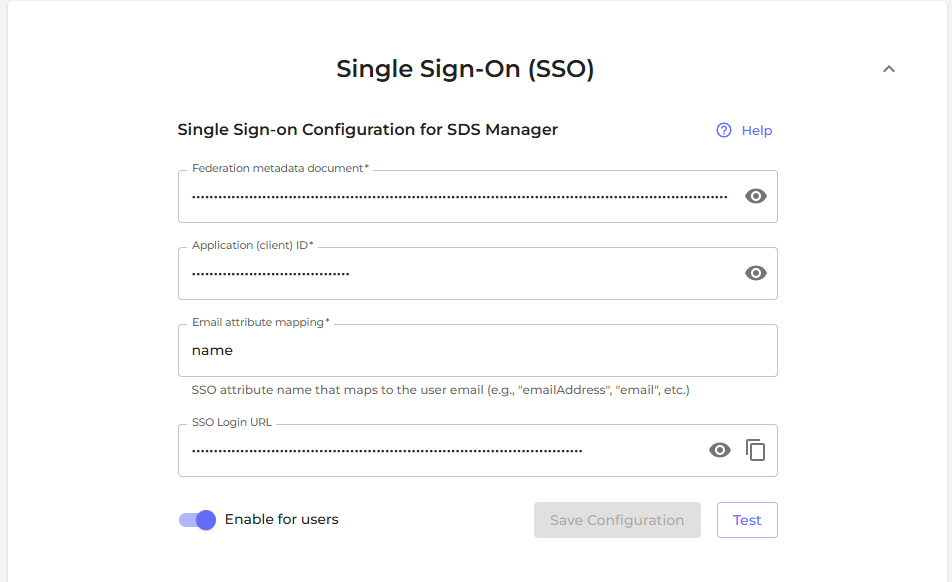
6. After you provide us with the App Federation Metadata URL and Application ID, SDS Manager will give you a quick-access link to add in this field below. After that, you can log in with a single click whenever you want.
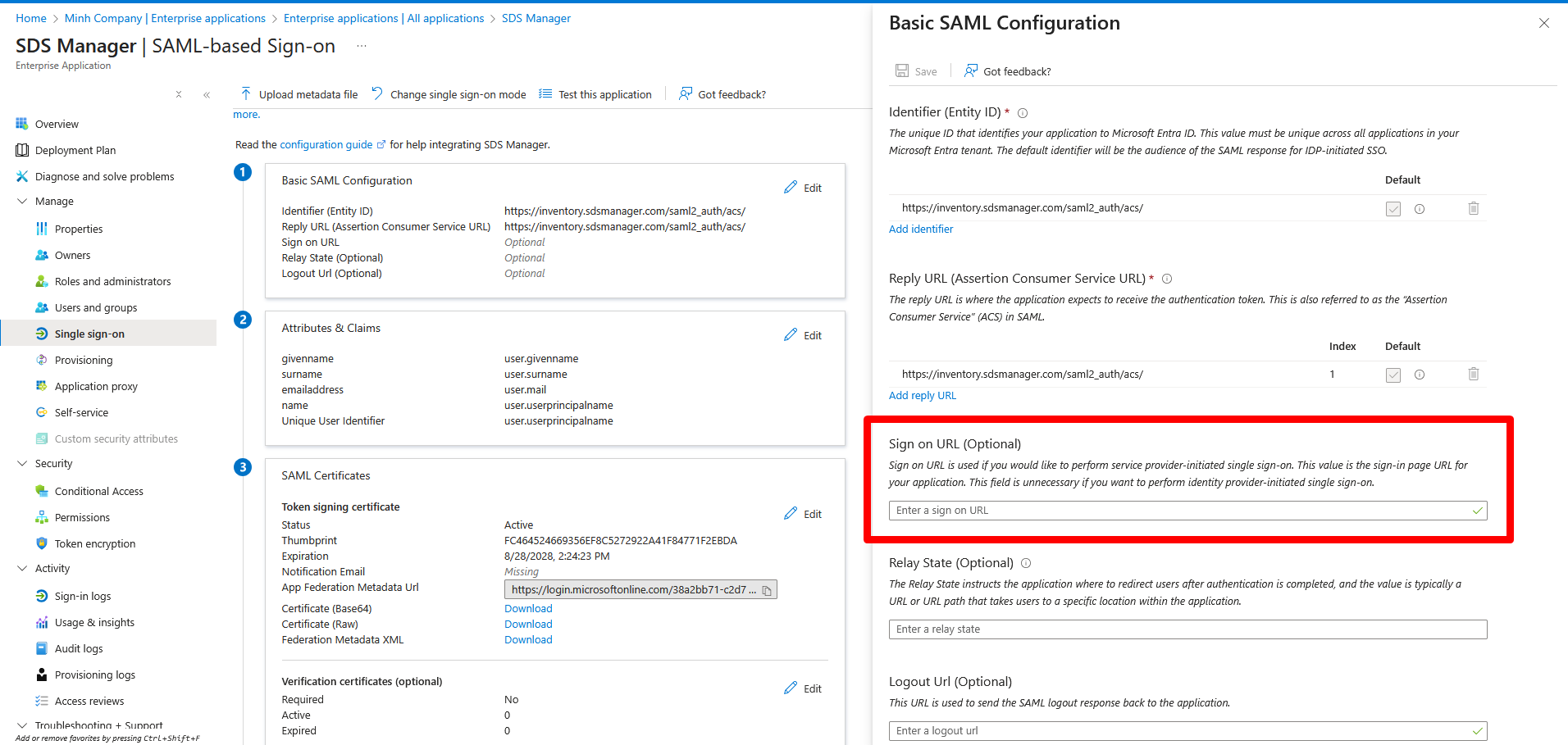
7. Define the roles (App registrations, not Enterprise Applications)
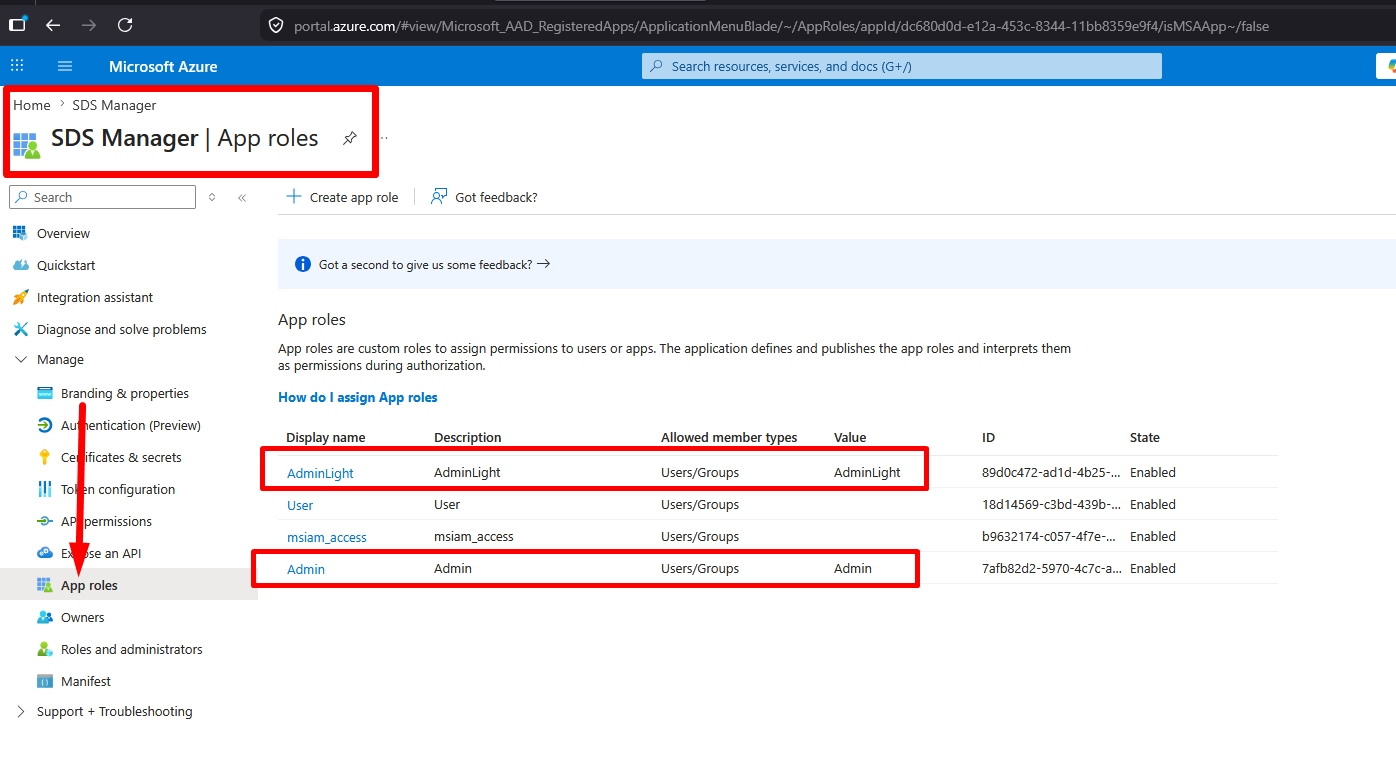
Azure Portal → Azure Active Directory → App registrations → SDS Manager → App roles
Go to App registrations and create the custom roles:
- Azure Portal → Azure Active Directory → App registrations
- Search for and select SDS Manager
- In the left menu → App roles
-
Click Create app role and add roles matching your SDS Manager roles, for example:
- Display name:
Admin| Value:Admin - Display name:
Staff| Value:Staff - Display name:
Read Only| Value:ReadOnly - Display name:
Admin Light| Value:AdminLight - (The Value field is what gets sent in the SAML assertion — it must match the role names in SDS Manager exactly, case-insensitive)
- Display name:
- Save each role
8. Assign users to those roles
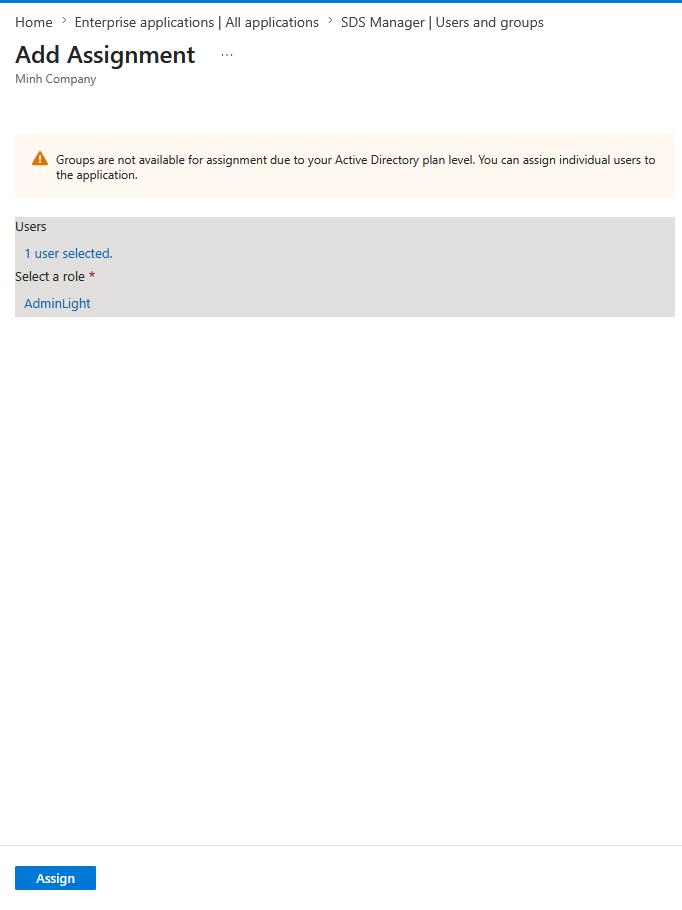
Enterprise Applications → SDS Manager → Users and groups
After roles are defined in App registrations, go back to Enterprise Applications → Users and groups → assign individual users or groups to the appropriate app role.
Then you can access it via https://myapps.microsoft.com.